
Remote work has reshaped how we interact with our digital environments. One of the most impactful upgrades a remote worker can make is adopting a dual monitor setup. With the right configuration, you can streamline workflows, reduce context switching, and enhance focus—critical advantages when managing back-to-back virtual meetings, coding sprints, or content creation sessions. Yet, simply plugging in a second screen isn’t enough. True mastery comes from thoughtful hardware selection, ergonomic alignment, and software optimization. This guide walks through every phase of building an effective dual monitor system that supports long-term comfort and peak performance.
Why Dual Monitors Matter for Remote Workers
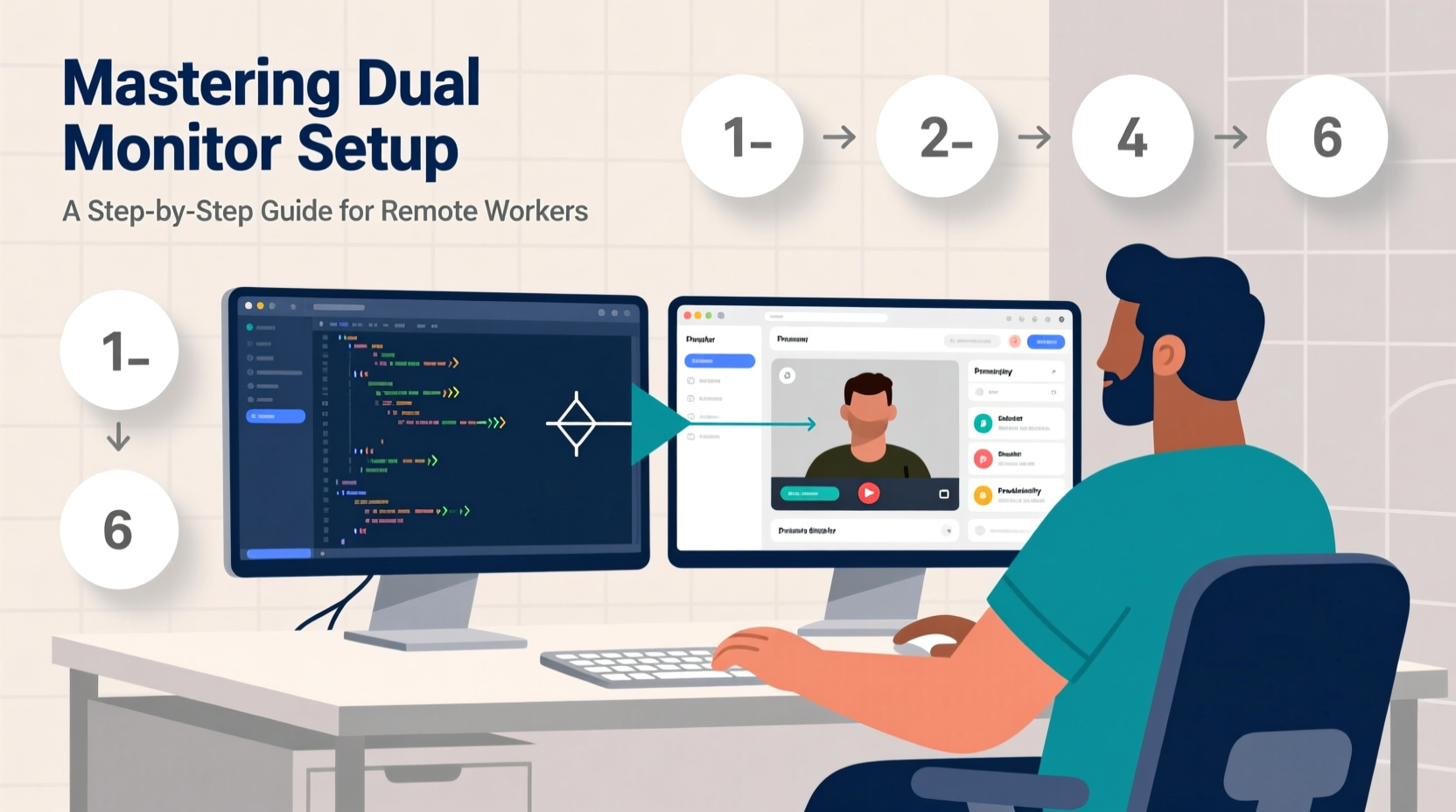
For many remote professionals, the transition from office to home meant adapting to smaller screens or less-than-ideal workspaces. A single laptop display often forces constant tab switching, resizing windows, and scrolling—activities that fragment attention and increase cognitive load. Dual monitors solve these issues by expanding visual real estate, enabling parallel task management without clutter.
Consider a typical day: one screen dedicated to video conferencing while the other runs notes, email, or data analysis. Or a developer keeping documentation open on one side while writing code on the other. These micro-efficiencies compound over time, leading to measurable gains in both output and mental clarity.
“Workers using multiple monitors report up to 30% higher productivity in multitasking scenarios.” — Dr. Linda Harper, Human-Computer Interaction Researcher, Stanford University
The benefits extend beyond efficiency. Properly configured dual displays reduce physical strain. You’re less likely to hunch over a cramped screen or twist your neck searching for information. Over weeks and months, this contributes to better posture and fewer repetitive stress injuries.
Step-by-Step Guide to Setting Up Your Dual Monitor System
Building an effective dual monitor environment involves more than connecting cables. It requires planning across hardware, software, and ergonomics. Follow this structured approach to ensure optimal results.
Step 1: Assess Your Hardware Compatibility
Before purchasing additional equipment, verify that your current computer supports dual outputs. Most modern laptops and desktops include at least two video ports (HDMI, DisplayPort, USB-C/Thunderbolt). Check your device specifications:
- Laptops: Look for HDMI + USB-C, or dual USB-C ports with DisplayPort Alt Mode.
- Desktops: Confirm GPU support for multiple displays. Integrated graphics on newer CPUs often handle dual monitors well.
- Older machines: If lacking sufficient ports, consider a USB-to-HDMI adapter or docking station.
Step 2: Choose the Right Monitors
Matching screen size, resolution, and panel type improves visual continuity. Mismatched monitors create jarring transitions when moving windows between screens. Prioritize:
- Size: 24–27 inches is ideal for most home offices.
- Resolution: Full HD (1920x1080) minimum; 1440p preferred for larger screens.
- Panel Type: IPS panels offer better color accuracy and viewing angles than TN.
- Refresh Rate: 60Hz is sufficient for office work; 75Hz+ reduces eye fatigue during prolonged use.
Step 3: Connect and Power Both Displays
- Shut down your computer.
- Connect each monitor using appropriate cables (e.g., HDMI to HDMI, USB-C to DisplayPort).
- Power on both monitors and your computer.
- Wait for the system to detect both displays. If not detected, access display settings manually.
Step 4: Configure Display Settings
Once both screens are recognized, fine-tune their arrangement and behavior:
- Windows: Press Win + P to choose “Extend” mode. Then go to Settings > System > Display to drag and align screen representations accurately.
- macOS: Go to System Settings > Displays > Arrangement. Drag the white menu bar to the primary display.
Ensure the physical layout matches the on-screen arrangement—left monitor should appear on the left in settings.
Step 5: Optimize Resolution and Scaling
Mismatched scaling causes text and apps to appear inconsistently sized. For best results:
- Set identical resolutions on both monitors if possible.
- If using different sizes/resolutions, adjust scaling separately but aim for similar perceived UI size (e.g., 100% on 1080p, 125% on 1440p).
- Avoid stretching or overscan settings that distort images.
Ergonomic Best Practices for Long-Term Comfort
A powerful setup means little if it compromises your health. Poor monitor placement leads to neck pain, eye strain, and reduced concentration. Apply these ergonomic principles:
- Height: Top of the screen should be at or slightly below eye level.
- Distance: Sit 20–30 inches from the screen. Arm’s length is a good rule of thumb.
- Angle: Tilt monitors slightly backward (10–20 degrees) to minimize glare.
- Alignment: Position the center of the dual setup directly in front of you. Avoid turning your head more than 30 degrees to view either screen.
Use monitor arms or risers to achieve ideal positioning. Built-in stands often lack vertical adjustability.
Dual Monitor Do’s and Don’ts
| Do’s | Don’ts |
|---|---|
| Use matching monitors for consistent visuals | Mix drastically different resolutions or aspect ratios |
| Align screen tops horizontally | Stack one monitor much higher than the other |
| Enable night mode or blue light filters after sunset | Expose yourself to bright screens in dark rooms for hours |
| Take breaks using the 20-20-20 rule (every 20 mins, look 20 feet away for 20 seconds) | Stare continuously at screens without rest |
| Label your primary and secondary displays clearly in OS settings | Assume default settings are optimized for your use case |
Real-World Example: How Sarah Doubled Her Output as a Freelance Writer
Sarah Thompson, a freelance content writer based in Portland, struggled with distractions and inefficiency during her first year of remote work. She relied solely on her 13-inch MacBook, constantly minimizing and maximizing browser tabs, research documents, and client emails. After investing in a second 24-inch IPS monitor, she restructured her workflow:
- Left screen: Research articles, Google Docs references, and email inbox.
- Right screen: Active writing document and grammar checker.
Within three weeks, Sarah reported a 40% reduction in time spent per article and fewer instances of losing her train of thought. “Having everything visible at once eliminated so much mental friction,” she said. “I didn’t realize how much energy I was wasting just navigating windows.”
Essential Software Tools to Maximize Dual Screen Utility
Hardware alone won’t unlock full potential. Leverage software tools designed for multi-monitor productivity:
- FancyZones (Windows): Part of Microsoft PowerToys, allows custom window snapping zones across both screens.
- Magnet (macOS): Enables keyboard-driven window management with precision layouts.
- Dual Monitor Tools (Windows):
- DisplayLink (Cross-platform): Useful for driving external monitors via USB when native ports are limited.
Configure hotkeys to move windows between screens instantly. On Windows, Shift + Win + Left/Right Arrow shifts active windows between monitors. On macOS, third-party tools like BetterTouchTool expand native capabilities.
Checklist: Launch Your Dual Monitor Setup Successfully
Before declaring your setup complete, run through this final checklist:
- ✅ Confirmed computer supports dual display output
- ✅ Selected compatible monitors with matching specs where possible
- ✅ Connected both monitors securely with appropriate cables
- ✅ Configured display mode to “Extend” (not Mirror)
- ✅ Aligned on-screen display layout with physical arrangement
- ✅ Set optimal resolution and scaling for both screens
- ✅ Adjusted monitor height, tilt, and distance for ergonomics
- ✅ Installed window management tools for efficient multitasking
- ✅ Tested workflow with real applications (email, browser, video calls)
- ✅ Scheduled a weekly review to refine placement or settings as needed
Frequently Asked Questions
Can I use monitors of different sizes or brands together?
Yes, but expect some visual inconsistency. Differences in resolution, color reproduction, and bezel thickness may disrupt seamless window movement. For best experience, match size and resolution. If mixing, set scaling to maintain uniform UI element sizes.
My second monitor isn’t being detected. What should I do?
First, check cable connections and try swapping ports or cables. Restart your computer with both monitors connected. Update your graphics drivers—outdated drivers are a common cause. On Windows, press Win + Ctrl + Shift + B to reset the graphics driver. If using adapters, ensure they are powered and compatible.
Which monitor should be my primary display?
Your primary monitor should host your main applications and operating system interface (like the Start menu or Dock). Typically, this is the screen directly in front of you. Set it as primary in display settings to ensure pop-ups, full-screen apps, and new windows appear there by default.
Final Thoughts: Elevate Your Remote Work Experience
A well-executed dual monitor setup is more than a convenience—it's a strategic investment in your daily effectiveness and long-term well-being. By combining compatible hardware, intelligent configuration, and ergonomic awareness, remote workers gain a tangible edge in focus, speed, and comfort. The initial effort pays dividends in smoother workflows, reduced fatigue, and greater job satisfaction.




 浙公网安备
33010002000092号
浙公网安备
33010002000092号 浙B2-20120091-4
Comments
No comments yet. Why don't you start the discussion?