
Working with limited screen space can slow you down, especially when juggling multiple applications. Whether you're editing documents while referencing research, coding across terminals, or managing design projects, a dual monitor setup transforms how you interact with your digital workspace. With the right approach, connecting and configuring two external monitors to your laptop is not only possible—it’s intuitive and highly rewarding. This guide walks you through every phase, from checking compatibility to fine-tuning display settings for seamless productivity.
Why a Dual Monitor Setup Matters
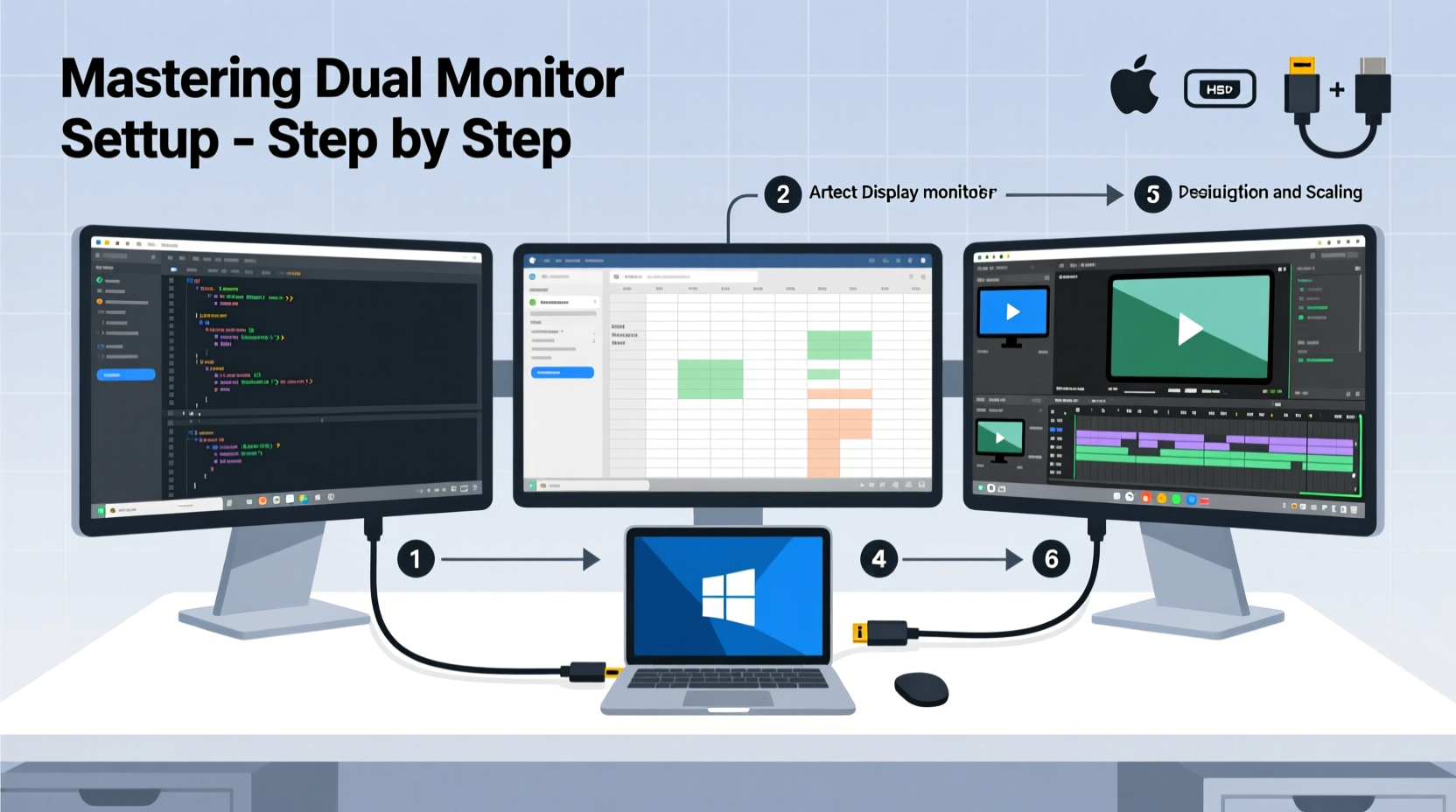
A single laptop screen often forces constant window switching, breaking focus and reducing efficiency. Studies from the University of Utah have shown that using multiple monitors can boost productivity by up to 30%, particularly in tasks requiring data comparison or multitasking. For remote workers, developers, financial analysts, and creative professionals, the benefits are clear: more visible information, reduced scrolling, and smoother workflows.
The key isn’t just adding screens—it’s integrating them effectively. A well-configured dual monitor system lets you dedicate one display to active work (like writing or coding) and the other to reference materials, communication tools, or monitoring dashboards. Over time, this spatial organization trains your brain to navigate tasks more efficiently, reducing cognitive load.
“Professionals who use dual monitors report fewer context switches and faster task completion—especially in complex environments like software development or video editing.” — Dr. Linda Park, Human-Computer Interaction Researcher, MIT Media Lab
Step-by-Step Guide to Connecting Two Monitors
Before diving into configuration, ensure your hardware supports dual outputs. Most modern laptops offer at least one HDMI or USB-C/Thunderbolt port, but driving two external displays simultaneously depends on available ports and GPU capabilities.
- Check your laptop’s video output options: Look for HDMI, DisplayPort, USB-C (with DisplayPort Alt Mode), or Thunderbolt 3/4 ports. You’ll need two usable video outputs.
- Gather the necessary cables and adapters: If your laptop has only one HDMI port, use a combination such as HDMI + USB-C to HDMI adapter. Ensure adapters support video output (not just charging).
- Connect the first monitor: Use an HDMI or DisplayPort cable to connect one monitor directly to your laptop.
- Connect the second monitor: Plug the second monitor into the remaining video port. If using USB-C, confirm it supports video-out functionality.
- Power on both monitors and your laptop: Windows and macOS typically detect new displays automatically.
- Verify detection: On Windows, press Win + P to open projection options. On macOS, go to System Settings > Displays. Both monitors should appear.
Configuring Display Settings for Optimal Performance
Once both monitors are recognized, proper configuration ensures a natural and efficient layout. Misaligned displays can cause cursor jumps or awkward dragging between screens.
Windows: Arrange and Extend Displays
Navigate to Settings > System > Display. Click “Identify” to see which number corresponds to each screen. Then drag the display icons to match their physical arrangement on your desk. Choose “Extend these displays” under Multiple Displays to enable true dual-screen operation.
macOS: Set Up Arrangement and Primary Display
Go to System Settings > Displays > Arrangement. Drag the white menu bar to the display you want as primary. Align the screen rectangles visually to reflect real-world positioning. Uncheck “Mirror Displays” to extend the desktop.
Adjust Resolution and Scaling
Match resolutions where possible for consistency. If one monitor is 1080p and another is 1440p, scaling differences may make text sizes inconsistent. In Windows, set custom scaling per monitor. On Mac, use “Default for display” or adjust within Advanced settings.
| Setting | Windows Path | macOS Path |
|---|---|---|
| Display Arrangement | Settings > System > Display | System Settings > Displays > Arrangement |
| Projection Mode | Win + P | Uncheck 'Mirror Displays' |
| Resolution & Scaling | Display settings > Advanced | Displays > Display Settings |
Common Challenges and How to Solve Them
Even with compatible hardware, users often encounter issues. Here’s how to troubleshoot the most frequent problems:
- Laptop won’t drive two external monitors: Older or budget laptops may limit external display output. Check your GPU specs—Intel UHD Graphics 620 or better usually supports triple display (laptop + 2 externals). Integrated GPUs in older models may restrict to one external screen.
- One monitor stays black after connection: Try different cables or reboot with all devices powered on. Update graphics drivers via Device Manager (Windows) or Software Update (macOS).
- Flickering or dropped signal: Avoid long or low-quality HDMI cables. Use active adapters for USB-C to HDMI over 5 meters.
- Inconsistent brightness or color: Calibrate each monitor manually or use built-in calibration tools (Windows: ClearType; macOS: Display Calibrator Assistant).
Real-World Example: A Developer’s Workflow Transformation
Carlos, a freelance web developer, used to switch constantly between browser windows, code editors, and terminal logs on his 13-inch MacBook Air. After setting up two 24-inch 1080p monitors—one for VS Code and one for live preview and debugging—he reported a dramatic improvement.
“I used to lose my train of thought every time I alt-tabbed,” he said. “Now, I glance left for code and right for results. My debugging time dropped by nearly half, and client revisions are faster because I see changes instantly.”
He uses a vertical monitor for documentation and API references, maximizing vertical space for long code files. His desk now reflects intentional workflow zoning—a model many knowledge workers emulate.
Dual Monitor Setup Checklist
Follow this checklist to ensure a smooth and successful setup:
- ✅ Confirm laptop has two video output ports (HDMI, USB-C, Thunderbolt)
- ✅ Obtain correct cables/adapters (e.g., HDMI, USB-C to HDMI)
- ✅ Test each monitor individually before dual connection
- ✅ Power on all devices in sequence: monitors first, then laptop
- ✅ Access display settings and extend (not mirror) the desktop
- ✅ Arrange screen layout to match physical desk setup
- ✅ Adjust resolution and scaling for visual consistency
- ✅ Consider using a docking station for easier daily use
Frequently Asked Questions
Can I use two monitors with a Chromebook?
Yes, but only if your Chromebook supports it. Most recent models with USB-C or HDMI can drive one external monitor. Dual monitor support is limited to higher-end Chromebooks (e.g., Pixelbook Go, certain ASUS and HP models) and requires enabling flags or using docks specifically certified for dual output.
Does using two monitors drain laptop battery faster?
Yes. Driving additional displays increases GPU and CPU load. When using dual monitors, keep your laptop plugged in. Running on battery may lead to dimming, performance throttling, or disconnections.
Can I close my laptop lid and still use two external monitors?
Yes—on both Windows and macOS. Just ensure your laptop is connected to power. In Windows, go to Power Settings and set \"When I close the lid\" to \"Do nothing.\" On macOS, connect power and an external keyboard/mouse; the system will continue running with lid closed.
Maximize Your Potential with Dual Monitors
A dual monitor setup isn’t just about having more screen space—it’s about redefining how you work. From eliminating disruptive window toggling to creating dedicated zones for specific tasks, the impact on focus and efficiency is profound. With today’s accessible hardware and intuitive OS tools, there’s never been a better time to upgrade your digital workspace.
Start small: connect one external monitor, get comfortable with extended desktops, then scale to two. Invest in quality cables, consider a docking station, and take time to calibrate for comfort. The initial setup takes less than 30 minutes, but the long-term gains in productivity last years.




 浙公网安备
33010002000092号
浙公网安备
33010002000092号 浙B2-20120091-4
Comments
No comments yet. Why don't you start the discussion?