
In today’s fast-paced digital world, the ability to type efficiently on a smartphone isn’t just convenient—it’s essential. Whether you’re responding to messages, drafting emails, or posting on social media, your mobile keyboard is one of your most-used tools. Yet, many people still type slowly, make frequent errors, or experience discomfort after prolonged use. The good news: with deliberate practice and the right techniques, anyone can master seamless mobile typing.
Unlike traditional keyboards, mobile typing requires adapting to smaller keys, predictive text, and touch-based input. Success lies not just in finger speed but in smart habits, ergonomic awareness, and leveraging built-in features effectively. This guide delivers practical, field-tested strategies to help you type faster, more accurately, and with greater ease—right from your pocket.
Optimize Your Typing Posture and Grip
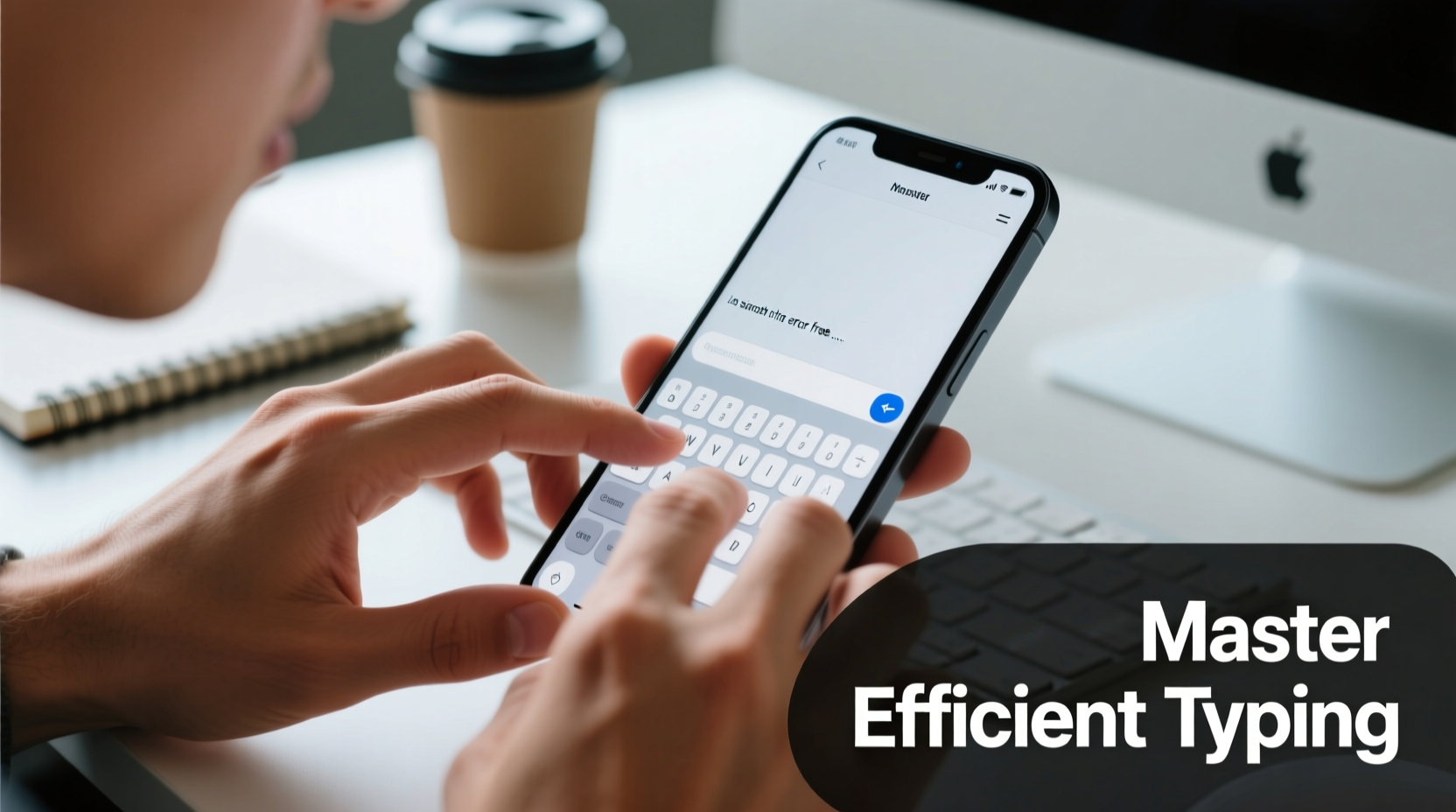
Efficiency starts with ergonomics. How you hold your phone and position your hands dramatically affects typing speed and strain. Many users cradle their device in one hand while pecking at keys with a single thumb, leading to fatigue and slower input.
For optimal performance, adopt a two-handed grip. Rest your phone comfortably in both palms, thumbs hovering over the lower half of the screen. Keep your wrists relaxed and elbows slightly bent. Avoid hunching over your phone; instead, maintain an upright posture to reduce neck and shoulder tension.
If you frequently type long messages or documents, consider using a lightweight phone stand or lap desk. These accessories free your hands and promote better alignment, especially during extended sessions.
Master Thumb Movement and Key Targeting
Your thumbs are precision instruments—train them like athletes. Most mobile keyboards place high-frequency letters (like A, E, R, T) near the center, so efficient typists minimize large thumb sweeps by relying on short, controlled motions.
Practice “home zone” typing: keep your thumbs anchored near the spacebar and bottom row. Use micro-swipes for adjacent keys rather than lifting and repositioning. Over time, muscle memory will allow you to hit keys without looking.
To build accuracy, slow down initially. Focus on hitting the correct key every time. Speed naturally follows precision. One effective drill is to type common word pairs (e.g., “the,” “and,” “you”) repeatedly, refining thumb path efficiency.
“Touch-typing on mobile isn’t about raw speed—it’s about minimizing movement. The best typists use the smallest possible gestures.” — Dr. Lena Torres, Human-Computer Interaction Researcher, MIT Media Lab
Customize Your Keyboard for Maximum Efficiency
Default settings rarely suit everyone. Modern smartphones offer extensive keyboard customization that can significantly enhance typing flow. Explore these often-overlooked options:
- Keyboard height: Adjust to fit your thumb span comfortably.
- Haptic feedback: Enable subtle vibrations for tactile confirmation of keypresses.
- Key press delay: Reduce or eliminate delay for faster response.
- Auto-capitalization and punctuation shortcuts: Let the system handle periods and capital letters after spaces.
Consider switching to third-party keyboards like Gboard, SwiftKey, or Fleetspeak if they offer features better suited to your needs—such as glide typing, customizable themes, or multilingual support.
Step-by-Step Guide to Building Mobile Typing Fluency
Becoming a proficient mobile typist doesn’t happen overnight. Follow this 30-day progression to build real skill:
- Days 1–7: Accuracy First – Type short sentences slowly. Focus on correct keystrokes. Use typing apps like Keybr or TypeMaster to monitor error rates.
- Days 8–14: Introduce Glide Typing – Practice swipe gestures on words like “the,” “quick,” “brown.” Start simple and increase complexity.
- Days 15–21: Build Muscle Memory – Type without looking at the keyboard. Use voice feedback (enable screen reader briefly) to catch mistakes.
- Days 22–28: Increase Speed Safely – Set timed challenges (e.g., type 100 words in 2 minutes). Prioritize consistency over bursts of speed.
- Days 29–30: Real-World Application – Draft an email, message thread, or social post entirely on your phone. Evaluate clarity, speed, and comfort.
Track your progress daily. Note words per minute (WPM) and error rate. Aim for steady improvement, not perfection.
Do’s and Don’ts of Mobile Typing
| Do’s | Don’ts |
|---|---|
| Use both thumbs for balanced input | Peck with one finger or one thumb only |
| Enable predictive text and autocorrect | Disable all corrections and rely solely on manual typing |
| Take short breaks every 10–15 minutes | Type continuously for long periods without rest |
| Customize keyboard layout to your hand size | Stick rigidly to default settings |
| Practice regularly with focused drills | Expect improvement without deliberate practice |
Real Example: From 25 WPM to 60 WPM in Six Weeks
Carlos, a customer service representative, relied heavily on his phone for client communication. Initially, he averaged 25 words per minute with frequent typos, leading to misunderstandings and delayed responses. Frustrated, he decided to improve.
He began by adjusting his keyboard to Gboard, enabling glide typing and one-handed mode. For two weeks, he practiced 15 minutes daily using a typing trainer app. He focused on accuracy first, then gradually increased speed. By week four, he was consistently hitting 45 WPM. By week six, after integrating voice dictation for longer messages and refining thumb motion, he reached 60 WPM with near-perfect accuracy.
The impact? His response time dropped by 40%, and colleagues noticed a marked improvement in message clarity. Carlos now types reports and emails directly on his phone during commutes—something he previously avoided.
Integrate Voice Typing Strategically
While finger typing is essential, voice-to-text is a powerful complement. Modern speech recognition engines (Google Voice Typing, Apple Dictation) achieve over 95% accuracy in quiet environments.
Use voice input for:
- Drafting long messages or emails
- Typing while walking or multitasking
- Entering names, addresses, or technical terms that are hard to spell
Speak clearly, punctuate verbally (“period,” “comma”), and review output before sending. Voice typing isn’t a replacement—but used wisely, it reduces finger fatigue and boosts overall productivity.
FAQ
Can I really type as fast on a phone as on a physical keyboard?
While full-sized keyboards generally support higher peak speeds, skilled mobile typists regularly achieve 50–70 words per minute—comparable to average desktop typing. With glide typing, prediction, and voice input, mobile efficiency often surpasses traditional methods for everyday tasks.
Is glide typing accurate enough for professional use?
Yes, especially after practice. Modern algorithms learn your swipe patterns and correct inaccuracies in real time. Many journalists and remote workers use glide typing daily for emails and messaging. Pair it with proofreading, and it’s entirely suitable for professional contexts.
How can I prevent thumb pain from excessive typing?
Thumb strain, sometimes called “text thumb,” results from repetitive motion. Prevent it by taking breaks every 10–15 minutes, stretching your hands, using voice input when possible, and ensuring your phone isn’t too large for comfortable two-thumb reach. Consider ergonomic cases that improve grip and reduce pressure.
Become a Seamless Mobile Typist
Efficient mobile typing isn’t a talent—it’s a skill refined through awareness, adjustment, and consistent effort. By optimizing your posture, mastering thumb mechanics, customizing your tools, and blending touch with voice input, you transform your smartphone into a powerful writing instrument.
Start small. Apply one tip today—adjust your keyboard height, practice glide typing for five minutes, or try dictating a message. Over time, these micro-improvements compound into dramatic gains in speed, comfort, and confidence.




 浙公网安备
33010002000092号
浙公网安备
33010002000092号 浙B2-20120091-4
Comments
No comments yet. Why don't you start the discussion?