
Email forwarding is one of the most powerful yet underutilized tools in personal and professional communication. Whether you're consolidating multiple accounts, managing business correspondence, or preparing for an email address change, setting up forwarding ensures you never miss an important message. Despite its utility, many users struggle with inconsistent setups, security concerns, or confusion across platforms. This guide demystifies the process and provides clear, actionable steps for major email providers—Gmail, Outlook (including Hotmail), Yahoo Mail, and Apple iCloud.
Why Email Forwarding Matters
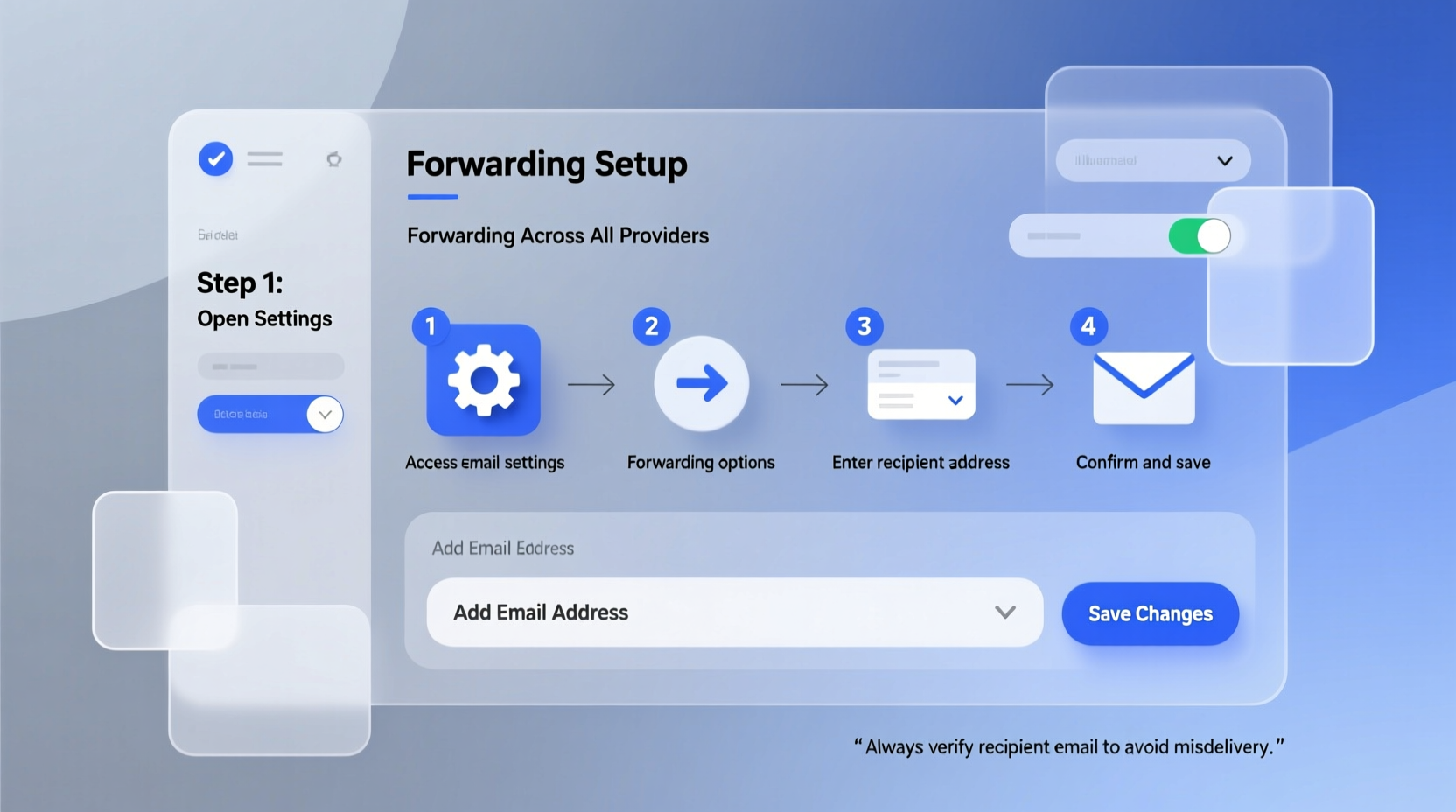
In today’s fast-paced digital world, staying on top of your inbox can feel overwhelming. Forwarding allows you to centralize incoming messages into a single, preferred account. It's especially useful when transitioning between jobs, retiring old addresses, or managing team communications. When configured correctly, forwarding operates silently in the background, ensuring continuity without requiring constant monitoring of multiple logins.
However, not all forwarding setups are equal. Some services limit forwarding options, while others require verification or impose spam filters that block forwarded content. Understanding how each provider handles these rules is key to building a reliable system.
Step-by-Step Guide to Setting Up Email Forwarding
The exact method varies depending on your email service. Below is a detailed walkthrough for the four most widely used platforms.
Gmail: Forward to Another Account or Auto-Reply
- Sign in to your Gmail account at mail.google.com.
- Click the gear icon in the top-right corner and select “See all settings.”
- Navigate to the “Forwarding and POP/IMAP” tab.
- Click “Add a forwarding address” and enter the destination email.
- Gmail will send a confirmation code to that address—open it and verify using the provided link or code.
- Back in Gmail settings, choose whether to forward all incoming mail, keep a copy in the inbox, mark as read, or delete.
- Optionally enable “Auto-reply” under the “General” tab if you’re deactivating the account.
- Scroll down and click “Save Changes.”
Outlook / Microsoft 365 (Includes Hotmail & Live.com)
- Log in to Outlook at outlook.live.com.
- Select the gear icon and go to “View all Outlook settings.”
- Go to “Mail” > “Forwarding.”
- Turn on “Forward to” and choose either “Keep a copy of forwarded messages” or “Delete them after forwarding.”
- Enter the recipient email address and save.
- You may be prompted to confirm the forwarding destination via a verification email.
Note: Free Outlook accounts allow forwarding to external addresses. However, organizational accounts managed by administrators might have restrictions enforced through group policies.
Yahoo Mail: Simple Setup with Filtering Options
- Sign in to Yahoo Mail at mail.yahoo.com.
- Click the gear icon and select “More Settings.”
- Choose “Accounts” from the left menu, then “Account forwarding.”
- Click “Edit,” enter the forwarding email, and save.
- Yahoo sends a confirmation email; approve it to activate forwarding.
- Optional: Use “Filters” under “Settings” > “Mailboxes” to apply forwarding rules based on sender or subject.
Apple iCloud Mail
- Visit iCloud.com and sign in with your Apple ID.
- Open Mail and click the gear icon at the bottom-left.
- Select “Preferences” > “Rules.”
- Click the “+” button to create a new rule.
- Name the rule (e.g., “Forward All Messages”), set conditions (usually “All incoming messages”), and action “Forward message to” with the target email.
- Save the rule.
Unlike other services, iCloud does not offer native forwarding in settings—rules must be used instead. This gives greater control but requires manual configuration.
Best Practices and Security Considerations
Email forwarding introduces potential risks if not handled carefully. Misconfigured forwarding can lead to data leaks, phishing exposure, or unintended spam distribution.
| Action | Do | Avoid |
|---|---|---|
| Verification | Always confirm forwarding destinations with a test email. | Skip confirmation steps or assume setup worked automatically. |
| Security | Use forwarding only to trusted, secure accounts with two-factor authentication. | Forward sensitive work emails to personal accounts without encryption. |
| Monitoring | Check logs or delivery reports periodically for failed forwards. | Set and forget—especially on inactive accounts. |
| Compliance | Ensure forwarding complies with company policies or GDPR/HIPAA requirements. | Automatically forward client data without consent. |
“Email forwarding should never operate in stealth mode. Users must know where their messages are going—and why.” — Sarah Lin, Cybersecurity Consultant at NetShield Group
Tips for Advanced Control and Automation
Basic forwarding sends everything. For smarter workflows, combine forwarding with filtering and conditional logic.
- Create filters before forwarding: In Gmail or Yahoo, set up filters to forward only emails from certain domains (e.g., @client.com) while keeping others local.
- Use aliases strategically: If your provider supports plus addressing (e.g., user+newsletters@gmail.com), route those directly via filter-based forwarding.
- Chain forwarding cautiously: Avoid forwarding loops (e.g., A → B → A). Most systems detect these, but they can still cause delays or message loss.
- Monitor storage limits: Forwarded emails count against the receiving account’s quota. Ensure the destination has sufficient space.
Mini Case Study: Streamlining Client Communication
Jamal runs a freelance design studio and used to juggle three different email accounts: personal Gmail, a legacy Yahoo address from his first clients, and a ProtonMail account for secure contracts. He frequently missed deadlines because inquiries landed in forgotten inboxes.
He implemented a centralized system: both Yahoo and ProtonMail now forward relevant messages to his primary Gmail. In Gmail, he created labels like “Client_Inquiry” and filters that auto-apply tags based on sender domain. The result? A unified inbox, zero missed messages, and a 40% reduction in response time.
This transformation didn’t require expensive software—just proper forwarding and smart labeling.
Common Pitfalls and How to Avoid Them
Even experienced users make mistakes when configuring forwarding. Here are frequent issues and solutions:
- Messages not arriving: Check spam folders in the destination mailbox. Some providers flag forwarded content as suspicious.
- Verification emails blocked: Disable temporary spam filters during setup to ensure confirmation links arrive.
- Forwarding stops unexpectedly: On free accounts, inactivity for several months may deactivate forwarding. Log in periodically to maintain access.
- Attachments disappearing: Rare, but large attachments may be stripped by size-limited accounts. Confirm attachment integrity with test emails.
FAQ
Can I forward emails without notifying the original sender?
Yes. Email forwarding is invisible to senders. They won’t know their message was redirected unless you reply from the forwarded account.
Is email forwarding safe?
It can be, if done securely. Never forward to unsecured or public email accounts. Always enable two-factor authentication on both source and destination accounts.
Can I forward only certain emails, not all?
Absolutely. Use filters or rules (available in Gmail, Outlook, and iCloud) to forward messages matching specific criteria like sender, subject line, or keywords.
Final Checklist Before You Activate
- ✅ Verify ownership
- Confirm both source and destination accounts are accessible.
- ✅ Test with a real email
- Send a test message and confirm it arrives promptly and completely.
- ✅ Review retention settings
- Decide whether to keep, archive, or delete messages after forwarding.
- ✅ Enable security features
- Turn on two-factor authentication and monitor login alerts.
- ✅ Document your setup
- Note down forwarding rules and update them annually or after major changes.
Conclusion
Email forwarding is more than a convenience—it’s a strategic tool for better communication hygiene. Whether you're simplifying your digital life or managing complex workflows, taking control of how messages flow between accounts puts you in the driver’s seat. With the right setup, you gain peace of mind knowing no critical email slips through the cracks.




 浙公网安备
33010002000092号
浙公网安备
33010002000092号 浙B2-20120091-4
Comments
No comments yet. Why don't you start the discussion?