
Squaring numbers is a common task in data analysis, financial modeling, engineering calculations, and academic work. Microsoft Excel offers multiple ways to perform this operation—both mathematically and visually. Whether you're calculating areas, solving quadratic equations, or simply formatting scientific notation, knowing how to square values and display the superscript \"²\" correctly can save time and improve clarity. This guide explores practical techniques for squaring numbers and using the squared symbol with precision.
Understanding Squaring in Excel
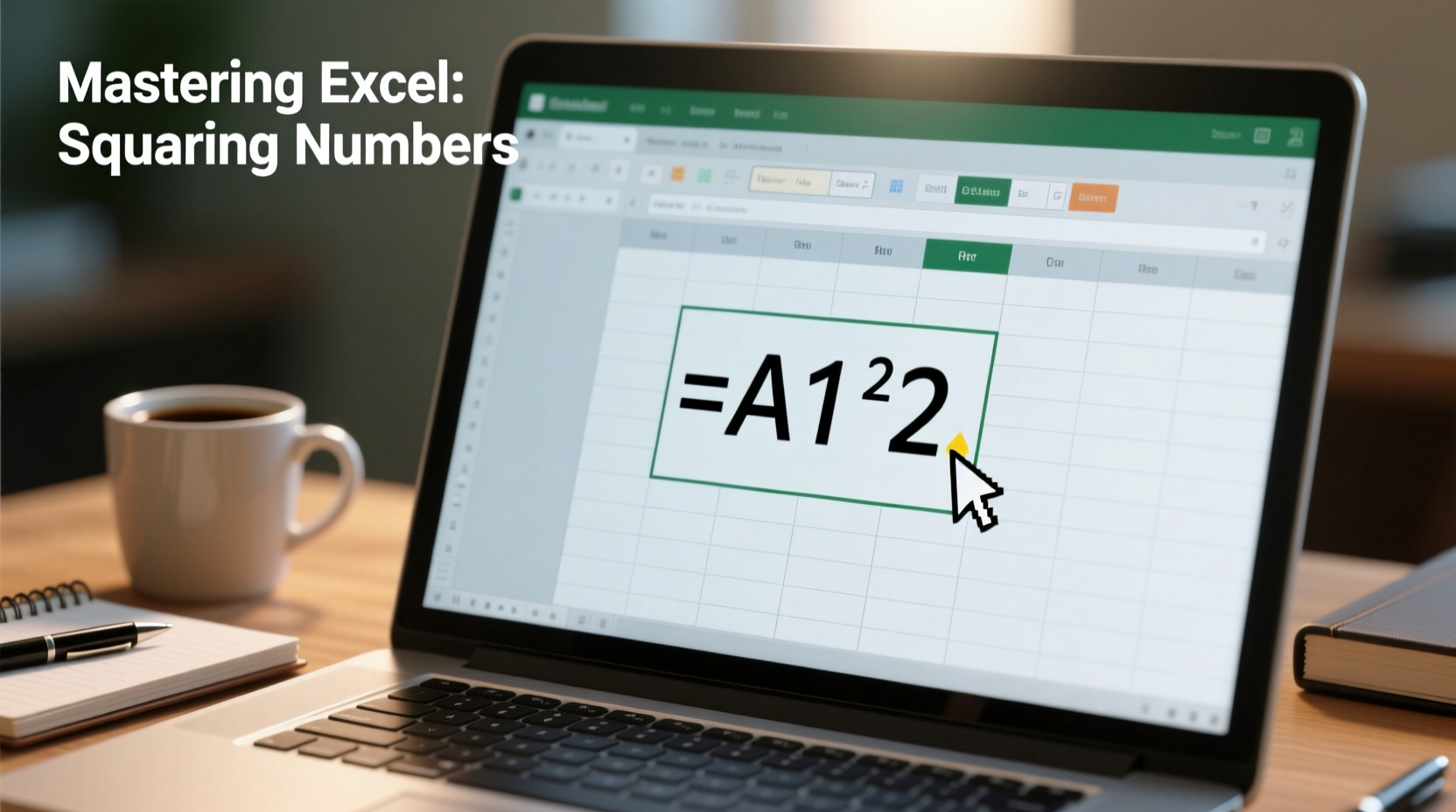
In mathematics, squaring a number means multiplying it by itself. For example, 5 squared is 5 × 5 = 25. In Excel, this calculation isn’t handled through a dedicated “square” function but via basic arithmetic operations or built-in functions. The key is understanding which method suits your workflow best—especially when dealing with large datasets or dynamic formulas.
The most straightforward way to square a number in Excel is by using the exponent operator (^). For instance, typing =5^2 into a cell returns 25. You can also reference cells: if A1 contains 7, then =A1^2 yields 49.
Step-by-Step Guide: How to Square Numbers Using Different Methods
Excel provides several approaches to calculate squares. Each has its strengths depending on context, such as formula simplicity, reusability, or integration with other functions.
- Using the Exponent Operator (^)
Enter=number^2directly into a cell. Replace “number” with a value or cell reference.
Example:=B3^2squares whatever number is in B3. - Using the POWER Function
Syntax:=POWER(number, power). To square, set the second argument to 2.
Example:=POWER(C4, 2)returns the square of C4’s value. - Multiplying the Number by Itself
Simple multiplication works too:=D5*D5. This method avoids exponents entirely and may be easier for beginners. - Using SUMSQ for Multiple Values
If you need to sum the squares of multiple numbers, use=SUMSQ(range).
Example:=SUMSQ(A1:A5)adds up the squares of all five cells.
When to Use Each Method
| Method | Best For | Limitations |
|---|---|---|
^ operator |
Quick single-cell calculations, readable formulas | Limited to one operand unless nested |
| POWER() function | Complex models, compatibility with older Excel versions | Slightly slower performance on large datasets |
| Multiplication (e.g., A1*A1) | Transparency, beginner-friendly logic | Becomes cumbersome with repeated use |
| SUMSQ() | Statistical analysis, variance computation | Only sums; doesn’t return individual squares |
How to Insert and Display the Squared Symbol (²) Correctly
While Excel calculates numerical results seamlessly, displaying the actual \"squared\" symbol (²) requires special handling because standard keyboard input doesn't support superscript characters natively.
To insert the ² symbol in Excel:
- Alt Code (Windows): Hold Alt and type 0178 on the numeric keypad. Result: ²
- CHAR Function: Use
=CHAR(178)in a formula. Combine with text:\"m\"&CHAR(178)produces m². - Copy-Paste: Copy ² from another source (like here) and paste into a cell or formula.
- Custom Number Formatting: Right-click a cell > Format Cells > Custom. Type
0\"²\"to show any entered number followed by ² (e.g., entering 5 displays 5²).
=A1&\" units²\" dynamically inserts both the value and symbol.
Real Example: Calculating Area in Square Meters
A civil engineer needs to compute the floor area of square rooms given side lengths in column A. She uses =A2^2 in column B to get the area numerically. In the adjacent label cell, she enters \"Area: \"&B2&\" m²\" to produce a clean output like “Area: 64 m².” By using CHAR(178), she ensures consistency without relying on external copy-pasting.
This approach scales well across hundreds of entries and integrates smoothly into reports shared with clients who expect proper scientific notation.
“Accurate representation matters as much as correct calculation. Using real superscripts like ² enhances professionalism in technical spreadsheets.” — Dr. Linda Torres, Data Visualization Specialist
Common Pitfalls and Best Practices
Even experienced users make mistakes when working with powers and symbols. Here are frequent issues and how to avoid them:
- Mixing up ^ with bitwise operators: In some programming languages, ^ means XOR. In Excel, it’s strictly exponentiation—but ensure no macros interpret it otherwise.
- Incorrect CHAR codes: CHAR(178) gives ², but CHAR(185) is ¹ and CHAR(179) is ³. Double-check codes before automating.
- Formatting vs. Calculation: Applying custom format
0\"²\"only changes appearance. The underlying value remains unchanged—ideal for presentation layers. - Overuse of volatile functions: While not applicable here, nesting complex functions unnecessarily can slow down recalculations.
Checklist: Mastering Squares in Excel
- ✅ Use
^2for fast, readable squaring in formulas - ✅ Apply
POWER(cell, 2)for compatibility and clarity in team environments - ✅ Insert ² using
Alt+0178orCHAR(178)in text outputs - ✅ Leverage custom number formatting to append ² visually without altering data
- ✅ Use
SUMSQ()when aggregating squared values for statistical purposes - ✅ Avoid hardcoding symbols where dynamic solutions exist
Frequently Asked Questions
Can I use the squared symbol in Excel chart labels?
Yes. When editing axis titles or data labels, double-click the text box and paste the ² symbol directly, or use CHAR(178) if linking to a cell that constructs the label with a formula.
Why does my formula show #VALUE! when I try to square text?
Excel cannot perform mathematical operations on non-numeric entries. Ensure the referenced cell contains a number. Use =IF(ISNUMBER(A1), A1^2, \"Invalid\") to handle errors gracefully.
Is there a keyboard shortcut for superscript in Excel?
There’s no direct toggle like in Word, but you can access superscript via Home > Font > Effects > Superscript—though this affects entire cell content. For precise control, use CHAR(178) within strings instead.
Conclusion: Elevate Your Excel Efficiency Today
Squaring numbers and properly displaying the squared symbol might seem minor, but they reflect attention to detail that separates functional spreadsheets from professional-grade tools. From quick manual inputs to scalable formula designs, mastering these techniques empowers you to build clearer, more accurate models. Whether you're an analyst, educator, or project manager, integrating these methods into your daily workflow enhances both productivity and presentation quality.




 浙公网安备
33010002000092号
浙公网安备
33010002000092号 浙B2-20120091-4
Comments
No comments yet. Why don't you start the discussion?