
In today’s digital workspace, relying on a single screen is like driving a sports car in first gear. You’re missing out on speed, control, and efficiency. An extended monitor setup transforms how you interact with your digital environment—giving you more space, better focus, and faster task-switching. Whether you're a developer, designer, writer, or remote worker, leveraging multiple displays can dramatically increase your output. But simply plugging in a second monitor isn’t enough. True productivity gains come from strategic configuration, ergonomic alignment, and smart software use.
Why Extended Monitor Setups Work
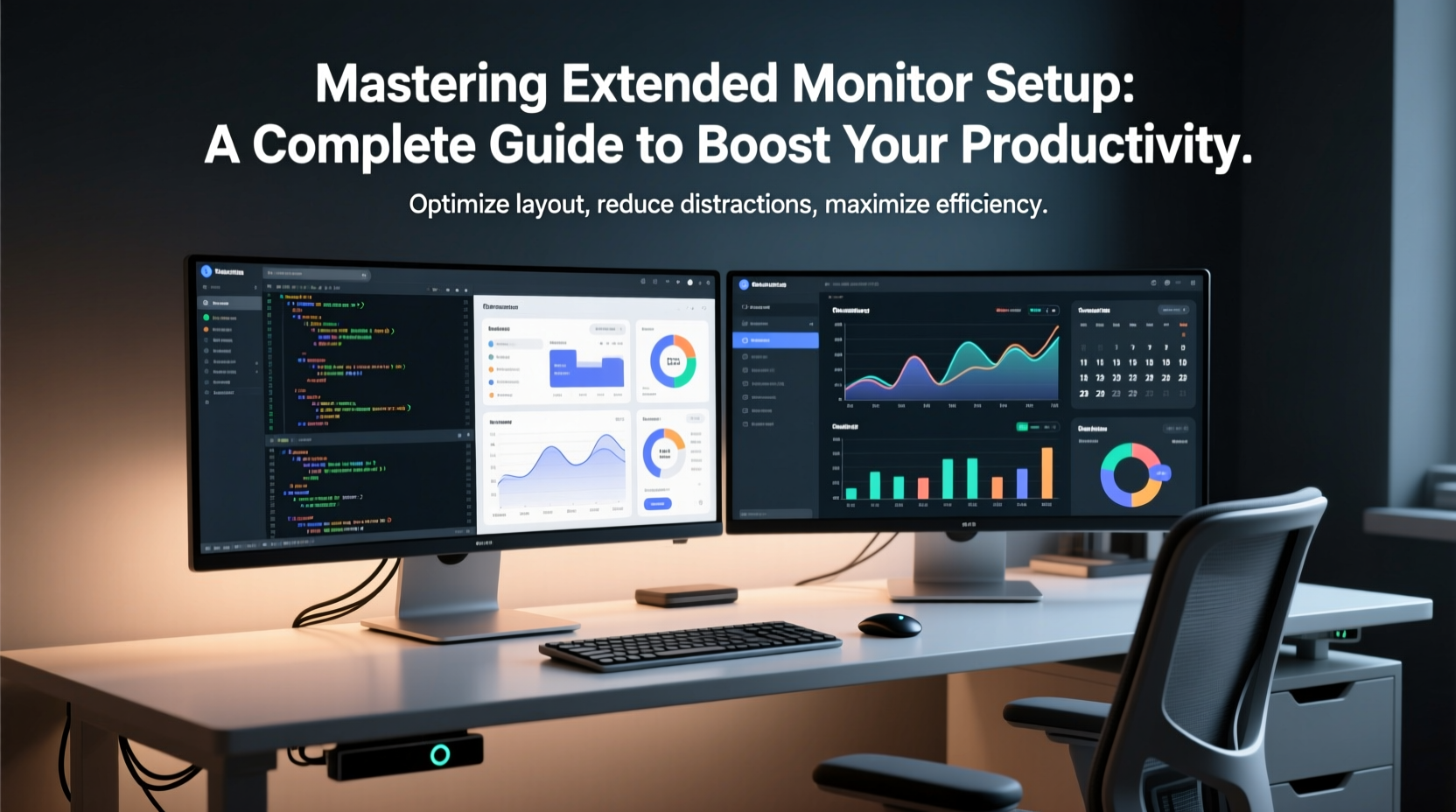
The human brain excels at spatial memory and visual organization. When you spread your work across two or more monitors, you reduce cognitive load by minimizing window switching and tab hunting. Studies from the University of Utah show that users with dual monitors can be up to 30% more productive than those using a single display. This gain comes not from working faster, but from working smarter—keeping reference materials visible, monitoring communication tools without disruption, and maintaining full-screen applications side by side.
For example, a video editor might keep their timeline on one screen and preview on another. A financial analyst could have live data feeds on the left, spreadsheets in the center, and reports on the right. The key is assigning roles to each screen based on workflow patterns, not just adding real estate for the sake of it.
“Productivity isn’t about doing more—it’s about reducing friction. A well-designed multi-monitor setup removes the constant context switching that drains mental energy.” — Dr. Alan Tran, Human-Computer Interaction Researcher, MIT Media Lab
Step-by-Step Guide to Setting Up Your Extended Display
Configuring an extended monitor system involves both hardware and software components. Follow this sequence to ensure a smooth, optimized experience:
- Check Your Graphics Capabilities: Verify that your computer supports multiple outputs. Most modern laptops and desktops support at least two displays via HDMI, DisplayPort, USB-C, or Thunderbolt.
- Choose Compatible Monitors: While mixing sizes and resolutions is possible, matching refresh rates and panel types (e.g., IPS) ensures visual consistency. Aim for at least 1080p resolution per screen.
- Connect the Monitors: Use high-quality cables. For 4K or high-refresh-rate displays, prefer DisplayPort or USB-C over HDMI 1.4.
- Configure Display Settings:
- On Windows: Right-click desktop > Display settings > Arrange displays visually to match physical layout.
- On macOS: System Settings > Displays > Arrangement tab; drag screens to align with desk setup.
- Select “Extend” Mode: Ensure the setting reads “Extend these displays” rather than “Duplicate.” This enables true multitasking.
- Adjust Resolution and Scaling: Set native resolution for clarity. On high-DPI screens, adjust scaling (125%, 150%) for readable text without blurriness.
- Test Mouse Movement: Move your cursor between screens to confirm seamless transitions. Adjust screen order if needed.
Optimizing Layout and Ergonomics
A powerful setup fails if it strains your body. Poor monitor placement leads to neck pain, eye fatigue, and reduced concentration. Follow these ergonomic principles:
- Center Your Primary Screen: Align the main monitor directly in front of you, centered with your keyboard.
- Angle Secondary Screens: Position side monitors at a 30-degree inward angle to maintain viewing comfort.
- Set Correct Height: Top of the screen should be at or slightly below eye level. Use monitor arms or stands to elevate.
- Maintain Distance: Sit 20–40 inches from the screen. Larger monitors require more distance.
- Reduce Glare: Avoid placing screens opposite windows or bright lights. Use matte screens or anti-glare filters if necessary.
| Ergonomic Factor | Recommended Standard | Common Mistake |
|---|---|---|
| Screen Height | Top at/below eye level | Looking down at laptop screens |
| Viewing Angle | Direct front + 30° side tilt | Fully lateral screens causing neck strain |
| Text Size | Readable at arm’s length | Excessively small fonts requiring squinting |
| Lighting | Diffuse, indirect ambient light | Bright overhead lights causing glare |
Real-World Example: The Developer’s Dual-Screen Workflow
Jamal, a backend engineer at a fintech startup, used to toggle between code, API documentation, and terminal logs on a 13-inch laptop. After switching to a dual-monitor setup—one 27” 4K central screen for IDE, and a vertical 24” secondary for documentation and Slack—he reported a 40% reduction in task completion time for debugging sessions.
His secret? He assigned permanent zones: left half for code, right half for browser-based tools, and the vertical monitor for long-form reading and chat. He also enabled “Focus Assist” on Windows to suppress notifications on the primary screen during deep work blocks. Within two weeks, his team noticed fewer context-switching delays during stand-ups and faster pull request turnaround.
Advanced Tips for Power Users
Once the basics are mastered, leverage advanced tools to go further:
- Use Virtual Desktops: Combine multiple monitors with OS-level virtual desktops (Windows Task View or macOS Mission Control) to create separate environments—e.g., one for email, one for coding, one for meetings.
- Customize Hotkeys: Assign shortcuts like Win+Left/Right to snap windows instantly. Third-party tools like PowerToys (Windows) or Magnet (macOS) enhance snapping precision.
- Calibrate Color Consistency: For designers and photographers, use calibration tools (e.g., X-Rite i1Display) to match color profiles across screens.
- Enable Portrait Mode: Rotate one monitor vertically for reading PDFs, reviewing code, or browsing long web pages—ideal for conserving horizontal space.
Checklist: Building Your Optimal Extended Setup
Before finalizing your configuration, run through this checklist:
- ✅ Confirmed GPU supports multiple outputs
- ✅ Monitors connected via reliable cables (HDMI 2.0+, DisplayPort, or USB-C)
- ✅ Display mode set to “Extend,” not “Duplicate”
- ✅ Screens arranged correctly in OS settings to match physical layout
- ✅ Resolutions set to native values
- ✅ Primary monitor centered and ergonomically aligned
- ✅ Secondary screens angled inward for comfortable viewing
- ✅ Lighting adjusted to minimize reflections
- ✅ Productivity tools installed (snapping apps, virtual desktops)
- ✅ Test: Can move mouse smoothly between all screens?
Frequently Asked Questions
Can I use different monitor sizes and resolutions together?
Yes. Modern operating systems handle mixed resolutions well. However, drastic differences (e.g., 1080p next to 4K) may cause scaling inconsistencies. Adjust individual scaling settings (100%, 125%, etc.) per monitor to balance text size and clarity.
My second monitor isn’t detected. What should I do?
First, restart your computer with the monitor plugged in. Then check cable integrity and input source on the monitor. Update your graphics drivers via manufacturer websites (NVIDIA, AMD, Intel). If using adapters (e.g., HDMI to VGA), verify compatibility and signal conversion limits.
Is three monitors better than two?
It depends on your workflow. Three monitors benefit traders, data analysts, and multimedia editors who need constant access to multiple data streams. For general office work, two monitors often suffice. Adding a third increases complexity and may lead to distraction if not properly organized.
Maximize Your Potential
An extended monitor setup is more than a technical upgrade—it's a fundamental shift in how you manage attention, information, and time. The initial setup takes effort, but once calibrated, it becomes invisible: a silent partner in your daily achievements. Don’t settle for a cramped workspace when expansion is within reach. Assess your current workflow, invest in compatible hardware, apply ergonomic best practices, and fine-tune with software tools. The result isn’t just more screen space—it’s more mental space.




 浙公网安备
33010002000092号
浙公网安备
33010002000092号 浙B2-20120091-4
Comments
No comments yet. Why don't you start the discussion?