
In an era where digital content multiplies daily—from high-resolution photos and 4K videos to critical work documents—external hard drives have become indispensable tools. They offer portable, scalable storage that bridges the gap between convenience and necessity. Yet, simply owning one isn’t enough. Many users treat these devices as passive storage bins, unaware that poor organization, improper handling, or neglect can lead to inefficiency, data loss, or premature failure.
True mastery lies in how you use, maintain, and manage your external drive. With the right strategies, you can turn a simple storage device into a powerful extension of your digital workflow—one that enhances productivity, safeguards your files, and lasts for years.
Choose the Right Drive for Your Needs
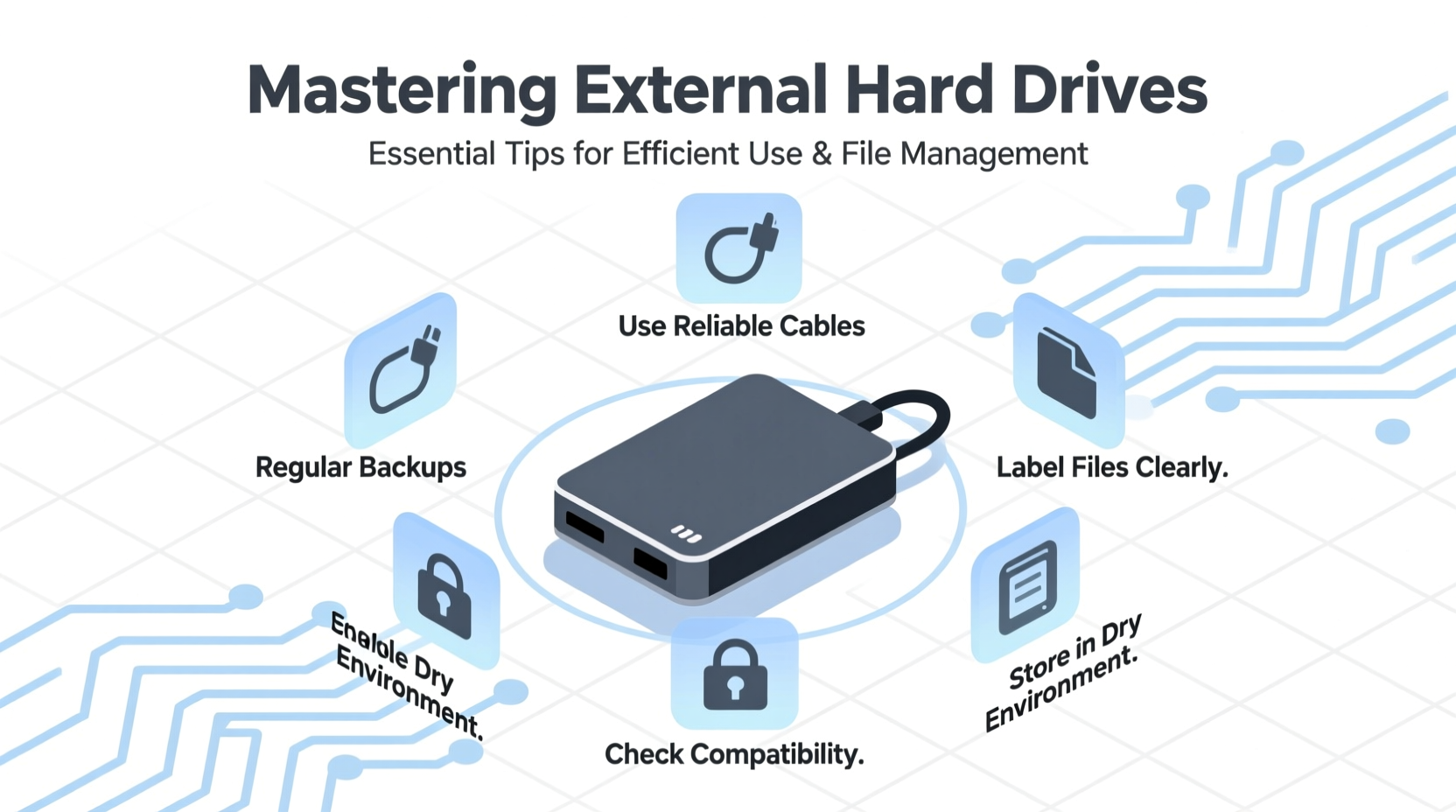
Not all external hard drives are created equal. Understanding the differences helps you select a model that aligns with your usage patterns. The two primary types are mechanical hard disk drives (HDDs) and solid-state drives (SSDs). HDDs offer larger capacities at lower prices but are slower and more vulnerable to physical shock. SSDs are faster, more durable, and silent, but typically cost more per gigabyte.
Consider interface compatibility as well. USB 3.0 and later versions provide significantly faster transfer speeds than older USB 2.0 connections. Thunderbolt is ideal for creative professionals handling large media files, though it's mostly found on higher-end models and Mac systems.
“Matching your drive’s specs to your workflow prevents bottlenecks and extends usability.” — David Lin, Data Storage Engineer at NexaTech Systems
Organize Files with a Logical Structure
One of the most overlooked aspects of external drive use is file organization. A cluttered drive slows down searches, increases duplication risk, and complicates backups. Begin by creating a clear folder hierarchy based on function, project, or date.
For example:
- /Projects/
- Client_A_2024/
- Marketing_Campaign_B/
- /Media/
- Photos/2024/
- Videos/Vacation_2023/
- Audio_Backups/
- /Archives/
- Tax_Documents/
- Old_Projects/
Use consistent naming conventions. Instead of “IMG_1234.jpg,” rename files to something descriptive like “Wedding_Portraits_Jones_2024.jpg.” This makes them searchable and meaningful even months later.
Do’s and Don’ts of File Naming
| Do’s | Don’ts |
|---|---|
| Use underscores or hyphens instead of spaces | Avoid special characters like ?, *, |, : |
| Include dates in YYYY-MM-DD format | Don’t use overly long filenames |
| Prefix version numbers (v1, v2) | Never rely solely on file timestamps |
Implement a Backup Strategy That Works
An external drive should never be your only copy of important data. Relying on a single device creates a single point of failure. Follow the 3-2-1 backup rule: keep three copies of your data, on two different media types, with one stored offsite.
For instance:
- Your primary computer (first copy)
- Your external hard drive (second copy, local)
- A cloud service like Backblaze or Google Drive (third copy, offsite)
Step-by-Step: Setting Up Automated Backups (Windows)
- Connect your external drive and ensure it’s recognized.
- Open Settings > Update & Security > Backup.
- Select “Add a drive” under “Back up using File History.”
- Choose your external drive from the list.
- Click “More options” to customize frequency (e.g., every hour) and retention period.
- Turn on File History.
This ensures your files are continuously protected without manual intervention.
Maintain Drive Health and Longevity
External drives are mechanical or electronic components subject to wear. Proper care extends their lifespan and reduces the risk of sudden failure.
Eject safely before disconnecting. Abrupt removal can corrupt data or damage the file system. On Windows, use the “Safely Remove Hardware” icon; on macOS, drag the drive to the trash (which turns into an eject symbol).
Store the drive in a cool, dry place away from magnetic fields and direct sunlight. Avoid placing heavy objects on top, especially for HDDs, which contain moving parts sensitive to pressure.
Checklist: Monthly Maintenance Routine
- Run a disk error check (CHKDSK on Windows, First Aid in Disk Utility on Mac)
- Verify backup integrity by spot-checking key files
- Delete temporary or redundant files
- Update firmware if available (check manufacturer’s website)
- Inspect the USB cable and connector for fraying or looseness
“A drive that’s regularly monitored is far less likely to fail without warning.” — Maria Chen, Senior Data Recovery Specialist
Real-World Example: Recovering from a Near-Loss Scenario
Julia, a freelance photographer, relied on a single 2TB external HDD to store five years of client work. She rarely backed up elsewhere, assuming the drive was “still working fine.” One rainy afternoon, her laptop bag got caught in a downpour. The drive inside suffered moisture damage and wouldn’t mount.
Luckily, she had uploaded a recent wedding gallery to her cloud portfolio site. Using that partial set, combined with a professional data recovery service, she recovered 85% of her files—but at significant cost and stress.
Afterward, Julia adopted a new system: weekly automated backups to a second external SSD, monthly cloud syncs via Backblaze, and labeled rotation drives kept in a fireproof safe. Her workflow now includes a quarterly audit of all storage points.
Her experience underscores a universal truth: preparation is cheaper and less painful than recovery.
Frequently Asked Questions
How often should I replace my external hard drive?
Even with perfect care, mechanical drives typically last 3–5 years. SSDs may last longer—5–7 years—due to no moving parts. Proactively migrate data to a new drive before the old one reaches this threshold, especially if used frequently.
Can I leave my external drive plugged in all the time?
You can, but it increases exposure to power surges and continuous wear. If left connected, use a surge protector and enable sleep mode in your OS settings. For archival drives, unplug when not in use.
What’s the best way to securely erase data before selling a drive?
Simply deleting files doesn’t remove data permanently. Use built-in tools like Disk Utility’s secure erase (macOS) or third-party software like DBAN (Windows) to overwrite the entire drive. For SSDs, use the manufacturer’s secure erase utility, as standard methods may not reach all memory cells due to wear leveling.
Conclusion: Turn Storage Into a Strategic Advantage
Mastering external hard drives goes beyond plugging in a cable and dragging files. It involves intentionality—from selecting the right hardware to building resilient backup habits and maintaining digital order. When managed well, these devices become reliable partners in your digital life, protecting memories, enabling creativity, and streamlining workflows.
The difference between frustration and efficiency often comes down to small, consistent practices. Start today: organize one folder, run a backup, label your cables. These actions compound over time, transforming your relationship with data from reactive to proactive.




 浙公网安备
33010002000092号
浙公网安备
33010002000092号 浙B2-20120091-4
Comments
No comments yet. Why don't you start the discussion?