
Navigating through thousands of files and dozens of applications shouldn’t feel like searching for a needle in a digital haystack. Yet, many users waste minutes each day trying to locate documents, launch tools, or retrieve past downloads. The truth is, modern operating systems offer powerful search capabilities—when used correctly. By mastering file and app search, you can reclaim time, reduce frustration, and boost productivity across all your computing tasks.
The key lies not just in knowing where the search bar is, but in understanding how to use it effectively. From keyboard shortcuts to advanced query syntax, this guide breaks down the strategies that turn average users into search-savvy power users.
Understanding How Search Works Under the Hood
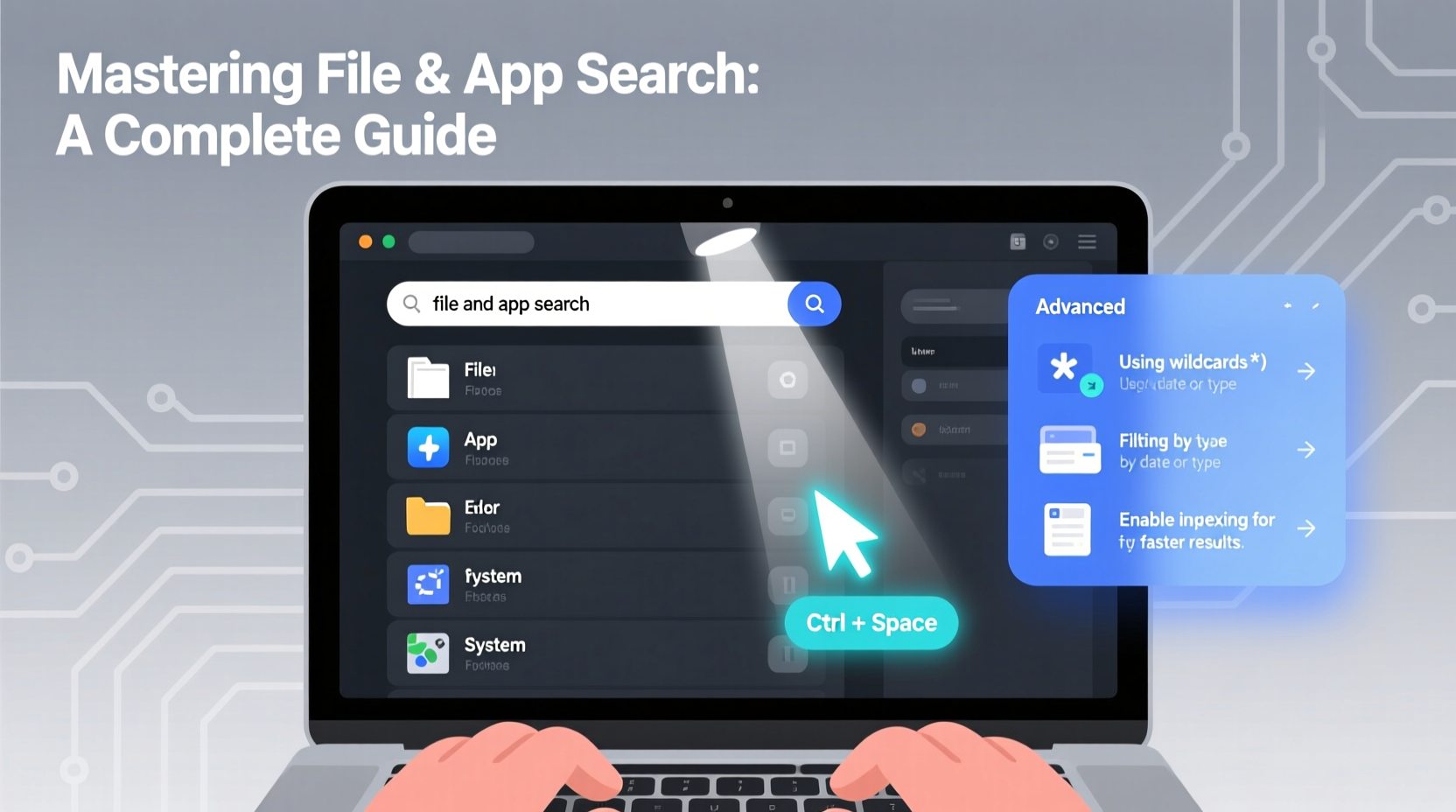
Modern desktop search isn't just about scanning filenames. It relies on indexing—background processes that catalog file names, contents, metadata (like author, date modified, tags), and even application usage patterns. Both Windows (via Windows Search) and macOS (Spotlight) maintain persistent indexes updated in real time as files are created or changed.
Linux distributions vary: GNOME uses Tracker, KDE has Baloo, and command-line tools like find and locate offer alternatives without indexing. A well-maintained index enables near-instant results. However, if your system hasn’t indexed certain locations—or if indexing is disabled—you’ll experience slow or incomplete searches.
Indexing doesn’t cover everything by default. External drives, network folders, or specific directories may be excluded. You can manually add these locations to the index settings for full discoverability.
Optimizing File Search Across Operating Systems
Each major OS handles file search differently, but all support advanced filtering. Learning these nuances unlocks precision.
Windows: Leverage Power-Filled Filters
Use the taskbar search or File Explorer’s search box. Type keywords, then refine using filters like:
datemodified:todaytype:pdfsize:>5MBname:\"budget report\"
You can combine them: name:\"presentation\" datemodified:thisweek type:pptx.
macOS: Harness Spotlight’s Intelligence
Press Cmd + Space to open Spotlight. Beyond launching apps, it finds emails, calendar events, and file contents. Use natural language queries:
- \"PDFs edited yesterday\"
- \"Spreadsheets from John last week\"
- \"Images larger than 2MB\"
To search within folders only, open Finder, navigate to the directory, and use the search bar in the top-right. Then set \"This Mac\" to \"Current Folder\" for faster, targeted results.
Linux: Combine GUI and Terminal Efficiency
While GUI search tools exist, the terminal remains unmatched for control. Key commands include:
find /path -name \"*.log\" -mtime -7— finds log files modified in the last 7 days.grep -r \"error\" ~/Documents— searches text content recursively.locate config.json— fast lookup using pre-built database (runupdatedbfirst).
| OS | Best Search Tool | Shortcut | Advanced Feature |
|---|---|---|---|
| Windows | File Explorer + Index Search | Win + S or Ctrl + F | Property filters (date, type, size) |
| macOS | Spotlight / Finder | Cmd + Space / Cmd + F | Natural language queries |
| Linux | Terminal (find/grep) | Ctrl + Alt + T | Regex and scripting integration |
Speed Up App Launching with Smart Shortcuts
Finding and opening applications should take seconds, not clicks through menus. Mastering quick-launch techniques saves cumulative hours over time.
On Windows, typing the app name into the Start menu and pressing Enter is efficient. For frequent apps, pin them to the taskbar or create desktop shortcuts. Better yet, assign custom keyboard shortcuts: right-click a shortcut > Properties > Shortcut key field (e.g., Ctrl + Alt + B for browser).
macOS users benefit greatly from Spotlight (Cmd + Space). Typing “Chrome” or “Photoshop” brings up the app instantly. Alternatively, use Launchpad or third-party tools like Alfred or Raycast for enhanced workflows.
In Linux, most desktop environments support a run dialog (Alt + F2) or global search. Distributions like Ubuntu allow custom keyboard bindings via Settings > Keyboard.
Real Example: Sarah’s Workflow Transformation
Sarah, a freelance graphic designer, used to spend 10–15 minutes daily locating project files scattered across multiple drives. She relied on manual folder browsing and vague filenames like “final_v2_updated.psd.” After reorganizing her structure and enabling full indexing on her external SSD, she began using precise search terms: name:\"logo\" client:XYZ datemodified:<2023-11-01. Her retrieval time dropped to under 30 seconds. Combined with pinned app shortcuts for Photoshop and Illustrator, she now starts client work almost immediately after logging in.
Expert Insight: What Professionals Do Differently
“Most people treat search as a fallback tool. Top performers use it as a primary navigation method. They invest time upfront to understand syntax, organize minimally for discoverability, and rely on consistency.” — David Lin, Productivity Consultant and Author of *Digital Flow*
Experts emphasize two overlooked principles: naming discipline and system hygiene. Files named “Document1.docx” defeat even the best search engine. Instead, adopt a simple naming convention: Project_Client_Status_Date. This makes both human browsing and machine search more effective.
Likewise, keeping your system free of clutter improves indexing speed and result relevance. Archive old projects, delete duplicates, and avoid dumping files into Downloads or Desktop indefinitely.
Step-by-Step Guide to Building a Search-Optimized System
- Enable Full Indexing: Go to Indexing Options (Windows) or Spotlight Privacy (macOS) and ensure critical folders are included.
- Standardize File Naming: Rename existing key files using a consistent pattern (e.g., YYYY-MM-DD_Description.ext).
- Use Tags and Metadata: On macOS, tag files in Finder. On Windows, fill out document properties (right-click > Properties > Details).
- Learn Basic Search Operators: Practice using
type:,date:, andsize:filters weekly until they become instinctive. - Set Up Quick-Launch Shortcuts: Assign keyboard shortcuts to 3–5 most-used apps.
- Maintain Monthly: Review and clean up outdated files, rebuild index if needed.
Common Pitfalls and How to Avoid Them
- Over-relying on filename alone: Search engines can read inside documents. Use content-based queries when appropriate.
- Ignoring case sensitivity in terminals: In Linux,
find -name \"Report.pdf\"won’t match “report.pdf.” Use-inamefor case-insensitive searches. - Searching the entire system unnecessarily: Narrow scope first—start in the likely folder before escalating to global search.
- Forgetting to update the locate database: On Linux, run
sudo updatedbperiodically for accuratelocateresults.
FAQ
Why aren’t my recent files showing up in search?
This usually means the folder isn’t indexed. Check your system’s search settings and add the location to the index. Also verify that file privacy settings (especially on macOS) aren’t excluding the directory.
Can I search inside PDFs and Office documents?
Yes, provided your system has the proper filters installed. Windows includes IFilters for DOCX, XLSX, and PDF by default. macOS Spotlight reads PDF text natively. On Linux, ensure packages like poppler-utils are installed for PDF indexing.
Is there a way to search across multiple computers?
Not natively, but cloud-synced folders (like Dropbox, Google Drive, or OneDrive) make files searchable on each device once synced. For centralized access, consider a personal knowledge manager like Obsidian or a NAS with search-enabled software like Synology’s DiskStation.
Conclusion
Mastering file and app search transforms your relationship with your computer. No longer a passive user clicking through folders, you become an efficient operator who retrieves information with precision and speed. The techniques outlined here—indexing wisely, using operators, standardizing names, and leveraging shortcuts—are not one-time fixes but habits that compound over time. Whether you're a student, professional, or casual user, refining your search skills pays dividends in focus, time, and peace of mind.




 浙公网安备
33010002000092号
浙公网安备
33010002000092号 浙B2-20120091-4
Comments
No comments yet. Why don't you start the discussion?