
In an age where smartphones are extensions of our personal lives, losing an iPhone can feel like losing a piece of yourself. Fortunately, Apple’s “Find My” service is one of the most powerful tools available for locating, locking, and protecting your device. Whether you’ve misplaced your phone at home or suspect it’s been stolen, mastering Find My on iPhone gives you peace of mind and control over your digital security.
Built into every iOS device, Find My leverages iCloud, GPS, Bluetooth, and Apple’s global network of devices to help track your iPhone—even when it’s offline. This guide breaks down everything you need to know: from initial setup to advanced features like Lost Mode, Activation Lock, and precise location sharing.
How Find My Works: The Technology Behind the Service
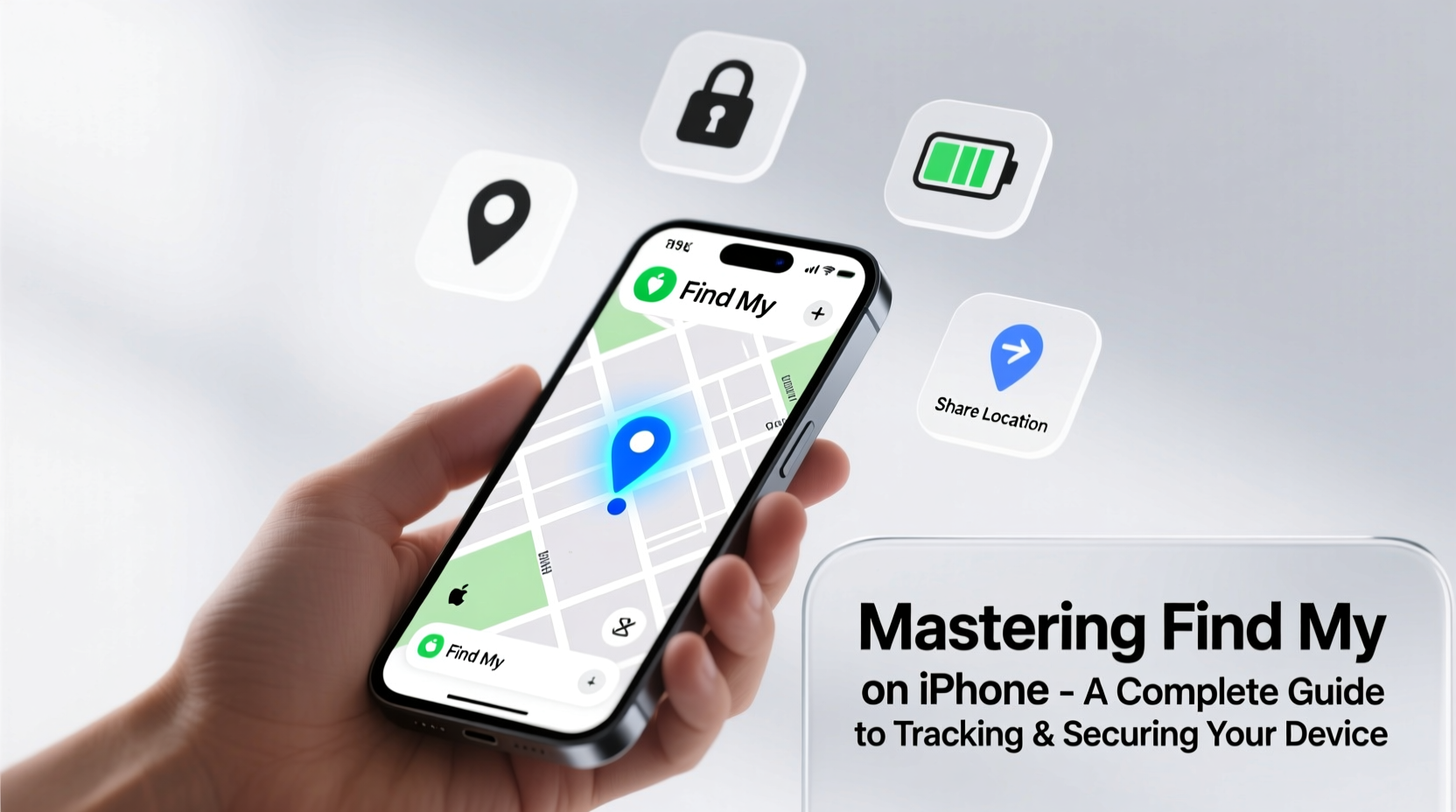
Find My isn’t just a GPS tracker—it’s a sophisticated ecosystem designed for privacy and reliability. When enabled, your iPhone continuously shares its location securely via iCloud. But what sets it apart is its ability to locate devices even when they’re not connected to Wi-Fi or cellular networks.
Here’s how it works:
- GPS & Network Location: Uses satellite signals and nearby Wi-Fi networks to determine your iPhone’s position.
- Bluetooth Beaconing: If your iPhone is offline, it emits anonymous Bluetooth signals picked up by nearby Apple devices, which relay its location to iCloud—without compromising user privacy.
- End-to-End Encryption: All location data is encrypted so only you can view your device’s whereabouts. Even Apple cannot access this information.
“Find My combines real-time location tracking with crowd-powered detection, making it one of the most effective anti-theft systems in consumer tech.” — Dr. Lena Park, Mobile Security Researcher at Stanford Cyber Initiative
Setting Up Find My: A Step-by-Step Guide
To use Find My effectively, it must be activated before your device goes missing. Here’s how to enable it properly:
- Open the Settings app on your iPhone.
- Tap your name at the top to enter your Apple ID settings.
- Select Find My > Find My iPhone.
- Toggle on both options: Find My iPhone and Send Last Location.
- Ensure Enable Offline Finding and Notify When Found are also turned on.
Once enabled, your iPhone will appear in the Find My app across all your Apple devices. You can also access it via iCloud.com using your Apple ID.
Using Find My to Locate Your iPhone
If you misplace your iPhone, act quickly. Open the Find My app (or visit iCloud.com) and follow these steps:
- Sign in with your Apple ID if prompted.
- Select the Devices tab and choose your iPhone from the list.
- View its current or last known location on the map.
- Use the available actions:
- Play Sound: Makes your iPhone ring at full volume for two minutes—even if silenced.
- Directions: Opens Maps with turn-by-turn navigation to your device.
- Lost Mode: Remotely locks your iPhone and displays a custom message with your contact info.
- Erase iPhone: Wipes all data remotely if recovery seems unlikely.
For newer iPhones (iPhone 11 and later), Find My supports Precise Location using Ultra Wideband (UWB) technology. When you're near your lost device, the app guides you step-by-step using distance and direction cues—like a treasure hunt with haptic feedback.
Securing Your Device: Lost Mode and Remote Wipe
If your iPhone is truly missing—or potentially stolen—immediately activate Lost Mode. This feature does three critical things:
- Locks your iPhone with a passcode (even if none was set).
- Displays a custom message (e.g., “This iPhone is lost. Please call [number]”).
- Continues tracking the device’s location as long as it connects to the internet.
To enable Lost Mode:
- Go to Find My > Devices > Select your iPhone.
- Tap Mark as Lost.
- Enter a phone number and optional message.
- Confirm activation.
If you believe your iPhone won’t be recovered, use Erase iPhone. This removes all personal data, including passwords, photos, and payment info. Importantly, Activation Lock remains active—meaning no one can reactivate the device without your Apple ID credentials.
Sharing Locations Safely with Family and Friends
Find My isn’t just for lost devices—it also helps you stay connected with loved ones. You can share your location with trusted contacts, or view theirs (with permission). This is especially useful for coordinating family logistics or checking on elderly relatives.
To share your location:
- In the Find My app, go to the People tab.
- Tap Share My Location.
- Select a contact and choose duration: One Hour, Until End of Day, or Indefinitely.
You can stop sharing at any time, and others cannot see your location unless you explicitly allow it. All location sharing is end-to-end encrypted.
| Action | Do | Avoid |
|---|---|---|
| Location Sharing | Share temporarily with close contacts during travel | Never share indefinitely with untrusted individuals |
| Lost Mode | Include a non-sensitive contact method | Don’t display your home address or full name |
| Remote Erase | Use only when recovery is impossible | Don’t erase without attempting other options first |
Real-World Scenario: Recovering a Stolen iPhone
Sarah, a freelance photographer in Chicago, had her iPhone snatched from her bag on public transit. She immediately used her iPad to open Find My. Her phone appeared near the station, still powered on. She played a sound remotely, but it didn’t help. Concerned about her client photos and banking apps, she activated Lost Mode with a message: “Reward if returned. Call 555-0198.”
Two days later, Find My showed the device moving toward a suburban neighborhood. She reported the serial number and location history to the police, who recovered the phone from a resale shop. Thanks to Activation Lock, the thief couldn’t reset or sell it easily. Sarah got her iPhone back—with all data intact.
This case illustrates why early action and proper setup matter. Had Find My been disabled, recovery would have been nearly impossible.
Essential Checklist: Secure Your iPhone Today
Follow this checklist to ensure you’re fully protected:
- ✅ Enable Find My iPhone in Settings
- ✅ Turn on Send Last Location
- ✅ Activate Offline Finding and Notify When Found
- ✅ Set a strong passcode (preferably 6-digit or alphanumeric)
- ✅ Test Play Sound and Lost Mode functionality monthly
- ✅ Share location selectively with trusted family members
- ✅ Keep your software updated for latest security patches
Frequently Asked Questions
Can someone disable Find My if they steal my iPhone?
No—not without your Apple ID password. Activation Lock prevents erasing or reactivating the device, making it nearly useless to thieves. This is why using a secure Apple ID is essential.
Does Find My work if the SIM card is removed?
Yes. As long as the iPhone connects to Wi-Fi or Bluetooth (via another Apple device), it can still report its location. Removing the SIM doesn’t disable Find My.
What if my iPhone is turned off?
If it was recently powered on, you’ll see its last known location. With Offline Finding enabled, nearby Apple devices may detect its Bluetooth signal and update its position—even when off.
Take Control of Your Digital Safety
Your iPhone holds more than apps and messages—it contains your memories, finances, and identity. Mastering Find My isn’t just about recovering a lost device; it’s about safeguarding your digital life. From precise tracking to remote locking, the tools are already on your device. The only requirement is preparation.
Review your settings today. Ensure Find My is active, test its features, and educate your family on how to use it. In moments of panic, a well-configured iPhone can mean the difference between loss and recovery.




 浙公网安备
33010002000092号
浙公网安备
33010002000092号 浙B2-20120091-4
Comments
No comments yet. Why don't you start the discussion?