
Creating folders in Linux is one of the most fundamental skills every user must master. Whether you're organizing personal files, setting up a development environment, or managing server directories, understanding how to create and manage folders efficiently lays the foundation for effective system navigation and maintenance. While the process may seem straightforward, there are nuances in command usage, permission handling, and structural planning that can significantly impact your workflow if overlooked.
The primary command for folder creation in Linux is mkdir, short for \"make directory.\" But beyond typing a single line, thoughtful folder management involves naming conventions, path awareness, recursive creation, and security considerations. This guide walks through practical techniques, real-world applications, and expert-backed habits that turn basic folder creation into a strategic skill.
Understanding the mkdir Command
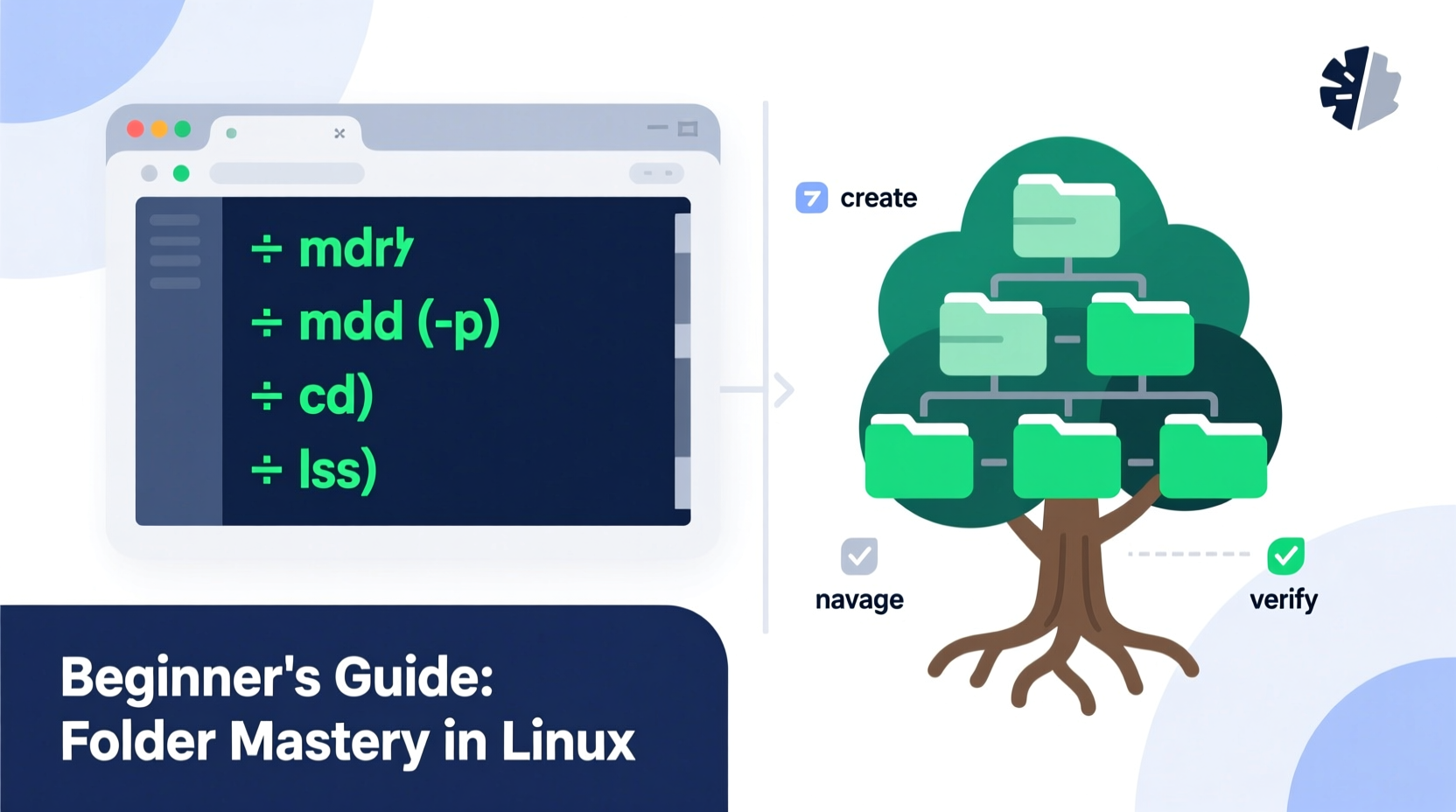
The mkdir command is the standard tool used to create new directories in Linux. At its simplest, it requires only a name:
mkdir projectsThis creates a directory named \"projects\" in the current working directory. However, the power of mkdir lies in its options and flexibility.
Commonly used flags include:
-p: Creates parent directories as needed (useful for nested paths).-v: Verbose output — shows what directories are being created.-m: Sets permissions during creation instead of relying on default umask.
For example, to create a full project structure in one go:
mkdir -p -v /home/user/projects/webapp/{css,js,images}This command does several things at once: it builds the entire path (even if intermediate folders don’t exist), prints each created directory due to -v, and organizes assets into logical subdirectories using brace expansion.
-p flag liberally when scripting or building complex directory trees. It prevents errors if any part of the path already exists.
Best Practices for Organizing Your Directory Structure
A well-organized file system improves productivity, simplifies backups, and enhances collaboration. Randomly named folders scattered across home directories lead to confusion and inefficiency. Instead, adopt a consistent hierarchy from the start.
Consider this recommended layout for personal use:
| Directory | Purpose | Example Path |
|---|---|---|
| Documents | Text files, PDFs, reports | ~/Documents/work |
| Projects | Code repositories, scripts | ~/Projects/python-scripts |
| Data | Datasets, logs, CSV files | ~/Data/analytics |
| Backups | Archived configurations or snapshots | ~/Backups/monthly |
| Temp | Short-lived or disposable files | ~/Temp/uploads |
Naming conventions matter too. Avoid spaces — they complicate command-line operations. Use lowercase letters and separate words with hyphens or underscores:
mkdir my-project  # Preferred
mkdir My Project  # Problematic due to space
“Structure isn’t overhead — it’s leverage. A clean directory tree saves hours over time.” — Linus Torvalds, Creator of Linux
Step-by-Step Guide: Building a Development Workspace
Let’s walk through creating a realistic project workspace from scratch. Suppose you’re starting a web development task involving HTML, CSS, JavaScript, and documentation.
- Open your terminal and navigate to your home directory:
cd ~ - Create a top-level Projects folder if it doesn’t exist:
mkdir -p Projects - Navigate into it:
cd Projects - Create a new project called 'personal-site' with standard subdirectories:
mkdir -p personal-site/{css,js,images,docs} - Verify the structure:
find personal-site -type d - Set appropriate permissions so others (if sharing) can read but not modify:
chmod -R 755 personal-site
You now have a ready-to-use, logically structured environment. Each component has its place, reducing clutter and making future updates easier.
Permissions and Security During Folder Creation
Folders aren’t just containers — they carry access rules. By default, mkdir applies permissions based on your shell’s umask setting (typically resulting in 755 for directories). But sometimes, stricter control is necessary.
To set custom permissions at creation time, use the -m flag:
mkdir -m 700 private-backupThis grants read, write, and execute access only to the owner (you), ideal for sensitive data.
Common permission schemes:
755: Owner full access; group and others can read and traverse.700: Full access only to owner — secure for private folders.775: Useful in team environments where group members need write access.
After creation, adjust permissions with chmod if needed. Always verify with:
ls -ld folder_nameTips for Automation and Scripting
When setting up multiple environments or deploying applications, manually typing commands becomes inefficient. Shell scripts automate repetitive tasks safely.
Create a simple script to generate standardized project skeletons:
#!/bin/bash
PROJECT_NAME=$1
if [ -z \"$PROJECT_NAME\" ]; then
  echo \"Usage: $0 <project-name>\"
  exit 1
fi

mkdir -p \"$PROJECT_NAME\"/{src,tests,docs,assets}
touch \"$PROJECT_NAME\"/README.md
echo \"# $PROJECT_NAME\" > \"$PROJECT_NAME\"/README.md
chmod 755 \"$PROJECT_NAME\"
echo \"Project '$PROJECT_NAME' created successfully.\"
Save this as new-project.sh, make it executable (chmod +x new-project.sh), and run with:
./new-project.sh blog-engineThis reduces setup time from minutes to seconds while ensuring consistency.
mkdir with other tools like
cp,
touch, or
git init in scripts to fully bootstrap environments.
FAQ
Can I create folders with special characters in the name?
Technically yes, but avoid them. Characters like ?, *, |, or spaces cause issues in scripts and command-line operations. Stick to alphanumeric, hyphens, and underscores for reliability.
What happens if I run mkdir on an existing folder?
By default, mkdir will return an error: “File exists.” Use mkdir -p to suppress this — it checks first and only creates missing parts of the path.
How do I delete a folder I created?
Use rmdir for empty directories:rmdir myfolder
For non-empty ones, use:rm -r myfolder
Be cautious — this action cannot be undone easily.
Conclusion
Mastering folder creation in Linux goes beyond typing mkdir. It involves understanding paths, permissions, naming standards, and automation strategies that scale with your needs. Whether you're a beginner setting up your first script or managing production systems, disciplined directory management pays dividends in clarity, security, and efficiency.
Start applying these practices today: organize your home directory, write a reusable setup script, or audit existing folder permissions. Small improvements compound into powerful workflows over time.




 浙公网安备
33010002000092号
浙公网安备
33010002000092号 浙B2-20120091-4
Comments
No comments yet. Why don't you start the discussion?