
iCloud Drive is more than just a backup tool—it’s a powerful platform for organizing, accessing, and sharing files across Apple devices. When used strategically, shared folders can transform how individuals and teams collaborate. Whether you're coordinating a family calendar, managing a project with colleagues, or sharing creative assets with clients, mastering folder sharing in iCloud ensures files stay synchronized, secure, and accessible from anywhere.
The key lies not just in knowing how to share a folder, but in doing so efficiently, securely, and sustainably. With the right setup, iCloud becomes a frictionless workspace where version control, permissions, and real-time updates work quietly in the background—so you can focus on what matters most.
Understanding iCloud Shared Folders: How They Work
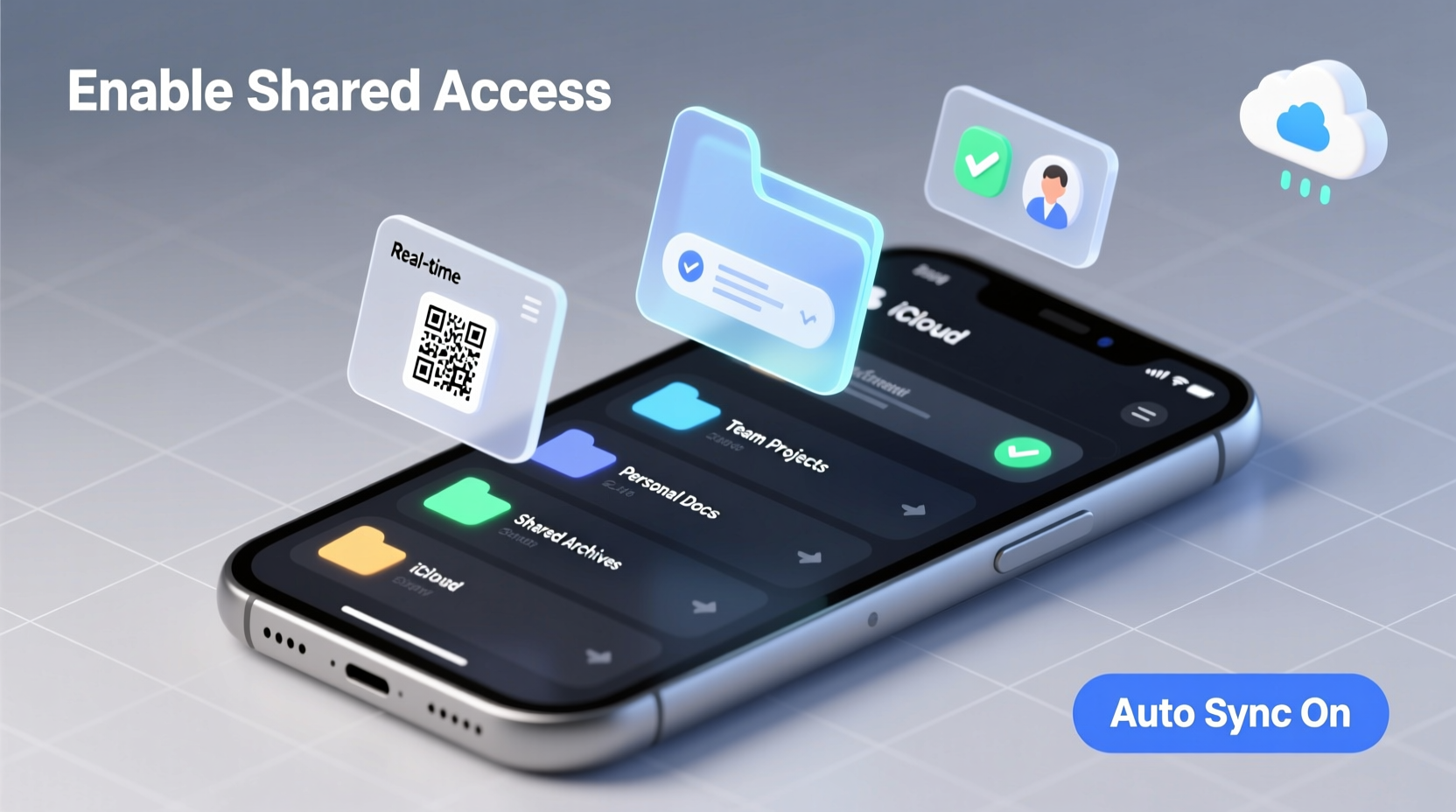
Unlike traditional file-sharing methods that rely on email attachments or external cloud links, iCloud shared folders integrate directly into your Finder (on Mac) and Files app (on iPhone and iPad). Once a folder is shared, all participants see updates in real time. Changes made by one person—adding a file, renaming a document, or deleting an item—are instantly reflected for everyone else with access.
Shared folders live within iCloud Drive and support full collaboration. Participants can be granted different permission levels: \"can make changes\" or \"view only.\" This flexibility makes it ideal for scenarios ranging from collaborative brainstorming sessions to distributing finalized reports without risk of accidental edits.
To create a shared folder, simply right-click any folder in iCloud Drive and select “Share.” You can then invite people via email, AirDrop, or a shareable link. Once accepted, the folder appears under “Shared” in their iCloud Drive, ensuring consistent navigation across devices.
Step-by-Step Guide to Sharing a Folder in iCloud
Sharing a folder in iCloud is straightforward when you follow this sequence:
- Open Finder on your Mac or the Files app on your iPhone/iPad.
- Navigate to the folder stored in iCloud Drive that you want to share.
- Right-click (or long-press on mobile) and choose Share > Add People.
- Enter the email addresses of those you’d like to invite.
- Select their permission level:
- Can make changes: Full edit rights, including adding, moving, or deleting files.
- View only: Can open and download files but cannot modify them.
- Toggle on Allow Editing if needed, or leave it off for read-only access.
- Click Send. Invitations are delivered via iMessage or email.
- Recipients must accept the invitation to gain access. The folder will appear under Shared in their iCloud Drive.
Alternatively, generate a shareable link by selecting “Copy Link” instead of adding specific people. This is useful for distributing access widely—such as with event planners, freelancers, or large groups—without manually entering emails.
Best Practices for Secure and Efficient Collaboration
While iCloud simplifies file sharing, poor practices can lead to confusion, duplication, or data leaks. Follow these guidelines to maintain clarity and security:
- Use descriptive naming conventions: Instead of “Project Final,” use “Q3 Marketing Plan – v2 (Approved).” Clear names reduce ambiguity.
- Leverage subfolders: Organize shared folders with internal structure—e.g., “Design Assets,” “Budgets,” “Meeting Notes”—to keep content navigable.
- Limit editing rights: Only grant “can make changes” access to core team members. Use view-only for stakeholders who need visibility without interference.
- Monitor activity: Open the shared folder and check the “People” section to see recent contributors and changes.
- Remove inactive users: Over time, collaborators may leave a project. Remove them to reduce clutter and enhance security.
“Shared folders in iCloud are most effective when treated like digital meeting rooms—organized, access-controlled, and cleaned up after use.” — Jordan Lee, Apple Productivity Consultant
Do’s and Don’ts of iCloud Folder Sharing
| Do | Don't |
|---|---|
| Share only folders already in iCloud Drive (not local-only folders) | Assume everyone knows how to accept an iCloud share—send brief instructions |
| Confirm recipients have iCloud accounts (required for full access) | Store sensitive personal data (like tax documents) in shared folders without encryption |
| Use link sharing for temporary access (set expiration if possible) | Over-share permissions—more editors mean higher risk of conflicting changes |
| Archive old shared folders once projects end | Forget to check storage—large shared folders count against your iCloud plan |
Real-World Example: Coordinating a Family Move
Sarah and Mark were relocating across states with two children and multiple service providers involved—movers, real estate agents, schools. They created a shared iCloud folder titled “Family Relocation 2024” and organized it with subfolders: “Documents,” “School Transfers,” “Moving Quotes,” and “New Home Setup.”
They invited both sets of parents, their realtor, and their accountant. Parents received view-only access to track progress, while the accountant had edit rights to upload financial records. By centralizing everything in one place, they eliminated endless email threads and duplicate files. Every time a new quote arrived or a school confirmation was sent, it went straight into the relevant subfolder—visible instantly to all authorized parties.
The result? Fewer missed deadlines, reduced stress, and complete transparency throughout the process. At the end of the move, Sarah archived the folder and downloaded a final copy for long-term storage.
Troubleshooting Common Issues
Even with proper setup, users sometimes encounter hiccups. Here are frequent issues and how to resolve them:
- “The person can’t accept the share”: Ensure they’re signed in to iCloud with the same email used in the invitation. If not, resend using their correct Apple ID.
- Changes aren’t syncing: Check internet connection and verify iCloud Drive is enabled in Settings > [Your Name] > iCloud > iCloud Drive.
- Folder appears empty: Confirm the user has accepted the invitation and that files were uploaded *after* the folder was shared. Pre-existing content should sync automatically, but delays can occur.
- Too many people editing at once: While iCloud supports concurrent editing, conflicts can arise with large files like spreadsheets. Encourage turn-based updates or use commenting features in apps like Pages or Numbers.
Frequently Asked Questions
Can non-Apple users access iCloud shared folders?
Yes, but with limitations. Recipients without Apple devices can access shared folders via a web link at icloud.com. They can view and download files but cannot edit them directly unless using compatible web apps like Microsoft Office online. Real-time collaboration is best supported among Apple users.
How much iCloud storage do shared folders use?
All files in shared folders count toward the original owner’s iCloud storage. For example, if you share a 5GB video, it uses 5GB of *your* storage, not the recipient’s. Be mindful when sharing large media files—consider compressing videos or using third-party links for very large assets.
Can I stop sharing a folder later?
Absolutely. Open the shared folder, click the “People” icon, and select “Stop Sharing.” This removes access for all participants and deletes the folder from their “Shared” list. Any files they downloaded locally remain, but ongoing sync stops immediately.
Conclusion: Turn iCloud Into Your Collaboration Hub
Mastering folder sharing in iCloud isn’t about technical wizardry—it’s about consistency, clarity, and intentionality. When you structure your folders thoughtfully, manage permissions wisely, and communicate expectations clearly, iCloud becomes far more than a storage solution. It evolves into a dynamic collaboration environment where information flows seamlessly and teamwork thrives.
Start small: share a grocery list with your household or a project outline with a colleague. As confidence grows, scale up to complex workflows involving multiple stakeholders. With every shared folder, you’re building a smarter, more connected way to work and live.




 浙公网安备
33010002000092号
浙公网安备
33010002000092号 浙B2-20120091-4
Comments
No comments yet. Why don't you start the discussion?