
For serious PC gamers, the difference between victory and defeat often comes down to more than reflexes or gear—it’s about how well your system presents the game. A poorly optimized display can introduce lag, visual artifacts, or even break immersion at critical moments. Mastering full screen gaming isn’t just about resolution; it’s a balance of settings, hardware configuration, and software tweaks that work in harmony to deliver smooth, responsive, and visually stunning gameplay.
Whether you're playing fast-paced shooters, expansive RPGs, or competitive esports titles, optimizing your display setup ensures you get the most out of every frame. This guide dives into actionable strategies backed by technical insight and real-world testing to help you unlock the full potential of your gaming rig.
Understanding Full Screen Modes: The Foundation
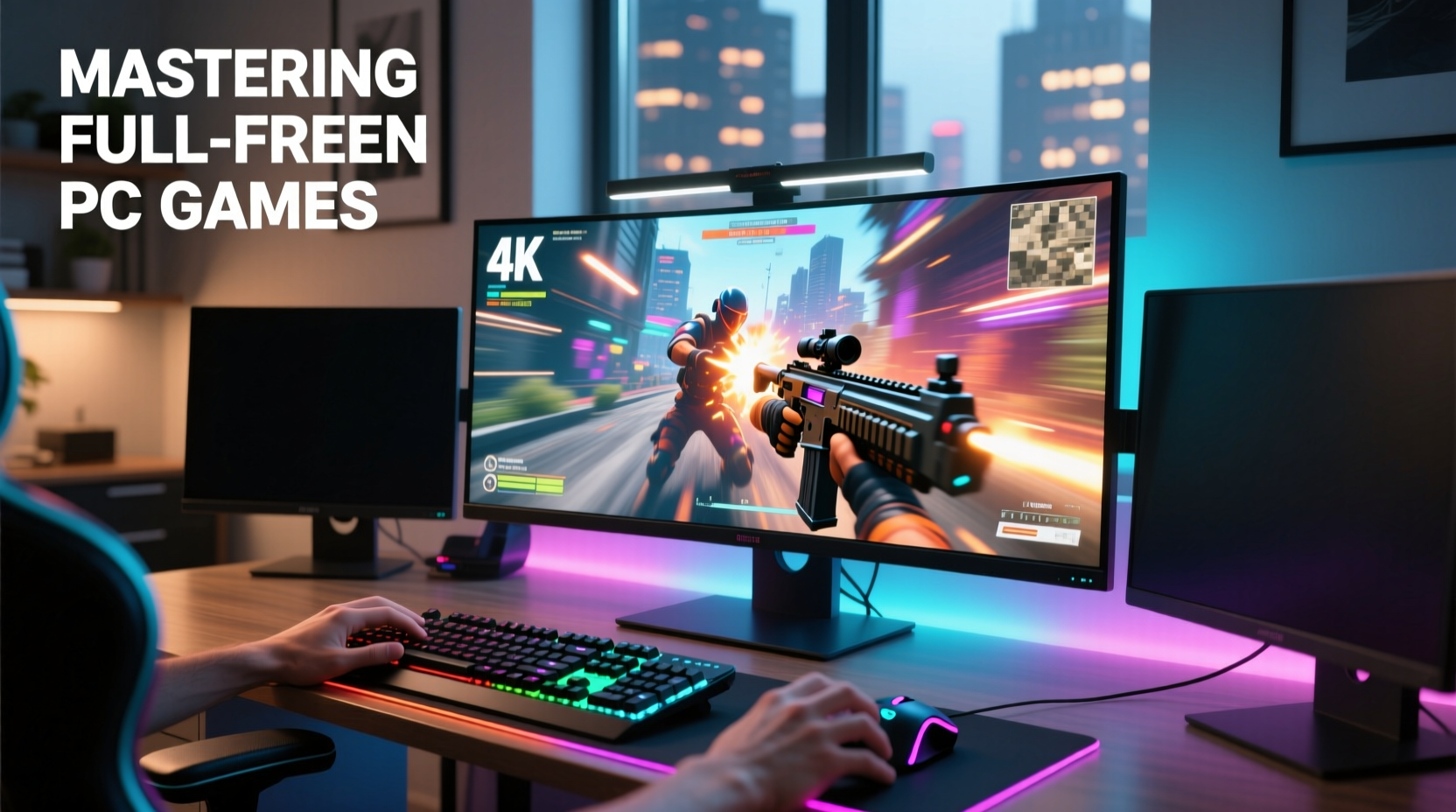
Before tweaking settings, it's essential to understand the different full screen modes available in modern PC games:
- Exclusive Full Screen: Grants direct access to the GPU, minimizing input lag and maximizing performance. Best for high-refresh-rate gaming.
- Borderless Windowed: Runs the game in a window that fills the screen. Offers easier alt-tabbing but may reduce performance slightly due to OS overhead.
- Windowed (Fullscreen): A standard window stretched to screen size. Least efficient and not recommended for performance-focused play.
While exclusive full screen delivers the best performance, borderless windowed is popular among streamers and multitaskers. However, frequent switching between applications can cause stuttering if not managed correctly.
Optimizing Display Settings for Peak Performance
Your monitor and GPU must be properly synchronized to avoid screen tearing, stuttering, or delayed response times. Key areas to focus on include refresh rate, resolution scaling, and synchronization technologies.
Match Refresh Rate and Resolution
Ensure your game’s output matches your monitor’s native resolution and refresh rate. Mismatches force scaling, which introduces latency and blurriness. For example, a 144Hz 1080p monitor should run games at 1920x1080 and 144Hz.
“Running a game at a non-native resolution—even slightly off—can degrade image quality and responsiveness more than most players realize.” — Daniel Lin, Display Calibration Specialist at FrameLabs
Leverage V-Sync, G-Sync, and FreeSync Wisely
- V-Sync: Prevents screen tearing but can increase input lag. Use only if your FPS consistently exceeds your monitor’s refresh rate.
- G-Sync (NVIDIA): Dynamically syncs refresh rate with frame rate. Requires compatible monitor and driver support.
- FreeSync (AMD): Open-standard alternative to G-Sync, widely supported across mid-range and premium displays.
If your hardware supports adaptive sync, enable it in both the game and GPU control panel. Disable V-Sync when using G-Sync or FreeSync to prevent conflicts.
GPU Control Panel Tuning: Unlock Hidden Potential
Both NVIDIA and AMD provide powerful control panels that allow fine-tuning beyond in-game options. These settings directly influence rendering behavior and system responsiveness.
NVIDIA Control Panel Recommendations
- Set “Vertical Sync” to “Use the 3D application setting” or “Fast Sync” if FPS > refresh rate.
- Enable “G-Sync” for fullscreen and windowed modes if supported.
- Set “Power management mode” to “Prefer maximum performance.”
- Adjust “Low Latency Mode” to “Ultra” to reduce CPU rendering delay.
AMD Radeon Software Settings
- Enable “Enhanced Sync” or “FreeSync” depending on your monitor.
- Turn on “Radeon Anti-Lag” to minimize input lag.
- Set “Texture Filtering Quality” to “Performance” unless visual fidelity is critical.
- Disable “Wait for Vertical Refresh” unless needed for stability.
| Setting | Recommended Value | Purpose |
|---|---|---|
| Resolution | Native (e.g., 1920x1080) | Maximize clarity and sharpness |
| Refresh Rate | Monitor max (e.g., 144Hz) | Reduce motion blur |
| V-Sync | Off (if using G/FreeSync) | Avoid input lag |
| Scaling Mode | Full-screen | Prevent black bars and stretching |
| Color Depth | 8bpc or higher | Better color accuracy |
Step-by-Step Guide: Optimizing a New Game for Full Screen Play
Follow this sequence when launching a new title to ensure optimal full screen performance from the start:
- Launch the game in windowed mode first to access settings safely without risking a black screen.
- Set resolution to match your monitor’s native specs.
- Select “Exclusive Full Screen” under display mode.
- Cap FPS slightly below max refresh rate (e.g., 141 FPS on a 144Hz monitor) to avoid tearing when sync fails momentarily.
- Adjust graphics presets based on your GPU’s capabilities—start with “High” and reduce shadows, anti-aliasing, and ambient occlusion if needed.
- Enable G-Sync or FreeSync in both GPU driver and in-game settings.
- Test with in-game benchmarks and observe frame times for consistency.
- Reboot and test alt-tab behavior to ensure smooth return to gameplay.
Real-World Example: Fixing Stutter in Competitive FPS
Mark, an avid CS2 player, experienced inconsistent frame pacing despite running 200+ FPS on his RTX 4070 and 240Hz monitor. His gameplay felt “jerky,” especially during quick flick shots.
After investigation, he discovered two issues: First, the game was set to borderless windowed mode, introducing DWM (Desktop Window Manager) compositing overhead. Second, G-Sync was disabled in the NVIDIA control panel.
By switching to exclusive full screen, enabling G-Sync, and setting “Low Latency Mode” to “Ultra,” Mark eliminated micro-stutters. His perceived responsiveness improved dramatically—even though FPS remained the same.
This case highlights that raw performance metrics don’t tell the whole story. System-level integration between GPU, OS, and display is crucial.
Essential Checklist for Full Screen Optimization
Use this checklist before every major gaming session or after system updates:
- ✅ Confirm monitor is set to native resolution and correct refresh rate in Windows Display Settings.
- ✅ Select “Exclusive Full Screen” in the game’s video settings.
- ✅ Enable G-Sync (NVIDIA) or FreeSync (AMD) in GPU control panel.
- ✅ Disable V-Sync in-game if adaptive sync is active.
- ✅ Set power plan to “High Performance” or “Ultimate Performance” in Windows.
- ✅ Update GPU drivers regularly via GeForce Experience or AMD Adrenalin.
- ✅ Disable fullscreen optimizations in game .exe properties (right-click .exe > Properties > Compatibility).
- ✅ Monitor temperatures and clock speeds using MSI Afterburner or HWInfo to detect throttling.
Frequently Asked Questions
Why does my game feel laggy even at high FPS?
High FPS doesn’t guarantee smoothness. Input lag, unsynchronized refresh rates, background processes, or incorrect full screen mode can make gameplay feel unresponsive. Ensure you’re using exclusive full screen, have adaptive sync enabled, and are minimizing background CPU load.
Should I always use the highest resolution possible?
Only if your GPU can maintain a consistent frame rate at that resolution. It’s better to run 1080p at 144 FPS with smooth frame times than 4K at 60 FPS with stutters. Match resolution to your hardware’s sustainable performance.
What is “fullscreen optimization” in Windows, and should I disable it?
Fullscreen optimizations improve compatibility but can add input lag. Disabling it (via .exe properties) may improve responsiveness in some games, especially older or poorly optimized titles. Test both states to see if there’s a noticeable difference.
Final Thoughts: Elevate Your Gaming Experience
Mastering full screen PC gaming goes beyond turning up graphics sliders. It requires deliberate configuration of your entire display pipeline—from GPU settings to monitor capabilities. Small adjustments like switching to exclusive full screen, enabling adaptive sync, or disabling unnecessary OS-level compositing can transform how a game feels.
The best setups are not just powerful—they are finely tuned. By applying these expert-backed strategies, you’ll achieve smoother visuals, lower latency, and greater immersion, giving you a tangible edge in every match.




 浙公网安备
33010002000092号
浙公网安备
33010002000092号 浙B2-20120091-4
Comments
No comments yet. Why don't you start the discussion?