
In today’s digital landscape, video content dominates how we consume information, entertainment, and communication. Whether you're watching a tutorial, streaming a movie, or attending a virtual meeting, the quality of your viewing experience hinges on more than just resolution—it's about immersion. Full screen video playback is essential for maximizing engagement and minimizing distractions. Yet many users struggle with inconsistent behavior across browsers, devices, or platforms when trying to go full screen. This guide delivers actionable strategies to ensure seamless full screen video expansion—regardless of where or how you watch.
Understanding Full Screen Video Playback
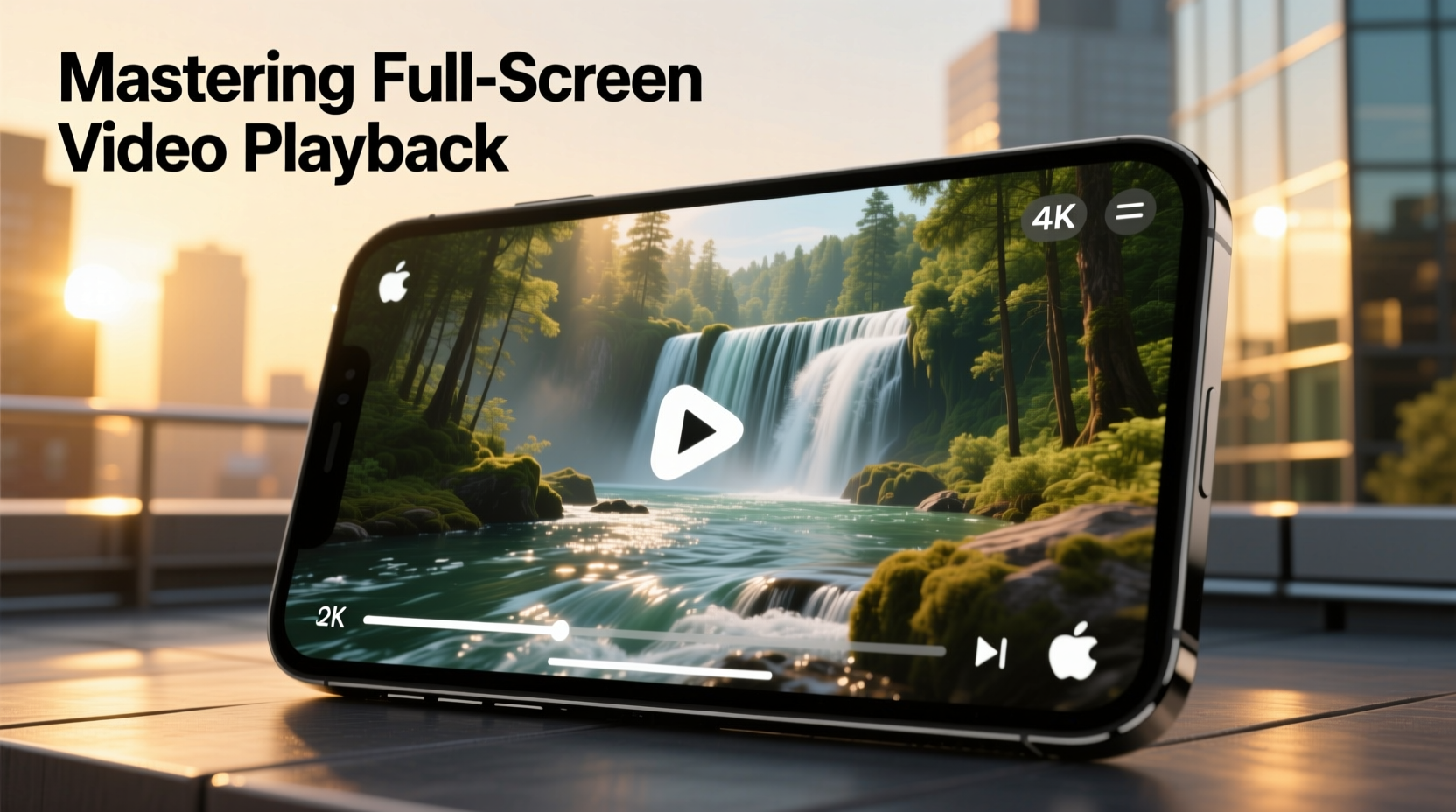
Full screen mode allows a video to occupy the entire display, removing browser toolbars, sidebars, and other UI elements that distract from the content. While it seems simple, achieving consistent full screen performance involves understanding several technical layers: browser compatibility, HTML5 video standards, device constraints, and user permissions.
The foundation lies in the requestFullscreen() API introduced in modern browsers. This JavaScript method enables developers—and by extension, users—to programmatically trigger full screen mode. However, due to security policies, browsers require user interaction (like a click) before activating full screen. That’s why autoplaying videos often fail to enter full screen automatically.
Additionally, mobile devices handle full screen differently. On iOS Safari, for example, full screen is managed through the native player interface rather than true browser-level full screen. Android Chrome offers closer alignment with desktop behavior but still imposes restrictions based on orientation and touch gestures.
Step-by-Step Guide to Seamless Full Screen Activation
To reliably achieve full screen playback, follow this structured approach whether you're a viewer or embedding videos on a site.
- Use Supported Browsers: Ensure you’re using an up-to-date version of Chrome, Firefox, Edge, or Safari. Legacy versions may lack proper support for full screen APIs.
- Click the Full Screen Icon: Locate the square-with-arrows icon in the video player controls. Click once to expand; click again to exit.
- Avoid Pop-up Blockers: Some ad blockers interfere with embedded players. Temporarily disable them if full screen fails.
- Check Keyboard Shortcuts: Press F (most platforms), Ctrl+Cmd+F (Mac), or Fn+F (some laptops) to toggle full screen.
- Enable Site Permissions: In browser settings, allow “fullscreen” permission for trusted sites under Privacy & Security > Site Settings.
- Rotate Mobile Devices: On phones, rotate to landscape mode first—many players only show full screen options in horizontal orientation.
Optimizing Player Design for Full Screen Compatibility
For content creators and web developers, ensuring your video player supports smooth full screen transitions is critical. Poor implementation leads to cut-off visuals, black bars, or failed triggers.
Start by using standardized HTML5 video elements or reputable frameworks like Video.js or Plyr.io, which abstract cross-browser inconsistencies. These libraries normalize full screen behavior and provide fallbacks for older environments.
Ensure the container div wrapping your video has no fixed height or overflow clipping that could restrict expansion. Use CSS such as:
.video-container {
  width: 100%;
  height: auto;
  position: relative;
}
video {
  width: 100%;
  height: auto;
  display: block;
}
This preserves aspect ratio during scaling and prevents distortion.
| Platform | Full Screen Method | Common Issues |
|---|---|---|
| Desktop Chrome/Firefox | Click icon or press F | Blocked by pop-up filters |
| iOS Safari | Auto-fullscreen on play (landscape) | No custom control bar in full screen |
| Android Chrome | User-triggered expand | Orientation lock can prevent entry |
| Smart TVs / Streaming Apps | Built-in app player | Limited browser access |
Real Example: Fixing a Stuck Video Embed
A marketing team at a small e-learning startup noticed their course introduction videos wouldn’t go full screen on student laptops. After investigation, they discovered their custom-built modal window had overflow: hidden applied—a design choice meant to contain animations but inadvertently blocking full screen expansion.
By adjusting the CSS to preserve overflow during full screen states and adding event listeners to detect fullscreenchange, they restored functionality without redesigning the layout. Student feedback improved significantly, with reports of better focus and reduced eye strain.
“Seamless full screen isn’t just a feature—it’s part of accessibility. Users with visual impairments rely on enlarged views to engage fully.” — Dr. Lena Torres, UX Researcher at MediaFlow Labs
Do’s and Don’ts of Full Screen Video Management
- Do test full screen behavior across multiple devices before publishing.
- Do inform users of keyboard shortcuts in tooltips or help sections.
- Do use responsive containers that adapt to dynamic screen sizes.
- Don’t nest video elements inside fixed-position modals without escape handling.
- Don’t assume all users know how to exit full screen—include clear instructions (e.g., “Press Esc to return”).
- Don’t force full screen on page load—it violates browser policies and annoys viewers.
Troubleshooting Common Full Screen Failures
Even with best practices, issues arise. Here’s a checklist to diagnose and resolve problems quickly.
✅ Full Screen Checklist
- Is the user clicking directly on the video or control button?
- Are there browser extensions interfering? Try incognito mode.
- Is the video hosted on a secure (HTTPS) connection? HTTP sites often block full screen for security.
- Does the parent element have
transform,perspective, orfilterCSS that breaks full screen rendering? - Is the device in portrait mode? Many mobile players require landscape for full screen.
If none resolve the issue, check browser console logs for errors like “Failed to execute 'requestFullscreen'”. This typically indicates either a missing user gesture or a DOM hierarchy conflict.
Frequently Asked Questions
Why won’t my video go full screen on mobile?
Mobile browsers limit full screen control to prevent misuse. On iOS, video plays in a native overlay that mimics full screen but doesn’t allow custom styling. Ensure your player uses standard HTML5 controls and avoid disabling default behaviors unless necessary.
Can I customize the full screen view?
Limited customization is possible via CSS pseudo-elements like ::backdrop, but most styling resets in full screen mode. Focus instead on clean pre-expansion design so the transition feels natural.
What happens to subtitles or captions in full screen?
Well-implemented players maintain closed captions during full screen. Use WebVTT files and ensure the track element is properly linked. Test caption positioning to avoid being cropped at edges.
Final Thoughts: Elevate Your Viewing Experience
Mastering full screen video playback isn't just about technical correctness—it's about creating frictionless experiences that keep audiences engaged. From optimizing code to educating end users, every layer matters. Whether you're streaming a documentary, presenting a webinar, or building a media platform, seamless full screen functionality should be non-negotiable.
Take time to audit your current setup. Test across devices. Refine interactions. Small adjustments yield significant improvements in usability and satisfaction.




 浙公网安备
33010002000092号
浙公网安备
33010002000092号 浙B2-20120091-4
Comments
No comments yet. Why don't you start the discussion?