
VRChat offers one of the most dynamic and social virtual reality experiences available today. Whether attending events, exploring user-created worlds, or simply hanging out with friends, the depth of immersion is what sets VRChat apart. One of the most impactful ways to enhance that immersion is by properly configuring fullscreen mode—especially when using desktop (non-VR) mode. When optimized correctly, fullscreen eliminates distractions, improves performance, and provides a more cinematic feel. Yet many users overlook the nuances of display settings, resolution scaling, and input behavior that define a seamless experience.
This guide walks through every essential aspect of mastering fullscreen mode in VRChat, from initial setup to advanced optimizations. By understanding how display modes interact with your hardware and software environment, you can achieve smoother frame rates, sharper visuals, and uninterrupted social interactions.
Understanding Fullscreen Modes: Exclusive vs. Borderless
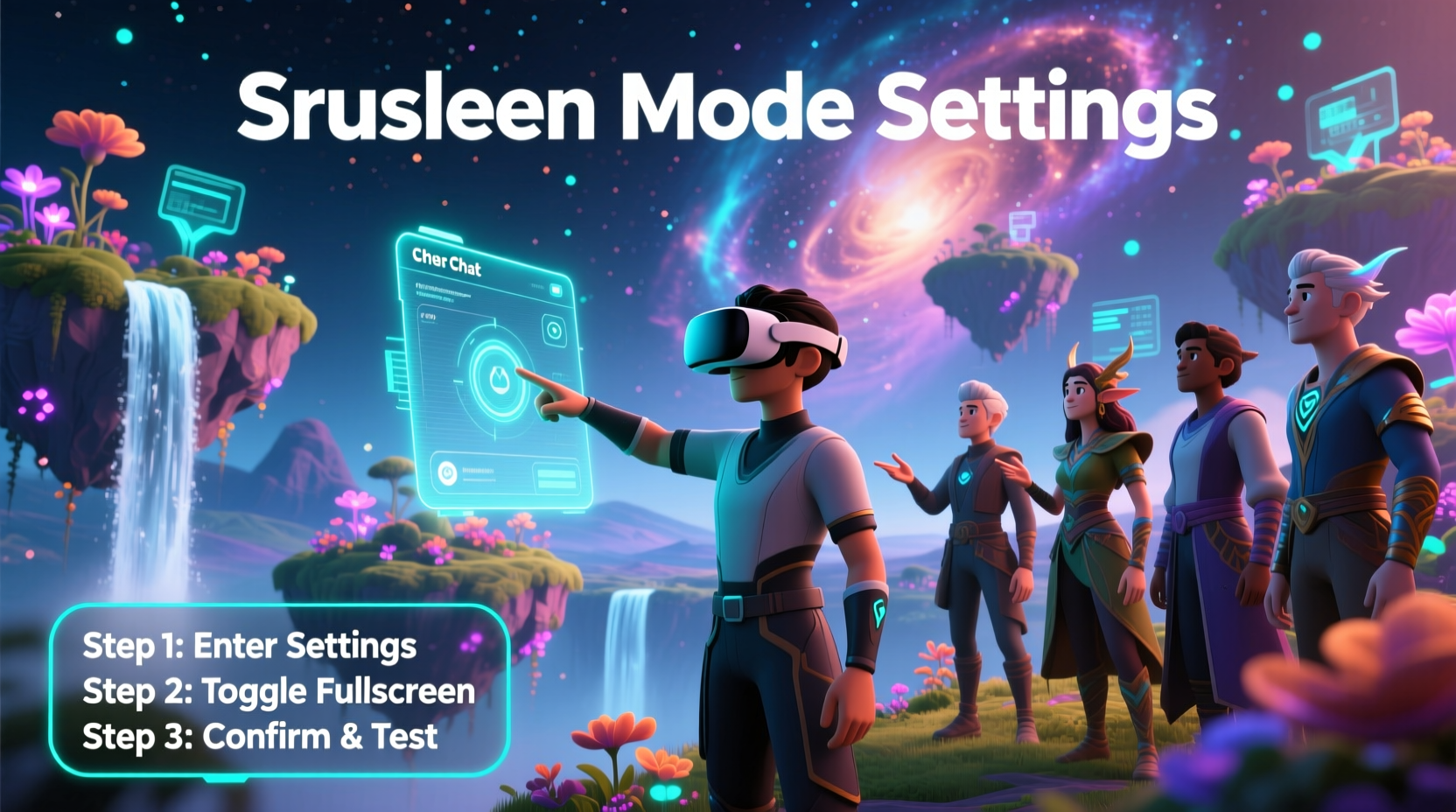
Before diving into configuration, it’s critical to understand the two primary fullscreen modes available in VRChat and most modern games: Exclusive Fullscreen and Borderless Windowed. Each has distinct advantages and trade-offs depending on your system and usage patterns.
| Metric | Exclusive Fullscreen | Borderless Windowed |
|---|---|---|
| Performance | Optimal – Direct GPU access | Slightly lower due to OS overhead |
| Input Latency | Lower – No window manager interference | Higher – Can be affected by alt-tabbing |
| Multitasking | Poor – Requires alt+tab to switch apps | Excellent – Seamless app switching |
| Stability | High – But may crash on driver conflicts | More resilient during system interruptions |
Exclusive fullscreen grants VRChat complete control over your monitor, often resulting in higher and more consistent frame rates. However, it can cause issues if you frequently switch applications or use overlays like Discord or Steam chat. Borderless windowed mode runs the game in a window that fills the entire screen but behaves like a regular application, allowing smoother multitasking at the cost of minor performance loss.
Step-by-Step Guide to Enabling Fullscreen Mode
Configuring fullscreen in VRChat is straightforward but requires attention to detail to avoid common pitfalls such as black screens, incorrect resolutions, or input lag. Follow these steps to ensure optimal results:
- Launch VRChat and log in using your preferred method (Steam, Oculus, or standalone).
- Navigate to the Settings menu via the main dashboard or pause menu.
- Select the Graphics tab located at the top of the settings panel.
- Under “Display Mode,” choose either Fullscreen or Borderless Window based on your preference and system setup.
- Set the Resolution to match your monitor’s native resolution (e.g., 1920x1080, 2560x1440). Avoid scaled resolutions unless troubleshooting performance issues.
- Enable V-Sync only if you experience screen tearing; otherwise, disable it to reduce input lag.
- Click Apply and confirm the changes. The game will briefly reload the display context.
- Test the new mode by entering any world and checking for stability and clarity.
If the screen turns black after applying fullscreen settings, press Alt + Enter to toggle back to windowed mode. This keyboard shortcut works even if the game appears frozen, as long as the process is still running.
Optimizing Performance in Fullscreen
Fullscreen mode places greater demand on your GPU and CPU, particularly in densely populated worlds with high-poly avatars and complex environments. To maintain smooth performance, consider the following optimizations:
- Cap Frame Rate: Set a frame rate limit slightly below your monitor’s refresh rate (e.g., 58 FPS for a 60Hz display) to reduce GPU load and prevent overheating.
- Adjust Graphics Quality: Lower texture quality and disable real-time reflections if you’re experiencing stuttering.
- Close Background Apps: Browsers, streaming software, and RGB control panels consume memory and CPU cycles that could otherwise support VRChat.
- Update GPU Drivers: Outdated drivers can cause fullscreen flickering or crashes. Always use the latest stable release from NVIDIA, AMD, or Intel.
“We’ve observed up to a 20% performance improvement in exclusive fullscreen compared to borderless, especially on mid-tier GPUs.” — Alex Rivera, VR Optimization Analyst at GameFrame Labs
Real-World Example: Improving Streamer Workflow
Jess, a VRChat content creator with over 50,000 followers, initially used borderless windowed mode to easily switch between VRChat, OBS, and her script notes. However, she noticed frequent frame drops during live streams, particularly when multiple avatars entered a scene. After testing both modes, she switched to exclusive fullscreen and used a second monitor for her streaming software and chat.
The change resulted in a consistent 60 FPS output, eliminated screen tearing, and improved video quality for her audience. Although she lost the ability to quickly alt-tab, the trade-off was worth the stability. She now uses a hotkey macro on her stream deck to toggle scenes in OBS without leaving VRChat, maintaining interactivity without sacrificing performance.
Troubleshooting Common Fullscreen Issues
Even with proper setup, some users encounter problems when enabling fullscreen. Below are frequent issues and their solutions:
- Black Screen on Launch: This often occurs when the selected resolution isn’t supported. Boot into safe mode (hold Shift while launching via Steam) and reset graphics settings.
- Game Won’t Go Fullscreen: Ensure no other application is capturing the display (e.g., screen recorders). Disable them temporarily and retry.
- Blurry Image in Fullscreen: Verify that the resolution matches your monitor’s native setting. Scaling at non-native resolutions causes blurriness.
- Audio Cuts Out in Fullscreen: This may indicate focus loss. Check audio device defaults and disable audio enhancements in Windows Sound Control Panel.
Frequently Asked Questions
Can I use fullscreen mode without a VR headset?
Yes. VRChat supports mouse-and-keyboard navigation in fullscreen mode, making it ideal for players who want an immersive experience without VR hardware.
Why does VRChat run slower in borderless windowed mode?
Borderless mode runs within the operating system’s window manager, which introduces overhead. Compositing layers, transparency effects, and background processes can consume additional resources, reducing available performance for the game.
Does fullscreen mode affect avatar rendering or world loading?
No. Fullscreen impacts only display output and input handling. Asset loading, networking, and avatar rendering are independent of display mode, though better performance in fullscreen may indirectly improve world responsiveness.
Final Checklist for Fullscreen Mastery
- ✅ Confirm monitor resolution
- Use native resolution for sharp visuals.
- ✅ Choose the right display mode
- Exclusive for performance, borderless for multitasking.
- ✅ Update graphics drivers
- Ensure compatibility and stability.
- ✅ Test in a populated world
- Verify performance under realistic conditions.
- ✅ Adjust V-Sync and frame cap
- Balance smoothness and responsiveness.
- ✅ Monitor system temperature
- Fullscreen increases GPU load—watch for thermal throttling.
Take Your VRChat Experience Further
Fullscreen mode is more than just a visual preference—it’s a foundational element of immersive gameplay. Whether you're attending a virtual concert, roleplaying in a custom world, or streaming to thousands, the right display configuration ensures you stay present and engaged. By selecting the appropriate fullscreen mode, optimizing performance, and troubleshooting proactively, you create a stable and visually rich environment that enhances every interaction.




 浙公网安备
33010002000092号
浙公网安备
33010002000092号 浙B2-20120091-4
Comments
No comments yet. Why don't you start the discussion?