
Gmail’s “Undo Send” feature is one of the most underappreciated tools in modern digital communication. Whether you’ve sent an email with a typo, attached the wrong file, or hit send too soon on a message you regret, knowing how to recall or retract a message can save your professional reputation. While true email recall—like that in Microsoft Outlook—is not fully supported in Gmail, there are practical workarounds and built-in features that offer similar outcomes when used correctly. This guide walks through everything you need to know to maximize control over your sent emails.
Understanding Gmail’s “Undo Send” vs. True Email Recall
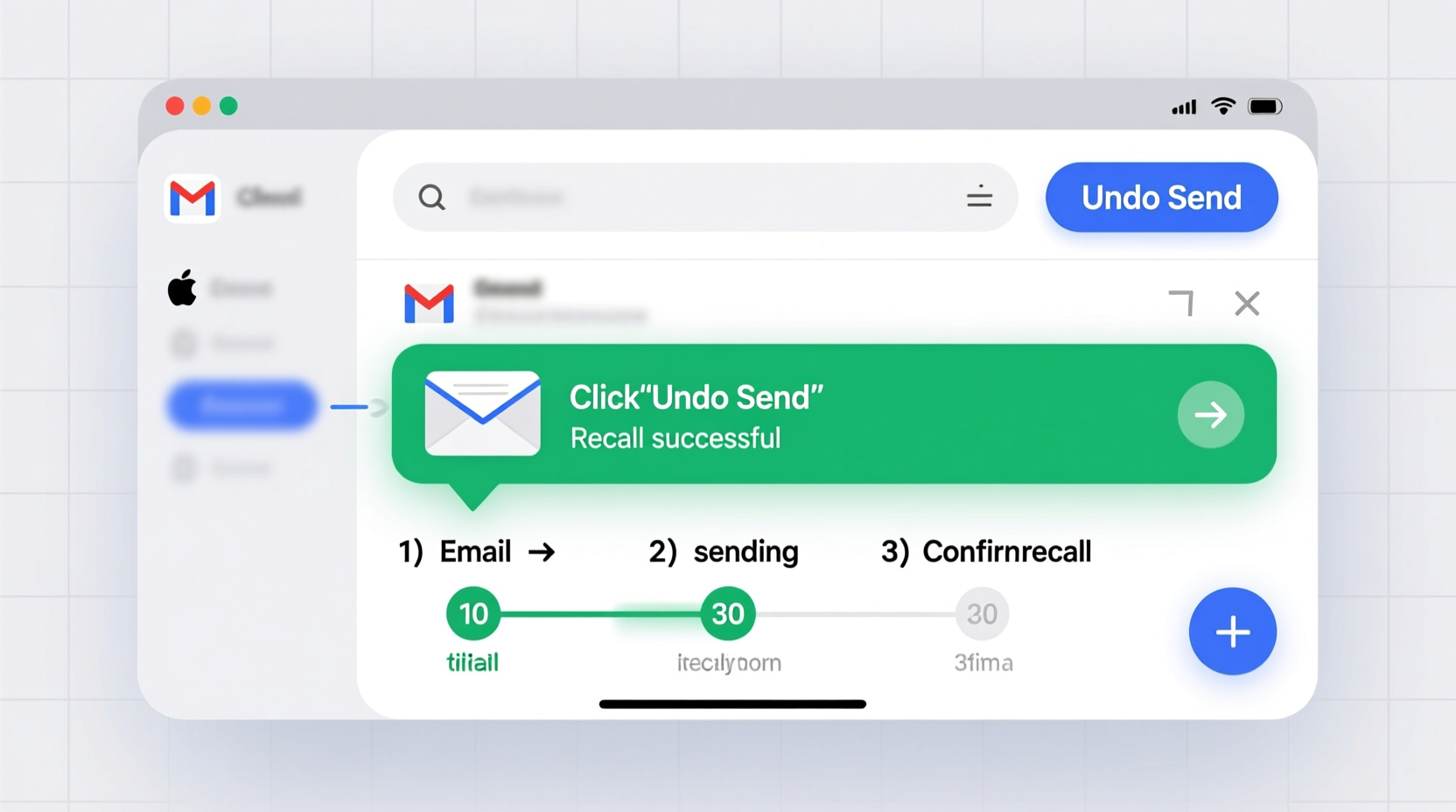
First, it's important to clarify a common misconception: Gmail does not offer traditional email recall. Unlike corporate email systems such as Exchange or Outlook, where a sender can pull back a message even after it has been delivered and opened, Gmail operates differently. Instead, Gmail provides a time-limited window during which you can cancel a message before it actually leaves your outbox. This is known as the “Undo Send” feature.
The key difference lies in timing. True recall attempts to retrieve a message already received by the recipient. Gmail’s method stops the message from being dispatched at all. The success of this function depends entirely on how quickly you act after hitting send.
“Email is permanent the moment it lands in someone’s inbox. The only real safeguard is prevention.” — David Lin, Digital Communication Strategist
Step-by-Step Guide to Enable and Use Undo Send
To take advantage of Gmail’s closest equivalent to email recall, follow these steps precisely. The process must be set up in advance for maximum effectiveness.
- Log into your Gmail account via browser (desktop recommended for full settings access).
- Click the gear icon in the top-right corner and select “See all settings.”
- Navigate to the “General” tab.
- Scroll down to the “Undo Send” section.
- Select the delay duration: 5, 10, 20, or 30 seconds.
- Scroll to the bottom of the page and click “Save Changes.”
Once enabled, every time you send an email, a yellow banner will appear at the bottom of your screen saying “Message sent,” with an “Undo” link next to it. Clicking “Undo” within your chosen timeframe cancels the dispatch, returning the draft to your compose window.
What You Can (and Cannot) Do After Sending
After sending an email, your options narrow significantly depending on whether Undo Send was active and how much time has passed.
| Scenario | Possible Action | Limits |
|---|---|---|
| Email just sent, Undo Send active | Click “Undo” within selected delay window | Must act before timer expires |
| Delay expired, recipient hasn’t read email | No technical recall possible | Only manual follow-up allowed |
| Sent to internal company domain (Workspace users) | Admin may block delivery via Gmail logs | Requires admin access and fast response |
| External recipient (e.g., @gmail.com, @yahoo.com) | No recall possible once delivered | Depends on third-party server behavior |
If more than 30 seconds have passed and the email has left your system, you cannot technically retract it. However, damage control remains an option.
Damaging Sent Emails: Practical Recovery Strategies
When you can't undo an email, speed and professionalism determine the outcome. Consider the following checklist to mitigate potential fallout.
Action Checklist: Responding to a Sent Email Mistake
- Assess the severity: Was it a typo, confidential data leak, or emotional tone?
- Send a clarifying follow-up email immediately if appropriate.
- Request deletion politely: “I noticed I sent outdated information—please disregard my previous message.”
- Contact the recipient directly via phone or chat if the matter is urgent.
- Report accidental data exposure internally if compliance risks exist (e.g., HIPAA, GDPR).
In some cases, especially within organizations using Google Workspace, IT administrators have the ability to intercept messages through Gmail’s outbound spam controls or security investigations. But this requires immediate reporting and is not guaranteed.
“We once prevented a financial report from reaching external partners because our admin caught it in transit. It bought us 12 minutes to correct the error.” — Maya Tran, Finance Operations Lead
Best Practices to Prevent Email Regret
The most effective way to handle a mis-sent email is to avoid sending it in the first place. These habits reduce risk and increase confidence in daily communication.
Pre-Send Verification Routine
- Pause before sending: Take two seconds to review subject line, tone, and attachments.
- Use Bcc for large groups: Avoid exposing personal emails and reduce reply-all chaos.
- Attach files early: Add attachments while drafting to prevent forgetting them.
- Enable spell check: Use browser extensions or built-in tools to catch errors.
- Set up canned responses: Save templates for frequent messages to reduce impulsive replies.
Additionally, consider writing sensitive emails in a text editor first, then pasting them into Gmail. This creates a buffer that forces intentionality.
Frequently Asked Questions
Can I recall an email after 5 minutes?
No. Once the Undo Send delay has passed (maximum 30 seconds), Gmail treats the message as dispatched. There is no native recall function for external accounts. Internal messages within Google Workspace may be blocked by admins if acted upon swiftly, but this is not user-controlled.
Does “Undo” work on mobile devices?
Yes, but with limitations. The Gmail app supports Undo Send if the feature is enabled on your account. After sending, a temporary banner appears at the bottom with an Undo option. However, the interface is smaller and less noticeable than on desktop, so vigilance is required.
Why isn’t my Undo Send working?
Common causes include: not saving changes in settings, using a third-party email client (e.g., Apple Mail or Outlook), or exceeding the delay window. Ensure you’re using the official Gmail web interface or app and that the setting is confirmed as saved.
Conclusion: Control Starts Before You Hit Send
Mastery of Gmail email recall isn’t about magical fixes—it’s about preparation, awareness, and disciplined habits. While true message retrieval remains out of reach for most users, the combination of Undo Send, proactive verification, and swift recovery tactics gives you substantial control over your digital correspondence. By enabling the 30-second safety net and cultivating mindful email practices, you minimize regrets and maximize professionalism.




 浙公网安备
33010002000092号
浙公网安备
33010002000092号 浙B2-20120091-4
Comments
No comments yet. Why don't you start the discussion?