
Google Drive is more than just cloud storage—it’s a dynamic workspace that powers productivity for individuals, students, and organizations. Yet, many users only scratch the surface of its capabilities. Files pile up in the root folder, shared links go untracked, and collaboration becomes chaotic without structure. Mastering Google Drive means moving beyond basic file uploads to creating an intuitive system that enhances efficiency, security, and teamwork.
This guide walks through practical strategies to organize your Drive like a pro, share files with precision, and collaborate seamlessly—without version confusion or permission mishaps.
1. Build a Logical Folder Structure
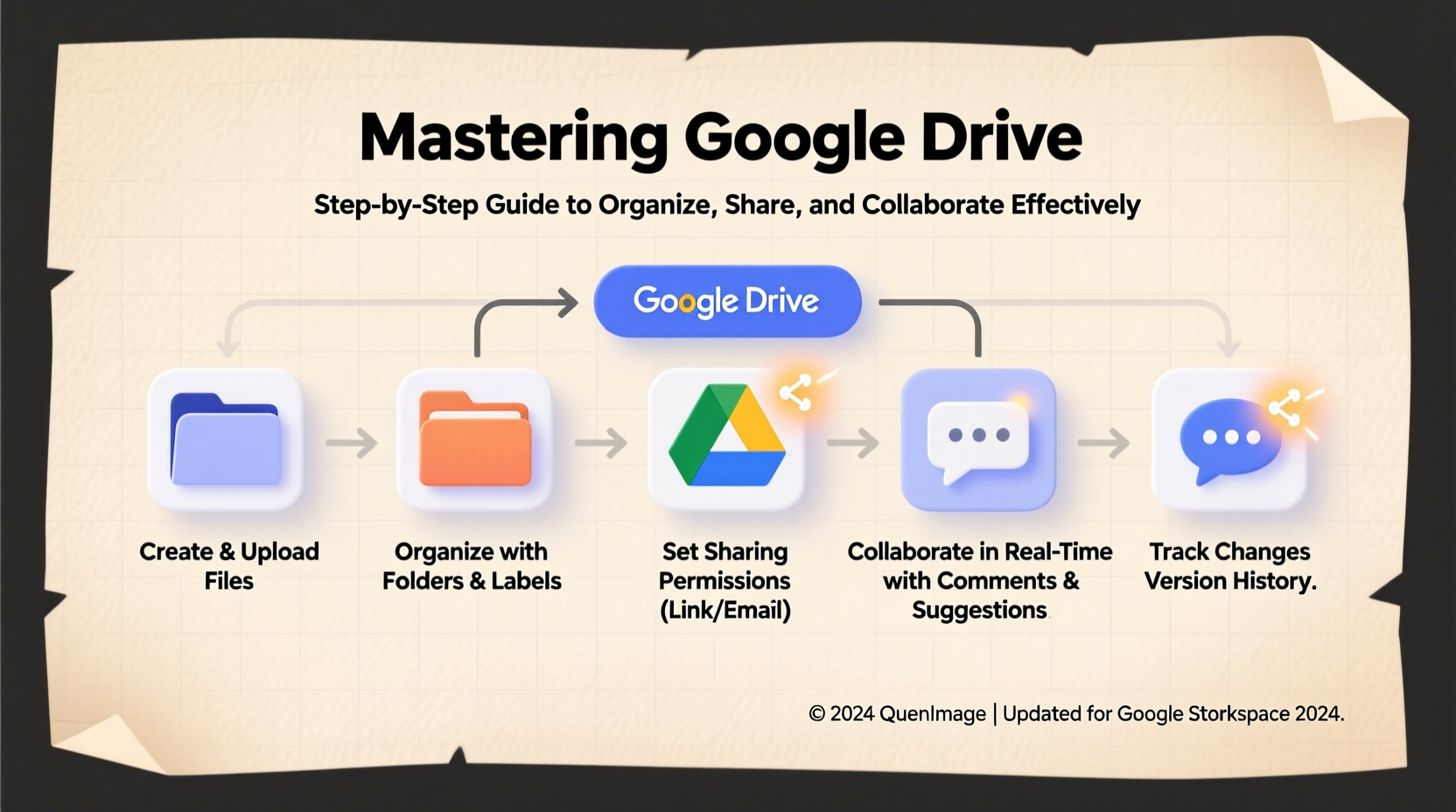
A clutter-free Drive starts with a clear hierarchy. Without one, even simple searches become time-consuming. Begin by mapping out your primary categories—such as Work, Personal, Projects, Clients, or Departments—and build subfolders beneath them.
For example:
- Work
- Projects
- Project Alpha (Q3 2024)
- Project Beta (Q4 2024)
- Meetings
- Team Syncs
- Client Calls
- Templates
- Projects
Naming consistency matters. Use dates in YYYY-MM-DD format for time-sensitive folders (e.g., \"2024-10-15 Board Meeting\") so they sort chronologically. Avoid vague names like “Stuff” or “Misc.”
2. Optimize File Management with Naming Conventions and Starred Items
Even with great folders, finding the right file quickly depends on how it's named. Adopt a standard naming convention such as:
[Project]_[Document Type]_[Date]_[Version]. For example: Website_Redesign_Proposal_2024-10-05_v2
This makes sorting automatic and eliminates guesswork when multiple versions exist.
Leverage Drive’s “Star” feature to mark frequently used files or active projects. Starring keeps critical documents at the top of your sidebar under “Starred,” giving you instant access without digging through folders.
File Naming Do’s and Don’ts
| Do | Don’t |
|---|---|
| Use underscores instead of spaces | Use special characters like ? * | < > |
| Include project name and date | Name files “Final.docx” or “Final_Final.docx” |
| Indicate version numbers | Use inconsistent capitalization |
| Keep names under 50 characters | Create duplicate names in same folder |
3. Share Files Securely and Control Access
Sharing in Google Drive is powerful—but misconfigured permissions can lead to data leaks or editing conflicts. Always set explicit access levels rather than relying on link sharing defaults.
The four main permission types are:
- Viewer – Can view but not edit or share.
- Commenter – Can add comments but not change content.
- Editor – Can modify and share with others.
- Owner – Full control, including deletion rights.
When sharing, avoid using “Anyone with the link” unless absolutely necessary. Instead, share directly with email addresses to maintain accountability.
Step-by-Step: Sharing a Document Safely
- Right-click the file in Google Drive.
- Select “Share” and enter specific email addresses.
- Set each person’s role (Viewer, Commenter, Editor).
- Uncheck “Editors can change permissions and share” if needed.
- Add a message if context helps, then click “Send.”
“Over-permissioning is the number one cause of accidental data exposure in cloud environments.” — Lena Torres, Data Security Analyst at CloudGuard Solutions
4. Collaborate in Real Time Without Chaos
One of Google Drive’s greatest strengths is real-time collaboration in Docs, Sheets, and Slides. Multiple users can work simultaneously, see live cursors, and leave threaded comments.
To prevent overlap or confusion:
- Use **Suggesting mode** when proposing edits instead of making direct changes.
- Resolve comments once addressed to keep feedback loops clean.
- Assign action items using @mentions in comments to notify collaborators.
- Enable version history (File > Version history > Name current version) at key milestones.
For team projects, designate a single source of truth. Avoid duplicating files “just in case”—this leads to outdated copies circulating via email.
Mini Case Study: Streamlining Team Reporting
A mid-sized nonprofit struggled with monthly impact reports. Each department sent separate drafts via email, leading to conflicting versions and missed deadlines. They moved the process to Google Drive: created a master folder, standardized templates, and gave editors access to a shared Google Doc. Managers reviewed using comment threads, and the director approved final versions with a named version update. The result? Report completion time dropped from 10 days to 3, with zero version confusion.
5. Maintain Security and Clean Up Regularly
An organized Drive isn’t just about structure—it also requires ongoing maintenance. Old files, unused shares, and orphaned documents pose security risks and slow down performance.
Run a quarterly cleanup using this checklist:
✅ Google Drive Maintenance Checklist
- Review all shared files with external users (Settings > Manage apps & sharing outside your organization).
- Delete or archive outdated projects.
- Transfer ownership of personal files created on work accounts before leaving roles.
- Unsubscribe from files no longer relevant using “Remove” from My Drive.
- Check storage usage (drive.google.com/settings/storage) and offload large media if nearing limits.
Use Google Workspace’s native tools like “Shared Drives” for team-owned content that persists beyond individual departures. Unlike personal drives, files in Shared Drives belong to the team, not individuals.
Frequently Asked Questions
Can someone access my Google Drive after I stop sharing a file?
No. Once you remove someone’s access or disable a shared link, they can no longer view or edit the file. However, if they previously downloaded a copy, that local version remains on their device.
How do I recover a deleted file?
Go to “Trash” in Google Drive. Files stay there for 30 days before permanent deletion. Right-click the file and select “Restore” to bring it back to its original location.
What’s the difference between My Drive and Shared Drives?
My Drive is personal storage tied to your account. Shared Drives are team spaces where files are owned collectively. In Shared Drives, deletion requires explicit permissions, and files don’t count against individual quotas.
Conclusion: Take Control of Your Digital Workspace
Mastering Google Drive isn’t about memorizing features—it’s about designing a system that reduces friction and scales with your needs. From structured folders to precise sharing controls and seamless collaboration, every habit you build adds up to greater clarity and productivity.
Start today: spend 30 minutes auditing your Drive, apply a consistent naming scheme, and reorganize one overloaded folder. Small actions compound into lasting order. As your digital environment becomes easier to navigate, you’ll free up mental space for what really matters—creating, innovating, and working together effectively.




 浙公网安备
33010002000092号
浙公网安备
33010002000092号 浙B2-20120091-4
Comments
No comments yet. Why don't you start the discussion?