
Google Reverse Image Search is one of the most powerful yet underutilized tools available today. Whether you're tracking down the source of a photo, identifying a product, verifying the authenticity of an image, or researching visual content, this feature can deliver precise and actionable insights. Despite its utility, many users only scratch the surface of what it can do. With the right approach, reverse image search becomes far more than a novelty—it transforms into a precision instrument for digital investigation.
Why Reverse Image Search Matters in the Digital Age
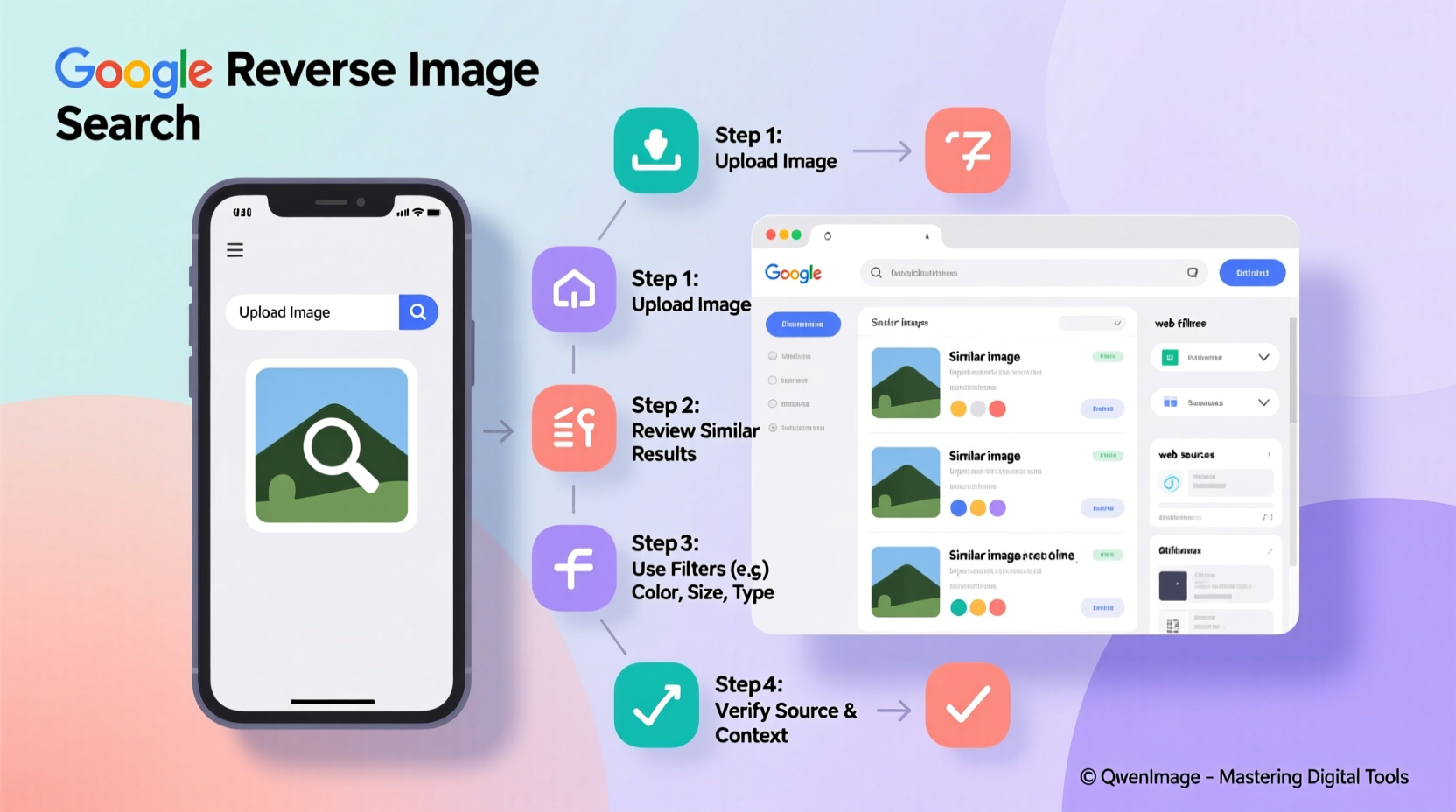
In an era where visual content dominates social media, e-commerce, and news platforms, understanding the origin and context of images is crucial. Misinformation spreads rapidly through manipulated or misattributed photos. Journalists, researchers, marketers, and everyday users benefit from verifying visuals before sharing or acting on them.
Reverse image search allows you to bypass text-based queries and go straight to the visual data. Instead of describing an object in words, you can use the actual image to find matches across the web. This capability is especially useful when dealing with foreign language content, obscure products, or unidentified locations.
“Reverse image search has become essential for fact-checkers and investigative journalists. It’s often the first line of defense against visual misinformation.” — Sarah Lin, Digital Forensics Analyst at MediaWatch Institute
Step-by-Step Guide to Using Google Reverse Image Search
Using Google's reverse image search is straightforward, but mastering it requires attention to detail and strategic refinement. Follow these steps to maximize accuracy and relevance in your results.
- Navigate to Google Images: Open your browser and go to images.google.com.
- Click the Camera Icon: Located in the search bar, this icon opens the reverse image search interface.
- Upload or Paste: You can either upload an image file from your device or paste the URL of an image hosted online.
- Analyze Initial Results: Google will return visually similar images, pages where the image appears, and related searches.
- Refine with Keywords: Add descriptive keywords (e.g., “vintage car,” “Paris street”) to narrow results if needed.
- Review Metadata Clues: Look at surrounding text on matched pages—captions, filenames, or timestamps may reveal origin details.
Advanced Techniques for Higher Accuracy
Basic reverse search works well for common images, but nuanced cases require advanced tactics.
- Use Multiple Engines: While Google leads in image indexing, cross-check with Bing Visual Search, Yandex, or TinEye for broader coverage, especially for non-English content.
- Leverage Browser Extensions: Tools like “Search by Image” for Chrome allow one-click reverse searches directly from any webpage.
- Modify Image Properties: Slight adjustments in brightness, contrast, or cropping can help bypass filters or altered versions of the same image.
- Check Timestamps: Use the “Tools” dropdown in Google Images to filter results by date. This helps determine if an image is being reused out of context.
Practical Applications and Real-World Scenarios
Reverse image search isn’t just for curiosity—it solves real problems across industries.
Case Study: Unmasking a Fake Profile Photo
A freelance client received a message from someone claiming to be a U.S.-based entrepreneur. The profile included a professional headshot. Suspicious of potential scam activity, the recipient used reverse image search on the photo. Within seconds, Google returned matches linking the image to a stock photography site and multiple fake LinkedIn profiles across different countries. Armed with this evidence, the freelancer avoided a phishing attempt.
E-Commerce Product Identification
Imagine seeing a friend wear unique sneakers but not knowing the brand. Take a clear photo, upload it via Google Lens or desktop reverse search, and browse visually similar items. Often, exact product listings appear in shopping results, complete with pricing and retailer information.
Verifying News and Social Media Content
During breaking news events, unverified images circulate widely. A journalist covering a wildfire in California found a dramatic photo labeled as “burned neighborhood in Malibu.” A reverse search revealed the same image was previously used in reports about Australian bushfires in 2020. This prevented inaccurate reporting and highlighted the importance of verification.
Do’s and Don’ts of Reverse Image Searching
| Do’s | Don’ts |
|---|---|
| Crop images to highlight key subjects | Use low-resolution or blurry images |
| Combine reverse search with keyword filtering | Assume the top result is always correct |
| Verify findings across multiple sources | Ignore metadata and publication dates |
| Use it ethically—avoid stalking or privacy invasion | Share personal images without consent |
| Save time by using browser extensions | Rely solely on automated results without critical thinking |
Expert Tips for Consistent Success
To get reliable outcomes every time, adopt these proven strategies.
- Start with High-Quality Images: Clear, well-lit photos with distinct features yield better matches.
- Remove Watermarks Strategically: If possible, crop around watermarks without distorting the core image—some services detect tampering.
- Use Google Lens for Mobile Queries: Point your camera at physical objects (books, plants, landmarks) and let Lens perform instant reverse searches.
- Bookmark Verified Sources: Once you confirm an image’s origin, save the page for future reference or citation.
Checklist: Master Your Reverse Image Search Workflow
- Obtain a clear, high-resolution version of the image
- Crop to focus on the main subject
- Upload to Google Images or use Google Lens
- Review “Pages that include the image” for context
- Apply date filters to assess timeliness
- Cross-reference results with alternative engines
- Determine original source or closest match
- Document findings with URLs and timestamps
Frequently Asked Questions
Can Google Reverse Image Search find edited versions of a photo?
Yes, Google’s algorithm detects visual similarities even after moderate edits like cropping, color adjustment, or resizing. However, heavily altered or stylized versions (e.g., filters, deepfakes) may not return direct matches.
Is it legal to use reverse image search on any photo?
While technically legal for public images, ethical considerations apply. Avoid using it to identify individuals without consent, stalk people, or infringe on privacy rights. Stick to research, verification, and educational purposes.
Why do some images return no results?
This usually happens when the image is new, highly obscure, or not indexed by Google. It may also occur if the image is unique (e.g., a personal snapshot) or protected behind paywalls or private sites.
Conclusion: Turn Images Into Intelligence
Google Reverse Image Search is more than a tool—it’s a gateway to digital truth. From exposing misinformation to rediscovering lost artwork, its applications are vast and growing. By following structured methods, refining your inputs, and interpreting results critically, you transform passive viewing into active investigation.
The next time you encounter an unfamiliar face, product, or scene, don’t guess. Search smarter. Verify faster. Know more.




 浙公网安备
33010002000092号
浙公网安备
33010002000092号 浙B2-20120091-4
Comments
No comments yet. Why don't you start the discussion?