
Finding specific information on large websites can feel like searching for a needle in a haystack—especially when internal search tools are poorly designed or missing altogether. Fortunately, Google offers a powerful alternative: the site: operator. This simple yet underutilized feature allows you to restrict your Google searches to a single domain, making it easier to locate content buried deep within official documentation, news archives, or e-commerce platforms. Whether you're a researcher, developer, or everyday user, mastering Google site search can save time and dramatically improve accuracy.
Understanding the Basics of Site Search
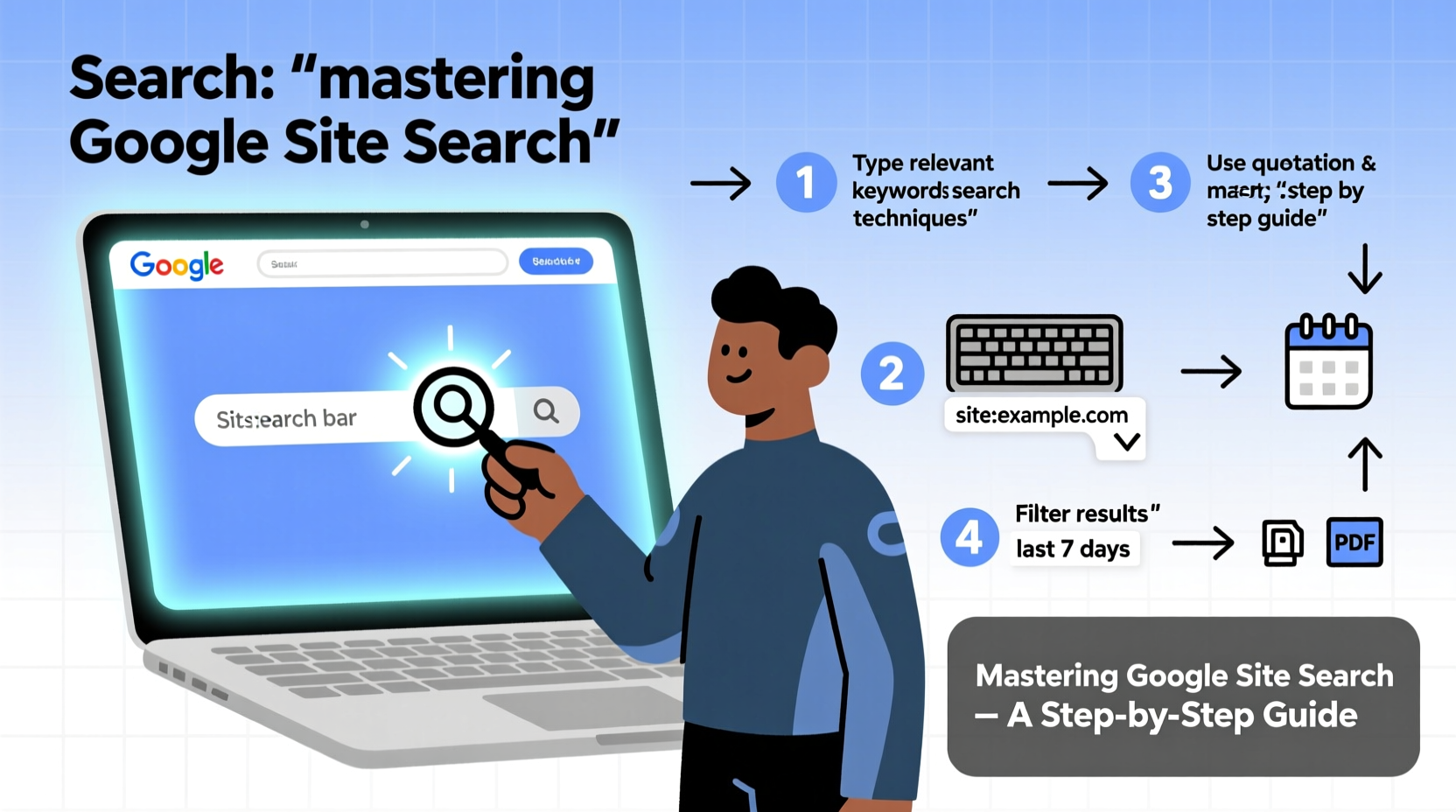
The core of Google site search lies in the site: operator. When placed before a query, it limits results to pages hosted on a particular website. For example, typing site:nytimes.com climate change into Google will return only articles from The New York Times that mention climate change.
This method bypasses clunky site-specific search bars and leverages Google’s superior indexing and ranking algorithms. It's particularly effective for sites with vast content libraries such as government portals (site:gov), academic institutions (site:edu), or technical documentation hubs like GitHub or Mozilla Developer Network.
site:example.com) rather than partial URLs to avoid unintended results.
Step-by-Step Guide to Advanced Site Searches
To get the most out of Google site search, follow this structured approach:
- Identify the target website. Determine which domain contains the information you need. For instance, if looking for IRS tax forms, use
site:irs.gov. - Construct your base query. Start with the
site:operator followed immediately by the domain—no space between them. Example:site:cdc.gov. - Add keywords relevant to your search. Include terms like “guidelines,” “form,” or “update” depending on what you’re seeking.
- Use quotation marks for exact phrases. Searching for
site:who.int \"monkeypox symptoms\"ensures both words appear together in that order. - Leverage exclusion with minus signs. Remove irrelevant results by excluding common distractions. Try
site:apple.com iPhone battery -repairto omit repair guides. - Combine with other operators. Use
filetype:pdf,inurl:help, orintitle:manualto narrow further.
For example, to find a downloadable PDF manual for a product on Amazon, try: site:amazon.com wireless earbuds manual filetype:pdf
Essential Operators for Precision Targeting
Google supports several advanced search operators that enhance site-specific queries. These tools allow granular control over result filtering and relevance.
| Operator | Function | Example |
|---|---|---|
site: |
Limits results to a specific domain | site:mit.edu quantum computing |
filetype: |
Finds files of a certain type | site:nasa.gov Mars rover filetype:pdf |
intitle: |
Requires term in page title | site:harvard.edu intitle:syllabus biology |
inurl: |
Searches within URL paths | site:microsoft.com inurl:security update |
- (minus) |
Excludes terms | site:bestbuy.com TV -used -refurbished |
site:state.gov intitle:visa filetype:pdf -tourist finds U.S. government visa documents excluding tourist categories.
Real-World Application: A Researcher’s Workflow
Dr. Lena Patel, a public health analyst, needed historical data on vaccination rates across European Union countries. Internal EU portal navigation was slow, and filters were inconsistent. Instead, she used Google to streamline her search:
- Started with:
site:ec.europa.eu vaccination coverage report - Narrowed to PDFs:
site:ec.europa.eu vaccination coverage filetype:pdf - Filtered by year:
site:ec.europa.eu \"vaccination coverage\" 2022 filetype:pdf
Within minutes, she located three comprehensive reports published by the European Centre for Disease Prevention and Control. Without using the site: operator, these documents would have required navigating through multiple subdomains and outdated links.
“We rely heavily on timely access to policy documents. Using Google’s site search has cut our research time by at least 60%.” — Dr. Lena Patel, Senior Epidemiologist
Avoiding Common Pitfalls
While powerful, site search isn’t foolproof. Misuse of syntax or misunderstanding limitations can lead to frustration. Here are key mistakes to avoid:
- Adding spaces after the colon: Writing
site: nytimes.cominstead ofsite:nytimes.comrenders the operator ineffective. - Overlooking subdomains: Some sites host content on separate subdomains (e.g.,
support.google.comvsblog.google.com). If results seem sparse, try targeting subdomains directly. - Expecting real-time indexing: Google doesn’t index every page instantly. Very recent content may not appear until crawled.
- Ignoring case sensitivity: While Google is generally case-insensitive, exact phrase matching respects capitalization in brand names or acronyms.
“Many users don’t realize that Google indexes far more deeply than most site-native search engines. Leveraging that reach intelligently is half the battle.” — Mark Tran, Search Optimization Consultant
Checklist: Master Your Next Site Search
Before executing your next targeted search, run through this checklist to ensure optimal results:
- ✅ Confirm the correct domain (e.g.,
.orgvs.com) - ✅ Use
site:without spaces after the colon - ✅ Enclose exact phrases in quotation marks
- ✅ Exclude irrelevant terms with the minus sign
- ✅ Specify file types if needed (PDF, DOCX, etc.)
- ✅ Test variations (e.g., different keywords or subdomains)
- ✅ Review first 10 results carefully—relevance drops quickly beyond
Frequently Asked Questions
Can I search within a specific section of a website?
Yes. You can target directories using path notation. For example, site:github.com/torvalds/linux bugfix focuses on Linus Torvalds’ Linux repository. Just include the subdirectory after the domain.
Why aren’t some pages showing up in my site search?
There are several reasons: the page may be blocked by robots.txt, not indexed due to low traffic or no backlinks, or recently published and not yet crawled by Google.
Is site search safe and legal?
Yes. Using Google’s site: operator accesses publicly available content already indexed by Google. It does not involve hacking or unauthorized access.
Final Thoughts and Actionable Next Steps
Google site search is one of the most underrated digital literacy skills. It transforms overwhelming websites into navigable knowledge bases with minimal effort. From students pulling academic sources to professionals tracking regulatory updates, the ability to conduct precise, efficient searches is invaluable.
The techniques outlined here go beyond basic browsing—they empower users to take control of information retrieval. With practice, combining operators becomes second nature, enabling faster decisions and deeper insights.
site: operator. Refine it with filters until you find exactly what you need. Share your success story or favorite tip in the comments below—your insight could help others master this essential tool.




 浙公网安备
33010002000092号
浙公网安备
33010002000092号 浙B2-20120091-4
Comments
No comments yet. Why don't you start the discussion?