
Hidden files are an essential part of how modern operating systems function. They store critical system data, application preferences, and user settings—often without drawing attention. While invisible by default, understanding how to access and manage these files gives you greater control over your devices. Whether you're troubleshooting an issue, customizing your environment, or simply curious about what lies beneath the surface, knowing how to work with hidden files is a valuable skill.
This guide walks through the mechanics of hidden files across major platforms, offering clear steps, best practices, and real-world applications. You’ll learn not only how to reveal them but also when and why to interact with them safely.
What Are Hidden Files and Why Do They Exist?
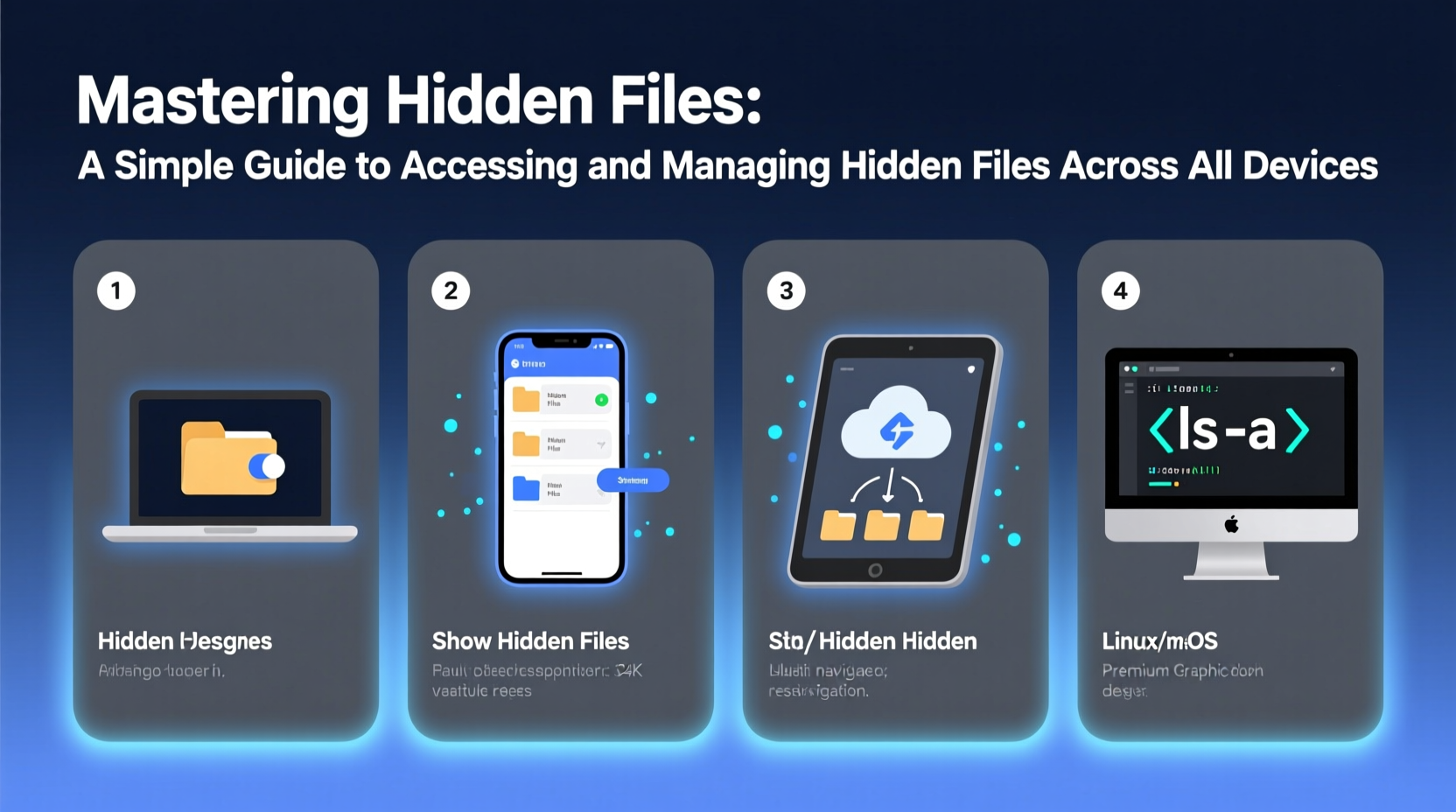
Hidden files are standard files or directories marked with a special attribute that prevents them from appearing in regular file listings. Their purpose varies by system but generally includes:
- Protecting essential system components from accidental deletion or modification.
- Hiding configuration files used by software (e.g.,
.bashrc,.plist). - Reducing interface clutter for everyday users.
- Storing cached data or temporary logs.
Operating systems use different methods to mark a file as hidden. On Unix-based systems like macOS and Linux, any file or folder starting with a dot (.) is considered hidden. In Windows, the \"hidden\" attribute is set via file properties. Mobile platforms such as Android and iOS follow similar logic, though access is more restricted.
“Understanding hidden files is like learning the backstage mechanics of your device—they’re not meant for daily interaction, but they keep everything running smoothly.” — Dr. Lena Torres, Systems Architect at OpenOS Labs
How to Access Hidden Files on Different Platforms
Each platform handles visibility differently. Below is a step-by-step breakdown for accessing hidden files on desktop and mobile operating systems.
Windows: Show Hidden Files in File Explorer
Microsoft Windows hides system-critical files by default. To view them:
- Open File Explorer.
- Navigate to the View tab.
- Check the box labeled Hidden items.
Alternatively, go to Folder Options > View and select “Show hidden files, folders, and drives.” You can also choose whether to hide protected operating system files—a setting best left enabled unless you’re performing advanced diagnostics.
C:\\Users\\[YourName]\\AppData.
macOS: Reveal Hidden Files Using Keyboard Shortcut or Terminal
On macOS, press Command + Shift + . (period) in any Finder window to toggle visibility of hidden files. This method is fast and reversible.
For permanent access via Terminal:
defaults write com.apple.finder AppleShowAllFiles YES
killall Finder
To revert, replace YES with NO.
Common hidden directories include ~/.ssh for secure shell keys and ~/Library, which stores app support files and preferences.
Linux: View Dot Files in Your File Manager or Terminal
In most Linux distributions, pressing Ctrl + H in the file manager (such as Nautilus or Dolphin) toggles hidden file visibility.
In the terminal, use:
ls -a
This lists all files, including those beginning with a dot. Regular ls omits them by design.
Android: Access Hidden Files via File Manager Apps
Android does not expose hidden files through its default file browser. However, third-party apps like Solid Explorer, FX File Explorer, or MiXplorer allow you to enable viewing of dot-prefixed folders.
Once installed:
- Open the file manager.
- Go to settings.
- Enable “Show hidden files” or similar option.
You may find directories like /.thumbnails or /.cache used by apps to store non-essential data.
iOS: Limited Access Without Jailbreak
iOS restricts direct file system access. However, if you're using the built-in Files app, some iCloud Drive or third-party cloud service folders may contain hidden files—though they won’t display unless the hosting service allows it.
Jailbroken devices offer full filesystem navigation via tools like Filza, but this comes with security risks and voids warranties.
Managing Hidden Files Safely: Best Practices
Just because you *can* see hidden files doesn’t mean you should edit or delete them freely. Missteps can destabilize your system or corrupt applications.
| Action | Do | Don't |
|---|---|---|
| Editing config files | Back up the original before making changes. | Edit without understanding syntax or purpose. |
| Deleting hidden files | Remove only cache or log files known to be safe. | Delete system files like ntldr or .DS_Store unnecessarily. |
| Creating hidden files | Use for personal scripts or private data organization. | Hide malware or deceptive content. |
Mini Case Study: Recovering a Corrupted Development Environment
A freelance developer noticed their Node.js projects were failing to install dependencies. After checking obvious causes, they opened their home directory in Terminal using ls -a and discovered a corrupted .npmrc configuration file. By renaming the file and allowing npm to regenerate defaults, the issue was resolved within minutes. The solution hinged on knowing where configuration files lived and how to inspect them.
Essential Checklist for Working with Hidden Files
Before diving into your system’s hidden layers, follow this checklist to ensure safety and efficiency:
- ✔ Back up important data before modifying any hidden configuration.
- ✔ Identify the file’s purpose—search online or consult documentation.
- ✔ Use reliable tools—prefer native utilities or trusted third-party apps.
- ✔ Avoid deleting system files unless guided by official support resources.
- ✔ Toggle visibility off after use to reduce risk of accidental changes.
- ✔ Document changes made for future troubleshooting.
Frequently Asked Questions
Can hidden files contain viruses?
Yes. Malware often disguises itself as hidden files to avoid detection. Always scan unknown files with updated antivirus software. Be especially cautious with files named .exe, .bat, or .scr on Windows, even if hidden.
Why can’t I see hidden files on my iPhone?
iOS is designed to limit user access to the underlying file system for security and simplicity. Only files explicitly exposed by apps or services appear in the Files app. Full access requires jailbreaking, which is not recommended for average users due to stability and privacy risks.
Do hidden files take up storage space?
Yes. Hidden status affects visibility, not size. Large cache folders or old logs (like /.cache or ~/Library/Caches) can consume significant space. Periodically clean these if needed, but avoid removing active application caches without research.
Conclusion: Take Control of Your Digital Environment
Hidden files are not mysterious—they’re functional components of your digital ecosystem. By learning how to access and manage them responsibly, you gain deeper insight into how your devices operate. From fixing misbehaving apps to optimizing performance, this knowledge empowers both casual users and tech-savvy individuals alike.
Start small: reveal hidden files on your primary device, explore cautiously, and always prioritize safety over curiosity. With practice, navigating the unseen parts of your system becomes second nature.




 浙公网安备
33010002000092号
浙公网安备
33010002000092号 浙B2-20120091-4
Comments
No comments yet. Why don't you start the discussion?