
In today’s digital world, hyperlinks are the connective tissue of information. Whether you're building a website, writing an email, or formatting a document, knowing how to insert a functional, clean hyperlink is essential. A well-placed link improves readability, drives engagement, and guides users to valuable resources. Yet, many people still struggle with inconsistent results—broken links, unclickable text, or poorly formatted URLs. This guide breaks down the process across major platforms, offering precise steps, best practices, and troubleshooting tips so you can confidently add hyperlinks anywhere.
Understanding Hyperlinks: The Basics
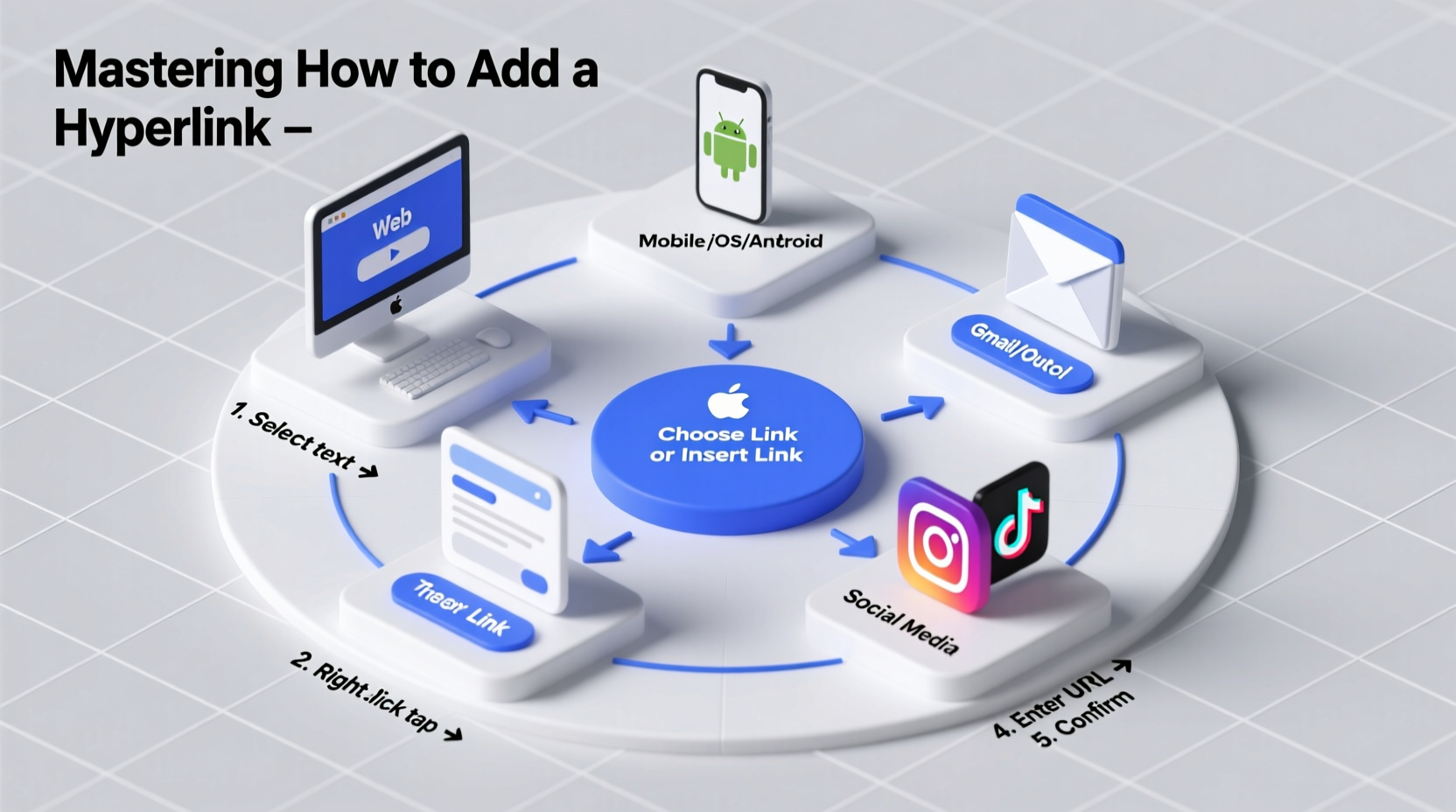
A hyperlink (or simply “link”) is a clickable element that redirects users to another location—typically a web page, file, or specific section within a document. Most commonly, hyperlinks appear as underlined blue text, but they can also be images, buttons, or icons.
The foundation of every hyperlink is the <a> tag in HTML, which stands for \"anchor.\" Here's the basic syntax:
<a href=\"https://www.example.com\">Visit Example</a>In this example, href specifies the destination URL, and the text between the opening and closing tags becomes the clickable portion. While modern platforms often hide this code behind user-friendly interfaces, understanding the underlying structure helps troubleshoot issues when links fail.
“Hyperlinks aren’t just technical tools—they’re pathways to deeper engagement. When used correctly, they enhance credibility and usability.” — Laura Kim, Web Usability Consultant
Step-by-Step Guide to Adding Hyperlinks Across Platforms
While the core concept remains consistent, each platform implements hyperlink insertion differently. Below is a detailed walkthrough for the most common environments.
1. In Web Content (HTML & CMS Platforms)
If you're working directly with HTML, use the anchor tag as shown earlier. For content management systems like WordPress, Wix, or Squarespace, visual editors simplify the process:
- Highlight the text you want to turn into a link.
- Click the “Insert Link” button (usually represented by a chain icon).
- Paste or type the full URL (include
https://). - Choose whether to open the link in a new tab (recommended for external sites).
- Click “Apply” or “OK.”
2. In Microsoft Word and Google Docs
Both platforms offer intuitive hyperlink tools ideal for reports, resumes, or collaborative documents.
Google Docs:
- Select the text or image.
- Press Ctrl+K (or Cmd+K on Mac).
- Enter the URL in the dialog box.
- Click “Apply.”
Microsoft Word:
- Highlight the desired text.
- Go to the “Insert” tab and click “Link” (or press Ctrl+K).
- Type or paste the URL.
- Click “OK.”
For internal navigation (e.g., linking to a heading in the same document), use the “Place in This Document” option and select from available headings.
3. In Email Clients (Gmail, Outlook)
Emails with hyperlinks look more professional than raw URLs. Here’s how to format them properly.
Gmail:
- Compose a new message.
- Highlight the text you want to link.
- Click the chain icon in the formatting toolbar.
- Enter the web address and confirm.
Outlook:
- Type or select the display text.
- Press Ctrl+K or go to “Insert” → “Link.”
- Input the URL and click “OK.”
4. On Social Media Platforms
Social networks vary widely in their hyperlink support:
| Platform | Can Add Inline Links? | Best Practice |
|---|---|---|
| Yes (in posts and comments) | Use clear anchor text; avoid spammy behavior | |
| Twitter/X | Limited (URLs auto-shortened) | Use link shorteners with UTM tracking |
| Yes (posts, messages) | Preview link to ensure correct thumbnail | |
| No in captions (except swipe-up for verified) | Direct users to bio link or use Stories’ swipe-up feature | |
| Threads | No clickable links in captions | Mention URL clearly or place in bio |
When inline linking isn’t supported, direct attention verbally: “Check the link in our bio for details.”
5. In Code-Based Environments (Markdown, Notion, Slack)
Some platforms use lightweight markup languages instead of WYSIWYG editors.
Markdown:
[Display Text](https://www.example.com)Notion:
- Type
/linkor highlight text and press Ctrl+K. - Enter the URL and confirm.
Slack:
<https://www.example.com|Visit Example>This syntax creates a clickable “Visit Example” that leads to the specified URL.
Common Mistakes and How to Avoid Them
Even experienced users make errors that undermine link effectiveness. Recognizing these pitfalls ensures cleaner, more reliable results.
- Forgetting https:// – Without the protocol, links may not work. Always include it unless linking internally.
- Using overly long URLs – Clean up tracking parameters or use a URL shortener if necessary.
- Broken links – Regularly audit your content. Tools like Screaming Frog or Google Search Console help detect dead links.
- Ignoring accessibility – Screen readers rely on meaningful link text. “Read more” provides no context; “Read the full case study on remote team productivity” does.
Mini Case Study: Fixing a Broken Campaign Link
A small nonprofit launched an email campaign promoting a donation drive. Open rates were high, but conversions were low. Upon review, the team discovered the CTA button linked to an outdated URL that redirected to a 404 error.
They corrected the issue by:
- Updating the hyperlink to the current donation page.
- Changing the link text from “Give Now” to “Donate Securely to Support Clean Water Initiatives.”
- Adding
target=\"_blank\"so the donation site opened in a new tab.
Within a week, conversion rates increased by 63%. The fix wasn’t technical complexity—it was attention to detail in hyperlink accuracy and clarity.
Essential Checklist for Perfect Hyperlinks
- Test every link before publishing
- Use descriptive, readable anchor text
- Include
https://in external URLs - Open external links in new tabs when appropriate
- Audit links quarterly for broken destinations
- Ensure mobile compatibility (tap targets should be large enough)
- Add UTM parameters for tracking marketing links
Frequently Asked Questions
Can I link to a specific section on a webpage?
Yes. Use fragment identifiers (also called anchor links). If the target section has an ID (e.g., <h2 id=\"contact\">), append #contact to the URL: https://yoursite.com/page#contact. This scrolls the page directly to that element.
Why isn’t my hyperlink clickable?
This usually happens when the platform doesn’t recognize the input as a link. Ensure you used the proper method—don’t just paste a URL without applying the link function. Also, check for typos or missing protocols (http:// or https://).
Are there security risks with hyperlinks?
Yes. Malicious links can lead to phishing or malware. Always verify the destination of any third-party link. In public-facing content, consider using a link scanner or cloaking service to protect users.
Conclusion: Turn Knowledge Into Action
Mastering hyperlinks isn’t about memorizing codes—it’s about precision, consistency, and user experience. From crafting accessible anchor text to verifying destination URLs, every small decision impacts how effectively your audience engages with your content. No matter the platform, the principles remain the same: clarity, functionality, and intentionality.




 浙公网安备
33010002000092号
浙公网安备
33010002000092号 浙B2-20120091-4
Comments
No comments yet. Why don't you start the discussion?