
Changing your device’s background picture is one of the simplest yet most effective ways to personalize your digital experience. Whether you're using a smartphone, tablet, laptop, or desktop, your wallpaper sets the tone for daily interaction. A well-chosen background can boost productivity, reflect your personality, or simply make your screen more enjoyable to look at. Yet, many users either stick with default images or struggle with inconsistent methods across devices. This guide provides clear, actionable steps to help you confidently change background pictures on any platform—Windows, macOS, iOS, and Android—with professional-level precision.
Why Personalizing Your Background Matters
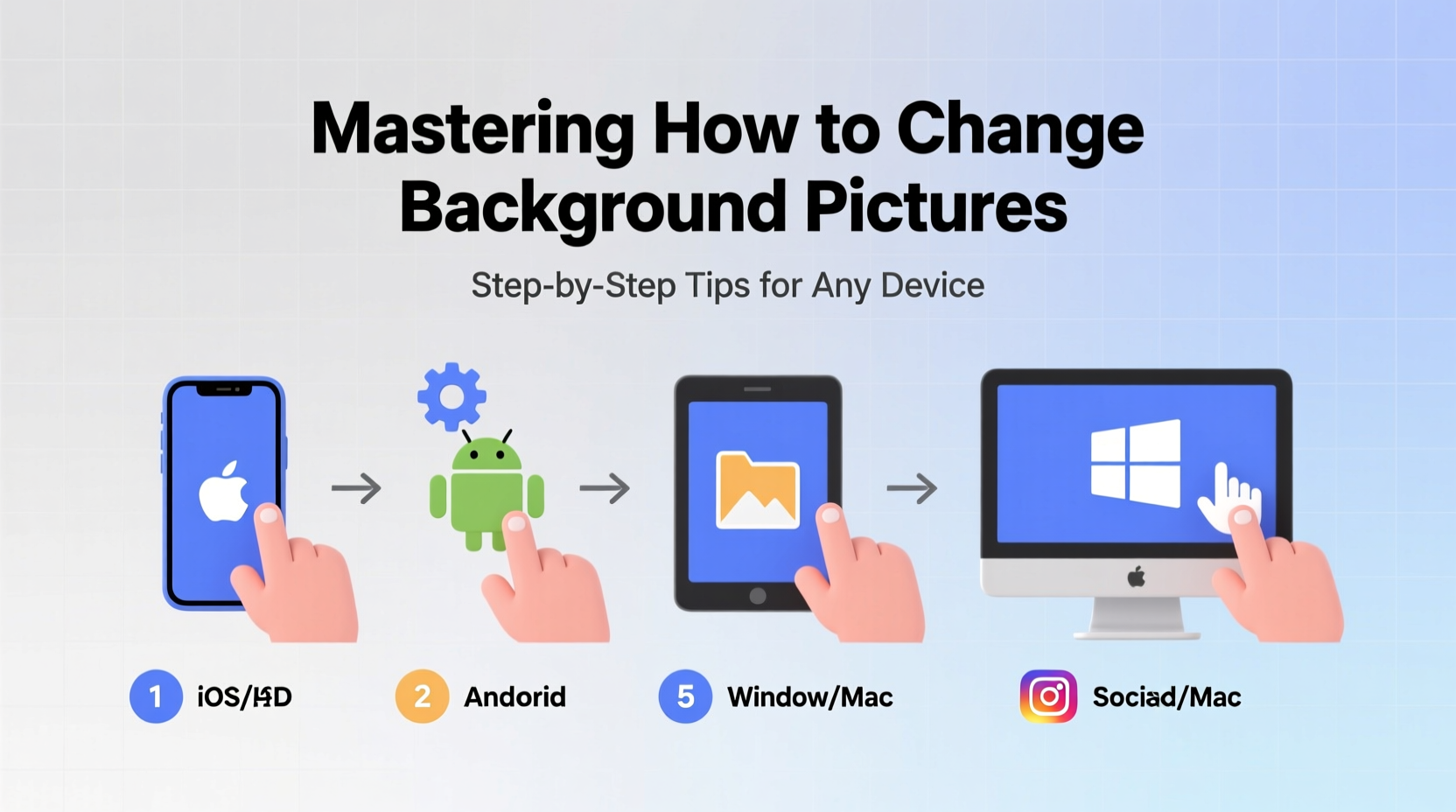
Your device’s background is more than just decoration. It's the first thing you see when unlocking your phone or waking your computer. A cluttered or unappealing wallpaper can create subconscious stress, while a clean, inspiring image enhances focus and mood. Studies in environmental psychology suggest that personalized environments increase feelings of control and comfort, even in digital spaces. By mastering background customization, you reclaim a small but meaningful part of your digital identity.
Step-by-Step Guide to Changing Backgrounds by Device
Different operating systems have unique interfaces, but the core process remains consistent: select an image, access display settings, and apply it as your background. Below is a detailed walkthrough for each major platform.
For Windows 10 and 11
- Navigate to Settings > Personalization > Background.
- In the “Background” dropdown, select Pictures.
- Click Browse to choose an image from your folders.
- Select your preferred image and confirm.
- Adjust fit options: Fill, Fit, Stretch, Tile, or Center depending on how you want the image displayed.
You can also set different wallpapers for multiple monitors by right-clicking each desktop and selecting “Set for monitor X.”
For macOS (Ventura and Later)
- Click the Apple menu and select System Settings.
- Go to Wallpaper in the sidebar.
- Click the Add (+) button to import a new image from Photos, Files, or iCloud Drive.
- Select the desired photo and click Set.
- Choose whether to apply it as Desktop, Lock Screen, or both.
macOS supports dynamic wallpapers that shift with ambient light and time of day. To enable this, select from the Dynamic or Stills categories in the Wallpaper gallery.
For iPhone (iOS 16 and Newer)
iOS 16 introduced advanced wallpaper customization, including separate lock screen and home screen backgrounds.
- Open Settings > Wallpaper > Add New Wallpaper.
- Select a photo from your library or use a suggested image.
- Tap Customize to adjust filters, depth effect, or add widgets.
- Assign the wallpaper to Lock Screen, Home Screen, or both.
- Press and hold the lock screen to preview changes before finalizing.
For Android (Pixel and Samsung Devices)
- Long-press on your home screen and tap Wallpapers.
- Browse built-in themes or select My Photos.
- Choose an image from your gallery.
- Adjust cropping and positioning for home and lock screens separately if prompted.
- Tap Set and choose where to apply it—Home screen, Lock screen, or both.
On Samsung devices, visit Settings > Wallpaper for additional personalization like dark mode syncing or AR emoji integration.
Best Practices for Choosing and Managing Wallpapers
Not all images make good backgrounds. The key is balancing aesthetics with usability. Avoid overly bright, busy, or text-heavy images that interfere with app icons or readability.
| Do’s | Don’ts |
|---|---|
| Use minimalistic designs with neutral tones behind icon clusters | Choose photos with strong central elements that obscure icons |
| Enable dark mode-compatible wallpapers to reduce eye strain | Use low-resolution images that pixelate on high-DPI screens |
| Rotate wallpapers seasonally or monthly for freshness | Set animated wallpapers on devices with limited battery life |
“Your wallpaper should enhance, not compete with, your interface. Think of it as interior design for your digital space.” — Lena Park, UX Design Consultant at Interface Studio
Mini Case Study: Transforming a Cluttered Workspace
Sarah, a freelance graphic designer, noticed her productivity lagging each morning. Her laptop background was a chaotic collage of project screenshots and sticky notes—meant to be motivational but actually overwhelming. After reading about visual clarity in workspace design, she switched to a soft gradient blue with a single centered quote: “Begin.” Within a week, she reported improved focus and reduced decision fatigue upon startup. She now rotates calming nature scenes every Friday afternoon, turning wallpaper management into a weekly ritual of mental reset.
Essential Checklist for Seamless Background Changes
- ✅ Verify image resolution matches or exceeds your screen dimensions
- ✅ Organize favorite wallpapers in a dedicated folder (e.g., “Wallpapers/Current”)
- ✅ Backup custom wallpapers to cloud storage to prevent loss during updates
- ✅ Test visibility of app icons against the new background
- ✅ Schedule quarterly wallpaper reviews to keep your setup fresh
- ✅ Use cross-device sync tools (Google Photos, iCloud) to maintain consistency
Frequently Asked Questions
Can I use live or animated backgrounds without draining my battery?
Yes, but cautiously. Live wallpapers on iOS and Android consume more power due to continuous rendering. On laptops, dynamic wallpapers typically have minimal impact. For best results, limit animation duration or use static versions during low-battery situations.
Why does my wallpaper look blurry after setting it?
This usually happens when the image resolution is too low for your screen size. Always use images at least 1920x1080 for HD displays, and higher for Retina or QHD screens. Also, ensure proper scaling—select “Fill” or “Fit” instead of “Stretch” to preserve quality.
How do I remove a custom background and restore the default?
On Windows: Go to Settings > Personalization > Background and select “Slideshow” or choose a default image under “Choose a fit.” On macOS: Click the default Apple wallpapers in System Settings. On mobile: Reopen the Wallpaper menu and pick a system-provided option.
Final Thoughts: Make Your Screen Work for You
Changing your background picture isn’t just cosmetic—it’s a form of digital self-care. With the right approach, you can transform impersonal devices into tailored environments that support your mood, workflow, and creativity. The steps outlined here empower you to take full control, regardless of your device ecosystem. No technical expertise is required, only intention and attention to detail.




 浙公网安备
33010002000092号
浙公网安备
33010002000092号 浙B2-20120091-4
Comments
No comments yet. Why don't you start the discussion?