
Your smartphone’s homescreen is more than just a launchpad for apps—it’s the digital face of your daily life. Whether you're looking to boost productivity, express personal style, or simply declutter a chaotic layout, customizing your homescreen can transform how you interact with your device. Yet, many users stick to default settings, unaware of the full range of options available. This guide walks through everything you need to know about changing your homescreen on both Android and iPhone, from rearranging icons to applying dynamic widgets and themes.
Why Customize Your Homescreen?
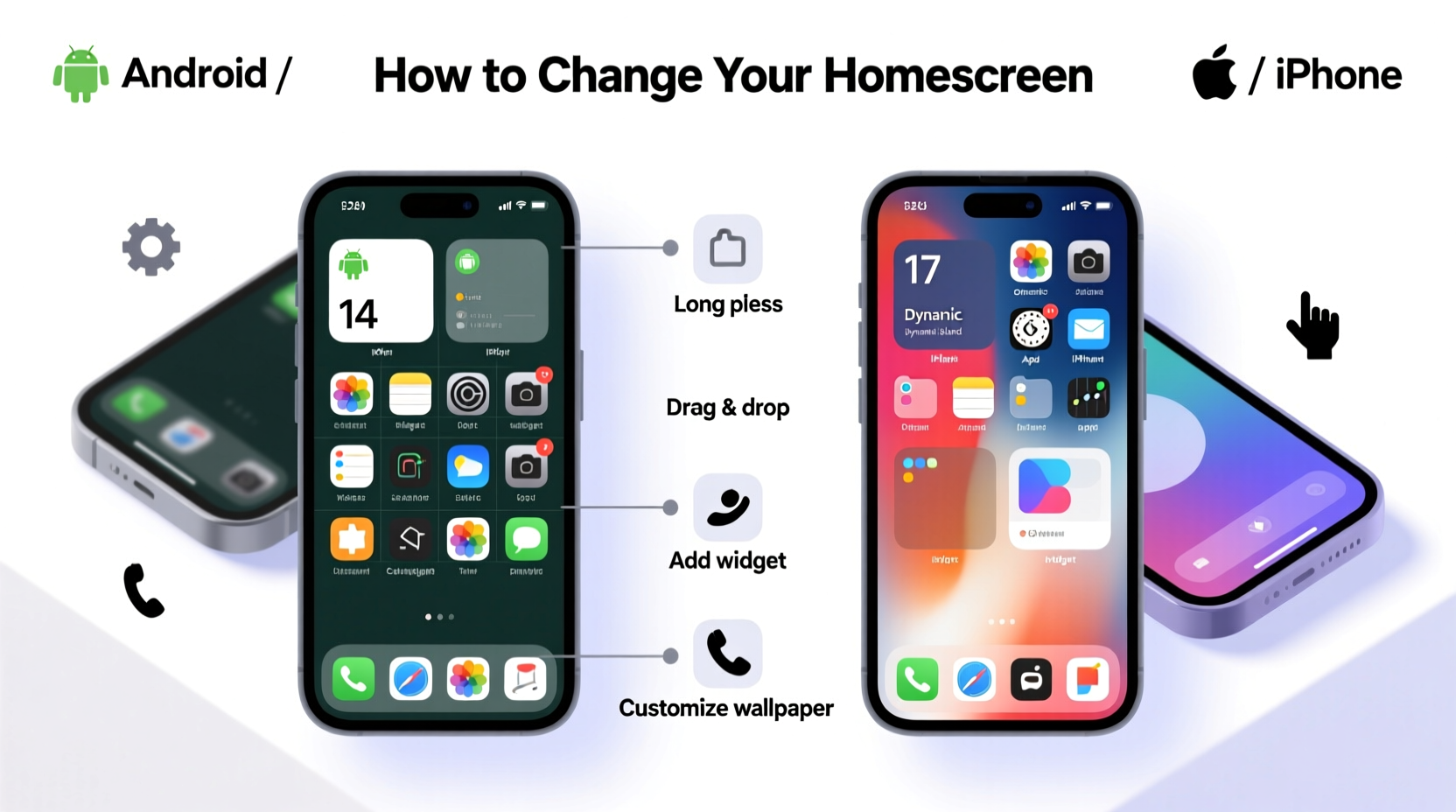
A personalized homescreen isn’t just about aesthetics. A well-organized layout reduces decision fatigue, improves navigation speed, and reflects your usage patterns. For example, placing frequently used apps like Messages, Calendar, and Maps within thumb reach enhances usability. On the other hand, creative widgets and wallpapers can make your phone feel uniquely yours.
Studies show that users who personalize their devices report higher satisfaction and engagement. According to UX researcher Dr. Lena Torres, “When people feel ownership over their interface, they’re more likely to use it efficiently and enjoyably.” Taking control of your homescreen is a small change with outsized benefits.
How to Change Your Homescreen on iPhone
iOS offers a clean, intuitive system for homescreen customization. While Apple limits some design freedoms compared to Android, recent updates—especially iOS 14 and later—have introduced powerful tools like widgets, App Library, and home screen pages.
Step-by-Step: Rearranging Apps and Adding Widgets
- Press and hold any app icon until all icons begin to wiggle.
- Drag apps to new positions or between home screen pages (swipe left/right while wiggling).
- To add a widget, tap the “+” button in the top-left corner while in edit mode.
- Choose a widget size and source app, then drag it to your desired location.
- Tap “Done” to save changes.
Creating Focused Home Screens
Many power users create themed home screens: one for work (email, calendar, Slack), another for fitness (Apple Health, Strava, water tracker), and a third for entertainment. To support this:
- Create folders by dragging one app onto another.
- Name folders meaningfully (e.g., “Finance,” “Travel,” “Social”).
- Use the “Today View” (swipe right) for time-sensitive widgets like weather and reminders.
“Your iPhone should adapt to you—not the other way around. Use multiple home screens to separate contexts and reduce distraction.” — Marcus Reed, Mobile Experience Designer
Customizing the Homescreen on Android Devices
Android provides deeper customization than iOS, thanks to its open ecosystem and wide variety of launchers. Whether you’re using a Samsung Galaxy, Google Pixel, or OnePlus device, the process varies slightly—but core principles remain consistent.
Using the Default Launcher vs. Third-Party Options
Most Android phones come with a preinstalled launcher (e.g., Samsung One UI, Pixel Launcher). However, you can install alternatives like Nova Launcher, Microsoft Launcher, or Evie Launcher for enhanced features such as icon scaling, gesture controls, and infinite scrolling.
| Launcher | Best For | Key Feature |
|---|---|---|
| Nova Launcher | Advanced customization | Grid resizing, scroll effects, backup settings |
| Microsoft Launcher | Productivity & cross-device sync | Integration with Office 365 and Windows |
| Evie Launcher | Simplicity & privacy | No ads, no permissions, smooth performance |
Changing Wallpapers, Icons, and Themes
- Long-press on an empty area of the homescreen.
- Select “Wallpaper & style” (or similar, depending on device).
- Choose a wallpaper from your gallery or built-in collections.
- Apply a theme or icon pack—many are available via the Google Play Store.
- Adjust font size, icon size, and grid layout under display settings.
Mini Case Study: From Cluttered to Calm
Jamal, a freelance graphic designer in Austin, found himself constantly distracted by notifications and a cluttered iPhone home screen filled with 12 pages of apps. After reading about intentional design, he restructured his setup:
- Moved social media apps into a folder labeled “Distractions” on page 3.
- Created a minimalist first screen with only six essential apps and a large calendar widget.
- Set a neutral-toned wallpaper to reduce visual noise.
Within two weeks, Jamal reported a 40% decrease in screen time and improved focus during client calls. His phone now supports his workflow instead of hijacking it.
Checklist: Optimize Your Homescreen in 7 Steps
Follow this actionable checklist to refine your homescreen experience on either platform:
- Remove unused apps or move them to secondary pages or folders.
- Group similar apps into labeled folders (e.g., Finance, Utilities).
- Add at least one functional widget (weather, calendar, to-do list).
- Choose a wallpaper that complements your mood—minimalist, motivational, or scenic.
- Install a custom icon pack (Android) or use Shortcuts for app aliases (iOS).
- Enable dark mode if it aligns with your visual comfort.
- Review and adjust monthly based on changing habits.
Frequently Asked Questions
Can I schedule different homescreens for day and night?
On Android, yes—using automation apps like Tasker or KLWP, you can switch wallpapers, themes, or even layouts based on time or location. iOS doesn’t natively support scheduled homescreen changes, but you can manually toggle between setups using Focus modes linked to specific home screen configurations.
Will customizing my homescreen slow down my phone?
Generally, no. Simple changes like rearranging icons or adding standard widgets have negligible impact. However, heavy live wallpapers, animated widgets, or poorly optimized third-party launchers may affect battery life and responsiveness, especially on older devices.
How do I back up my homescreen layout?
On Android, Nova Launcher and others offer built-in backup/restore features. For iPhones, your layout is automatically saved in iCloud when you back up your device. To preserve a specific arrangement, avoid resetting home screen settings during troubleshooting.
Final Thoughts: Make It Yours
Your homescreen should serve you—not confuse, overwhelm, or distract. Whether you prefer the sleek uniformity of iOS or the limitless flexibility of Android, the tools exist to craft an interface that aligns with your lifestyle. Start small: swap your wallpaper, add one useful widget, or delete three apps you haven’t touched in months. Over time, these tweaks compound into a smarter, more satisfying mobile experience.




 浙公网安备
33010002000092号
浙公网安备
33010002000092号 浙B2-20120091-4
Comments
No comments yet. Why don't you start the discussion?