
In today’s hyper-connected world, managing multiple devices—from smartphones and laptops to smart home gadgets and wearables—has become a daily necessity. Yet, despite advancements in wireless technology, many users still struggle with inconsistent connections, pairing failures, or inefficient setups. True mastery of device connectivity isn’t just about getting two gadgets to talk—it’s about creating a fluid, reliable ecosystem that works intuitively across environments. This guide delivers actionable strategies to simplify your digital life, reduce frustration, and ensure every device performs exactly when you need it.
Understanding Modern Connectivity Protocols
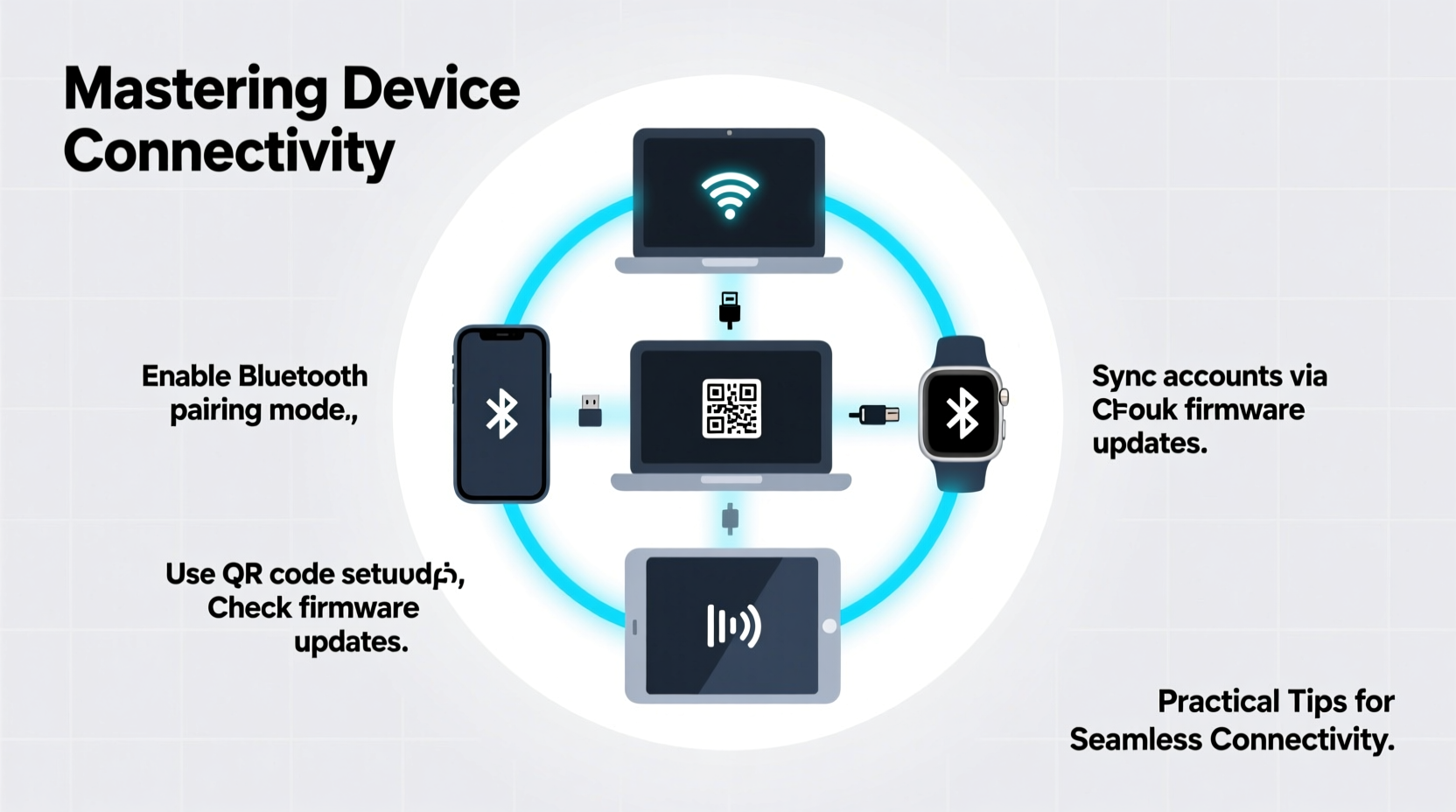
The foundation of seamless device connection lies in understanding the technologies that make it possible. Most modern devices rely on a combination of wireless standards, each suited to specific use cases:
- Wi-Fi (802.11ax/Wi-Fi 6): Ideal for high-bandwidth applications like streaming, cloud syncing, and multi-device networks.
- Bluetooth 5.0 and above: Best for short-range connections such as headphones, keyboards, and fitness trackers.
- NFC (Near Field Communication): Enables one-tap pairing for mobile payments and quick device linking.
- Zigbee and Z-Wave: Used in smart home systems for low-power, long-term device communication.
- USB-C and Thunderbolt: Provide both power and data transfer, supporting fast docking and peripheral integration.
Selecting the right protocol for your task prevents bottlenecks and reduces latency. For example, using Bluetooth to stream 4K video will likely result in stuttering—opt for Wi-Fi Direct or a wired connection instead.
Step-by-Step Guide to Seamless Device Pairing
Whether setting up a new laptop, connecting a printer, or integrating a smart speaker, following a structured process minimizes errors and saves time.
- Power and Proximity Check: Ensure both devices are charged and within range (typically 3–10 meters for Bluetooth).
- Enable Discovery Mode: Turn on Bluetooth or Wi-Fi Direct on both devices. On some gadgets, this may require holding a physical button.
- Initiate Connection from Primary Device: Use your phone or computer to search for available devices rather than relying on automatic detection.
- Select and Authenticate: Choose the correct device from the list. If prompted, confirm matching PINs or codes.
- Test Functionality: Play audio, send a test print, or sync data to verify the connection is stable.
- Assign to Network (if applicable): For smart home devices, ensure they’re assigned to the correct room or group in your app.
This methodical approach applies across platforms—iOS, Android, Windows, and macOS—and reduces reliance on trial-and-error troubleshooting.
Optimizing Your Home and Office Network
A strong central network is the backbone of device connectivity. Even the most advanced gadgets fail without a reliable infrastructure.
Start by auditing your current setup. Are you using an outdated router? Is your modem more than five years old? These components directly impact speed, range, and device capacity.
| Router Type | Max Devices Supported | Ideal Coverage Area | Best For |
|---|---|---|---|
| Basic Dual-Band | 15–20 | Up to 1,500 sq ft | Small apartments, light usage |
| Wi-Fi 6 Tri-Band | 50+ | 2,500+ sq ft | Families, remote work, smart homes |
| Mesh System | 75+ | Entire homes, multi-floor | Large spaces, dead zone elimination |
For larger homes, consider a mesh Wi-Fi system. Unlike range extenders, which degrade signal quality, mesh nodes communicate seamlessly to provide consistent coverage. Place nodes strategically—avoid metal surfaces and thick walls—and assign static IP addresses to critical devices like security cameras or NAS drives.
“Network congestion is the silent killer of smart device performance. Prioritize QoS (Quality of Service) settings to allocate bandwidth where it matters.” — Raj Patel, Senior Network Engineer at NetFlow Systems
Real-World Example: Connecting a Smart Home Ecosystem
Sophia recently moved into a new apartment and wanted to set up a smart lighting and voice assistant system. She purchased smart bulbs, a smart plug, and a voice-enabled hub. Initially, she tried pairing everything through her phone’s Bluetooth, which failed repeatedly.
After consulting the manual, she realized all devices needed to be on the same 2.4 GHz Wi-Fi band—not 5 GHz. She temporarily disabled the 5 GHz SSID on her router, connected each device using the manufacturer’s app, and then re-enabled dual-band mode. She also gave each device a descriptive name (e.g., “Living Room Lamp,” “Coffee Maker”) to avoid confusion later.
Within 20 minutes, her entire system was online and controllable via voice commands. The key insight? Understanding frequency bands and proper naming conventions made the difference between frustration and success.
Essential Checklist for Flawless Device Integration
Use this checklist every time you add a new device to your environment:
- ✅ Confirm device compatibility with your operating system or hub
- ✅ Update all firmware and drivers before initial setup
- ✅ Connect to the correct Wi-Fi band (2.4 GHz vs. 5 GHz)
- ✅ Disable conflicting services (e.g., turn off personal hotspot during Wi-Fi setup)
- ✅ Assign static IPs or DHCP reservations for mission-critical devices
- ✅ Test connection stability under real-world conditions (e.g., while streaming or gaming)
- ✅ Secure the device with strong passwords and two-factor authentication if supported
Common Pitfalls and How to Avoid Them
Even experienced users fall into traps that disrupt connectivity. Awareness is half the battle.
- Overloading Bluetooth: Most phones can only maintain stable connections with 5–7 Bluetooth devices simultaneously. Exceeding this limit causes dropouts.
- Ignoring Interference: Microwaves, cordless phones, and neighboring Wi-Fi networks operate on similar frequencies and can disrupt signals.
- Using Outdated Cables: A frayed USB-C cable may charge but fail to transmit data. Invest in certified cables.
- Auto-Switching Headphones: While convenient, automatic switching between devices can lead to unintended disconnections. Disable it if reliability is a priority.
Frequently Asked Questions
Why won’t my device show up during pairing?
First, ensure both devices are discoverable and within range. Restart Bluetooth or Wi-Fi on both ends. If the issue persists, forget the device in settings and try again. Some gadgets require a reset (e.g., holding a button for 10 seconds) before they re-enter pairing mode.
Can I connect two Bluetooth devices at once?
Yes, but functionality varies. Many modern phones support dual audio, allowing sound output to two sets of headphones or speakers. However, input devices like keyboards typically allow only one active connection at a time.
How do I keep my devices connected when I travel?
When traveling, pre-configure essential connections: download offline maps, pair your rental car’s infotainment system ahead of time, and carry a universal adapter with built-in USB hub. Also, disable auto-join for public Wi-Fi to avoid insecure networks.
Conclusion: Take Control of Your Connected Life
Mastery of device connectivity isn’t reserved for tech experts. With the right knowledge, tools, and habits, anyone can build a responsive, reliable digital ecosystem. From optimizing your home network to following proven pairing sequences, small improvements compound into significant gains in efficiency and peace of mind. Start by auditing your current setup, applying the checklist, and eliminating common pitfalls. The goal isn’t just to connect devices—it’s to create an environment where technology serves you seamlessly, invisibly, and consistently.




 浙公网安备
33010002000092号
浙公网安备
33010002000092号 浙B2-20120091-4
Comments
No comments yet. Why don't you start the discussion?