
Copying data is one of the most fundamental actions performed on a computer. Whether you're transferring a paragraph from a research paper, duplicating a photo for a presentation, or moving entire folders between drives, the ability to copy efficiently affects productivity, accuracy, and workflow speed. Yet, many users rely only on basic methods like Ctrl+C and Ctrl+V, unaware of advanced techniques that can save time and reduce errors. This guide explores proven strategies for copying text, images, and files—equipping you with practical knowledge to handle digital content with precision and confidence.
Understanding the Copy Mechanism
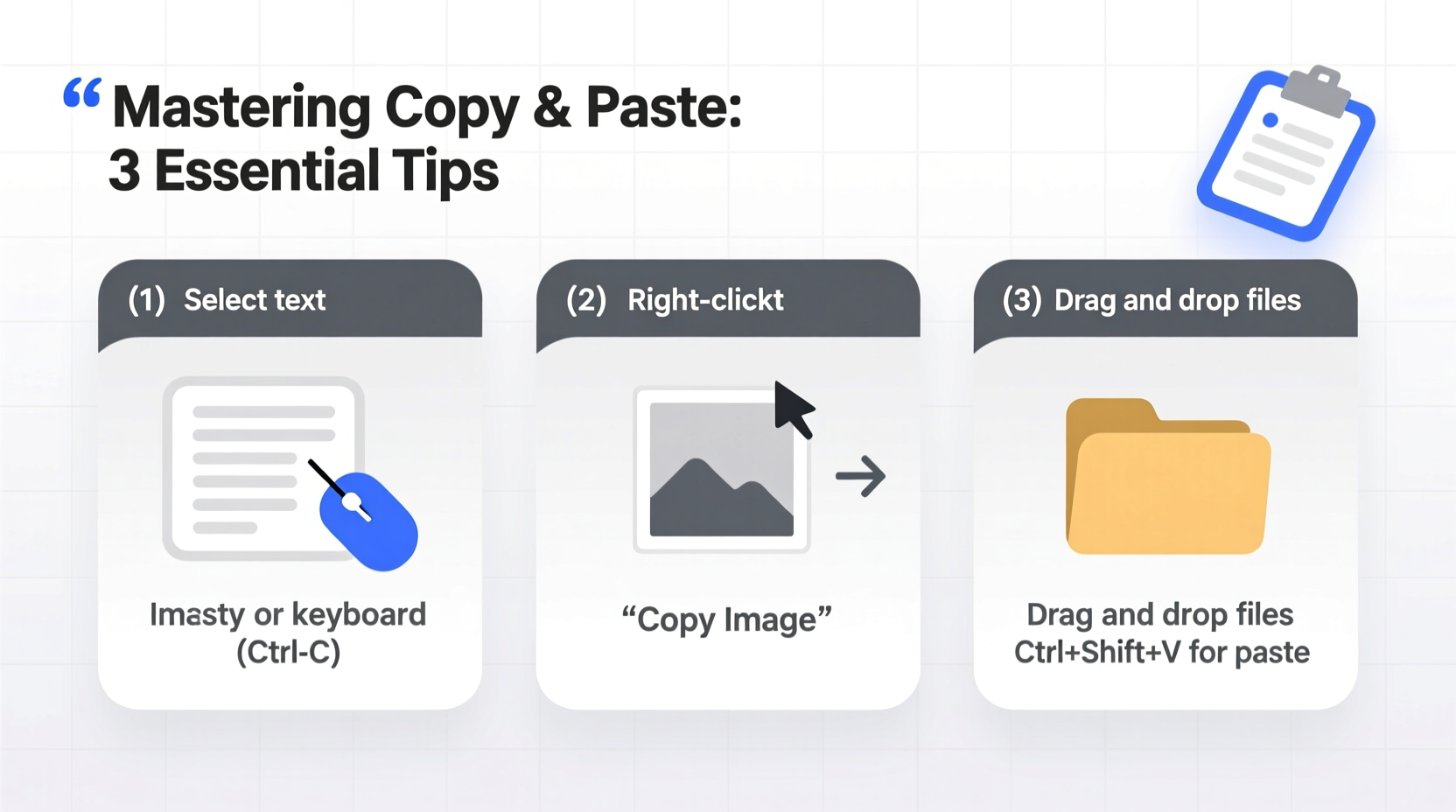
At its core, copying involves selecting data, storing it temporarily in the system clipboard, and pasting it into a new location. The clipboard acts as a short-term memory buffer, holding your selected content until replaced by a new copy action. While this process seems simple, nuances exist across operating systems (Windows, macOS, Linux) and applications (Word, Photoshop, web browsers), affecting how content is preserved—especially formatting, metadata, and file integrity.
For instance, copying formatted text from a webpage may carry over unwanted styling when pasted into a plain text editor. Similarly, copying an image from a design tool might embed hidden layers or resolution data that impact file size. Understanding these behaviors allows you to choose the right method for each scenario.
Efficient Text Copying Techniques
Text is the most commonly copied content, yet inefficiencies abound. Users often miss-select paragraphs, lose clipboard history, or paste inconsistent formatting. To optimize text copying, consider both selection strategy and tools available.
- Precise Selection: Double-click to select a word, triple-click for a paragraph. Hold Shift while using arrow keys for fine control.
- Keyboard Shortcuts: Ctrl+C (Copy), Ctrl+X (Cut), Ctrl+V (Paste). On Mac, use Cmd instead of Ctrl.
- Clipboard History: Windows 10/11 supports Win+V to access multiple copied items. Enable it in Settings > System > Clipboard.
- Drag-and-Drop Copy: Highlight text, then drag it while holding Ctrl to copy (instead of move).
When working across documents, especially in academic or professional writing, preserving original meaning without accidental alterations is critical. Always verify pasted content matches the source in tone, punctuation, and structure.
Case Study: Researcher’s Workflow Improvement
A university researcher regularly compiled quotes from journal articles into a literature review. Initially, she copied text directly into her draft, leading to inconsistent fonts and citation errors. After adopting \"Paste as Plain Text\" and using clipboard history to compare excerpts, her drafting time decreased by 30%, and formatting issues dropped to zero. This small shift significantly improved accuracy and readability.
Copying Images Without Quality Loss
Images require more attention than text due to resolution, format, and embedded information. A poorly copied image can appear blurry, pixelated, or incompatible with the target application.
To maintain quality:
- Copy high-resolution originals rather than scaled-down versions from websites.
- Avoid repeated copying and pasting within image editors, which can degrade quality through recompression.
- Use \"Copy Image\" from the context menu instead of taking screenshots when possible.
- In graphic software like Photoshop, use “Duplicate Layer” or “Export As” for precise control.
| Situation | Recommended Method | Risk of Alternative |
|---|---|---|
| Copying for print | Save or export at 300 DPI | Low-res copy appears blurry |
| Web use | Copy via right-click > Save Image | Screenshot adds background noise |
| Design editing | Open in editor, then duplicate | Paste may flatten layers |
“Copying an image isn’t just about duplication—it’s about preserving intent. Always consider resolution, color profile, and usage context.” — Lena Patel, Digital Imaging Specialist
File and Folder Duplication Best Practices
Copying files and folders is essential for backup, sharing, and organization. However, improper handling can lead to duplicates, broken paths, or corrupted transfers.
Follow this step-by-step guide for reliable file copying:
- Select the correct source: Navigate to the folder containing the files. Avoid selecting from search results, which may include temporary or linked files.
- Verify file integrity: Check file sizes and modification dates to ensure they’re up to date.
- Choose the right method: Right-click > Copy, or use Ctrl+C. For large batches, drag while holding Ctrl (copy) instead of moving.
- Select destination: Open the target folder first to confirm write permissions and available space.
- Paste and verify: Use Ctrl+V, then check that all files appear and open correctly.
- Label duplicates if needed: Add version numbers or dates (e.g., \"Report_Final_v2\") to avoid confusion.
Avoiding Common File Copy Mistakes
- Overwriting without backup: Always confirm if files with the same name will be replaced.
- Copying to full drives: Monitor storage space before initiating large transfers.
- Ignoring hidden files: Some tools skip dotfiles or system folders. Use command-line tools for completeness.
- Assuming network copies are instant: Large files over Wi-Fi may fail silently. Wait for confirmation.
Advanced Tools and Alternatives
Beyond built-in copy-paste functions, third-party tools enhance efficiency and reliability.
- Clipboard Managers: Tools like Ditto (Windows) or Paste (Mac) store hundreds of copied items, searchable by type or date.
- File Sync Services: Dropbox, Google Drive, or OneDrive automatically sync folders, reducing manual copying.
- Batch Renaming Tools: After copying multiple files, use Bulk Rename Utility or Finder’s rename function to standardize names.
- Version Control: For developers or writers, Git tracks changes and eliminates redundant copying.
These tools are particularly useful for professionals managing large volumes of content. They reduce repetitive tasks and minimize human error.
Frequently Asked Questions
Can I recover something I copied if I’ve copied something else?
Only if you have clipboard history enabled. On Windows, press Win+V to view recent entries. On Mac, native clipboard doesn’t retain history, but third-party apps like Alfred or Paste do.
Why does pasted text sometimes look different?
The destination app may apply its own formatting rules. To prevent this, use \"Paste as Plain Text\" or match styles after pasting. In Microsoft Word, use \"Keep Text Only\" from the paste options dropdown.
Is dragging faster than copying with keyboard shortcuts?
Speed depends on context. Dragging is intuitive for single items within the same window. Keyboard shortcuts are faster for multiple selections or cross-application transfers, especially when combined with window-switching shortcuts like Alt+Tab.
Final Checklist: Copying Like a Pro
- ✅ Text Copying
- Use triple-click for paragraphs, paste as plain text when needed, enable clipboard history.
- ✅ Image Copying
- Preserve resolution, avoid screenshots when original is available, check format compatibility.
- ✅ File Copying
- Verify disk space, use Ctrl+drag for copy (not move), confirm transfer completion.
- ✅ General Best Practices
- Label duplicates, avoid overwriting without backup, use trusted tools for large jobs.
- ✅ Advanced Boosters
- Install a clipboard manager, automate syncs, learn basic command-line copy commands.
Conclusion
Mastering how to copy from computer—whether text, images, or files—is not about memorizing shortcuts alone. It’s about understanding context, preserving quality, and working efficiently across platforms. By applying these practical tips, you reduce errors, save time, and gain greater control over your digital environment. The next time you reach for Ctrl+C, take a moment to consider the best method for the task. Small improvements compound into significant gains over time.




 浙公网安备
33010002000092号
浙公网安备
33010002000092号 浙B2-20120091-4
Comments
No comments yet. Why don't you start the discussion?