
Printing a web page might seem straightforward, but anyone who’s faced misaligned margins, missing images, or unexpected formatting knows it’s rarely foolproof. Whether you're printing an article, invoice, or recipe, getting the output right requires more than just hitting \"Print.\" With dozens of devices, operating systems, and browsers in use today, knowing the correct method—and the hidden settings that make a difference—can save time, paper, and frustration.
This guide walks through reliable, tested techniques for printing from any major browser and device. You’ll learn how to optimize layout, preserve readability, and avoid common pitfalls—no matter if you’re on a Windows laptop, a Mac, or using a smartphone.
Step-by-Step: How to Print from Any Browser
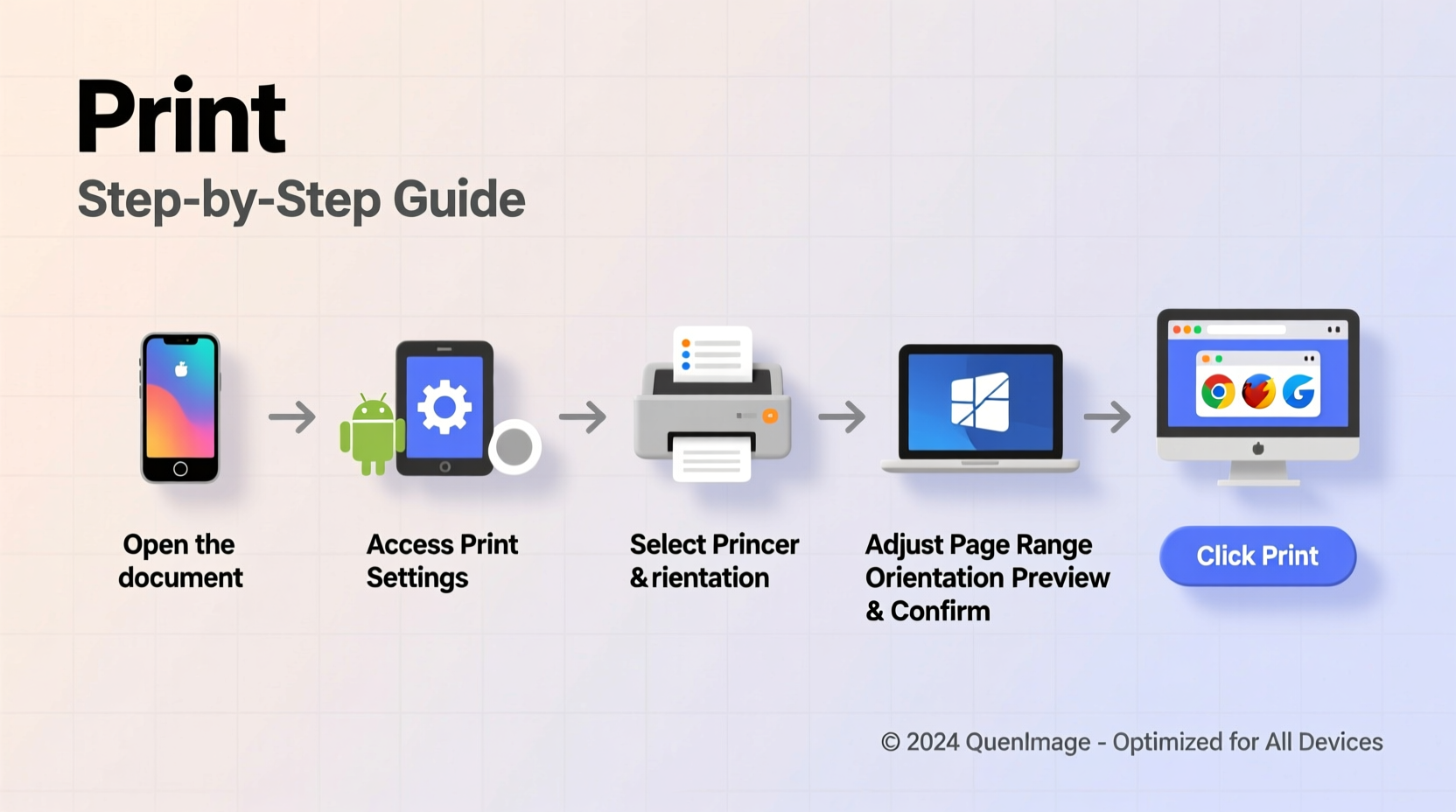
The foundation of clean printing lies in understanding the universal print command and navigating the print dialog correctly. While interface designs vary slightly between browsers, the core process remains consistent.
- Open the web page you want to print in your preferred browser.
- Press Ctrl+P (Cmd+P on Mac) or go to the browser menu (three dots or lines) and select “Print.”
- Preview the layout in the print dialog. Adjust orientation, scale, and margins as needed.
- Select your printer or choose “Save as PDF” for digital archiving.
- Click “Print” (or “Save”) to complete the action.
Browser-Specific Printing Tips
Each browser handles print styles differently. Here's what works best for the most widely used ones.
- Google Chrome: Offers extensive customization. Use the “More settings” option to include headers/footers, background graphics, or set custom margins.
- Mozilla Firefox: Provides a “Page Setup” option where you can define margins, orientation, and even add custom CSS for advanced users.
- Safari (Mac): Automatically detects optimal layout. Enable “Headers and Footers” to add URLs or dates. Best paired with macOS’s native PDF tools.
- Microsoft Edge: Nearly identical to Chrome due to shared engine. Leverages Microsoft Print to PDF efficiently.
- Mobile Browsers (iOS Safari & Android Chrome): Tap the share icon, then select “Print.” Requires AirPrint (iOS) or a connected printer (Android).
Optimizing Print Layout and Readability
A clean printout isn’t just about content—it’s about presentation. Poorly formatted text, broken images, or excessive whitespace can ruin usability.
Many websites use complex layouts that don’t translate well to paper. To improve results:
- Use the “Print Preview” to identify overflow issues.
- Adjust the scale (try 90% or “Shrink to Fit”) to prevent cutoff text.
- Select “Landscape” mode for wide tables or code snippets.
- Enable “Background graphics” only if essential (e.g., colored charts).
“Over 60% of print failures stem from ignoring margin and scaling settings. A quick preview can eliminate most issues.” — Daniel Reeves, Web Usability Analyst
Tips for Preserving Content Integrity
Some pages lose critical information when printed. Ads may disappear—or worse, your article gets truncated.
To ensure completeness:
- Check that multi-page articles are fully loaded before printing.
- Disable ad blockers temporarily—they sometimes hide legitimate content.
- Use Reader Mode (available in Safari, Firefox, and Edge) to strip clutter and print only the main text.
Printing from Mobile Devices: A Practical Guide
Smartphones and tablets have made on-the-go printing possible—but not always easy. The process differs significantly from desktop workflows.
iOS (iPhone/iPad)
- Open the page in Safari.
- Tap the share icon (square with arrow).
- Select “Print” from the menu.
- Choose your AirPrint-compatible printer or tap “PDF” to save.
- Adjust number of copies and tap “Print.”
Android
- Open Chrome and navigate to the page.
- Tap the three-dot menu > “Print.”
- Select a destination (printer or “Save as PDF”).
- Customize layout, color, and number of pages.
- Tap the print icon to proceed.
Note: Android users without a physical printer can use Google Cloud Print (though deprecated) or third-party apps like PrinterShare for broader compatibility.
Do’s and Don’ts of Web Page Printing
| Do | Don’t |
|---|---|
| Always preview before printing | Assume default settings are optimal |
| Use “Save as PDF” for record-keeping | Print full websites with sidebars and footers |
| Adjust margins for narrow content | Ignore paper size mismatches (e.g., A4 vs. Letter) |
| Enable headers to include URL and date | Print low-resolution images expecting clarity |
| Use Reader Mode for distraction-free output | Print in color unless absolutely necessary |
Real-World Example: Printing a Confirmation Page
Sophia needed to print her flight itinerary for airport check-in. She opened the confirmation email in Chrome on her MacBook, clicked “Print,” and immediately hit “Print” again without reviewing the preview.
The result? The barcode was cut off, and the header repeated on every page, wasting three sheets. After revisiting the print dialog, she changed the scale to 95%, selected “No margins,” and disabled headers. The second attempt produced a clean, single-page document with a scannable barcode.
This small adjustment saved time and ensured smooth travel processing. It illustrates how minor tweaks in the print dialog can have real-world consequences.
Expert Checklist: Print Like a Pro
Before finalizing any print job, run through this checklist:
- ✅ Is the entire content visible in preview?
- ✅ Are margins set appropriately (narrow or none for dense content)?
- ✅ Is the scale optimized (usually 90–100%)?
- ✅ Have I chosen the correct paper size (Letter, A4, etc.)?
- ✅ Do I need headers/footers (URL, date, page numbers)?
- ✅ Am I printing in color only when necessary?
- ✅ Would saving as PDF serve better than physical print?
Frequently Asked Questions
Why does my printed page look different from the screen?
Web pages are designed for screens, not paper. Differences arise due to fixed layouts, media queries, or browser interpretation of CSS print rules. Using “Print Preview” helps align expectations.
How can I remove ads and sidebars when printing?
Use Reader Mode (Firefox, Safari, Edge) or browser extensions like “Print Friendly & PDF.” These tools extract main content and generate clean print-ready versions.
Can I print a webpage exactly as it appears, including colors and backgrounds?
Only if the browser and printer settings allow it. In Chrome or Firefox, enable “Background graphics” in the print dialog. Note: This uses more ink and may not be supported on all printers.
Final Thoughts: Mastering the Art of Digital-to-Physical Output
Printing a web page well is less about the act itself and more about preparation. Understanding your browser’s tools, respecting layout constraints, and verifying output through preview can transform a frustrating task into a seamless one. Whether you're at a desk or on a phone, the principles remain the same: preview, adjust, and print with purpose.
In a world increasingly reliant on digital storage, printing still holds value—for records, sharing, or accessibility. By mastering these techniques, you gain control over how information transitions from screen to paper, ensuring clarity, efficiency, and professionalism every time.




 浙公网安备
33010002000092号
浙公网安备
33010002000092号 浙B2-20120091-4
Comments
No comments yet. Why don't you start the discussion?