
Printing from Apple devices has evolved into a seamless experience, especially with the integration of AirPrint and iCloud. Whether you're preparing a work report, printing school assignments, or sharing physical copies of personal documents, knowing how to efficiently print from your Mac or iPad saves time and reduces frustration. Despite the digital shift, printed pages remain essential in education, business, and daily life. This guide walks through every aspect of printing from Apple devices, offering practical steps, expert insights, and solutions to common issues.
Understanding AirPrint: The Foundation of Wireless Printing
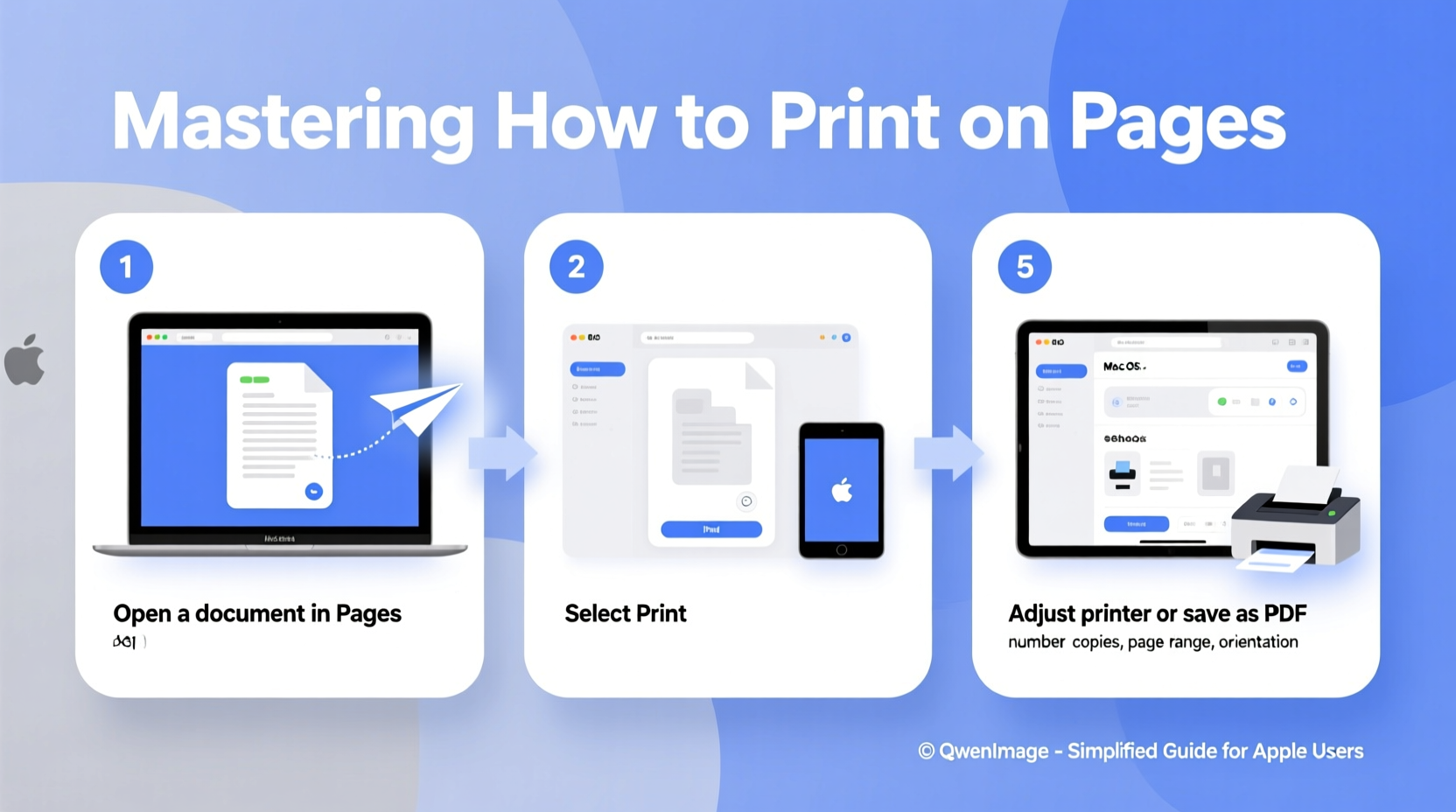
Apple introduced AirPrint in 2010 as a wireless printing solution that works across iOS and macOS without requiring additional drivers. It enables direct communication between your Mac or iPad and compatible printers over Wi-Fi. Most modern printers from HP, Canon, Epson, Brother, and others support AirPrint, making it the default method for Apple users.
To use AirPrint, both your device and printer must be connected to the same Wi-Fi network. Once connected, printing becomes a matter of selecting content and choosing the print option. No setup wizards, no driver installations—just tap or click and print.
Step-by-Step Guide to Printing from iPad
The iPad offers a streamlined printing process thanks to its intuitive interface and deep integration with AirPrint. Follow these steps to print any document, webpage, email, or photo:
- Open the app containing the content you want to print (e.g., Safari, Mail, Notes, Files).
- Tap the share icon (a square with an upward arrow).
- Scroll down and select Print from the action list.
- If prompted, choose your AirPrint-compatible printer from the list.
- Adjust settings such as number of copies, page range, and orientation (portrait or landscape).
- Tap Print in the top-right corner.
If your printer doesn’t appear, ensure it’s powered on, connected to the same Wi-Fi network, and supports AirPrint. Some apps may offer enhanced print options—for example, PDFs in the Files app allow selection of specific pages before sending to print.
Real Example: Printing a School Assignment
Sophia, a high school student using her iPad for online classes, needs to submit a printed copy of her history essay. She opens the document in Pages, taps the share button, selects Print, chooses her home HP Envy printer, sets two copies, and hits print. Within seconds, the printer starts outputting clean, formatted pages. The entire process takes less than a minute—no cables, no computers required.
How to Print from Mac: Desktop Efficiency
Printing from a Mac follows a familiar pattern but offers more granular control over print settings. Whether you’re using Safari, Microsoft Word, Preview, or another application, the workflow remains consistent:
- Open the document or page you wish to print.
- Press Command + P or go to File > Print.
- A print dialog box appears showing your default printer.
- Select your desired printer from the dropdown menu if multiple options are available.
- Customize settings: paper size, layout, double-sided printing, color vs. grayscale, and page range.
- Click Print to send the job.
The Mac print dialog also includes a preview pane, allowing you to see exactly how each page will look before committing ink and paper. This is particularly useful when formatting matters—such as resumes, presentations, or multi-page reports.
| Setting | Recommended Use | Pro Tip |
|---|---|---|
| Page Range | Print only needed sections | Enter \"1-3, 5\" to skip page 4 |
| Two-Sided | Save paper on long documents | Enable automatic duplex if supported |
| Scale | Fit oversized content | Use \"Fit to Page\" for web articles |
| Color Options | Economy vs. quality | Choose grayscale for drafts |
“AirPrint has redefined expectations for wireless printing—simplicity, speed, and reliability are now standard.” — David Lin, Senior Support Engineer at Apple Authorized Service Provider
Common Issues and Troubleshooting Tips
Even with AirPrint’s ease of use, problems can arise. Here’s how to resolve the most frequent printing challenges:
- Printer not showing up? Restart both the printer and your device. Confirm they’re on the same Wi-Fi network. Disable any active VPNs or firewalls temporarily.
- Print job stuck? Open the Print Queue (via System Settings > Printers & Scanners), select the printer, and clear pending jobs. Reboot the printer if necessary.
- Blurry or misaligned text? Check ink levels and run a nozzle cleaning cycle from the printer’s maintenance menu.
- Only prints part of the page? In the print settings, set scaling to “100%” or “Actual Size” to prevent automatic resizing.
Checklist: Pre-Print Verification
Before hitting print, ensure everything runs smoothly:
- ✅ Printer is powered on and online
- ✅ Connected to the same Wi-Fi network as your device
- ✅ Sufficient paper and ink/toner
- ✅ Correct paper size loaded (e.g., Letter vs. A4)
- ✅ Document formatting looks correct in preview
- ✅ Double-sided printing enabled if needed
Advanced Tips for Power Users
For those who print frequently or manage shared office/home environments, consider these advanced techniques:
Set a Default Printer: On Mac, go to System Settings > Printers & Scanners, right-click a printer, and select “Use This Printer by Default.” On iPad, the last-used printer is usually remembered automatically.
Share a Printer via Mac: If you have a non-AirPrint USB printer connected to your Mac, enable printer sharing. Go to System Settings > General > Sharing, check “Printer Sharing,” and select the printer. Other devices on the network can then print through your Mac.
Use Third-Party Apps: Tools like Printopia (for Mac) allow you to send print jobs from iOS devices to non-AirPrint printers, including older models or networked Windows-shared printers.
Print to PDF First: Instead of printing directly, choose “Save as PDF” in the print dialog. This lets you review layout, reduce errors, and conserve resources.
FAQ
Can I print from my iPad to a non-Wi-Fi printer?
Yes, but indirectly. If the printer is connected to a Mac via USB, enable printer sharing on the Mac. Your iPad can then print through the Mac using AirPrint. Alternatively, use third-party apps like Printer Pro or ePrint.
Why does my Mac not detect my AirPrint printer?
This often occurs due to network segmentation. Ensure both devices are on the same subnet—avoid guest networks or dual-band routers separating 2.4GHz and 5GHz bands. Restarting the router and printer usually resolves discovery issues.
Is it possible to print from iPhone the same way as iPad?
Absolutely. The process is identical across all iOS devices. Any iPhone running iOS 4.2 or later supports AirPrint, and the share sheet method works consistently in supported apps.
Conclusion
Mastering how to print on pages as a Mac and iPad user unlocks efficiency, flexibility, and reliability in both personal and professional tasks. With AirPrint simplifying wireless printing and macOS offering detailed control, the technology is already at your fingertips. By understanding the steps, troubleshooting common issues, and applying best practices, you turn what was once a frustrating chore into a seamless part of your workflow.




 浙公网安备
33010002000092号
浙公网安备
33010002000092号 浙B2-20120091-4
Comments
No comments yet. Why don't you start the discussion?