
In today’s hybrid and fast-paced work environments, the ability to produce professional, high-quality printed documents remains essential—even in a digital world. Whether you're preparing reports for clients, printing presentation handouts, or creating internal memos, inefficient printing processes can waste time, increase costs, and compromise your credibility. Mastering the art of efficient document printing isn’t just about pressing “Print.” It involves preparation, equipment knowledge, software optimization, and workflow discipline.
By refining your approach, you can eliminate delays, reduce errors, and consistently deliver polished, legible, and visually appealing prints that reflect well on your professionalism.
Optimize Your Document Before Printing
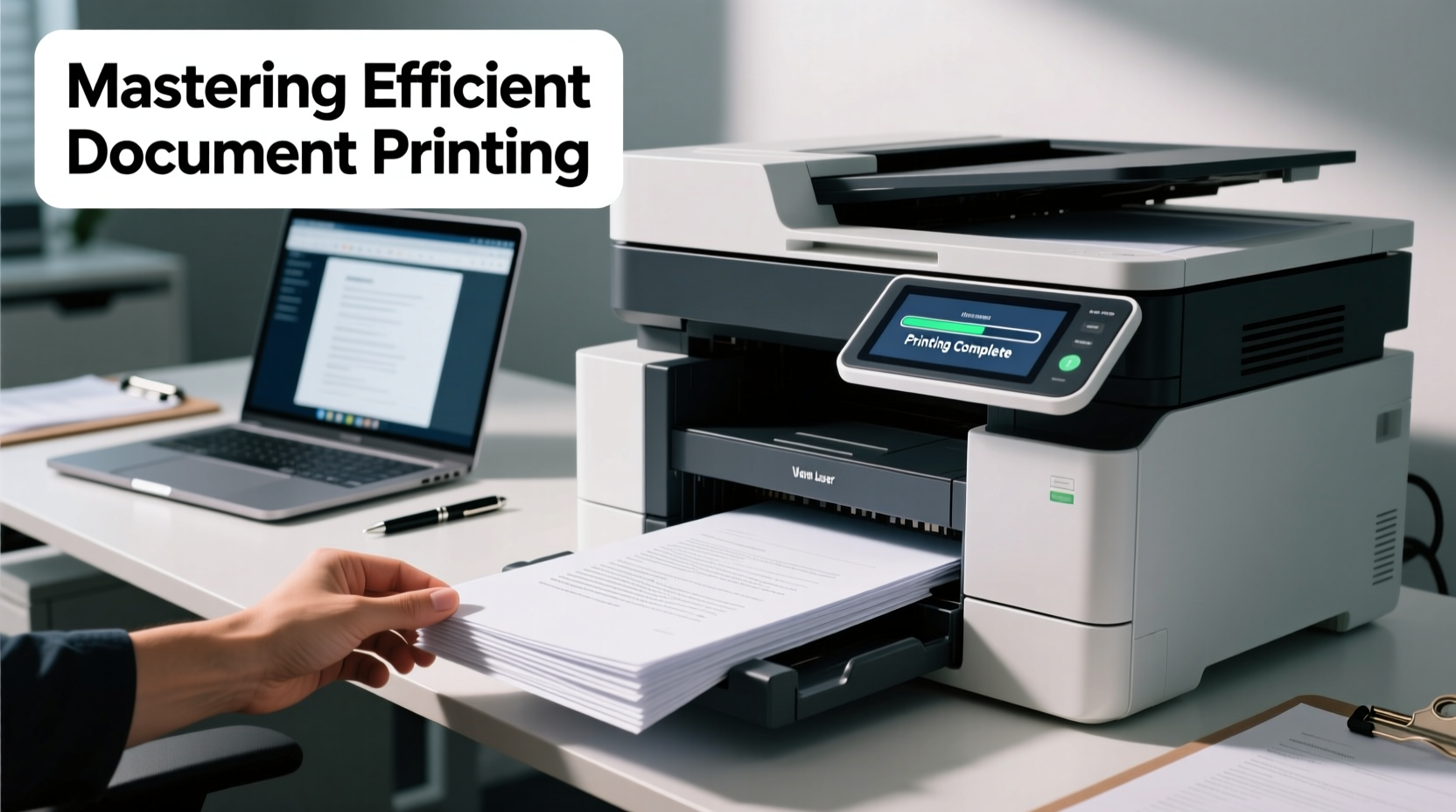
The foundation of an efficient print job begins long before you connect to a printer. How you format and prepare your document determines not only the final output quality but also how smoothly the process unfolds.
Use consistent margins (typically 1 inch) to avoid text being cut off. Choose fonts like Arial, Calibri, or Times New Roman at sizes between 10 and 12 points for readability. Avoid overusing bold, italics, or underlines, which can cause ink smudging or toner buildup on lower-end printers.
Preview your document using the “Print Preview” function in Microsoft Word, Google Docs, or Adobe Acrobat. This step reveals layout issues such as orphaned headings, awkward page breaks, or misplaced images. Adjust section breaks or image positioning to ensure clean pagination.
Select the Right Printer and Settings
Not all printers are created equal. Understanding your device’s capabilities ensures you get optimal results without unnecessary strain on equipment or resources.
Laser printers excel at high-volume text documents with crisp, smudge-resistant output. They’re ideal for offices where speed and durability matter. Inkjet printers, while slower, offer superior color reproduction and are better suited for graphics-heavy reports or marketing materials.
Match your print settings to your purpose. For draft internal copies, select “Draft Quality” or “Economy Mode” to save ink and time. For client-facing documents, switch to “High Quality” or “Best” mode and use appropriate paper types like 24–32 lb bond paper for a premium feel.
| Purpose | Printer Type | Quality Setting | Paper Recommendation |
|---|---|---|---|
| Internal memo | Laser | Draft | 20 lb copy paper |
| Client report | Laser or Inkjet | High Quality | 24–32 lb premium paper |
| Presentation handout | Inkjet | Best Color | Glossy or semi-gloss paper |
| Proofreading draft | Laser | Economy | Recycled paper |
Streamline Your Print Workflow
Efficiency isn’t just about the print button—it’s about minimizing friction across the entire process. A disorganized workflow leads to misprints, wasted supplies, and repeated jobs.
Create standardized templates for recurring documents like meeting agendas, project summaries, or performance reviews. These templates include correct headers, footers, fonts, and margins, reducing setup time and ensuring consistency.
Use batch printing for multiple documents. Instead of printing one file at a time, compile related PDFs into a single print job. This reduces warm-up cycles for laser printers and prevents queue interruptions.
Set default printer preferences to match your most common needs. For example, configure your office printer to default to double-sided (duplex) printing, black-and-white, and letter size. This minimizes manual adjustments and promotes sustainability.
“Over 30% of office printing delays stem from incorrect settings or last-minute formatting changes. Standardization cuts this down dramatically.” — Mark Tran, Office Technology Consultant at ProFlow Systems
Step-by-Step Guide to a Flawless Print Job
Follow this sequence to ensure every print task is executed smoothly and professionally:
- Finalize Content: Proofread spelling, grammar, and data accuracy. Verify charts and tables are clear and labeled.
- Check Formatting: Use print preview to inspect page breaks, image alignment, and header/footer placement.
- Select Printer: Choose the right device based on volume, quality, and color needs.
- Adjust Settings: Set paper size, orientation (portrait/landscape), color vs. grayscale, and duplex options.
- Test Print One Page: Print the first page to confirm alignment, margins, and toner/ink levels.
- Run Full Job: Proceed with the complete print run once the test is satisfactory.
- Inspect Output: Check for streaks, blurriness, or paper jams. Address issues immediately.
- Organize & Distribute: Staple, hole-punch, or bind as needed. Label packets if distributing to multiple recipients.
Avoid Common Printing Pitfalls
Even experienced professionals fall into avoidable traps that undermine efficiency and quality. Recognizing these issues helps prevent costly reprints.
- Ignoring printer maintenance: Dirty rollers or low toner cause streaks and faded text. Clean your printer monthly and replace consumables proactively.
- Using incompatible paper: Glossy paper in a standard tray can jam laser printers. Always check manufacturer recommendations.
- Printing over Wi-Fi without verification: Wireless connections can drop mid-job. Confirm the printer is online and responsive before sending large files.
- Forgetting to update drivers: Outdated printer drivers lead to errors, slow processing, or failed jobs. Update them quarterly via the manufacturer’s website.
Real-World Example: Streamlining Quarterly Reports
Sarah Kim, operations manager at a mid-sized consulting firm, used to spend two hours each quarter preparing printed reports for board meetings. Her team would finalize slides late, leading to rushed edits, mismatched formatting, and last-minute trips to the print room.
She implemented a new system: a shared template with pre-approved branding, automatic table of contents, and embedded charts linked to live data. The team now locks content three days before printing. Sarah schedules a test print on Friday, confirms quality, and runs the full batch Monday morning using duplex settings on the office laser printer.
The result? She now completes the entire process in under 45 minutes, with zero errors and improved document consistency. Board members have commented on the enhanced professionalism of the materials.
Frequently Asked Questions
Why does my document look different when printed than on screen?
Screen rendering uses pixels, while printers use DPI (dots per inch). Differences in resolution, color profiles, and scaling settings can alter appearance. Always use print preview and calibrate your monitor to match output standards.
How can I reduce paper and ink costs without sacrificing quality?
Enable duplex printing by default, use “draft” mode for internal drafts, and set documents to grayscale unless color is essential. Also, consider consolidating multiple pages per sheet for review copies.
What should I do if my printer keeps jamming?
Check for wrinkled or damp paper, ensure the tray isn’t overloaded, and verify you’re using the correct paper type. Regularly clean the paper path and rollers with a lint-free cloth. If jams persist, schedule a technician service.
Conclusion: Take Control of Your Printing Process
Printing may seem like a minor task, but its impact on productivity, cost control, and professional image is significant. By mastering the details—from document preparation to printer selection and workflow design—you transform a routine chore into a seamless, reliable operation.
Start applying these strategies today: audit your current printing habits, standardize your templates, optimize your settings, and train your team on best practices. Small improvements compound into major gains in efficiency and quality.




 浙公网安备
33010002000092号
浙公网安备
33010002000092号 浙B2-20120091-4
Comments
No comments yet. Why don't you start the discussion?