
In today’s hyper-connected world, finding the right contact quickly can make the difference between closing a deal and missing an opportunity. Whether you're using a personal smartphone, managing a corporate directory, or navigating a public listing system, knowing how to efficiently interpret and search through digital directories is a fundamental skill. Despite the simplicity of modern interfaces, many users overlook structured approaches that maximize accuracy and minimize wasted time. This guide breaks down the process into clear, actionable steps, helping you master the art of reading and searching cell phone directories—on any platform.
Understanding What a Cell Phone Directory Is
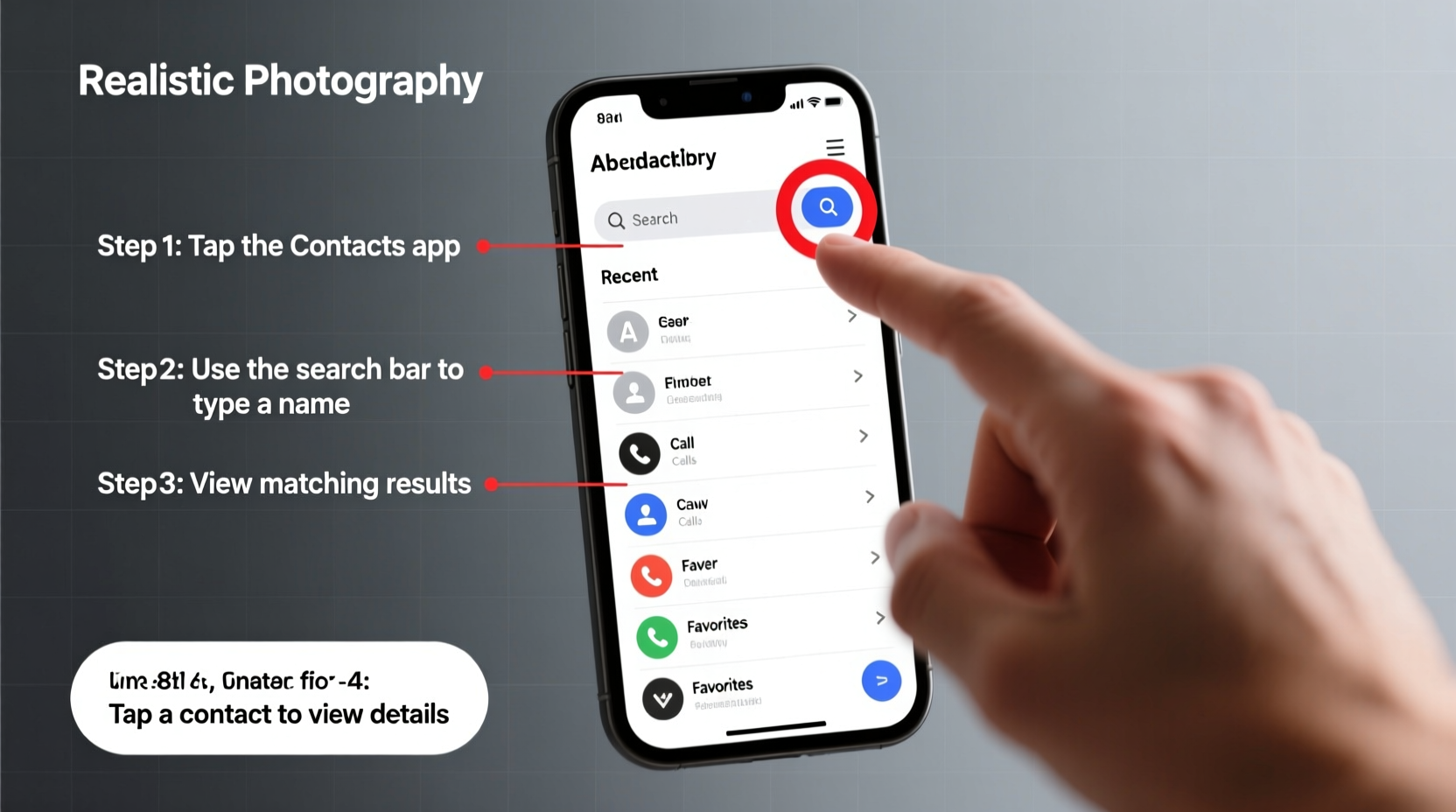
A cell phone directory is a digital or physical list of contact information, typically including names, phone numbers, email addresses, and sometimes job titles or affiliations. These directories exist in various forms: your smartphone’s native contacts app, workplace intranet systems, carrier-based services (like Verizon Directory), or public databases such as 411-style lookup tools. While interfaces differ, the core principles of navigation remain consistent across platforms.
The effectiveness of a directory search depends not just on typing a name but on understanding how data is organized, labeled, and indexed. For instance, some systems sort alphabetically by last name, while others prioritize recent interactions. Recognizing these patterns allows for faster retrieval.
Step-by-Step Guide to Accurate Contact Searches
Searching a directory effectively isn’t about speed alone—it’s about precision. Follow this five-phase method to ensure consistent success when locating contacts.
- Prepare Your Search Query
Before opening the directory, clarify what you know: full name, partial number, company, or alternate identifiers like nickname or department. The more specific your starting point, the better. - Open the Correct Directory
Determine which system holds the contact. Is it stored locally on your phone? In a cloud service like Google Contacts or iCloud? Or within a third-party app like Slack or Microsoft Teams? Launch the appropriate platform. - Use the Search Function Strategically
Type the known identifier into the search bar. Avoid vague terms. Instead of “John,” try “John M. Accounting” or “555-0192.” Most systems support partial matches, so even fragments help. - Review Results with Context
Scan displayed entries carefully. Look beyond the name—check associated details like email, job title, or profile photo if available. A common name may have multiple matches; context prevents errors. - Verify Before Acting
If calling or messaging, double-check the number or address. Misdirected communication damages professionalism. When in doubt, send a brief verification message: “Hi, this is [Your Name]—just confirming I’ve reached the right person?”
When Automatic Search Fails: Manual Navigation Tips
If search returns no results, switch to manual browsing. Scroll alphabetically or filter by groups (e.g., “Family,” “Work,” “VIP”). On enterprise systems, use filters like department, location, or role. Some directories allow sorting by last interaction date, which helps locate recently contacted individuals.
“Most missed connections stem not from missing data, but from poor search hygiene. Training employees in directory literacy reduces internal miscommunication by up to 40%.” — Dr. Lena Torres, Organizational Communication Researcher, MIT Sloan
Optimizing Your Own Contact Entries for Better Discoverability
How you save contacts affects how easily others—and future you—can find them. Standardized formatting improves retrieval across devices and shared systems.
| Do | Don't |
|---|---|
| Save full names clearly: “Maria Chen – TechLead, DevTeam” | Use ambiguous nicknames: “MC - that dev girl” |
| Add secondary identifiers: email, office line, Slack handle | Omit key details to save space |
| Use consistent naming: “Dr. Alan Patel” not “Alan P.” and “Dr. Patel” interchangeably | Inconsistently rename the same person across devices |
| Tag contacts with relevant labels (Work, Client, Emergency) | Rely solely on memory for categorization |
Real-World Example: Finding a Lost Vendor Contact
Sarah, a project manager at a mid-sized logistics firm, needed to reach a shipping coordinator named Robert Liu. She remembered his company—OceanLink Freight—but couldn’t recall his number or email. Her initial search for “Robert” returned 17 matches. Instead of guessing, she followed the structured approach:
- She opened her work directory synced with Microsoft 365.
- Typed “Liu OceanLink” into the global search.
- Found two matches: one in Finance, one in Operations.
- Clicked each profile to view roles—confirmed Robert in Operations was her contact.
- Verified via a quick Teams message before initiating a call.
By using contextual keywords and verifying through metadata, Sarah avoided delays and maintained professional rapport.
Common Pitfalls and How to Avoid Them
Mistakes in directory usage often go unnoticed until they cause issues. Here are frequent errors and their solutions:
- Assuming search is universal: Not all apps sync contacts. WhatsApp, for example, only shows people in your phone’s saved contacts who also use the app.
- Ignoring capitalization and spacing: Some legacy systems treat “JohnDoe” and “John Doe” as different entries. Stick to standard spacing.
- Overlooking sync settings: If your iCloud or Google account isn’t syncing contacts, changes won’t appear across devices.
- Deleting old entries without backup: Archive outdated contacts instead of deleting—use a “Legacy” label for historical reference.
Checklist: Best Practices for Directory Mastery
- ✅ Confirm which directory system you’re using (local, cloud, corporate).
- ✅ Use full names and secondary identifiers when saving contacts.
- ✅ Sort preferences: set to Last Name first if you frequently search formally.
- ✅ Regularly audit and clean duplicate or outdated entries.
- ✅ Enable cross-device sync and verify it monthly.
- ✅ Train teams on standardized naming conventions in shared directories.
- ✅ Use advanced filters (department, location) in enterprise systems.
Frequently Asked Questions
Can I search a cell phone directory without knowing the full name?
Yes. Most modern systems support partial-name searches, number lookups, and even reverse searches using email or social handles. Try entering initials, company names, or known digits from the phone number. On platforms like Truecaller or Whitepages, partial data often yields strong suggestions.
Why does my phone show multiple entries for the same person?
This usually happens when the same contact is saved under different accounts (e.g., personal Gmail, work Outlook, SIM card). To fix this, merge duplicates: on iPhone, use “Link Contacts”; on Android, use the “Merge” option in the Contacts app. Prevent recurrence by designating one primary account for contact storage.
Are online public directories still reliable?
Public directories like 411.com or AnyWho provide basic listings but may lack real-time updates. They’re useful for landlines or older demographics but less effective for mobile-only users due to privacy restrictions. Carrier directories and business networks (LinkedIn, ZoomInfo) tend to be more current and accurate.
Conclusion: Turn Directory Skills Into a Professional Advantage
Mastering how to read a cell phone directory isn’t just about finding a number—it’s about building reliability, efficiency, and trust in your communications. Whether you’re reconnecting with a client, coordinating with colleagues, or managing a team’s contact ecosystem, structured search habits reduce friction and prevent costly mistakes. These skills compound over time, making you faster, more accurate, and more confident in high-pressure situations.




 浙公网安备
33010002000092号
浙公网安备
33010002000092号 浙B2-20120091-4
Comments
No comments yet. Why don't you start the discussion?