
In an age where memories are captured in milliseconds and shared across platforms instantly, knowing how to properly save a photo is more important than ever. Whether it’s a cherished family moment, a work-related screenshot, or a stunning landscape from your travels, losing access to a digital image due to improper handling can be frustrating—or worse, irreversible. The good news: saving photos doesn’t have to be complicated. With the right techniques, you can securely store images across devices and formats, ensuring they remain accessible, organized, and high-quality for years to come.
Understanding Photo Formats and Their Uses
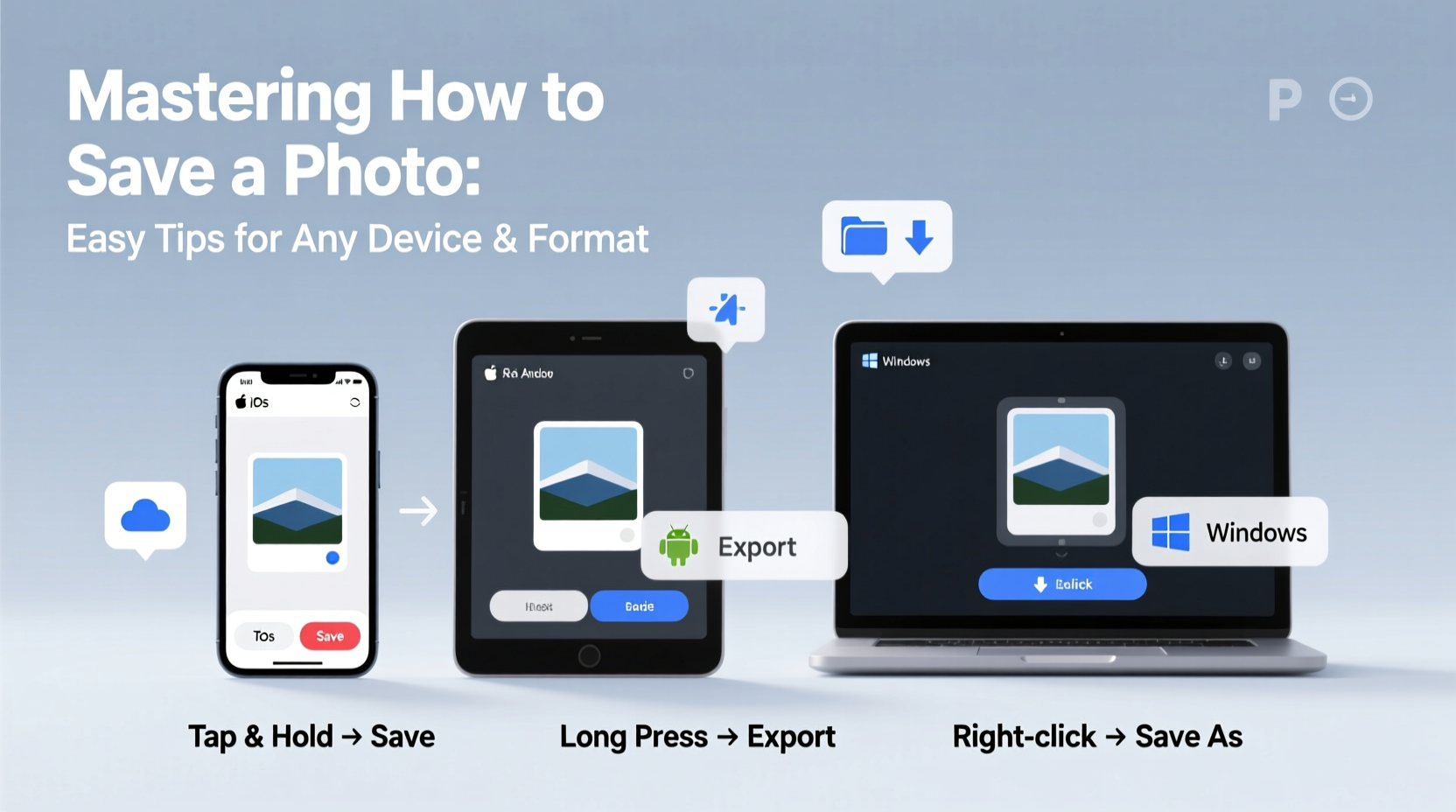
Before diving into the mechanics of saving photos, it’s essential to understand the most common file formats and when to use them. Each format has strengths that make it suitable for different purposes—sharing online, printing, editing, or long-term archiving.
| Format | Best For | Compression Type | Quality Retention |
|---|---|---|---|
| JPEG (or JPG) | Web sharing, social media, general use | Lossy | Moderate – degrades slightly with repeated edits |
| PNG | Screenshots, graphics with transparency | Lossless | High – retains full quality after saving |
| HEIC/HEIF | iOS devices, high-efficiency storage | Lossy/Lossless | Very high – smaller file size, same quality |
| RAW | Professional photography, post-processing | Uncompressed | Maximum – retains all sensor data |
| WebP | Website optimization, fast loading | Lossy or Lossless | Good – balances size and clarity |
Choosing the right format depends on your intended use. For example, JPEGs are ideal for quick sharing due to their small size, while PNGs preserve crisp edges and transparency—perfect for logos or diagrams. HEIC, used by default on newer iPhones, saves space without sacrificing quality but may not be universally supported. Always consider compatibility when selecting a format.
Step-by-Step Guide to Saving Photos Across Devices
Every device handles photo storage differently. Knowing the correct steps ensures you don’t accidentally overwrite, misplace, or lose your files. Below is a universal guide applicable to major platforms.
- On a Smartphone (iOS or Android):
- To save an image from a webpage or app: Tap and hold the photo until a menu appears. Select “Save Image” or “Download.”
- For screenshots: Press Power + Volume Down (Android) or Side Button + Volume Up (iPhone). The image saves automatically to your camera roll.
- From messaging apps: Open the image, tap the share icon, then choose “Save” or “Download.”
- On a Computer (Windows or macOS):
- Right-click the image and select “Save image as…”
- Choose a destination folder (e.g., Pictures, Downloads).
- Verify the file format and rename if necessary before saving.
- From Email Attachments:
- Open the email and locate the attachment.
- Click “Download” or “Save As,” then pick a secure folder.
- Avoid leaving important images only in your inbox—they can be lost during cleanup.
- From Cloud Services (Google Drive, iCloud, Dropbox):
- Open the file preview.
- Select “Download” or the downward-facing arrow.
- The file will save to your default downloads folder unless specified otherwise.
Pro Tip: Batch-Saving Multiple Images
If you need to save several photos at once—such as from a shared album or website gallery—consider using browser extensions like “Image Downloader” (Chrome) or built-in developer tools. On desktop, press F12, go to the Network tab, filter by “Img,” reload the page, and extract multiple images efficiently.
Organizing and Backing Up Your Saved Photos
Saving a photo is just the first step. Long-term accessibility requires smart organization and redundancy. A single hard drive failure or accidental deletion can erase hundreds of irreplaceable moments.
Create a consistent naming convention: Use dates and descriptions (e.g., _2024-05-17_Wedding-Rehearsal.jpg_). Organize folders by year, event, or project. Avoid vague names like “IMG_1234” which offer no context months later.
- Store originals in a master archive folder (e.g., “Photo Vault”).
- Use subfolders: /2024/05_May/05-17_Wedding/
- Tag or rate important photos if your OS supports metadata (macOS Photos, Windows File Explorer).
“Digital preservation isn’t about saving once—it’s about saving in multiple places.” — Dr. Alan Torres, Digital Archivist at MIT Libraries
Back up using the 3-2-1 rule: Keep three copies of your data, on two different media (e.g., external drive and cloud), with one offsite (e.g., Google Photos or iCloud). This protects against hardware failure, theft, or natural disasters.
Real Example: Recovering Lost Travel Photos
Sarah, a freelance photographer, returned from a month-long trip across Southeast Asia only to discover her SD card was corrupted. She had shared some photos online but hadn’t backed up the rest. Fortunately, she had previously uploaded a partial set to Google Photos via her phone’s Wi-Fi sync. Using recovery software on her Mac, she retrieved 80% of the remaining images from the damaged card. The experience taught her a critical lesson: always save photos in duplicate immediately after capture.
Now, Sarah uses a dual-storage approach: she transfers images from her camera to both a portable SSD and her cloud account within 24 hours of shooting. Her workflow includes renaming files, adding location tags, and storing masters in version-controlled folders. What started as a stressful loss became a turning point in her digital discipline.
Common Mistakes That Risk Your Photos
Even experienced users fall into traps that compromise photo integrity. Avoid these pitfalls:
- Assuming “saved” means “backed up” – Saving to one device isn’t enough.
- Ignoring file compatibility – HEIC files may not open on older Windows PCs without converters.
- Deleting source files too soon – Wait until you’ve verified backups before removing originals.
- Using unreliable free storage – Some cloud services delete inactive accounts or limit resolution.
- Not checking download success – Occasionally verify saved files actually open and aren’t corrupted.
Do’s and Don’ts Summary
| Action | Do | Don't |
|---|---|---|
| Downloading | Save to a dedicated folder | Leave in Downloads indefinitely |
| Sharing | Use compressed versions | Send RAW files unnecessarily |
| Editing | Work on a copy, keep original | Overwrite the original file |
| Storing | Use external drives + cloud | Rely solely on one device |
FAQ: Quick Answers to Common Questions
Why can’t I open a photo I saved?
This often happens with HEIC files on non-Apple devices. Install a HEIC viewer or convert the file to JPEG using free tools like Online-Convert.com or built-in iOS settings (Settings > Camera > Formats > Most Compatible).
How do I save a photo without losing quality?
Always choose lossless formats like PNG or TIFF when editing. For JPEGs, avoid repeatedly opening, editing, and resaving, as each cycle reduces quality. Work on a copy and export the final version only once.
Can I recover a photo I deleted?
Possibly. Check your device’s “Recently Deleted” album (available on iOS and Android for 30 days). On computers, try Recycle Bin or Time Machine (Mac). Third-party recovery tools like Recuva (Windows) may retrieve permanently deleted files—if the space hasn’t been overwritten.
Final Checklist: Master Your Photo-Saving Workflow
- ✅ Identify the source of the photo (web, message, email, camera).
- ✅ Use the correct method to save (tap-and-hold, right-click, download button).
- ✅ Choose the appropriate format based on use case.
- ✅ Save to a clearly named folder with a logical structure.
- ✅ Verify the file opens correctly after saving.
- ✅ Back up to at least one secondary location (cloud or external drive).
- ✅ Rename and tag important images for future searchability.
Take Control of Your Digital Memories
Photos are more than pixels—they’re records of life’s fleeting moments. Mastering how to save a photo isn’t just about technical skill; it’s about intentionality. Whether you're using a smartphone, tablet, or desktop, the principles remain the same: act promptly, save thoughtfully, and back up consistently. By applying these strategies, you protect not just images, but the stories they carry. Start today—organize one folder, back up one album, test one recovery method. Small actions now prevent regrets later.




 浙公网安备
33010002000092号
浙公网安备
33010002000092号 浙B2-20120091-4
Comments
No comments yet. Why don't you start the discussion?