
Accurate timekeeping is more than just convenience—it's essential for productivity, security, and seamless digital coordination. From missed meetings due to incorrect clocks to authentication failures in two-factor systems, even a few minutes off can cause real-world disruptions. Yet, many users overlook the importance of synchronizing time and date settings across their devices. Whether you're using a smartphone, laptop, tablet, or smartwatch, ensuring accurate time settings enhances reliability, improves data consistency, and strengthens cybersecurity. This guide walks through the best practices, platform-specific steps, and troubleshooting methods to master time and date configuration on every device you own.
Why Accurate Time and Date Settings Matter
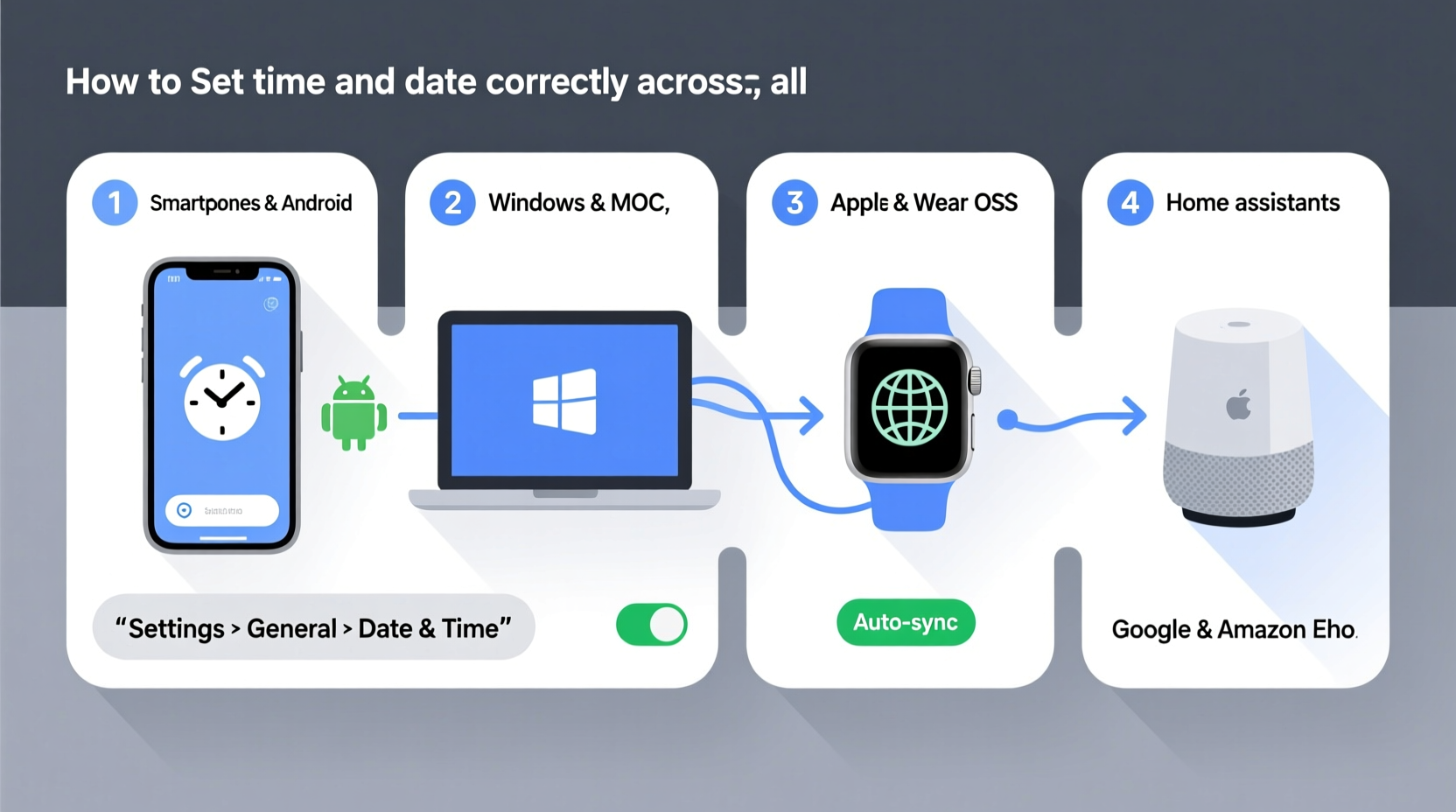
Modern digital ecosystems rely heavily on precise timestamps. Email clients sort messages chronologically, cloud services track file revisions, and security protocols validate login attempts based on time-sensitive tokens. An incorrect system clock can lead to:
- Emails appearing out of order
- Failed two-factor authentication (2FA) codes
- Inaccurate calendar alerts and reminders
- Sync issues between cloud-stored files
- Problems with online banking or transaction logging
“Even a five-minute drift can break time-based security mechanisms like TOTP. Keeping devices synchronized isn’t optional—it’s foundational.” — Dr. Alan Reed, Cybersecurity Analyst at NetTrust Labs
Step-by-Step Guide to Setting Time and Date by Device Type
Smartphones (iOS and Android)
iOS (iPhone):
Navigate to Settings > General > Date & Time. Toggle on “Set Automatically” to use Apple’s network time servers. If disabled, manually select your time zone and adjust the date and time using the scroll wheels.
Android:
Go to Settings > System > Date & Time (path may vary slightly by manufacturer). Enable “Automatic date & time” and “Automatic time zone” to sync with Google’s servers. For manual setup, disable these options and input the correct values directly.
Laptops and Desktops (Windows, macOS, Linux)
Windows 10/11:
Click the clock in the taskbar > “Adjust date/time.” Ensure “Set time automatically” and “Set time zone automatically” are toggled on. To change manually, turn off auto-set and click “Change” under “Set the date and time manually.”
macOS:
Open System Settings > General > Date & Time. Check “Set date and time automatically” and choose a time server (e.g., time.apple.com). If unlocking changes, enter your admin password. Manual adjustments can be made when auto-sync is disabled.
Linux (Ubuntu/GNOME):
Open Settings > Date & Time. Switch on “Automatic Date & Time” to sync via systemd-timesyncd. For command-line control, use timedatectl set-ntp true to enable NTP synchronization.
Smartwatches and Wearables
Most smartwatches, including Apple Watch and Wear OS devices, inherit time settings from their paired smartphone. Ensure the phone’s time is correct—then the watch will follow. On standalone LTE models, verify that “Set Automatically” is enabled in the watch’s settings under Date & Time.
Routers and Network Devices
Network infrastructure often runs on UTC (Coordinated Universal Time). Access your router’s admin panel (usually via 192.168.1.1 or similar), navigate to System Tools or Administration, and locate the time settings. Enable NTP client functionality and specify public servers like pool.ntp.org. This ensures logs, scheduled tasks, and parental controls operate accurately.
Device Synchronization Checklist
Follow this checklist monthly to maintain consistent time settings across your tech ecosystem:
- Verify automatic time sync is enabled on all primary devices
- Confirm time zone settings reflect your current location
- Check that daylight saving time adjustments are applied automatically
- Review any connected IoT devices (thermostats, cameras) for time accuracy
- Ensure your router uses an NTP server for network-wide consistency
- Test time-sensitive apps (calendar, 2FA, alarms) after any change
Common Pitfalls and How to Avoid Them
| Issue | Root Cause | Solution |
|---|---|---|
| Clock resets after reboot | Failing CMOS battery (on PCs) | Replace motherboard battery (CR2032) |
| Time off by hours | Wrong time zone selected | Double-check time zone in system settings |
| Devices out of sync | Some devices not using NTP | Enable automatic sync on all devices |
| Daylight saving not applied | Outdated OS or disabled auto-adjust | Update OS and re-enable auto DST |
Real-World Example: The Remote Worker’s Wake-Up Call
Sarah, a project manager based in Denver, began missing morning stand-ups despite setting multiple alarms. She discovered her work laptop had reverted to Eastern Time after a BIOS update, while her phone remained on Mountain Time. Her calendar events were scheduled correctly—but displayed two hours early on her desktop. The root cause? Automatic time zone detection was disabled post-update. Once she re-enabled it and verified NTP sync status using w32tm /query /status on Windows, her devices realigned within minutes. This experience prompted her to create a biweekly check routine for all her devices.
Advanced Tip: Using NTP for Maximum Accuracy
For users requiring high precision—such as developers, financial traders, or IT administrators—relying solely on default time servers may not suffice. You can configure your system to use trusted, low-latency NTP pools:
- Primary Server:
time.google.com - Backup Options:
time.apple.com,pool.ntp.org - Enterprise Use: Deploy internal NTP servers synced to atomic clocks
On Windows, modify the server list via Command Prompt (as admin):
w32tm /config /manualpeerlist:\"time.google.com\" /syncfromflags:manual /reliable:yes /update
On Linux:
Edit /etc/ntp.conf or /etc/systemd/timesyncd.conf and add:
NTP=time.google.com pool.ntp.org
FAQ
Why does my computer show a different time than my phone?
This usually happens when one device has automatic time sync disabled or is set to the wrong time zone. Ensure both devices are configured to use network-provided time and the same geographic region.
Can incorrect time affect my online security?
Yes. Security certificates, login tokens, and encrypted communications depend on accurate timestamps. A significant time deviation can trigger certificate validation errors or block access to secure services.
What if my device won’t sync automatically?
First, check internet connectivity. Then verify that the NTP service is running. Restart the device, ensure the OS is updated, and manually input a known-good time server if needed.
Conclusion: Take Control of Your Digital Clock
Setting the correct time and date may seem trivial—until it breaks your workflow, compromises security, or causes scheduling chaos. By understanding how each device handles time synchronization and taking proactive steps to align them, you create a more reliable, efficient digital environment. Don’t wait for a missed deadline or failed login to act. Audit your devices today, enable automatic syncing, and establish a simple maintenance habit. Precision in timekeeping reflects precision in living—start now, stay in sync, and move forward with confidence.




 浙公网安备
33010002000092号
浙公网安备
33010002000092号 浙B2-20120091-4
Comments
No comments yet. Why don't you start the discussion?