
The slash symbol (/) may seem minor in the grand scheme of keyboard characters, but it plays a crucial role in everyday digital communication. Whether you're writing URLs, separating dates, formatting file paths, or typing contractions like \"he/she,\" knowing how to access the slash efficiently can save time and reduce frustration. Despite its simplicity, many users—especially beginners or those using unfamiliar devices—struggle to locate or use the slash consistently. This guide breaks down everything you need to know to type the slash symbol with confidence, speed, and accuracy across different platforms and keyboard layouts.
Where to Find the Slash on Your Keyboard
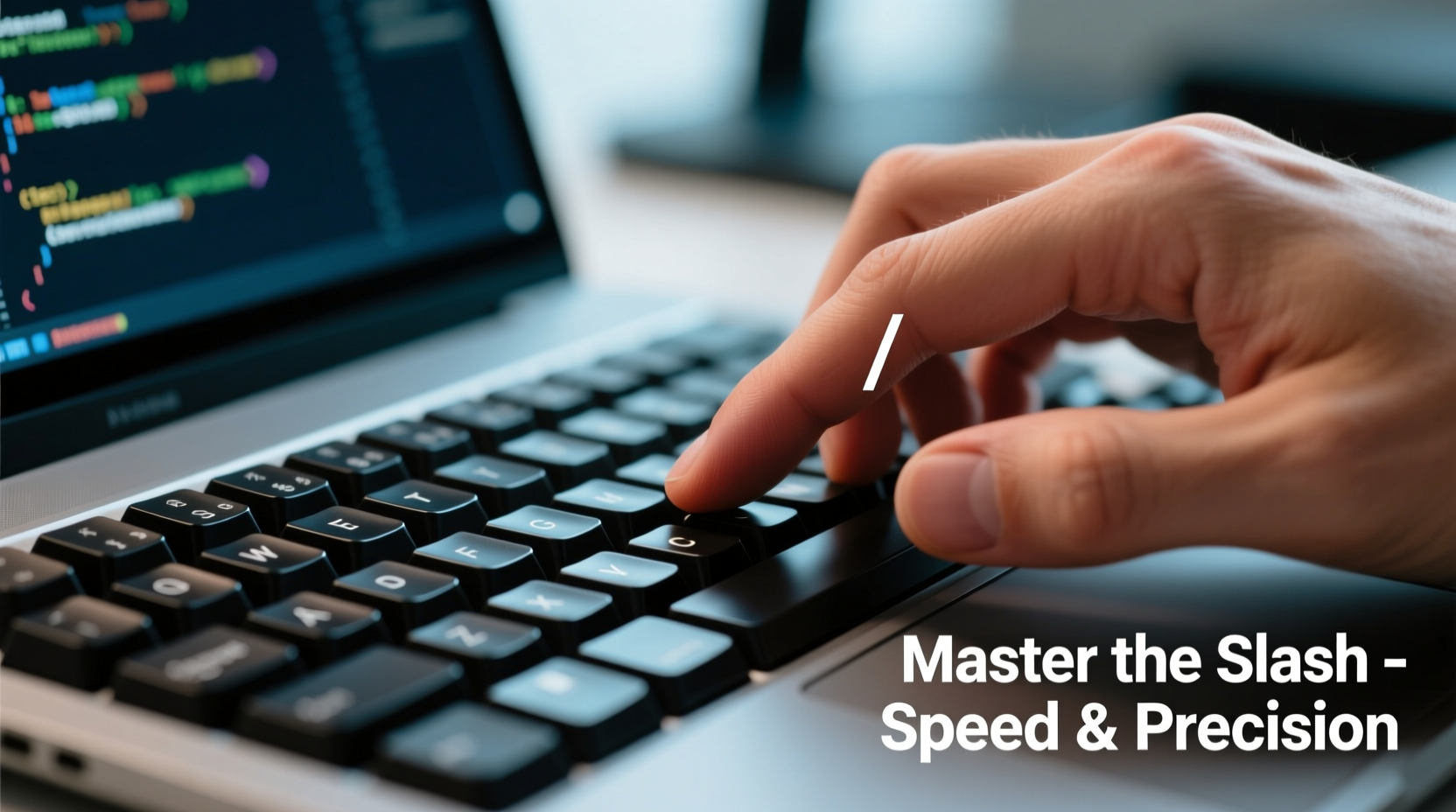
On most standard QWERTY keyboards, the forward slash (/) is located on the same key as the question mark (?), typically to the right of the period (.) key and just above the right Shift key. The exact position may vary slightly depending on your region or device, but this layout remains consistent across the majority of English-language keyboards.
To type a forward slash, simply press the key without holding any modifier. If your keyboard outputs a question mark instead, you’re likely pressing Shift + /. To get the slash alone, press only the key without Shift. Conversely, to type a question mark, hold Shift and press the same key.
Backslash vs. Forward Slash: Know the Difference
A common source of confusion is the distinction between the forward slash (/) and the backslash (\\). While they look similar, they serve very different purposes:
- Forward slash (/): Used in web addresses (https://), date formats (05/23/2024), fractions (1/2), and gender-neutral language (s/he).
- Backslash (\\): Primarily used in Windows file paths (C:\\Users\\Name) and programming syntax.
The backslash is usually located above the Enter key or near the right-side Shift key, depending on your keyboard model. Never substitute one for the other in technical contexts—doing so can cause errors in code or broken file references.
Typing the Slash on Different Devices
Not all input methods are created equal. Typing a slash on a desktop differs from doing so on a smartphone or tablet. Here’s how to do it efficiently across platforms.
Desktop & Laptop Keyboards (Windows, macOS, Linux)
On full-sized keyboards, the process is straightforward:
- Locate the key shared by / and ? — usually next to the right Shift key.
- Press it directly for /.
- Hold Shift and press the same key for ?.
For non-standard layouts (e.g., UK, French AZERTY), the location may shift. On some European keyboards, you might need to use the AltGr (Alternative Graphics) key or a dead key combination.
Mobile Devices (iOS and Android)
Smartphones require an extra step since the slash isn’t visible on the default keyboard.
- Open the keyboard in any text field.
- Tap the “.?123” or “123” key to switch to the symbols layout.
- Find the slash—it’s often in the bottom row, near the spacebar or comma.
- Tap to insert.
iOS users can also enable “Period Shortcut,” which allows double-tapping the spacebar to insert a period followed by a space. While this doesn’t help with slashes directly, reducing overall typing effort improves workflow efficiency.
Common Mistakes and How to Avoid Them
Even experienced typists occasionally make errors when inserting slashes. These issues are often rooted in habit, distraction, or lack of familiarity with keyboard layouts.
| Mistake | Why It Happens | Solution |
|---|---|---|
| Typing \\ instead of / | Confusing backslash with forward slash; muscle memory from Windows paths | Practice typing URLs slowly; use visual cues like browser address bars |
| Accidentally typing ? instead of / | Holding Shift unintentionally | Check finger placement; release Shift before pressing / key |
| Using Unicode alternatives (e.g., ⁄) | Pasting from unreliable sources or auto-correct interference | Stick to ASCII /; disable smart punctuation if needed |
Accessibility Considerations
For users with motor impairments or alternative input devices, accessing the slash key may require additional setup. Voice-to-text software like Dragon NaturallySpeaking or built-in OS tools (e.g., macOS Dictation, Windows Speech Recognition) allow verbal commands such as “type forward slash” or “insert slash.” Similarly, on-screen keyboards let users click the symbol directly, bypassing physical keystrokes altogether.
“Efficiency in typing isn’t about speed alone—it’s about precision and consistency. Mastering small symbols like the slash reduces cognitive load over time.” — Dr. Linda Tran, Human-Computer Interaction Researcher, MIT
Step-by-Step Guide to Faster Slash Usage
Follow this routine to internalize quick and accurate slash typing:
- Identify the key: Locate the /? key on your primary device. Mark it lightly with tape or mental note if necessary.
- Practice isolation drills: Type “/” ten times without looking at the keyboard. Then alternate with “?” using Shift.
- Type real-world examples: Repeat common strings like “https://www.example.com” or “Date: 06/15/2024” until fluid.
- Switch devices: Practice on mobile, tablet, and secondary computers to build cross-platform fluency.
- Test under pressure: Set a timer and type five URLs correctly in under 30 seconds.
This progression builds both recognition and reflex, turning a once-conscious action into an automatic one.
Pro Tips for Power Users
Beyond basic access, advanced users can optimize their interaction with the slash symbol through customization and shortcuts.
- Create text expanders: Tools like TextExpander or PhraseExpress let you type “;;slash” and automatically replace it with “/”.
- Use clipboard managers: Store frequently used slashes or URL templates for one-click insertion.
- Remap keys: Swap rarely used keys (like Caps Lock) to produce / via software remapping tools.
Mini Case Study: Sarah, Remote Worker & Data Entry Specialist
Sarah spends hours daily entering client data into web forms, many of which require date formatting (MM/DD/YYYY). Initially, she made frequent errors, typing backslashes or question marks due to rushed keystrokes. After identifying the root cause—habitual Shift key retention—she practiced targeted drills for three days. She also enabled sticky keys on her Windows laptop, allowing her to press Shift once and activate it temporarily. Within a week, her accuracy improved by 92%, and she reported reduced hand fatigue from corrected posture and fewer correction cycles.
Frequently Asked Questions
Can I change where the slash key is on my keyboard?
You cannot physically move the key, but you can remap it using software. Tools like Microsoft PowerToys (Windows), Karabiner-Elements (macOS), or third-party firmware on mechanical keyboards allow full key reassignment. For example, you could make the right Alt key output a slash.
Why does my keyboard type a different symbol when I press /?
This usually occurs with non-US keyboard layouts. In French AZERTY, for instance, you must press Shift + ù to get a slash. Check your operating system’s keyboard settings and ensure the correct layout is selected. Switching to US International can resolve inconsistencies if you primarily work in English.
Is there a way to type a slash without a keyboard?
Yes. On-screen keyboards, voice dictation, and accessibility tools can insert the slash symbol. For example, say “forward slash” in Apple Dictation or Google Docs Voice Typing. Additionally, Unicode input (Alt + 0047 on Windows, Option + Shift + 7 on macOS) produces the same character.
Final Checklist: Master the Slash in One Week
- ☑ Locate the / key on all your devices
- ☑ Practice typing 10 slashes and 10 question marks correctly
- ☑ Type five full URLs using only forward slashes
- ☑ Use the symbol menu on mobile without hesitation
- ☑ Eliminate accidental backslashes in file paths or web links
- ☑ Implement one efficiency tool (text expander, macro, or remap)
Conclusion: Small Symbol, Big Impact
The slash symbol may occupy minimal space on your screen, but its utility spans emails, coding, documentation, and daily communication. By mastering its placement, function, and efficient input across devices, you gain more than just typing speed—you gain reliability. Precision in small details compounds into better productivity, fewer errors, and smoother digital interactions. Start today: take five minutes to practice, adjust your settings if needed, and commit to clean, confident use of the forward slash.




 浙公网安备
33010002000092号
浙公网安备
33010002000092号 浙B2-20120091-4
Comments
No comments yet. Why don't you start the discussion?