
In today’s digital-first world, the ability to transfer data quickly and securely is not just convenient—it’s essential. Whether you're collaborating on a project, submitting work to clients, or backing up personal documents, knowing how to upload files efficiently across platforms can save time, reduce frustration, and prevent errors. From cloud services like Google Drive and Dropbox to enterprise systems and direct server uploads, each environment has its own nuances. This guide breaks down proven methods, tools, and workflows that help you optimize file uploads regardless of platform.
Understanding File Upload Mechanics
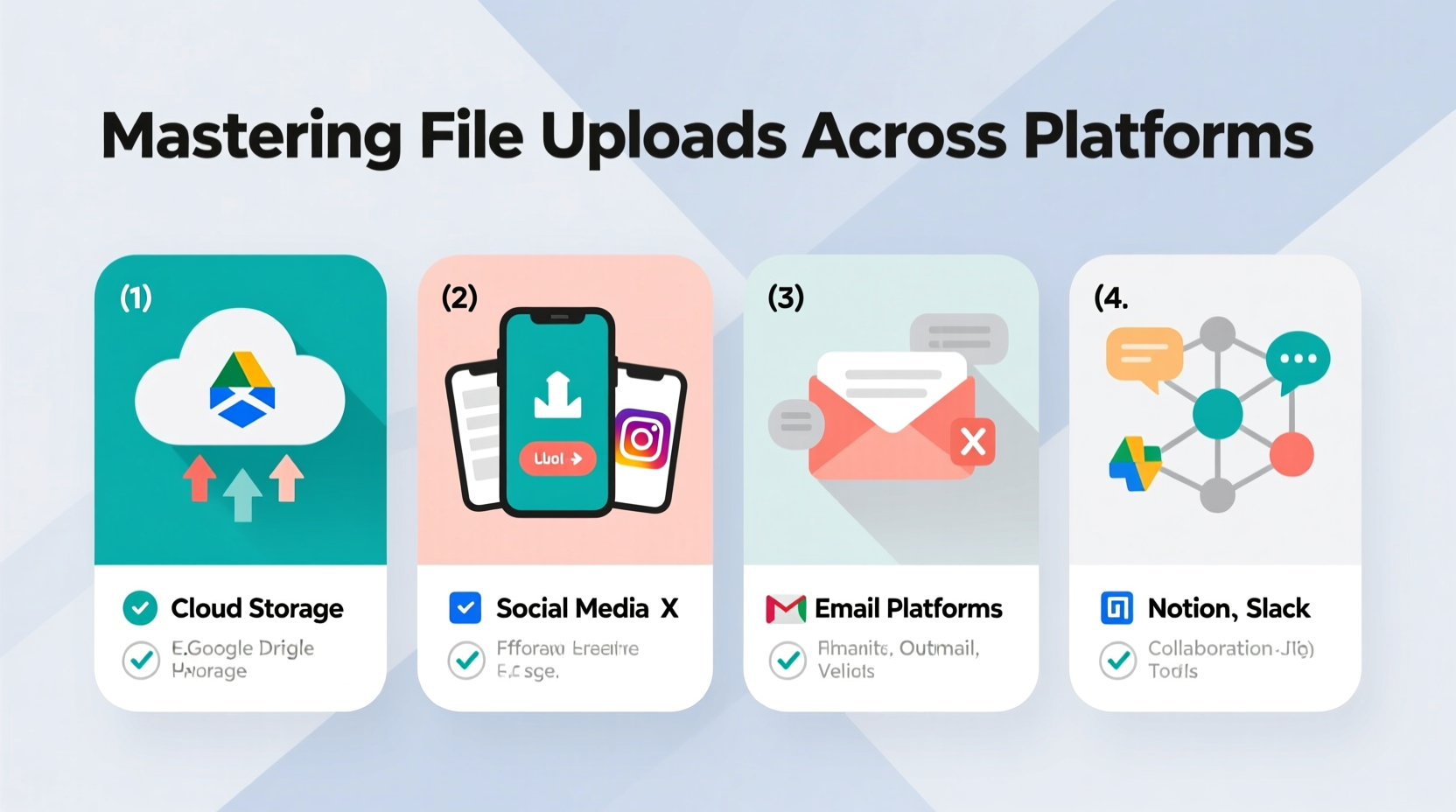
Before diving into techniques, it's important to understand what happens during an upload. When you send a file to a server or cloud service, your device transmits data in packets over the internet. The speed and success of this process depend on multiple factors: connection stability, file size, server responsiveness, and the platform’s interface design.
Some platforms use chunked uploading, which divides large files into smaller segments. This improves reliability—if one segment fails, only that part needs retransmission. Others may compress files automatically or require specific formats. Recognizing these underlying mechanisms allows you to anticipate issues and adapt accordingly.
Step-by-Step: Optimizing Your Upload Workflow
Efficiency doesn’t come from rushing—it comes from preparation. Follow this sequence to ensure smooth, consistent uploads across any system.
- Organize files locally: Use clear naming conventions (e.g., \"ProjectX_Report_Final_2024.pdf\") and group related items in labeled folders.
- Compress when necessary: For collections of files, create a .zip or .rar archive to reduce total size and simplify transfer.
- Check platform requirements: Verify allowed formats, maximum sizes, and authentication steps (e.g., two-factor login).
- Stabilize your connection: Prefer wired Ethernet over Wi-Fi for large transfers. If using public networks, avoid peak usage times.
- Monitor progress: Don’t close tabs or put devices to sleep during upload. Use task managers or built-in indicators to track completion.
- Confirm delivery: Once complete, verify the file appears correctly on the destination platform and test accessibility if sharing externally.
“Preparation accounts for 70% of successful file transfers. The actual upload is just the final step.” — Daniel Reeves, Senior Systems Engineer at CloudFlow Technologies
Platform-Specific Best Practices
Different environments demand tailored approaches. Here’s how to handle common platforms effectively:
Google Drive & Microsoft OneDrive
These consumer-grade cloud services excel in integration with office suites. Use their desktop sync clients to automate recurring uploads. Enable “offline mode” cautiously—unsynchronized changes can cause version conflicts.
Dropbox Business
Leverage Smart Sync to keep files in the cloud without occupying local storage. For team folders, assign ownership clearly to avoid permission errors during upload.
FTP/SFTP Servers
Use dedicated clients like FileZilla or WinSCP. Save connection profiles to avoid repeated logins. Always prefer SFTP over FTP for encrypted transmission.
Content Management Systems (CMS)
Platforms like WordPress impose default size caps on media uploads. To bypass this, either modify php.ini settings (for self-hosted sites) or use plugins like \"Increase Max Upload File Size.\"
Enterprise Collaboration Tools (e.g., SharePoint, Box)
These often enforce metadata tagging and approval workflows. Attach required tags *before* uploading to prevent rejection. Schedule large batches outside business hours to minimize system load.
| Platform | Max Single File Size | Recommended Tool | Security Note |
|---|---|---|---|
| Google Drive | 5 TB | Drive Desktop | Enable 2FA; share via link permissions |
| Dropbox | 2 TB | Dropbox Transfer | Avoid public links for sensitive data |
| OneDrive | 250 GB | OneDrive Sync Client | Files retained for 30 days after deletion |
| Standard FTP | Theoretically unlimited | FileZilla | Not encrypted—use only for non-sensitive data |
| SFTP/SSH | No hard limit | WinSCP / Cyberduck | Encrypted by default; requires key management |
scp or
rclone.
Real Example: Streamlining Agency Deliverables
A mid-sized marketing agency routinely delivered campaign assets—videos, images, PDFs—to clients via email. As file sizes grew, emails bounced, versions multiplied, and deadlines slipped. They shifted to a structured approach: all deliverables were compressed into dated .zip files, uploaded to a branded Dropbox folder, and shared via expiring links.
The result? A 60% reduction in follow-up queries, zero failed deliveries over six months, and improved client perception of professionalism. The key wasn't new technology—it was consistency in naming, compression, and delivery protocol.
Common Pitfalls and How to Avoid Them
- Ignoring file size limits: Uploading a 4GB video to a platform with a 2GB cap wastes time. Always confirm constraints upfront.
- Using vague filenames: “document1.pdf” tells no one what it contains. Adopt descriptive names including date and purpose.
- Skipping verification: Assuming the upload succeeded without checking leads to missed submissions.
- Overlooking permissions: Uploading to a restricted folder without access rights causes silent failures.
- Forgetting mobile limitations: Mobile apps often compress or convert files. Test uploads from mobile devices first.
Do’s and Don’ts Summary
| Action | Do | Don’t |
|---|---|---|
| Naming Files | Use YYYY-MM-DD_ProjectName_Version.ext | Use generic names like “final.doc” |
| Large Uploads | Schedule during off-peak hours | Start right before a meeting or deadline |
| Sharing Links | Set expiration dates and passwords | Share publicly without restrictions |
| Mobile Uploads | Verify original quality post-upload | Assume mobile app preserves fidelity |
Essential Checklist for Every Upload
- ✅ Confirm file format compatibility
- ✅ Compress large or multiple files
- ✅ Rename using clear, consistent convention
- ✅ Verify internet connection stability
- ✅ Monitor upload progress to completion
- ✅ Test access or open file on destination
- ✅ Notify recipients with secure link if applicable
Frequently Asked Questions
Why does my upload keep failing halfway?
This often stems from unstable internet, server timeouts, or exceeding file size limits. Try restarting your router, splitting the file into smaller parts, or switching to a wired connection. If the issue persists, contact the platform’s support team with error logs.
Can I resume an interrupted upload?
It depends on the platform. Services like Google Drive and Dropbox support resumable uploads for large files. Traditional FTP servers typically do not unless using specialized clients with recovery features. Always use modern tools that offer pause/resume functionality when handling large data.
Is it safe to upload sensitive files?
Only if proper security measures are in place. Use end-to-end encrypted platforms (e.g., Proton Drive), enable two-factor authentication, set password-protected sharing links, and avoid public or unsecured networks. For highly confidential data, consider encrypting the file locally before upload.
Conclusion: Build Consistency Into Your Digital Routine
Efficient file uploading isn’t about speed alone—it’s about reliability, clarity, and foresight. By standardizing your workflow, understanding platform behaviors, and avoiding common traps, you turn a routine task into a seamless part of your productivity system. Whether you’re a freelancer sending proposals or an IT manager deploying assets, the principles remain the same: prepare thoroughly, execute deliberately, and verify completely.




 浙公网安备
33010002000092号
浙公网安备
33010002000092号 浙B2-20120091-4
Comments
No comments yet. Why don't you start the discussion?