
Creating a webpage from scratch is one of the most empowering skills in today’s digital world. At the heart of every website lies HTML—HyperText Markup Language—the foundational code that structures content on the web. Unlike programming languages, HTML doesn’t “run” logic; instead, it organizes text, images, links, and media into a format browsers can display. Learning HTML is not only accessible but also essential for anyone interested in web development, design, or digital communication.
This guide walks through the fundamentals of HTML with clarity and precision. From setting up your first document to publishing live content, you’ll gain hands-on knowledge that builds confidence and competence. No prior experience is required—just curiosity and a willingness to learn.
Understanding the Structure of an HTML Document
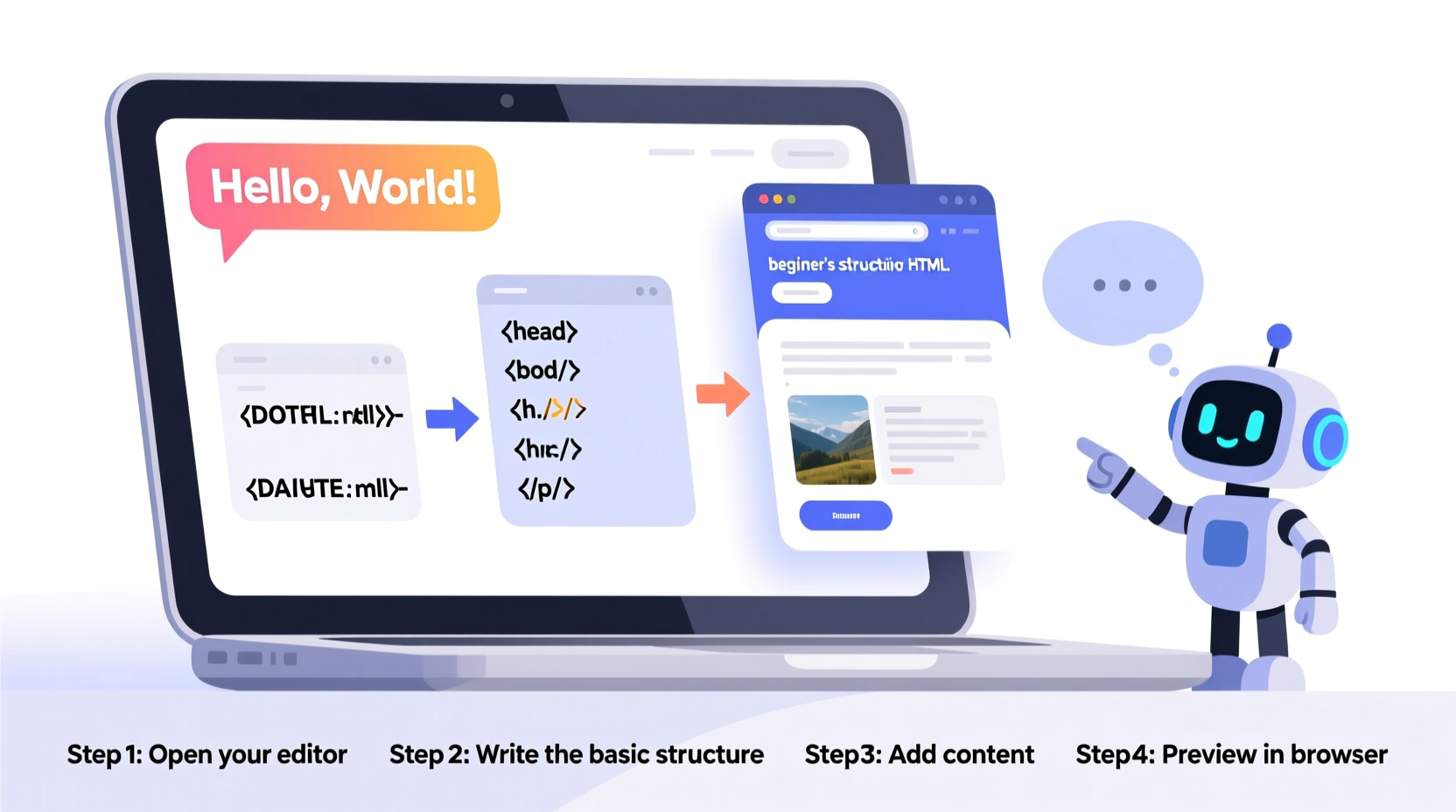
Every HTML page follows a predictable structure. Think of it as a skeleton that holds everything together. Without this foundation, browsers wouldn’t know how to interpret your content.
The basic template includes several key elements:
<!DOCTYPE html>— Declares the document type and version (HTML5).<html>— The root element wrapping all page content.<head>— Contains metadata, title, and links to external resources like CSS.<body>— Holds all visible content such as headings, paragraphs, and images.
A minimal working example looks like this:
<!DOCTYPE html>
<html lang=\"en\">
<head>
  <meta charset=\"UTF-8\">
  <title>My First Webpage</title>
</head>
<body>
  <h1>Welcome to My Site</h1>
  <p>This is my very first paragraph written in HTML.</p>
</body>
</html>
lang attribute in the
<html> tag to improve accessibility and SEO.
Essential HTML Elements Every Beginner Should Know
Once you’ve set up the document structure, you can begin adding meaningful content using semantic tags. These tags define the purpose of each piece of content, helping both browsers and assistive technologies understand the page.
| Element | Purpose | Example |
|---|---|---|
<h1>–<h6> |
Headings (h1 is highest level) | <h2>Section Title</h2> |
<p> |
Paragraphs of text | <p>This is a paragraph.</p> |
<a href=\"\"> |
Hyperlinks | <a href=\"https://example.com\">Visit Example</a> |
<img src=\"\" alt=\"\"> |
Images (always include alt text) | <img src=\"photo.jpg\" alt=\"A sunset over mountains\"> |
<ul>, <ol>, <li> |
Lists (unordered/ordered) | <ul><li>Item 1</li></ul> |
“Semantic HTML isn’t just about formatting—it’s about meaning. Proper use of tags improves accessibility, searchability, and maintainability.” — Laura Bennett, Front-End Architect
Step-by-Step Guide to Building Your First Webpage
Now that you understand the core components, follow these steps to create and view your first functional webpage.
- Create a new file using a plain text editor like VS Code, Sublime Text, or Notepad. Save it as
index.html. - Add the basic HTML structure shown earlier, customizing the title and body content.
- Insert at least one heading, paragraph, and link to make the page interactive.
- Save the file and double-click it in your file explorer to open it in your default browser.
- Make edits and refresh the browser to see changes instantly.
Real Example: A Personal Introduction Page
Imagine Sarah, a student learning web development. She wants to build a simple page introducing herself. Here’s what her code might look like:
<!DOCTYPE html>
<html lang=\"en\">
<head>
  <meta charset=\"UTF-8\">
  <title>About Sarah</title>
</head>
<body>
  <h1>Hi, I'm Sarah</h1>
  <p>I'm a computer science student from Toronto. I love coding, hiking, and photography.</p>
  <h2>My Hobbies</h2>
  <ul>
    <li>Web Development</li>
    <li>Backpacking</li>
    <li>Nature Photography</li>
  </ul>
  <p>Check out my photos on <a href=\"https://instagram.com/sarahclicks\">Instagram</a>.</p>
</body>
</html>
When opened in a browser, this displays a clean, readable introduction. It uses semantic structure, includes a working link, and demonstrates how minimal effort can produce professional results.
Avoiding Common HTML Mistakes
Even small errors can break a webpage or make it inaccessible. Beginners often overlook details that experienced developers prioritize.
- Mismatched or missing closing tags: Forgetting
</p>or</div>confuses the browser's rendering engine. - Ignoring the alt attribute on images: Screen readers rely on
alttext to describe visuals for visually impaired users. - Using <b> or <i> instead of semantic tags: Prefer
<strong>for importance and<em>for emphasis. - Nesting elements incorrectly: Don’t place block-level elements like
<div>inside inline ones like<span>.
“Accessibility starts with proper HTML. If your markup is flawed, even the best design won’t help users who depend on assistive tools.” — Rajiv Mehta, Web Accessibility Consultant
Do’s and Don’ts of HTML Coding
| Do | Don't |
|---|---|
| Use descriptive, lowercase tag names | Use uppercase or invented tags like <heading> |
| Indent code for readability | Write everything on one line |
| Validate your HTML using W3C’s validator | Assume your code works without testing |
| Comment complex sections with <!-- comment --> | Leave others guessing about your intent |
Expanding Beyond the Basics
After mastering the essentials, consider integrating CSS for styling and JavaScript for interactivity. But before moving forward, ensure your HTML foundation is solid. Clean, well-structured markup makes advanced features easier to implement and debug.
Here are actionable next steps:
- ✔ Write valid HTML with proper doctype and charset
- ✔ Use semantic elements like <header>, <main>, <footer>
- ✔ Include meta description for better SEO
- ✔ Test pages across different browsers
- ✔ Validate code using W3C Markup Validation Service
Frequently Asked Questions
Can I build a website with only HTML?
Yes, you can create a fully functional static website using only HTML. However, modern websites typically combine HTML with CSS for design and JavaScript for dynamic behavior. HTML alone handles structure—not layout or interaction.
Why does my webpage look plain?
HTML defines content structure, not visual style. Without CSS, browsers apply default styles which appear minimal. This is normal. Focus on getting your markup right first, then enhance presentation later.
Is HTML still relevant in 2024?
Absolutely. Every website on the internet uses HTML. Even advanced frameworks like React and Vue compile down to HTML in the browser. Understanding HTML gives you control over content, accessibility, and SEO—skills that never go out of style.
Start Building Today
There’s no better time to start coding than now. With nothing more than a text editor and a browser, you can create something real, shareable, and meaningful. HTML is the gateway to the web, and your first webpage is just a few lines of code away. Don’t wait for perfection—publish early, learn fast, and iterate often.
<h1>, and preview it in your browser. Share your progress with someone you trust—and take pride in building something from nothing.




 浙公网安备
33010002000092号
浙公网安备
33010002000092号 浙B2-20120091-4
Comments
No comments yet. Why don't you start the discussion?