
Removing a subject from its background is one of the most essential skills in digital imaging. Whether you're preparing product photos for an e-commerce site, crafting compelling graphics for social media, or retouching portraits, precise image isolation ensures your visuals stand out with clarity and professionalism. Adobe Photoshop offers multiple tools for this task, but knowing which to use—and when—can mean the difference between a jagged, amateurish edge and a seamless, studio-quality cutout.
Understanding the Tools: Choosing the Right Method
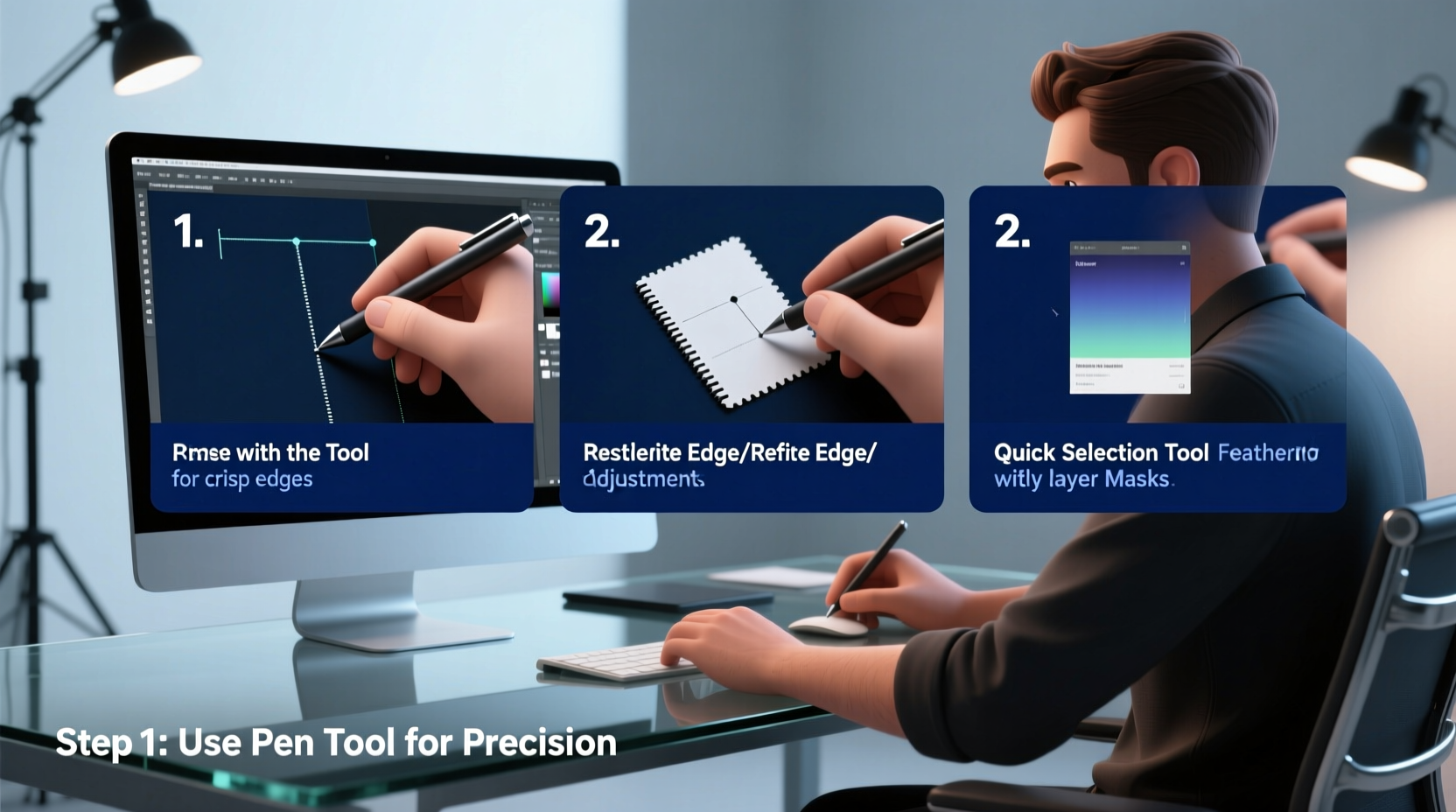
Photoshop provides several selection tools, each suited to different types of images. The key to mastering image isolation lies not in relying on a single method, but in understanding the strengths and limitations of each tool.
- Quick Selection Tool: Ideal for subjects with high contrast against their background. It works by detecting edges as you paint over the area.
- Magic Wand: Best for solid-colored or uniform backgrounds. Use it when the color variance is minimal.
- Lasso Tools (Standard, Polygonal, Magnetic): Manual selection methods offering fine control. The Magnetic Lasso detects edges as you draw near them.
- Pen Tool: Delivers pixel-perfect paths, especially useful for hard-edged objects like jewelry, electronics, or architectural elements.
- Select Subject & Background Eraser: AI-powered shortcuts that work well for portraits or simple scenes but often require refinement.
Step-by-Step Guide to Flawless Cutouts
Follow this structured workflow to achieve consistently sharp, natural-looking isolated images regardless of complexity.
- Open Your Image and Duplicate the Layer
Go to Layer > Duplicate Layer or pressCtrl+J(Cmd+J on Mac). Work on the copy to protect the original. - Start with “Select Subject” (Optional)
Use Select > Subject. Photoshop analyzes the image and selects what it believes is the primary object. This is a strong starting point for portraits or centered subjects. - Refine the Selection with “Select and Mask”
Click Select and Mask at the top options bar. This opens a workspace dedicated to edge refinement. - Adjust Edge Detection Settings
In the right panel, set View Mode to “On Black” or “Overlay” for better visibility. Use the Radius slider to expand edge detection. For hair or fur, increase Smooth slightly and use Feather sparingly (0.3–1 px). - Use Refinement Tools
The Brush Tool inside Select and Mask lets you manually add or subtract from the selection. The Object Selection Tool can help redefine areas if needed. - Output and Finalize
Set output to “New Layer with Layer Mask.” This keeps your cutout non-destructive. You can always re-enter the mask by double-clicking it.
When Precision Matters: Using the Pen Tool for Hard Edges
For objects with clean, geometric lines—watches, bottles, furniture—the Pen Tool is unmatched. Unlike automated selections, it creates vector paths that are infinitely scalable and perfectly smooth.
Begin by selecting the Pen Tool (shortcut P). Click around the perimeter of the object to place anchor points. For curves, click and drag to create Bezier handles. Once the path encircles the subject, right-click and choose “Make Selection.” Set feather radius to 0px for sharp edges, then press OK.
After converting the path to a selection, invert it (Shift+Ctrl+I) and delete the background—or, better yet, apply a layer mask. This method is slower but delivers print-ready results.
| Technique | Best For | Time Required | Edge Quality |
|---|---|---|---|
| Select Subject + Select and Mask | Portraits, medium-detail subjects | 3–7 minutes | High (with refinement) |
| Pen Tool (Paths) | Products, hard edges, logos | 10–30 minutes | Excellent |
| Magic Wand + Refine Edge | Solid-color backgrounds | 2–5 minutes | Good |
| Magnetic Lasso | Medium-contrast outlines | 5–10 minutes | Fair to Good |
Expert Insight: What Professionals Never Skip
Seasoned retouchers emphasize preparation and patience over speed. Rushing through isolation leads to blown highlights, frayed edges, and time-consuming fixes later.
“Never finalize a cutout without checking it against multiple backgrounds. Place your isolated subject on white, black, and gray layers—you’ll instantly see halos or residual pixels.” — Daniel Reyes, Senior Retoucher at StudioPixela
This technique exposes semi-transparent edges, particularly common around hair or glass. If you spot a faint outline, return to Select and Mask and adjust the Decontaminate Colors option, which removes color spill from the original background.
Mini Case Study: E-Commerce Product Launch
A boutique skincare brand needed 48 product images isolated for their online store. Initial attempts used the Magic Wand tool, but the soft shadows and glossy labels caused inconsistent edges. After switching to a hybrid approach—starting with Select Subject, refining in Select and Mask, and manually correcting tricky zones with the Brush tool—the team reduced revision requests from clients by 90%. The final images rendered cleanly across mobile and desktop, boosting conversion rates by 17% in the first month.
The lesson? Automation speeds up the process, but human oversight ensures quality.
Essential Checklist for Every Isolation Project
Before exporting or delivering your isolated image, run through this checklist:
- ✅ Duplicated the background layer
- ✅ Used a layer mask instead of deleting pixels
- ✅ Checked edges at 100% zoom
- ✅ Tested the subject on light, dark, and colored backgrounds
- ✅ Removed color fringing using Decontaminate Colors if necessary
- ✅ Saved a PSD version for future edits
- ✅ Exported in appropriate format (PNG for transparency, JPEG for flat backgrounds)
FAQ
Why does my cutout have a white halo around the edges?
This usually happens when the original image has a bright background that bled into the subject’s edges (color spill). Use the “Decontaminate Colors” option in Select and Mask to remove it. Alternatively, manually paint on the layer mask with a soft black brush to clean up fringes.
Can I isolate subjects with transparent elements like glass or water?
Yes, but it requires extra care. Use the Pen Tool for defined shapes and rely on channels for complex transparency. Duplicate the blue channel (often highest contrast), enhance it with Levels, then load it as a selection. Combine with careful masking for realistic results.
Is there a way to speed up repetitive isolations?
Absolutely. If you’re processing similar images (e.g., same product on white), create an action. Record your steps once, then batch-process the rest via File > Automate > Batch. Just remember to review each result—automation isn’t flawless.
Conclusion
Mastering image isolation in Photoshop isn't about finding one perfect tool—it's about combining the right techniques at the right time. From AI-assisted selections to meticulous pen paths, each method has its place. The real skill lies in knowing when to automate and when to take full manual control. With practice, you’ll develop an intuitive sense for edges, transparency, and detail that turns even the most challenging images into crisp, professional cutouts.




 浙公网安备
33010002000092号
浙公网安备
33010002000092号 浙B2-20120091-4
Comments
No comments yet. Why don't you start the discussion?