
Finding a specific app on an iPhone should be fast and effortless. Yet many users still waste time swiping through multiple home screens or digging through folders. Whether you've just updated to the latest iOS version or have been using your iPhone for years, mastering app search can dramatically improve your daily efficiency. With built-in tools, smart gestures, and overlooked features, locating any app—no matter how deeply buried—can take seconds. This guide breaks down proven methods, lesser-known tricks, and real-world strategies to help you reclaim control over your device’s interface.
Use Spotlight Search: The Fastest Way to Find Apps
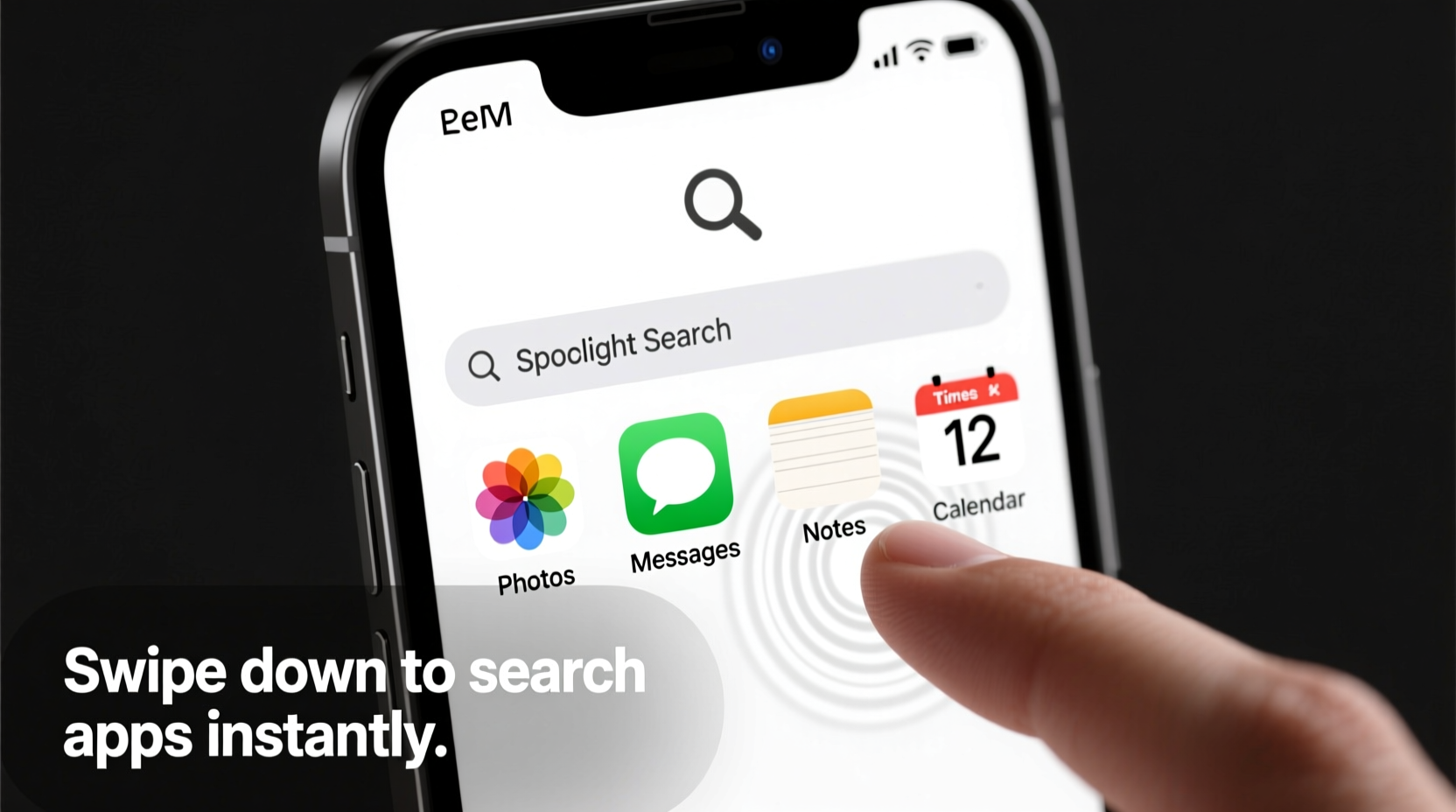
Spotlight Search is one of the most powerful yet underutilized tools on the iPhone. Accessible from any screen, it allows instant access to apps, contacts, messages, settings, and more. To use it:
- Swipe down anywhere on the Home Screen (not within an app folder).
- Type the name of the app you’re looking for.
- Select the app from the results to open it immediately.
Spotlight doesn’t just match exact names—it recognizes partial inputs, common abbreviations, and even related functions. For example, typing “cal” brings up Calendar, Calculator, and any apps with “calendar” in their description.
Optimize Your Home Screen Layout for Faster Access
A cluttered home screen slows you down. Even with search tools, a well-organized layout reduces reliance on digital crutches. Consider these principles when arranging your apps:
- Group by function: Keep productivity apps together, social media in another folder, health & fitness in a third.
- Limit home screens: Use only 2–3 pages max. Move rarely used apps to the App Library.
- Pin essentials: Place frequently used apps on the first screen or Dock.
- Name folders clearly: Instead of “Misc,” use “Finance,” “Travel,” or “Utilities.”
This structure works hand-in-hand with search. When you know broadly where an app belongs, you can use contextual clues to speed up recall.
Leverage the App Library: Your Hidden App Organizer
Introduced in iOS 14, the App Library automatically categorizes all your apps into intelligently labeled groups like “Social,” “Productivity,” and “Health & Fitness.” It lives to the right of your last home screen and offers its own search bar at the top.
To navigate the App Library effectively:
- Swipe left past your final home screen.
- Tap the search bar or begin typing to filter apps.
- Browse categories by scrolling horizontally through each section.
The App Library is especially useful for apps you use infrequently. Since it contains every installed app—even those hidden from home screens—you’ll never lose track of one again.
| Feature | Home Screen Search | App Library Search |
|---|---|---|
| Access Speed | Instant (swipe down) | Slightly slower (swipe left + tap) |
| Search Scope | Apps, settings, web, files | Apps only |
| Best For | Quick app launch + broader queries | Finding forgotten or buried apps |
| Customization | None | Can hide home screen pages |
Step-by-Step: How to Reorganize Apps for Maximum Efficiency
If your iPhone feels chaotic, follow this sequence to regain control:
- Inventory your apps: Open the App Library and review all installed apps. Delete duplicates or unused ones.
- Create functional folders: Group similar apps (e.g., banking, shopping, photo editing).
- Reduce home screens: Long-press the home screen, tap the dots at the bottom, and hide pages filled with rarely used apps.
- Move essentials forward: Drag your top 10 most-used apps to the first page or Dock.
- Test your system: Try finding three different apps using only memory. If it takes more than 5 seconds, refine your layout.
This process takes less than 20 minutes but pays dividends every day. A streamlined setup makes both visual scanning and search significantly faster.
Real-World Example: Sarah Finds Her Banking App in Seconds
Sarah, a small business owner, uses over 70 apps across her personal and work devices. After switching phones, she struggled to find her credit union’s app, which she hadn’t used in months. Instead of manually searching, she swiped down and typed “credit.” Within two seconds, the app appeared in Spotlight results—even though it was buried in a folder named “Finance Tools” on her third home screen.
She later moved it to her Favorites folder and added it to her Wallet for quicker access. But the immediate solution? Built-in search. This simple action saved her from potential delays during a critical payment.
Expert Insight: What Apple Designers Intended
Apple’s human interface guidelines emphasize discoverability and efficiency. As David Barnard, former iOS UX consultant, explains:
“Search isn’t a fallback—it’s a primary navigation method. We designed Spotlight to be the fastest path to any function. Users who rely solely on visual browsing are working against the system’s strengths.” — David Barnard, UX Designer & iOS Interface Consultant
This philosophy underscores why mastering search isn’t just convenient—it aligns with how modern iPhones are meant to be used.
Checklist: Optimize Your iPhone App Search Today
Apply these actions to improve app discovery permanently:
- ✅ Test Spotlight by searching for a rarely used app
- ✅ Delete or archive apps you no longer need
- ✅ Organize apps into clearly labeled folders
- ✅ Hide home screen pages you rarely use
- ✅ Pin 5–10 essential apps on your first screen or Dock
- ✅ Practice searching instead of scrolling for one week
- ✅ Enable Search in Settings > Siri & Search for enhanced results
Frequently Asked Questions
Why doesn’t my app show up in search?
If an app isn’t appearing, check if it’s been deleted or disabled. Also, ensure that search indexing is active: Go to Settings > Siri & Search, scroll to the app in question, and confirm that “Show in Search” is enabled. Some enterprise or MDM-managed apps may not appear due to restrictions.
Can I search for apps by color or icon shape?
No, iOS doesn’t support visual attribute searches. However, you can use descriptive keywords. For example, “blue bird app” often returns Twitter/X due to metadata associations. Over time, Spotlight learns from your usage patterns and may prioritize apps based on context.
Is there a way to make search results more accurate?
Yes. Go to Settings > Siri & Search and adjust which data sources appear in results. Disabling irrelevant suggestions (like news or web links) can reduce noise. Additionally, renaming ambiguous apps in folders (e.g., “Bank – Chase” instead of just “Mobile”) improves searchability.
Conclusion: Take Control of Your Digital Experience
Mastering iPhone app search isn’t about memorizing shortcuts—it’s about designing a system that works with how you think and move through your day. By combining intelligent organization with the full power of Spotlight and the App Library, you eliminate friction and gain back precious time. These aren’t minor tweaks; they’re foundational habits that scale as your app collection grows.




 浙公网安备
33010002000092号
浙公网安备
33010002000092号 浙B2-20120091-4
Comments
No comments yet. Why don't you start the discussion?