
Losing an iPhone is more than just inconvenient—it can mean losing personal data, photos, messages, and access to banking apps. Fortunately, Apple’s “Find My” ecosystem offers powerful tools to locate, lock, and even erase your device remotely. Whether your iPhone is misplaced at home or stolen in a public place, knowing how to use Find My effectively can make the difference between recovery and permanent loss.
This comprehensive guide walks you through every feature of Find My, from real-time tracking to activation lock, and provides actionable strategies to protect your device before and after it goes missing.
How Find My Works: The Technology Behind the Service
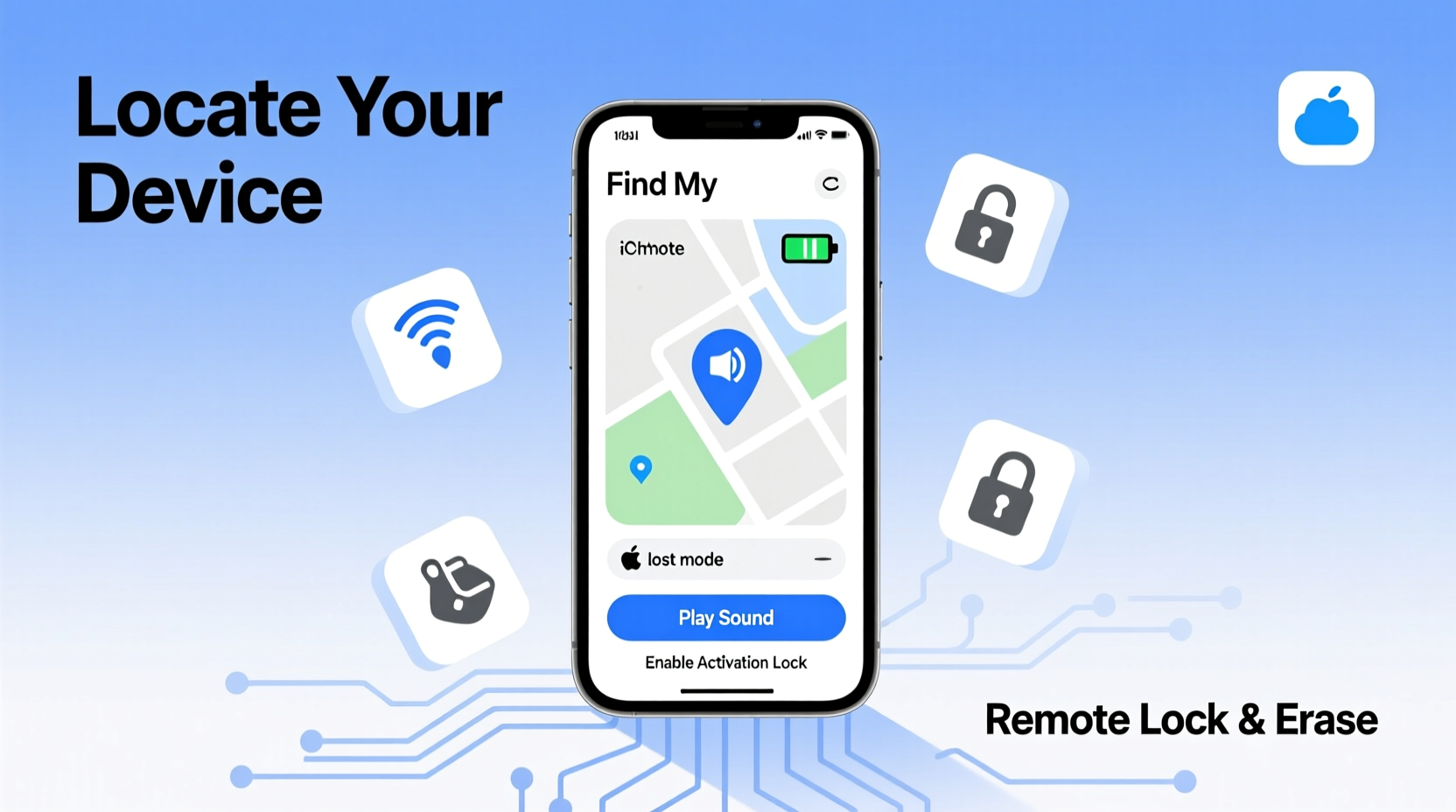
Find My leverages Apple’s global network of hundreds of millions of devices to help locate lost iPhones—even when they’re offline. Unlike GPS-only trackers, Find My uses Bluetooth signals and crowd-sourced location data to anonymously relay your device’s position through nearby Apple devices.
When your iPhone is powered on and connected to Wi-Fi or cellular, its location updates in real time. But even if it’s offline, turned off, or disconnected from the internet, Find My can still detect its last known location and leverage Bluetooth pings from other Apple devices to triangulate its whereabouts.
“Apple’s Find My network is one of the most robust and privacy-focused location services ever built.” — David Klein, Mobile Security Analyst at TechShield Insights
All location data is end-to-end encrypted, meaning only you can view your device’s location—not even Apple can access it. This ensures that your privacy remains intact while maximizing security.
Setting Up Find My: Essential Pre-Loss Steps
The effectiveness of Find My depends entirely on proper setup—before your phone goes missing. If you haven’t enabled it yet, do so immediately.
Step-by-Step Setup Guide
- Open the Settings app on your iPhone.
- Tap your name at the top to enter your Apple ID settings.
- Select Find My.
- Turn on Find My iPhone.
- Enable Send Last Location—this automatically uploads your phone’s final GPS coordinates before the battery dies.
- Ensure Offline Finding is active to allow detection via Bluetooth when disconnected.
Locating Your iPhone: Real-Time Tracking Methods
If your iPhone is nearby but out of sight, use these tools to locate it quickly.
Using Find My on Another Device
- iCloud.com/find: Log in with your Apple ID on any web browser.
- Find My app: Available on iPad, Mac, or another iPhone.
- Siri: Say “Hey Siri, where is my iPhone?” if devices are nearby.
Once in the app or website, select your missing device. You’ll see its current or last known location on a map. Options include:
- Play Sound: Rings your iPhone at full volume for two minutes—even if silenced.
- Directions: Get turn-by-turn navigation to its location via Maps.
- Notify When Found: Receive an alert when the device reconnects to the internet.
Using Precision Finding (iPhone 11 and later)
If you own an iPhone 11 or newer with U1 chip support, Precision Finding uses augmented reality, haptic feedback, and directional audio to guide you within inches of your lost device. It shows distance and direction in real time, making it ideal for finding phones under couches or in cluttered rooms.
Securing a Lost or Stolen iPhone
If you suspect theft or cannot recover your phone immediately, take action to protect your data.
Activate Lost Mode
Lost Mode locks your iPhone with a passcode, disables Apple Pay, and displays a custom message on the lock screen—such as “Reward if found. Call [your number].”
- In Find My, select your device.
- Tap Mark as Lost.
- Enter a phone number and optional message.
- Confirm activation.
While in Lost Mode, the phone continues to report its location, and Activation Lock prevents anyone from erasing or reactivating it without your Apple ID credentials.
Last Resort: Erase Your iPhone Remotely
If recovery seems impossible and sensitive data is at risk, remotely erase your device.
To erase:
- In Find My, choose your device.
- Select Erase This Device.
- Confirm with your Apple ID password.
After erasure, all data—including passwords, health info, and messages—is permanently deleted. However, Activation Lock remains active, rendering the phone unusable to others.
Recovery Checklist: What to Do When Your iPhone Is Missing
React quickly and systematically. Follow this checklist to maximize recovery chances:
- ✅ Use Find My to check the device’s current or last known location.
- ✅ Play a sound if it might be nearby.
- ✅ Enable Lost Mode with contact information.
- ✅ Notify local authorities if theft is suspected—provide serial number and IMEI.
- ✅ Change passwords for iCloud, email, and banking apps if compromised.
- ✅ Report to your carrier to suspend service and prevent unauthorized calls.
- ✅ Monitor Find My for movement or reconnection alerts.
Common Scenarios and How Find My Responds
Real-world situations demonstrate the power of Find My in action.
Mini Case Study: Recovering a Phone Left in a Taxi
Sophia left her iPhone 14 in the back seat of a rideshare. She opened Find My on her iPad and saw the car was moving east on 5th Avenue. Using Live Directions, she called the rideshare company with the exact vehicle details. Within 30 minutes, the driver returned the phone. Thanks to Send Last Location and real-time tracking, recovery was swift and stress-free.
What Happens If the Phone Is Turned Off?
If your iPhone is powered down, Find My will show its last known location. However, Offline Finding allows Bluetooth detection. When someone with an Apple device passes near your phone, their device securely relays its location to your account—without compromising privacy.
Do’s and Don’ts of Using Find My
| Do’s | Don’ts |
|---|---|
| Enable Find My during initial iPhone setup | Wait until your phone is lost to set it up |
| Use Lost Mode to display contact info | Leave your phone unlocked and untracked |
| Keep iOS updated for latest security features | Share your Apple ID with others casually |
| Test Find My periodically to ensure functionality | Assume GPS works indoors without Wi-Fi or Bluetooth |
Frequently Asked Questions
Can Find My work if Location Services were turned off?
No. Find My requires Location Services to be enabled. If disabled, the device cannot report its position. Always keep Location Services on for Find My to function.
What if someone removes the SIM card?
Removing the SIM doesn’t disable Find My. As long as the device connects to Wi-Fi or Bluetooth, it can still transmit its location. Even without internet, Offline Finding may detect it via nearby Apple devices.
Can I track my iPhone if it’s dead?
You can see the last known location before the battery died. With Send Last Location enabled, this data is automatically saved. After shutdown, tracking stops until the device powers back on and reconnects.
Conclusion: Take Control Before You Lose Your Phone
Mastering Find My isn’t about reacting to loss—it’s about preparing for it. By enabling the right settings today, you arm yourself with one of the most effective device recovery systems available. From pinpoint tracking to remote locking, Find My turns your iPhone into a traceable, secure extension of your digital life.




 浙公网安备
33010002000092号
浙公网安备
33010002000092号 浙B2-20120091-4
Comments
No comments yet. Why don't you start the discussion?