
Every ping, chime, and buzz from your iPhone carries meaning. Whether it’s a late-night text from a close friend or an urgent work message, the sound your phone makes can shape how you respond—and how quickly. While Apple offers a curated selection of default tones, few users take full advantage of the customization options available. By mastering your iPhone’s text message sound settings, you gain control over your digital environment, reduce distractions, and add a personal touch to your daily interactions.
iOS provides deep, intuitive tools for tailoring alert sounds, assigning unique tones to contacts, and even creating custom vibrations. This guide walks through every layer of iPhone message sound customization—offering practical steps, expert insights, and real-world applications to help you build an alert system that works for your lifestyle.
Understanding iPhone Alert Sound Options
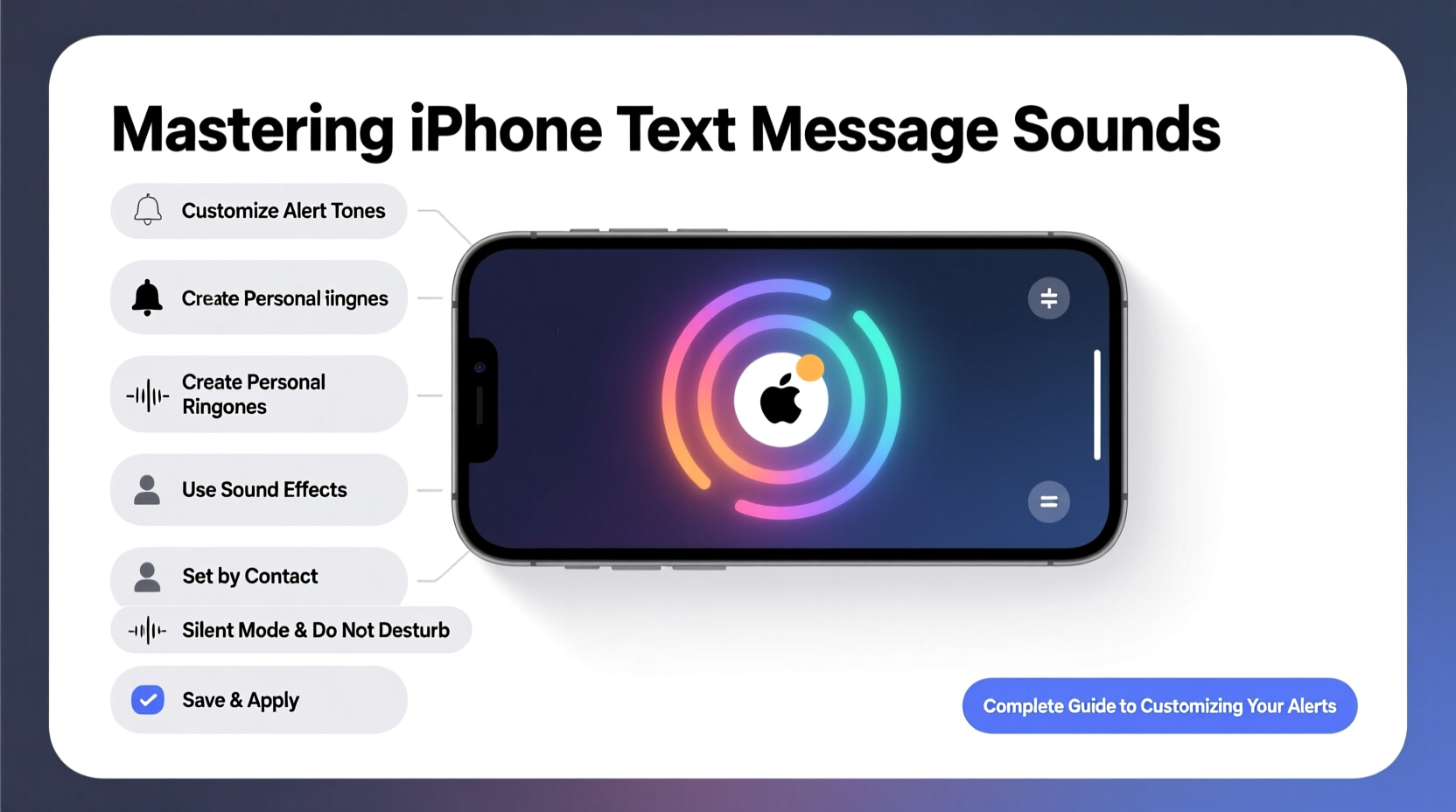
Before diving into customization, it’s essential to understand the types of sounds iOS supports. iPhone text message alerts fall into two categories: system tones and user-defined ringtones. System tones are preloaded by Apple and accessible directly in Settings. These include classics like “Marimba,” “Opening,” and “Tiptoes.” User-defined ringtones allow you to import or create custom audio files (up to 40 seconds) using apps like GarageBand or third-party tools.
The key difference lies in flexibility. System tones are consistent across devices and easy to access. Custom ringtones offer personalization but require more setup. Both can be assigned to individual contacts, group messages, or specific messaging apps like iMessage and SMS.
Step-by-Step: Assigning Custom Text Message Sounds
Changing your default message alert is straightforward. But assigning unique sounds to specific contacts adds a level of personalization that enhances both usability and emotional connection. Follow these steps to tailor alerts per contact:
- Open the Phone or Contacts app and select the person you want to customize.
- Tap Edit in the top-right corner.
- Scroll down and tap Text Tone.
- Choose from the list of built-in sounds or tap Ringtone at the top to use a custom one.
- Select your preferred tone and tap Done.
- Repeat for other contacts as needed.
This method works for any saved contact, including those synced from iCloud, Gmail, or corporate directories. Once set, every message from that person will play your chosen sound—even if they switch between iMessage and SMS.
Creating Your Own Custom Text Tones Using GarageBand
If none of Apple’s default tones suit your taste, you can create a custom message sound using GarageBand, Apple’s free music creation app:
- Download and open GarageBand on your iPhone.
- Create a new project and choose “Synth Pad” or import an audio file.
- Edit your track to be between 5 and 40 seconds long.
- Tap the downward arrow in the upper-left corner, then tap My Songs.
- Press and hold your project, then tap Share → Ringtone.
- Name the ringtone and confirm export. It will appear in Settings > Sounds & Haptics > Text Tone.
Note: Only M4R format files are supported for ringtones. Files must be under 40 seconds and encoded properly. Third-party converters exist, but GarageBand ensures compatibility.
Optimizing Sound Settings for Different Lifestyles
Your ideal alert configuration depends on your daily routine. A busy executive may need immediate, distinct alerts for priority contacts, while a student might prefer subtle tones during class hours. Consider these real-world scenarios when designing your system.
Mini Case Study: The Remote Worker’s Alert Strategy
Sophia, a project manager working remotely across time zones, was overwhelmed by constant notifications. She began missing urgent messages because all alerts sounded the same. Her solution? She assigned “Bamboo” to her boss, “Sosumi” to her team leads, and silenced non-urgent group chats. She also created a custom tone from a piano note recorded in GarageBand for her child’s school. Now, she responds appropriately without checking her phone constantly.
“I don’t have to look at my phone anymore to know who’s messaging,” Sophia says. “That five-second savings adds up—and reduces stress.”
“The right sound design reduces cognitive load. When alerts are meaningful, not just loud, users regain focus.” — Dr. Alan Reyes, Human-Computer Interaction Researcher, Stanford University
Do’s and Don’ts of iPhone Message Sound Management
| Do | Don't |
|---|---|
| Use quiet, short tones in professional or educational settings. | Set overly loud or long ringtones that disrupt others. |
| Assign unique sounds to high-priority contacts (family, doctors). | Assign the same tone to everyone—defeats the purpose of customization. |
| Test sounds with headphones and speakers to ensure clarity. | Use copyrighted music clips without permission. |
| Update tones seasonally or for special events (e.g., holidays). | Ignore battery impact—constant loud alerts drain power faster. |
Advanced Tips for Power Users
Beyond basic sound changes, iPhone users can leverage deeper features for smarter alert management.
- Use Focus Modes: Pair custom sounds with Focus settings. For example, set only family members to bypass Do Not Disturb with a unique tone.
- Custom Vibrations: Combine sound with haptic patterns. Go to Settings > Sounds & Haptics > Text Tone > Vibration > Create New Vibration to tap out a rhythm.
- Group Message Alerts: Mute noisy group threads or assign a subtle tone to avoid disruption.
- Third-Party App Sounds: Apps like WhatsApp or Telegram have separate sound settings. Customize them independently under each app’s notification menu.
FAQ: Common Questions About iPhone Message Sounds
Can I use songs from my music library as text tones?
No, iOS does not allow direct use of MP3s or Apple Music tracks as message sounds. You must convert audio into a compatible M4R ringtone using GarageBand or a trusted conversion tool. Even then, copyright restrictions apply—only use music you have rights to.
Why isn’t my custom tone showing up in Settings?
This usually happens if the file wasn’t exported correctly. Ensure you used the “Share as Ringtone” option in GarageBand and that the length is under 40 seconds. Restart your iPhone if the tone still doesn’t appear.
Do custom text tones work on all iPhones?
Yes, as long as the device runs iOS 7 or later. However, older models may have slightly different sound quality due to speaker hardware limitations.
Final Checklist: Master Your Message Sounds
Before finalizing your setup, run through this checklist to ensure everything is optimized:
- ✅ Set a default text tone that’s clear but not jarring.
- ✅ Assign unique sounds to at least 3 priority contacts.
- ✅ Create or import at least one custom tone for personal use.
- ✅ Test all sounds at typical volume levels.
- ✅ Configure Focus modes to filter non-essential alerts.
- ✅ Review and update tones every few months for relevance.
Conclusion: Take Control of Your Digital Voice
Your iPhone’s message sounds are more than background noise—they’re part of your communication identity. With thoughtful customization, you can transform random pings into a meaningful notification system that aligns with your priorities and personality. From selecting soothing tones for loved ones to engineering silent efficiency during focused work, the power is in your hands.




 浙公网安备
33010002000092号
浙公网安备
33010002000092号 浙B2-20120091-4
Comments
No comments yet. Why don't you start the discussion?