
Whether you're writing in French, Spanish, German, or Portuguese, accent marks are essential for correct spelling, pronunciation, and meaning. Misplacing or omitting them can change a word entirely—or make it incomprehensible. Yet many people still struggle with typing accents efficiently across devices. The good news? You don’t need special software or complex setups. With the right techniques, typing accented characters becomes second nature—no matter if you're on a laptop, tablet, or smartphone.
This guide breaks down proven, accessible methods for typing accent marks on Windows, macOS, iOS, and Android. From built-in shortcuts to international keyboard layouts and browser tools, you’ll learn how to communicate accurately in any language without slowing down.
Understanding Common Accent Marks
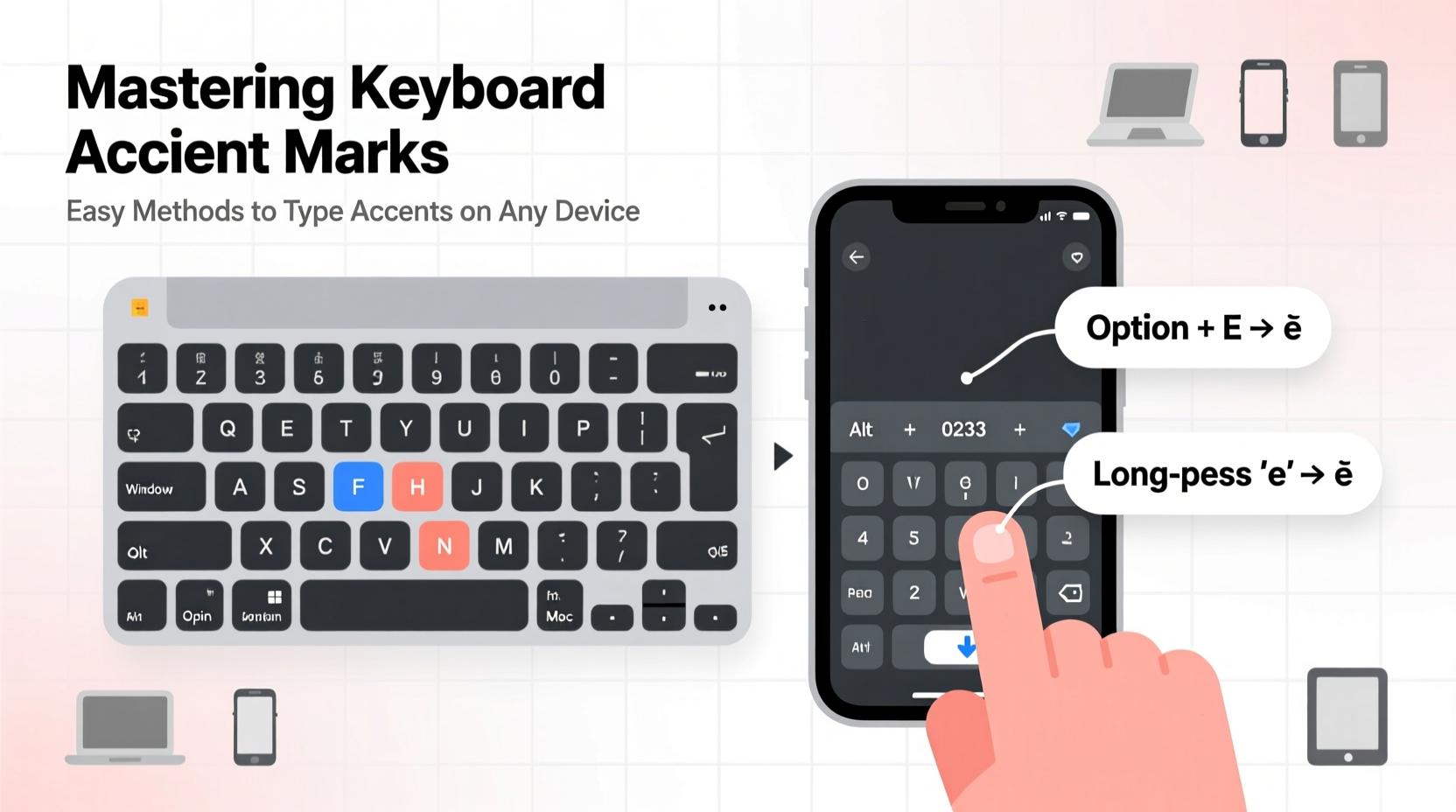
Before diving into typing methods, it helps to recognize the most frequently used diacritical marks across European languages:
- Acute accent (é) – Used in French, Spanish, and others to indicate stress or vowel quality.
- Grave accent (è) – Appears in French and Italian; often changes pronunciation.
- Circumflex (ê) – Common in French, sometimes indicating historical spelling changes.
- Tilde (ñ) – Essential in Spanish; “ñ” is a distinct letter.
- Umlaut (ü) – Found in German; modifies vowel sound.
- Cedilla (ç) – Used in French and Portuguese; softens the “c” sound.
Each of these has specific rules and placements, but modern operating systems support them through consistent input methods.
Typing Accents on Windows
Windows offers several approaches depending on your preferred workflow. The three most effective are using Alt codes, enabling the US International layout, and leveraging the touch keyboard.
Using Alt Codes (Numeric Keypad Required)
Hold down the Alt key and type a numeric code on the keypad. Release Alt to insert the character.
| Accent Mark | Character | Alt Code |
|---|---|---|
| Acute (e) | é | Alt + 0233 |
| Grave (e) | è | Alt + 0232 |
| Circumflex (e) | ê | Alt + 0234 |
| Tilde (n) | ñ | Alt + 0241 |
| Umlaut (u) | ü | Alt + 0252 |
| Cedilla (c) | ç | Alt + 0231 |
Switching to US International Keyboard Layout
This layout transforms punctuation keys into accent triggers. For example:
- Type ' then e → é
- Type ` then e → è
- Type ~ then n → ñ
- Type \" then u → ü
To enable: Go to Settings > Time & Language > Language > Preferred languages > English > Options > Add a keyboard > United States-International.
Typing Accents on macOS
Mac users benefit from intuitive key combinations that work system-wide.
Option Key Shortcuts
Press and hold the Option key with a base key, then type the letter you want accented.
| Action | Result |
|---|---|
| Option + E, then E | é |
| Option + ` (backtick), then E | è |
| Option + I, then E | ê |
| Option + N, then N | ñ |
| Option + U, then U | ü |
| Option + C, then C | ç |
If you need to type the accent symbol alone (e.g., just an apostrophe followed by a space), press the Option-accent combo twice before the letter.
Touch and Hold Method (Laptops & Trackpad Devices)
On newer Macs, especially those with Touch ID, pressing and holding a letter brings up accent options. For instance, hold U, and a popup shows ü, û, ū, and more. Click or tap the desired variant.
“Learning even two or three keyboard shortcuts can save hours over a year of multilingual writing.” — Dr. Lena Torres, Computational Linguist at McGill University
Mobile Devices: Typing Accents on iOS and Android
Smartphones simplify accent entry through gesture-based inputs.
iOS (iPhone/iPad)
Press and hold any base letter on the on-screen keyboard. A pop-up menu appears with common accented versions:
- Hold E → choose é, è, ê, ë, etc.
- Hold N → select ñ
- Hold C → access ç
You can also add full foreign keyboards via Settings > General > Keyboard > Keyboards > Add New Keyboard. This enables native layouts like French AZERTY or Spanish QWERTY.
Android
Similar to iOS, long-pressing a letter reveals accent options. Behavior varies slightly by manufacturer and keyboard app (Gboard, Samsung Keyboard, etc.). In Gboard:
- Long-press vowels or consonants to access variants.
- Add secondary languages in Gboard settings for direct access to special keys (e.g., ñ on Spanish layout).
Universal Workarounds When Shortcuts Fail
Sometimes you’re on a shared computer or restricted environment where changing settings isn’t possible. These fallback methods ensure you never get stuck.
Copy-Paste Library
Create a personal text snippet file with commonly used accented characters:
é è ê ë ñ ü ç á í ó ú à ã õ
Keep this in a note on your phone or cloud drive. Copy and paste when needed.
Browser Extensions and Online Tools
Tools like Accent Composer (Chrome) let you type accents using simple triggers (e.g., *e* for é). Others, such as TypeIt, provide web-based virtual keyboards for instant character generation.
Unicode Input (Advanced)
For technical users, Unicode hex codes combined with OS-specific shortcuts allow precise character insertion. On Windows, enable Hex Input via registry edit; on Mac, use Unicode Hex Input mode in System Settings.
Step-by-Step Guide: Setting Up Multilingual Typing
Follow this sequence to set up efficient accent typing across all your devices:
- Assess your needs: Which languages do you write in regularly?
- Enable appropriate keyboard layouts: Install US International or native language keyboards.
- Practice core shortcuts: Drill Option+E→É (Mac) or ' + E → é (Windows US Intl).
- Set up mobile keyboards: Add secondary language input on iOS/Android.
- Test across apps: Try email, word processors, and social media to confirm functionality.
- Create a cheat sheet: Save key combos in a note or print them out temporarily.
Mini Case Study: Maria’s Transition to Fluent Bilingual Writing
Maria, a university student majoring in International Relations, frequently wrote emails in both English and Spanish. Initially, she relied on copying accents from Google searches, which slowed her down and disrupted her flow. After learning about the US International keyboard layout, she switched her Windows laptop settings and practiced the basic keystrokes for two days. Within a week, she was typing naturally in both languages. Her professors noted improved clarity in her submissions, and she saved nearly 30 minutes per week previously lost to inefficient copy-pasting.
FAQ
Why don’t my Alt codes work?
Ensure Num Lock is on and you’re using the numeric keypad—not the top-row numbers. Laptops may require pressing a Function (Fn) key combination to activate numpad mode.
Can I customize accent shortcuts?
Yes, advanced users can create custom keyboard layouts using tools like Microsoft Keyboard Layout Creator (Windows) or Ukelele (macOS), though this requires technical setup.
Are there risks to installing international keyboards?
No. Adding a keyboard layout doesn’t affect system performance or security. You can switch back anytime via language settings.
Final Tips for Mastery
- Start with one or two accents you use most (like é and ñ).
- Use muscle memory: Repeat shortcuts 10 times daily until automatic.
- Label keys temporarily if learning a new physical layout.
- Sync your settings across devices using cloud profiles (iCloud, Google Account).
Conclusion
Mastering keyboard accent marks isn’t about memorizing dozens of obscure codes—it’s about choosing one reliable method and practicing it consistently. Whether you prefer the elegance of macOS Option combos, the efficiency of Windows Alt codes, or the simplicity of mobile long-presses, the tools are already built into your devices. With minimal setup and deliberate practice, typing in French, Spanish, or German becomes as fluid as writing in English.




 浙公网安备
33010002000092号
浙公网安备
33010002000092号 浙B2-20120091-4
Comments
No comments yet. Why don't you start the discussion?