
Navigating the web efficiently isn’t just about speed—it’s about reducing friction in your daily digital workflow. One of the most frequently used actions in any browser is opening a new tab. Whether you're researching, multitasking, or organizing your online tasks, doing this with a keystroke instead of reaching for the mouse can save you hundreds of clicks each week. Yet, many users still rely on manual navigation, unaware of how simple it is to master this fundamental shortcut.
Learning how to open a new tab quickly isn't just a minor convenience. It's a foundational skill that unlocks broader productivity gains. Once ingrained, it becomes second nature—like touch typing or using hotkeys in word processors. This guide dives into the core methods, platform-specific variations, common pitfalls, and advanced techniques that turn a basic action into a seamless habit.
The Universal Shortcut: Ctrl+T (and Its Counterparts)
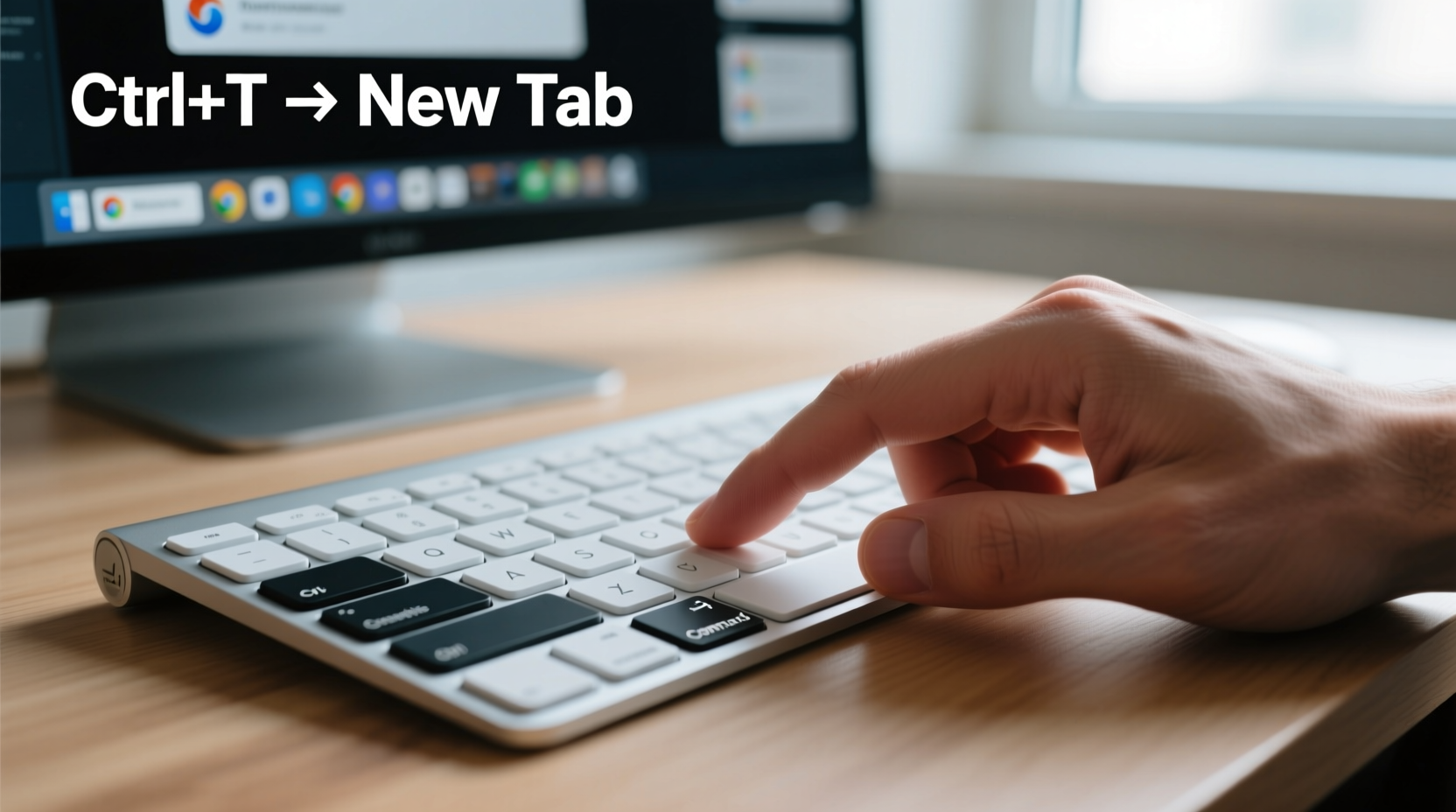
The most widely recognized shortcut for opening a new tab is Ctrl+T on Windows and Linux systems. On macOS, the equivalent is Command+T. These combinations work across all major browsers, including Chrome, Firefox, Edge, Safari, and Brave. Pressing them instantly opens a new blank tab, ready for input.
This shortcut is consistent because browsers follow standardized key mapping conventions. Even if you switch between operating systems or applications, the logic remains predictable: use the primary modifier key (Ctrl or Command) paired with a mnemonic letter—in this case, “T” for “tab.”
Platform-Specific Variations and Alternatives
While Ctrl+T and Cmd+T are universal, some environments offer alternative ways to trigger the same action. Knowing these options ensures flexibility, especially when working across devices or assistive setups.
| Platform | Shortcut | Notes |
|---|---|---|
| Windows / Linux | Ctrl + T | Works in all browsers; also functions in most desktop apps with tabbed interfaces. |
| macOS | Command + T | Consistent across Safari, Chrome, Firefox, and third-party browsers. |
| Chromebook | Ctrl + T | Same as Windows; Chrome OS follows standard Chrome behavior. |
| Voice Access (Windows) | Say “Open new tab” | Available via built-in accessibility tools for hands-free navigation. |
| Safari (Mac) with Touch Bar | Tap \"+\" icon on Touch Bar | Hardware-assisted alternative; not a keyboard shortcut but useful context. |
Beyond standard modifiers, some users customize their keyboard layouts or use third-party tools like AutoHotkey (Windows) or Karabiner (macOS) to remap keys. For example, you could set F2 to open a new tab system-wide—a helpful adjustment for those with ergonomic keyboards or mobility considerations.
Step-by-Step: Building the Habit Into Your Workflow
Knowing the shortcut is one thing. Making it automatic is another. Follow this sequence to integrate the new-tab shortcut into your daily routine:
- Start consciously: For one day, every time you need a new tab, stop and use the keyboard. Even if it feels slower at first, force the muscle memory.
- Pair with intent: Associate the action with specific behaviors—e.g., “When I want to search something related, I’ll use Ctrl+T.”
- Use visual cues: Place a small sticky note near your monitor with “Ctrl+T” until it becomes instinctive.
- Test under pressure: During active browsing sessions, challenge yourself to avoid the mouse entirely for tab management.
- Expand gradually: Once comfortable, add related shortcuts like Ctrl+Tab (switch tabs) or Ctrl+Shift+T (reopen closed tab).
This progression mirrors how experts develop fluency in any tool-based skill. Repetition builds neural pathways; intentionality accelerates learning.
Common Mistakes and How to Avoid Them
Even simple shortcuts can be misused or misunderstood. Here are frequent errors and how to correct them:
- Mixing up Ctrl+T and Ctrl+N: The latter opens a new window, not a tab. This leads to cluttered desktops and lost focus. Remember: T = Tab, N = New Window.
- Using Alt instead of Ctrl: On some systems, Alt activates menu bars. Pressing Alt+T might open browser settings instead.
- Forgetting the Mac difference: Users switching from Windows to Mac often press Ctrl+T out of habit, which does nothing in most contexts. Retrain early.
- Overlooking browser extensions: Some ad blockers or tab managers override default shortcuts. Check extension settings if shortcuts stop working.
Real-World Example: From Clicker to Power User
Consider Maria, a freelance researcher who spends six hours daily cross-referencing articles, data sources, and client briefs. Initially, she opened every new link by right-clicking and selecting “Open in new tab,” or manually clicking the + button. Over a typical day, that added up to over 200 mouse movements dedicated solely to tab creation.
After learning about keyboard shortcuts, she committed to using Ctrl+T exclusively for one week. By day three, her hand no longer drifted toward the mouse after typing a search query. By day seven, she had reduced her average task-switching time by nearly 30%. More importantly, she reported less wrist strain and improved concentration—small wins that compounded into real gains.
Maria didn’t stop at opening tabs. She learned Ctrl+L (focus address bar), Ctrl+Shift+T (restore closed tabs), and Ctrl+Tab (cycle forward). Within a month, her entire browsing rhythm transformed from reactive to fluid.
“Efficiency isn’t about doing things faster—it’s about removing distractions so you can focus on what matters.” — David Lin, Productivity Consultant
Advanced Tips for Maximum Efficiency
Once you’ve mastered opening a new tab, expand your command repertoire:
- Ctrl+Click: Opens a link in a new background tab without leaving your current page.
- Ctrl+Shift+Click: Opens a link in a new tab and switches to it immediately.
- Ctrl+Shift+T: Reopens the last closed tab—an essential safety net.
- Ctrl+1 through Ctrl+9: Jump directly to a specific tab (e.g., Ctrl+1 goes to the first tab).
- Ctrl+W: Close the current tab swiftly and cleanly.
These commands form a cohesive system. Used together, they allow full tab navigation without touching the trackpad or mouse—a technique favored by developers, writers, and analysts who maintain dozens of tabs during deep work sessions.
Checklist: Mastering New Tab Shortcuts
Use this checklist to ensure you’re building effective habits:
- ✅ Memorize Ctrl+T (Windows/Linux) or Cmd+T (Mac)
- ✅ Practice it 10 times in a row during low-stakes browsing
- ✅ Disable mouse access temporarily (e.g., unplug it) to force keyboard use
- ✅ Learn Ctrl+W to close tabs efficiently
- ✅ Add Ctrl+Shift+T to your recovery toolkit
- ✅ Test shortcuts in multiple browsers to confirm consistency
- ✅ Teach someone else—teaching reinforces your own mastery
Frequently Asked Questions
Why doesn’t Ctrl+T work in some programs?
In non-browser applications, Ctrl+T may have different functions—or none at all. For example, in older versions of Microsoft Word, it inserts a hanging indent. The shortcut is only universally effective within web browsers and certain tabbed interfaces like file managers or IDEs.
Can I change the shortcut to something else?
Most browsers don’t allow direct remapping of core shortcuts like Ctrl+T. However, you can use operating-system-level tools such as AutoHotkey (Windows), Keyboard Maestro (Mac), or browser extensions like \"Shortkeys\" (Chrome) to create custom overrides.
Is there a way to open a new tab with a single key?
Not natively, due to the risk of accidental activation. However, you can configure specialized keyboards (e.g., programmable mechanical keyboards) to send Ctrl+T when pressing a dedicated key or macro button.
Conclusion: Turn a Simple Action Into Lasting Skill
Opening a new tab might seem trivial—until you realize how often you do it. Multiply that single action by hundreds of repetitions per week, and the value of efficiency becomes undeniable. Mastering this shortcut isn’t just about saving seconds; it’s about cultivating precision, reducing fatigue, and reclaiming control over your digital environment.
Start today. Use Ctrl+T or Cmd+T every single time. Embrace the slight discomfort of breaking old habits. In a week, you won’t remember why you ever reached for the mouse.




 浙公网安备
33010002000092号
浙公网安备
33010002000092号 浙B2-20120091-4
Comments
No comments yet. Why don't you start the discussion?