
LINE has evolved from a simple messaging app into a comprehensive digital ecosystem used by over 200 million people worldwide. Originally launched in Japan after the 2011 earthquake to maintain communication when networks were down, LINE now serves as a vital tool for personal conversations, business coordination, and even financial transactions. Whether you're reconnecting with friends, managing remote teams, or making payments, mastering LINE can significantly improve your daily efficiency and connectivity.
Understanding LINE’s Core Features
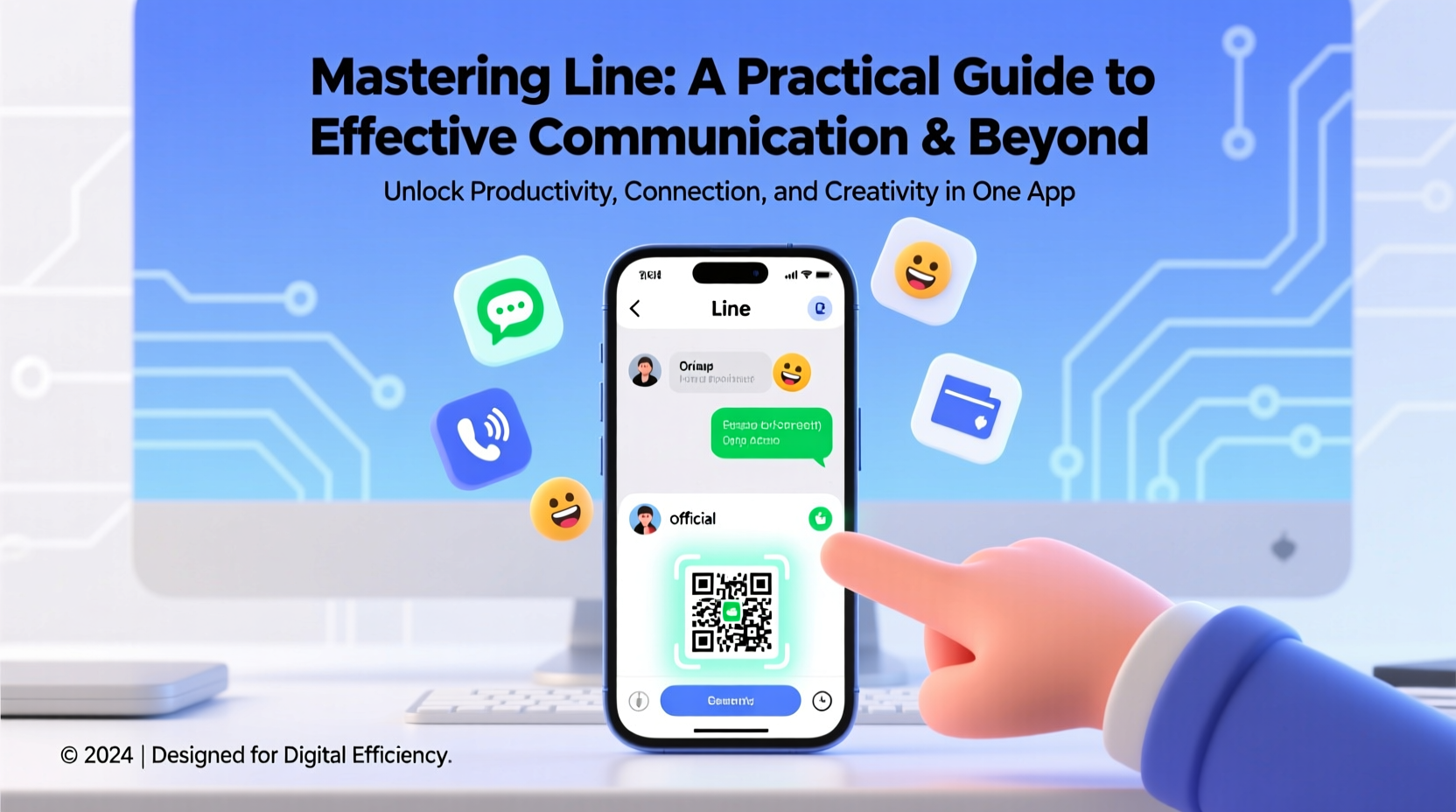
At its foundation, LINE offers instant messaging, voice and video calls, and group chats. But its utility extends far beyond basic texting. The app integrates stickers, read receipts, message replies, and rich media sharing—making it ideal for both casual and formal communication. Unlike many messaging platforms, LINE emphasizes visual expression through customizable themes, animated stickers, and chat backgrounds, which enhance emotional clarity in digital conversations.
One of LINE’s standout features is its end-to-end encryption for “Letter Sealing” chats, ensuring privacy in sensitive discussions. While not enabled by default in all chat types, users can activate it for one-on-one conversations, adding a layer of security often overlooked in consumer messaging apps.
Optimizing Personal Communication
For personal use, LINE excels in maintaining close relationships across distances. Its high-quality voice and video calling features support up to 20 participants, making it ideal for family check-ins or friend gatherings. The ability to send long voice messages instead of typing allows for more natural, expressive communication—especially useful when multitasking.
Stickers aren’t just decorative; they serve as emotional cues that reduce misinterpretation. LINE offers free and premium sticker sets, some of which are region-specific or tied to popular characters. Users can also create custom stickers using their own photos—a fun way to personalize interactions.
Streamlining Professional Collaboration
In countries like Japan, Thailand, and Indonesia, LINE is widely adopted in workplaces—even replacing email for internal communication. Businesses use LINE Official Accounts to engage customers, while teams rely on LINE Workspaces (now rebranded as LINE Biz+) for task management, file sharing, and scheduling.
To maintain professionalism, consider these best practices:
- Use distinct profiles for personal and work accounts (via multiple account support).
- Set notification preferences to avoid burnout from after-hours messages.
- Create dedicated groups for projects, using clear naming conventions (e.g., “Marketing_Campaign_Q3”).
- Pin important messages such as deadlines or meeting links.
“LINE’s real-time updates and low barrier to entry make it one of the most effective tools for decentralized teams in Southeast Asia.” — Kenji Tanaka, Digital Transformation Consultant, Tokyo
Step-by-Step: Setting Up a Professional LINE Workspace
- Download and install the LINE app on your device.
- Navigate to More > Tools > LINE WORKSPACE and sign up for a business account.
- Invite team members via email or QR code—no need for them to have prior accounts.
- Create departments or project-based channels to organize conversations.
- Integrate with Google Calendar to auto-sync meetings and deadlines.
- Enable admin controls to manage permissions and data retention policies.
Leveraging LINE for Daily Convenience
LINE isn’t just for talking—it’s a lifestyle platform. Integrated services like LINE Pay, LINE Taxi, LINE Today, and LINE Shopping turn the app into a digital Swiss Army knife. In Japan, users pay for groceries, book trains, and even file taxes through LINE-linked services.
LINE Pay allows peer-to-peer transfers, QR code payments at stores, and online checkout integration. It supports linked credit cards, bank accounts, and prepaid balances. For travelers in LINE-dominated markets, enabling LINE Pay can simplify daily transactions without needing cash.
| Feature | Personal Use Case | Professional Use Case |
|---|---|---|
| LINE Keep | Save shopping lists or travel notes | Store meeting minutes or reference links |
| LINE Calendar | Schedule doctor appointments | Coordinate team availability |
| LINE News | Follow entertainment updates | Monitor industry trends and alerts |
| LINE Call (VoIP) | Free international calls to friends | Client consultations without long-distance fees |
Security and Privacy Best Practices
With great functionality comes responsibility. Because LINE stores messages on its servers (unless Letter Sealing is active), users should be cautious about sharing sensitive data. Enable two-step verification in settings to prevent unauthorized logins, especially if using the app across multiple devices.
Avoid joining public chat rooms or scanning unverified QR codes, as these are common phishing vectors. Regularly review connected apps under “Linked Services” and revoke access to any you no longer use.
Do’s and Don’ts of LINE Security
| Do’s | Don’ts |
|---|---|
| Enable two-factor authentication | Share your QR code publicly |
| Use Letter Sealing for private chats | Store passwords or ID numbers in chat |
| Update the app regularly | Click suspicious links from unknown contacts |
| Log out of LINE on shared devices | Use weak passwords for your LINE account |
Real-World Example: Remote Team Coordination in Bangkok
A small marketing agency in Bangkok transitioned to full remote operations during the pandemic. With team members spread across the city and nearby provinces, email proved too slow and fragmented. They adopted LINE as their primary communication hub.
They created separate groups for each client project, used LINE Calendar to schedule brainstorming sessions, and shared design drafts via high-resolution image uploads. When a last-minute campaign revision was needed, the creative director sent a 90-second voice note explaining changes—saving time compared to written feedback. By integrating LINE Pay, they also streamlined expense reimbursements.
Within three months, response times improved by 65%, and employee satisfaction with communication tools rose significantly. The simplicity and familiarity of LINE reduced onboarding time for new hires, many of whom already used the app daily.
FAQ
Can I use LINE on multiple devices at once?
Yes. LINE allows one primary device (phone) and up to four additional devices (tablet, desktop, web). However, logging in on a new phone will automatically log you out of another mobile device for security reasons.
Is LINE safe for business communication?
For general coordination, yes—especially with Letter Sealing enabled. However, highly regulated industries should supplement LINE with encrypted enterprise tools for sensitive data. Always follow company compliance policies.
How do I back up my LINE messages?
On Android, enable backup via Google Drive in Settings > Chat > Chat Backup. On iOS, use iCloud. Note that backups do not include voice calls or deleted messages. Restore is only possible when reinstalling the app with the same account.
Final Tips for Mastering LINE
- Customize notifications per chat to avoid distractions.
- Use LINE’s built-in translator in international groups (available on newer versions).
- Explore official accounts from banks, airlines, or government services for quick access.
- Archive inactive groups instead of deleting—preserves history if needed later.
- Teach less tech-savvy contacts how to use voice messages or read marks to improve group dynamics.
Conclusion
Mastering LINE means more than sending messages—it’s about leveraging a full-featured digital environment to communicate clearly, collaborate efficiently, and simplify everyday tasks. From personal chats to enterprise coordination, the app’s depth is often underestimated. By applying structured habits, respecting privacy boundaries, and exploring integrated tools, you can transform LINE from a social app into a cornerstone of modern digital life.




 浙公网安备
33010002000092号
浙公网安备
33010002000092号 浙B2-20120091-4
Comments
No comments yet. Why don't you start the discussion?