
LINE has evolved from a simple messaging tool into a full-featured communication platform used by over 200 million people worldwide. Originally developed in Japan after the 2011 earthquake to maintain contact when SMS failed, LINE now offers secure messaging, high-quality voice and video calls, social feeds, payments, and even smart home integrations. Whether you're using it for personal conversations or coordinating international teams, mastering LINE means unlocking powerful tools that go far beyond basic chat.
This guide walks through everything from setup to advanced features, offering practical steps, real-world examples, and insider tips to help you use LINE more efficiently and securely.
Setting Up Your LINE Account Securely
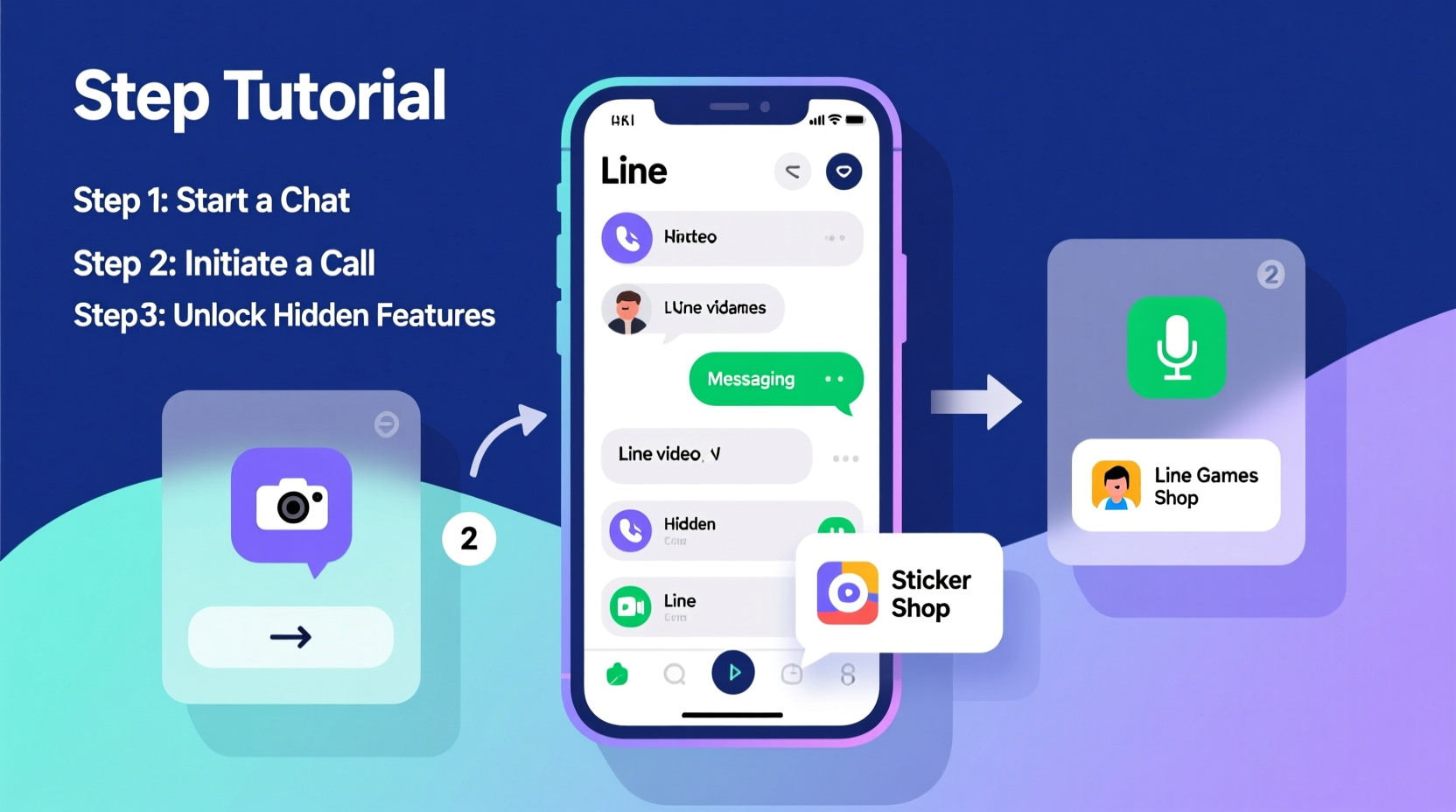
The foundation of a smooth LINE experience starts with proper account configuration. While downloading the app is straightforward, many users overlook critical privacy and security settings during setup.
- Download & Install: Get LINE from the official App Store (iOS) or Google Play (Android).
- Register with Phone Number: LINE requires a mobile number for verification. Use your primary number for reliability.
- Set a Strong Password: Even though login is usually via phone, a password adds protection if switching devices.
- Add Email (Optional but Recommended):strong> This provides backup recovery if you lose access to your number.
- Enable Two-Factor Authentication (2FA): Under Settings > Account > Two-step verification, turn on 2FA using an authentication app like Google Authenticator.
Sending Messages Like a Pro: Beyond Text
While text messages are the core of LINE, the platform supports rich media and interactive elements that enhance clarity and engagement.
- Voice Messages: Press and hold the microphone icon to record short audio clips—ideal for quick updates or emotional nuance.
- Stickers and Emojis: Customize your tone with thousands of animated stickers. Premium sticker sets can be purchased or earned through promotions.
- Message Replies: Long-press any message and select “Reply” to keep group chats organized and context clear.
- Rich Menus: Businesses use these for customer service, but individuals can create automated replies using LINE Official Accounts.
To send files, tap the attachment icon and choose from photos, videos, documents (up to 1GB), or location sharing. Note: Files expire after 30 days unless saved manually.
Hidden Feature: Chat Folders
If you have dozens of ongoing chats, organizing them improves productivity. Create chat folders by going to Chats > Edit > Create Folder. Group conversations by project, family, or urgency. You can also mute non-essential groups without archiving them.
Making High-Quality Voice and Video Calls
LINE’s calling system uses VoIP technology, meaning calls require internet rather than cellular minutes. Both one-on-one and group calls support up to 200 participants.
Step-by-Step Guide to Making a Video Call
- Open the chat with the person or group you want to call.
- Tap the phone icon for voice call or the camera icon for video.
- During the call, use on-screen controls to mute, switch cameras, or share your screen (on Android and iOS 15+).
- To add others mid-call, tap “Add Participants” and invite contacts.
- End the call by tapping the red button.
For best call quality:
- Use Wi-Fi instead of mobile data when possible.
- Close background apps to free up bandwidth.
- Position yourself near a window or router for stronger signal.
| Call Type | Max Participants | Screen Sharing? | Recording Available? |
|---|---|---|---|
| Voice Call | 200 | No | No (native) |
| Video Call | 200 | Yes (one-way) | Only via device recording |
“LINE’s group call stability outperforms most consumer-grade platforms in Asia due to its optimized regional servers.” — Hiroshi Tanaka, Telecom Analyst at GadgetInsight Japan
Unlocking Hidden Features Most Users Miss
Beyond messaging and calls, LINE hides several powerful utilities under menus many never explore.
1. LINE Keep – Your Personal Notes Vault
Found under the Home tab, LINE Keep acts as a digital notepad. Save text snippets, URLs, images, voice memos, and reminders. It syncs across devices and integrates with other LINE functions—forward any message directly to Keep for later reference.
2. Timeline & Moments
Similar to Facebook’s newsfeed, Timeline lets friends post updates, photos, and links. “Moments” is a lighter version visible only to selected contacts. Adjust visibility under Profile > Privacy Settings.
3. LINE Wallet & Payments
In supported regions (Japan, Thailand, Taiwan), LINE Pay allows peer-to-peer transfers, QR code payments, and online shopping. Link a credit card or bank account under Wallet > Add Payment Method.
4. AI Assistant: LINE Clova
Clova responds to voice commands (“Hey Clova”) on compatible devices and smartphones. Set alarms, check weather, control smart lights, or search the web hands-free.
Mini Case Study: Remote Team Coordination in Bangkok
A startup team in Bangkok transitioned from WhatsApp to LINE after discovering its superior group management tools. They created dedicated groups for marketing, product, and HR, each with pinned announcements and shared calendars via LINE Calendar integration. By using LINE Keep for meeting notes and assigning tasks through message replies, they reduced miscommunication by 40% within two months. The ability to make stable 10-person video calls without third-party software streamlined daily standups.
Essential Security and Privacy Checklist
With so much personal data flowing through LINE, protecting your account is crucial. Follow this checklist to stay safe:
- ✅ Enable two-factor authentication.
- ✅ Review linked devices monthly under Settings > Devices.
- ✅ Disable “Allow Friend Requests” if you only communicate with known contacts.
- ✅ Set profile visibility to “My Friends” instead of “Everyone.”
- ✅ Turn off read receipts if you prefer privacy (Settings > Chat > Read Receipts).
- ✅ Regularly delete old messages containing sensitive info.
- ✅ Avoid public Wi-Fi for financial transactions via LINE Pay.
Note: LINE uses end-to-end encryption for “Letter Sealing” chats. To activate, start a new chat and look for the lock icon. Not all group chats support this mode yet.
FAQ
Can I use LINE without a phone number?
No. A valid mobile number is required for registration and verification. However, you can use LINE Lite, a lightweight version, on secondary devices like tablets using the same account.
Why are some stickers free while others cost money?
LINE generates revenue by selling premium sticker sets created by artists and brands. Free stickers are often promotional or seasonal. You can also earn free packs by completing surveys or inviting friends.
Is LINE safe for business communication?
For casual internal use, yes. But for highly sensitive corporate data, consider enterprise solutions like LINE WORKS, which offers admin controls, audit logs, and enhanced encryption tailored for organizations.
Conclusion
Mastering LINE isn’t just about sending messages—it’s about leveraging a complete ecosystem designed for modern communication. From encrypted chats and seamless video calls to intelligent assistants and digital wallets, LINE offers tools that adapt to both personal and professional needs. The key lies in moving beyond basic usage and exploring features that save time, improve clarity, and protect your digital footprint.




 浙公网安备
33010002000092号
浙公网安备
33010002000092号 浙B2-20120091-4
Comments
No comments yet. Why don't you start the discussion?