
Clear, well-formatted text is essential for professional documents, academic papers, and business reports. One of the most common formatting requirements—especially in education and publishing—is double line spacing. Yet many users struggle with inconsistent or incorrect spacing in Microsoft Word, often due to misunderstanding how paragraph settings work. This guide walks you through every aspect of adjusting line spacing, from basic changes to advanced control over spacing before and after paragraphs.
Understanding Line Spacing: Why It Matters
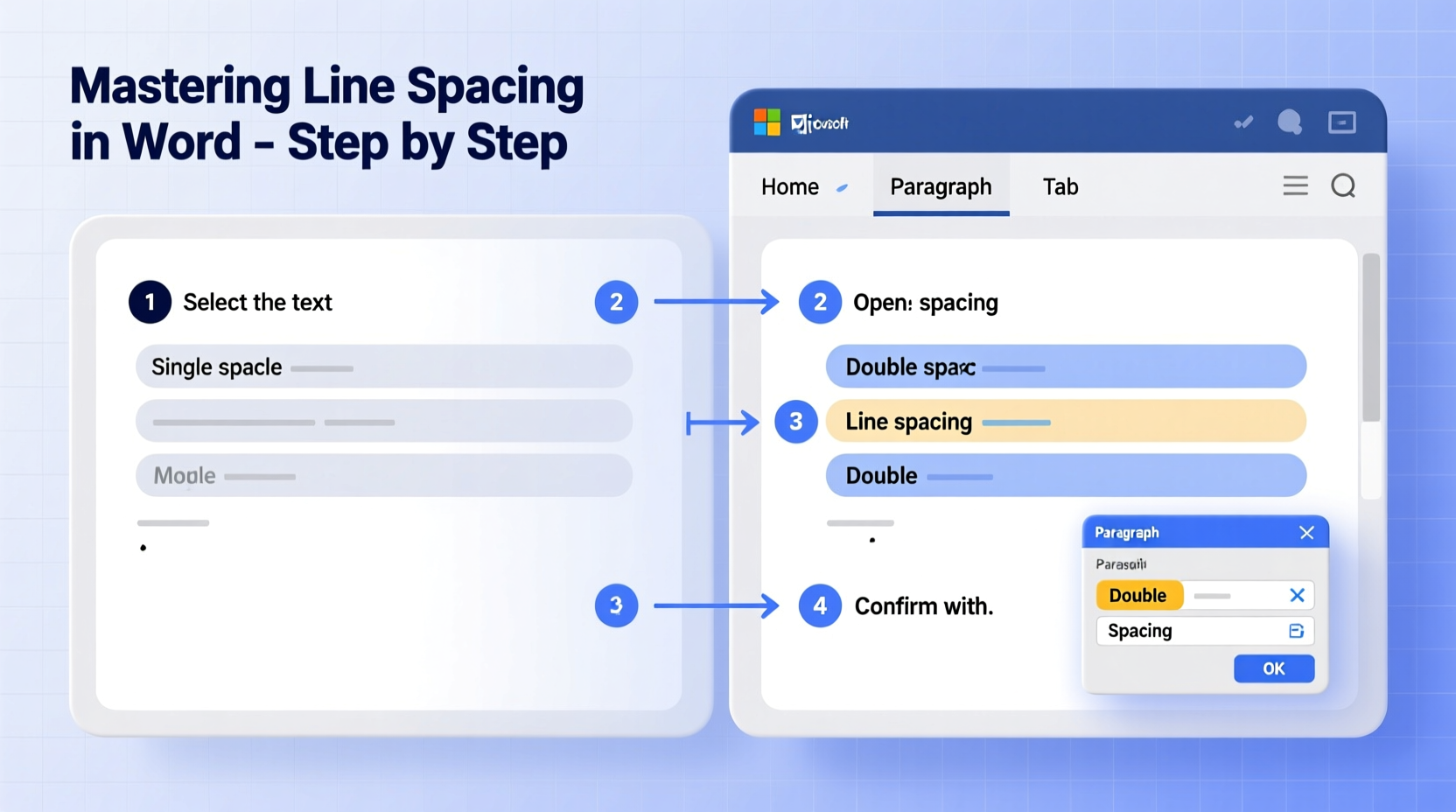
Line spacing refers to the vertical distance between lines of text within a paragraph. Proper spacing improves readability, allows room for annotations, and ensures compliance with formatting standards like APA, MLA, or Chicago style—all of which frequently require double spacing.
Despite its importance, many users apply line spacing inconsistently. Some press Enter twice between lines, creating uneven gaps. Others increase font size to simulate spacing, which distorts layout. The correct method uses Word’s built-in paragraph formatting tools, which provide uniform, scalable results.
“Consistent line spacing isn’t just about aesthetics—it’s a signal of professionalism and attention to detail.” — Dr. Rebecca Lang, Academic Editor and Publishing Consultant
Step-by-Step Guide to Apply Double Spacing
Applying double spacing correctly ensures your entire document maintains a clean, uniform appearance. Follow these steps for reliable results:
- Select the text: Highlight the paragraphs you want to format. To format the entire document, press Ctrl + A.
- Open the Paragraph dialog box: Right-click the selected text and choose “Paragraph,” or go to the “Home” tab and click the small arrow in the bottom-right corner of the Paragraph group.
- Adjust line spacing: In the “Line spacing” dropdown, select “Double.”
- Set spacing values (optional): Ensure “Before” and “After” are set to 0 pt unless your style guide requires extra space.
- Click OK: Your text will now display consistent double spacing.
Advanced Control: Fine-Tuning Spacing Before and After Paragraphs
While double line spacing handles intra-paragraph gaps, many formatting guidelines also specify spacing between paragraphs. This is controlled separately using “Before” and “After” settings in the Paragraph dialog.
For example, an instructor may request double-spaced text with an additional 12 points of space after each paragraph. This creates visual separation while maintaining internal line consistency.
| Spacing Type | Purpose | Recommended Value (Standard) |
|---|---|---|
| Line Spacing | Distance between lines within a paragraph | Double (2.0) |
| Spacing Before | Extra space above a paragraph | 0–12 pt |
| Spacing After | Extra space below a paragraph | 0–12 pt |
| Paragraph Indentation | First-line or hanging indent | 0.5 in (first line) |
To adjust spacing before or after:
- In the Paragraph dialog, locate the “Spacing” section.
- Enter point values (e.g., 6 pt, 12 pt) in the “Before” or “After” fields.
- Use “After” to separate paragraphs without adding blank lines.
Common Pitfalls and How to Avoid Them
Even experienced Word users make mistakes that undermine proper line spacing. Here are frequent issues and their solutions:
- Using multiple Enter presses: This creates irregular gaps and disrupts pagination. Always use paragraph spacing instead.
- Forgetting to clear previous formatting: Pasted text often carries hidden spacing rules. Use “Clear All Formatting” (the eraser icon) before reapplying styles.
- Confusing line spacing with paragraph spacing: Remember, line spacing affects lines inside a paragraph; paragraph spacing controls gaps between them.
- Overriding defaults with manual adjustments: If your document resets spacing unexpectedly, check if a style (like Normal) has been modified globally.
Mini Case Study: Formatting a Research Paper
Sophia, a graduate student, submitted her thesis draft only to have it returned with comments about “inconsistent spacing.” Frustrated, she reviewed her document and discovered she had mixed double-spaced paragraphs with manual line breaks. Her professor expected clean, uniform double spacing throughout.
She followed these steps:
- Selected all text (Ctrl + A).
- Opened the Paragraph dialog and set line spacing to “Double.”
- Set “Before” and “After” spacing to 0 pt.
- Pressed Ctrl + Shift + 8 to reveal and delete extra paragraph marks.
The revised version met formatting standards, earned approval, and taught Sophia to rely on paragraph settings—not keystrokes—for spacing control.
Setting Default Line Spacing for Future Documents
If you frequently write double-spaced documents, save time by setting double spacing as the default for new files.
- Format a blank document with your preferred settings (e.g., double spacing, 12 pt Times New Roman).
- Click the “Home” tab, then the Paragraph dialog launcher.
- Click “Set As Default…” at the bottom of the dialog.
- Choose whether to apply it to the current document only or to all new documents based on the Normal template.
- Click OK.
This change persists across future Word sessions, eliminating the need to reformat each time.
Checklist: Perfect Double Spacing in 6 Steps
Use this checklist whenever you need to ensure professional-quality line spacing:
- ☐ Select all relevant text (Ctrl + A for full document)
- ☐ Open Paragraph settings via the dialog launcher or right-click menu
- ☐ Set “Line spacing” to “Double”
- ☐ Confirm “Before” and “After” spacing are set appropriately (usually 0 pt)
- ☐ Show formatting marks (Ctrl + Shift + 8) to remove extra line breaks
- ☐ Save as default if you regularly use double spacing
Frequently Asked Questions
Can I apply double spacing to only part of a document?
Yes. Simply highlight the specific paragraphs or sections you want to format, then follow the standard steps to set double spacing. The rest of the document remains unchanged.
Why does my double spacing look too loose or tight?
This can happen if the document uses a non-standard style or if “Exactly” or “Multiple” spacing is applied incorrectly. Ensure “Line spacing” is set to “Double” (not “Multiple” with a value of 2.0), and verify that the font and size are consistent (typically 12 pt).
How do I remove double spacing once it’s applied?
Select the text, open the Paragraph dialog, and change the “Line spacing” dropdown to “Single.” Alternatively, use the shortcut Ctrl + 1 for single spacing or Ctrl + 5 for 1.5 spacing.
Mastery Starts with Precision
Mastering line spacing in Word is more than a technical skill—it’s a commitment to clarity and professionalism. Whether you're preparing a manuscript, crafting a report, or submitting an assignment, consistent double spacing signals that you respect both the content and the reader. By understanding the difference between line and paragraph spacing, avoiding common formatting traps, and leveraging Word’s robust tools, you gain full control over your document’s appearance.




 浙公网安备
33010002000092号
浙公网安备
33010002000092号 浙B2-20120091-4
Comments
No comments yet. Why don't you start the discussion?