
Photographs have long served as snapshots of time—static moments frozen in digital space. But with the introduction of Live Photos by Apple, those still images come alive. A Live Photo captures 1.5 seconds before and after you press the shutter, preserving motion, sound, and subtle details that transform a simple picture into a vivid memory. Yet, many users barely scratch the surface of what this feature can do. Understanding how to play, enhance, share, and creatively use Live Photos unlocks a richer way to experience your everyday moments.
Understanding What Live Photos Really Are
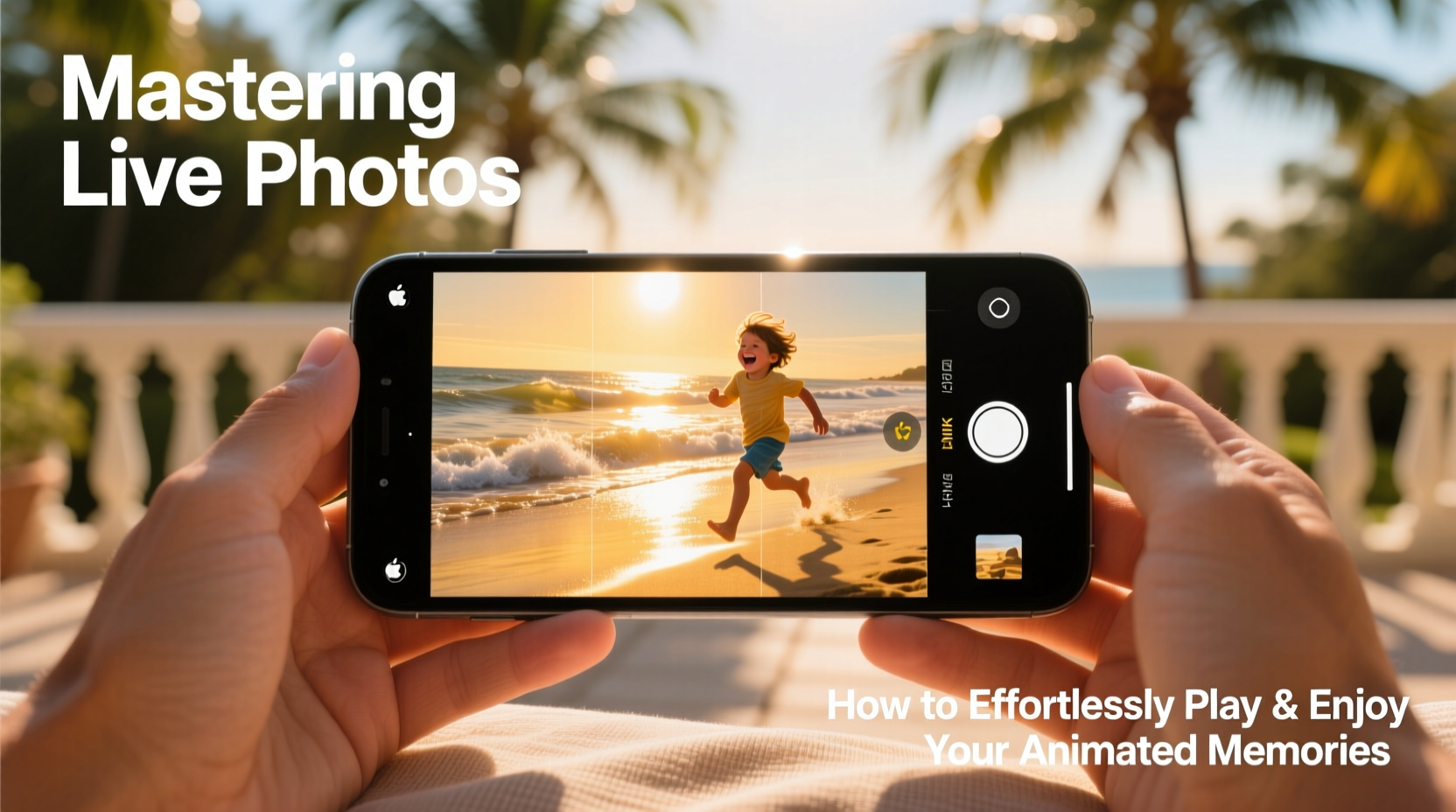
At its core, a Live Photo is not just a video disguised as a photo. It’s a hybrid format combining a high-resolution still image with short video clips and audio. When you take a Live Photo on an iPhone (iPhone 6s or later), the device records 1.5 seconds before and after the shot, storing it as a dynamic file that plays when activated. This means blinking eyes, a child’s giggle, wind rustling through hair—all preserved within what appears to be a regular photograph.
The magic lies in the playback method. On compatible Apple devices, pressing firmly on the screen (with 3D Touch) or using a long press triggers the animation. Even without physical pressure, iOS automatically previews movement in certain contexts like the Photos app or lock screen.
How to Play and Interact with Live Photos
Playing a Live Photo is intuitive but varies slightly depending on your device and context. Here’s how to make the most of interaction:
- iOS Devices with 3D Touch (iPhone 6s–iPhone 8): Press firmly on the photo in the Photos app, Messages, or Lock Screen to activate motion and sound.
- Newer iPhones (iPhone X and later): Use a long press instead, since 3D Touch was phased out for Haptic Touch.
- Mac: Open the photo in the Photos app and click the play button in the top-right corner or hover over the image.
- iPad: Long press to play; some models support preview animations automatically.
In addition to manual playback, iOS offers automatic experiences. For example, setting a Live Photo as your wallpaper creates a subtle animation each time you unlock your phone. You can also enable “Live Photo Effects” such as Loop, Bounce, and Long Exposure for creative reinterpretations of the footage.
Step-by-Step: Turning a Live Photo into a Boomerang-Style Loop
- Open the Photos app and select a Live Photo.
- Tap “Edit” in the top-right corner.
- Tap the Live icon (three concentric circles) at the top of the screen.
- Choose “Loop” from the menu—this makes the clip repeat continuously, like a GIF.
- Tap “Done” to save the effect.
This transformed version will now play seamlessly in messages, albums, or shared links—ideal for playful moments like jumping, dancing, or waving pets.
Creative Uses and Hidden Features of Live Photos
Beyond basic playback, Live Photos offer surprising versatility. With built-in editing tools, you can extract stills, create videos, or even generate audio snippets from the recorded moment.
- Extract the Best Frame: If the default still isn’t ideal, edit the Live Photo and swipe through frames to choose a new key photo.
- Create a Video Clip: Use third-party apps or export via iCloud to convert Live Photos into MOV files for broader sharing.
- Use as Ringtones: Extract audio from a Live Photo (e.g., a loved one saying “I love you”) and set it as a personalized ringtone using GarageBand.
- Star Trails & Light Painting: Enable “Long Exposure” mode on a tripod-stable Live Photo to turn moving lights into artistic trails.
“Live Photos bridge emotion and memory better than static images. The sound of laughter or rain in the background adds depth no filter can replicate.” — Dr. Lena Patel, Digital Memory Researcher, Stanford University
Do’s and Don’ts: Managing Live Photos Effectively
| Do | Don’t |
|---|---|
| Enable Live Photos selectively to avoid cluttering your camera roll with unnecessary motion. | Leave Live Photos enabled all the time—it increases storage usage significantly. |
| Use effects like Loop or Bounce to add fun to social shares. | Assume everyone can view Live Photos—Android and Windows users see only the still image unless converted. |
| Back up Live Photos to iCloud to preserve both image and video components. | Delete the original thinking you’ve saved the video—Live Photos aren’t standard videos. |
| Turn off Live Photos in low-light situations where stabilization is poor. | Expect perfect stabilization—handshake can ruin the clarity of the clip. |
A Real-Life Example: Capturing a Surprise Proposal
Consider Sarah and James, who planned a surprise beachside proposal. James used his iPhone to capture the moment—not knowing whether to shoot video or a photo. He chose Live Photo. The resulting file showed Sarah turning around, her hands flying to her mouth, tears forming, and James dropping to one knee—all while the waves crashed behind them and seagulls cried overhead.
Later, they played it back at their engagement party using an iPad. Guests pressed on the screen, laughing as the scene unfolded again and again. They converted it into a Loop to share on Instagram Stories, giving followers a magical snippet of the event. That single Live Photo became more emotionally resonant than any posed picture could have been.
Sharing and Compatibility Across Platforms
While Live Photos shine within the Apple ecosystem, sharing them beyond iOS requires strategy. When sent directly to non-Apple devices via email or messaging, recipients typically receive only the still image. To ensure full experience elsewhere:
- Convert to Video: Use the “Export as Video” option in apps like LivePix or Lively to create a .MOV file.
- Share via Link: Upload the Live Photo to iCloud and send a link—viewers on Apple devices can interact with it fully.
- Social Media: Instagram and Twitter don’t support native Live Photo uploads, but you can post the still and mention “Press to play on iPhone” in the caption as a hint.
Checklist: Optimizing Your Live Photo Experience
- ✅ Confirm Live Photo is enabled in your Camera app (yellow circle icon).
- ✅ Use a stable hand or tripod for clearer motion capture.
- ✅ Regularly review and apply effects (Loop, Bounce, Long Exposure) to favorites.
- ✅ Back up to iCloud to preserve both still and motion data.
- ✅ Convert key Live Photos to video for cross-platform sharing.
- ✅ Disable Live Photo in low light or fast-action scenarios where motion blur dominates.
Frequently Asked Questions
Can I turn any video into a Live Photo?
No, iOS does not natively allow converting videos into Live Photos. However, third-party apps like LiveFrame or IntoLive let you create compatible Live Photos from video clips, which can then be imported into your camera roll and used like originals.
Why does my Live Photo sometimes appear blurry?
Blurriness often results from camera shake during capture. Since Live Photos record motion, any movement—including your hand trembling—can affect both the still and video components. For best results, hold your phone steady or use a surface for stability.
Do Live Photos take up more storage?
Yes. A Live Photo uses about twice the space of a regular photo because it stores a still image plus 3 seconds of video and audio. One Live Photo typically ranges from 3–5 MB, compared to 1.5–2 MB for a standard JPEG.
Conclusion: Bring Your Memories to Life
Live Photos are more than a gimmick—they’re a meaningful evolution in personal storytelling. By mastering how to play, edit, and share them, you transform ordinary moments into immersive experiences. Whether it’s a baby’s first steps, a pet chasing its tail, or a quiet sunset with birdsong in the background, these animated memories carry emotional weight that static images alone cannot convey.




 浙公网安备
33010002000092号
浙公网安备
33010002000092号 浙B2-20120091-4
Comments
No comments yet. Why don't you start the discussion?