
In an age where smartphones hold more personal information than ever—bank details, private messages, health records, location history—data security is no longer optional. Mobile phone encryption is the backbone of digital privacy, transforming readable data into indecipherable code that only authorized users can unlock. Yet, many users remain unaware of how encryption works or how to use it effectively. This guide demystifies mobile encryption, offering actionable steps to ensure your device remains protected from unauthorized access, both online and offline.
Understanding Mobile Phone Encryption
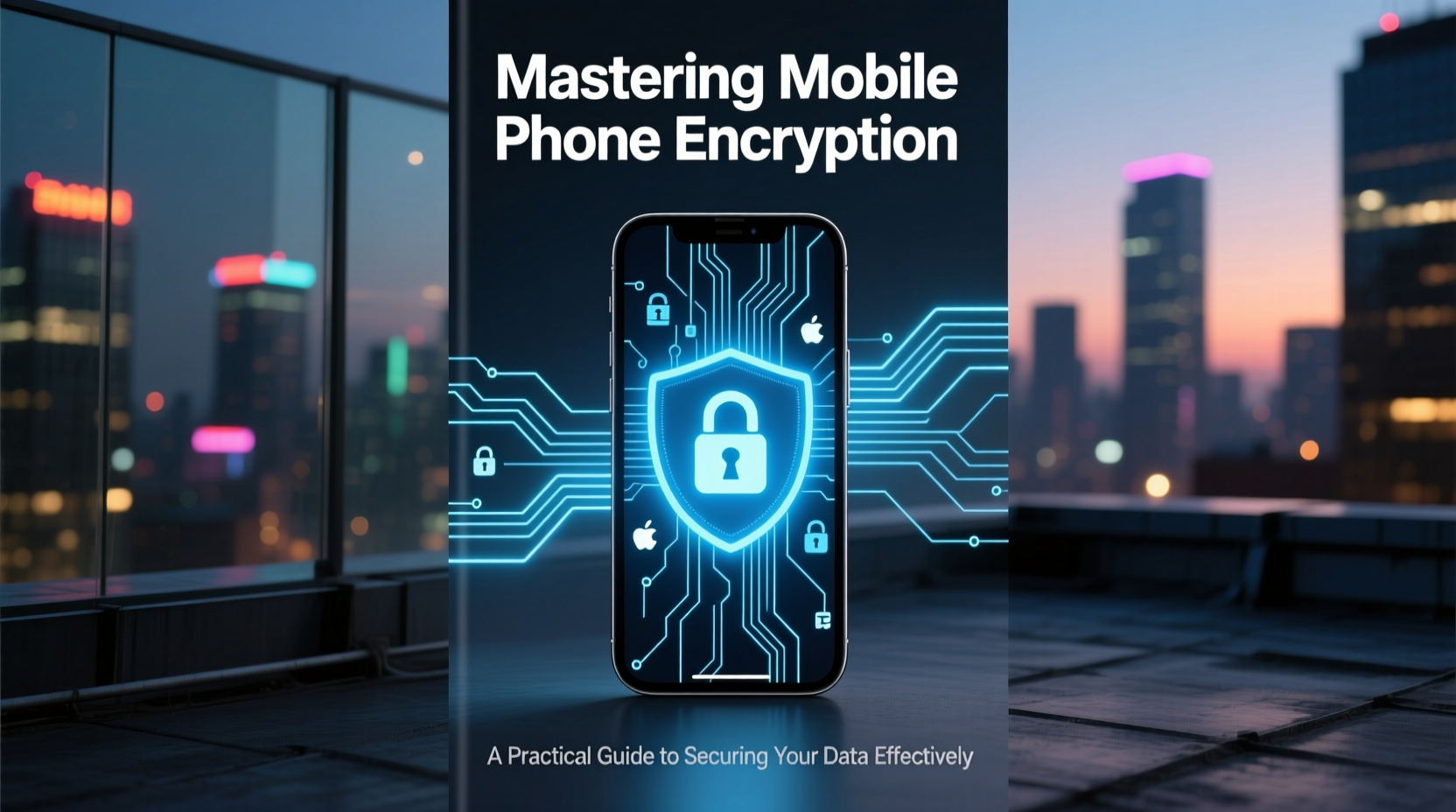
At its core, encryption scrambles data so that it appears as random characters to anyone without the correct decryption key. On smartphones, this typically happens at two levels: full-disk encryption (FDE) and file-based encryption (FBE). Modern Android and iOS devices use FBE by default, allowing different files to be encrypted with separate keys, which improves performance and enables features like unlocking specific apps while the device remains locked.
When you set a passcode, fingerprint, or face unlock on your phone, you're not just adding a lock—you're enabling a cryptographic key that protects your data. Without the correct authentication, even if someone physically removes your phone’s storage chip, the data remains inaccessible.
“Encryption is the most effective tool consumers have to protect their data from theft, surveillance, and exploitation.” — Dr. Naomi Patel, Cybersecurity Researcher at Stanford University
How Your Phone Encrypts Data Automatically
Both major operating systems—iOS and Android—enable encryption by default under certain conditions:
- iOS: All iPhones from the 5s onward use hardware-based AES-256 encryption. As soon as you set a passcode, all user data is encrypted using a combination of the device’s UID (unique identifier) and your passcode.
- Android: Devices running Android 7.0 and later enable file-based encryption out of the box when a screen lock is configured. The Titan M chip in Pixel phones adds hardware-level security similar to Apple’s Secure Enclave.
This means that simply setting a strong passcode activates robust encryption. However, many users undermine this protection with weak PINs or by disabling lock screens altogether.
Step-by-Step: Securing Your Device with Encryption Best Practices
Follow this sequence to maximize the effectiveness of your phone’s encryption:
- Enable a Strong Screen Lock: Go to Settings > Security > Screen Lock and choose a strong password or complex passcode. Avoid patterns or short PINs.
- Verify Encryption Status: On Android, go to Settings > Security > Encryption & credentials to confirm your device is encrypted. On iPhone, encryption is active once a passcode is set.
- Enable Biometric Authentication: Use fingerprint or facial recognition as a convenient—but secondary—layer. Remember, these are tied to your primary passcode.
- Turn On “Erase After 10 Failed Attempts”: Found in iPhone Settings > Touch ID & Passcode, this prevents brute-force attacks.
- Keep Software Updated: OS updates often patch vulnerabilities in encryption implementation. Enable automatic updates.
- Avoid Rooting or Jailbreaking: These processes disable critical security layers, including secure boot and encrypted storage verification.
Do’s and Don’ts of Mobile Encryption
| Do’s | Don’ts |
|---|---|
| Use a 6-digit or alphanumeric passcode | Use a 4-digit PIN or pattern lock |
| Enable Find My iPhone or Find My Device | Leave your device unlocked for convenience |
| Encrypt backups (iCloud/Google Drive) | Store unencrypted backups on public cloud services |
| Review app permissions regularly | Grant unnecessary access to sensitive data |
| Use end-to-end encrypted messaging apps | Send sensitive info over SMS or unencrypted platforms |
Real-World Scenario: When Encryption Saved a User
In 2023, a journalist covering political unrest in Southeast Asia had her phone seized at a border checkpoint. Authorities attempted to extract messages and contacts. However, because she used an iPhone with a strong alphanumeric passcode and had disabled iCloud syncing for sensitive apps, the device remained fully encrypted. Despite attempts to bypass the lock screen, forensic tools failed to retrieve usable data. After 48 hours, the device was returned, and her sources remained protected.
This case underscores a crucial point: encryption isn’t theoretical—it’s a real-world shield. Even powerful actors with advanced tools cannot bypass properly implemented encryption without the key.
Enhancing Encryption Beyond Built-In Features
While native encryption is strong, additional layers can further safeguard your data:
- Use Encrypted Messaging Apps: Signal and WhatsApp (with safety numbers verified) offer end-to-end encryption for calls and messages, ensuring even service providers can’t access content.
- Secure Cloud Backups: iCloud Advanced Data Protection and encrypted Google Drive folders (via third-party tools like Cryptomator) prevent cloud providers from accessing your backup data.
- Leverage App-Specific Encryption: Password managers like Bitwarden or 1Password encrypt your vault locally before syncing.
- Consider Privacy-Focused OS Alternatives: GrapheneOS (for Pixel phones) and CalyxOS offer hardened versions of Android with stricter default encryption and reduced data collection.
Encryption Checklist: Secure Your Phone in 10 Minutes
Complete this checklist to ensure your mobile encryption is optimized:
- ✅ Set a strong 6-digit or alphanumeric passcode
- ✅ Confirm encryption is enabled in device settings
- ✅ Turn on biometric authentication (fingerprint/face)
- ✅ Enable auto-erase after 10 failed attempts (iOS)
- ✅ Update your OS to the latest version
- ✅ Enable two-factor authentication for your Apple ID or Google account
- ✅ Encrypt cloud backups using available tools
- ✅ Install only trusted apps from official stores
- ✅ Disable lock screen notifications for sensitive apps
- ✅ Perform a monthly review of app permissions
Frequently Asked Questions
Does encryption slow down my phone?
Modern smartphones use dedicated hardware (like Apple’s Secure Enclave or Android’s Titan M) to handle encryption tasks efficiently. You won’t notice any performance impact in daily use.
Can law enforcement bypass phone encryption?
In most cases, no. While agencies may use expensive tools (like GrayKey) to exploit software vulnerabilities, fully patched devices with strong passcodes remain highly resistant. End-to-end encrypted apps add another layer they cannot penetrate.
Is my data safe if I lose my phone?
If your device is encrypted and has a strong passcode, yes. Without physical access to the passcode or biometric data, retrieving meaningful data is nearly impossible. Always pair this with remote wipe capabilities via Find My iPhone or Find My Device.
Conclusion: Take Control of Your Digital Safety
Mobile phone encryption is not a feature reserved for tech experts or high-risk professionals—it’s a fundamental right and responsibility for every smartphone user. By understanding how encryption works and applying practical safeguards, you transform your device from a vulnerable data repository into a secure digital vault. The steps outlined here require minimal time but deliver maximum protection.




 浙公网安备
33010002000092号
浙公网安备
33010002000092号 浙B2-20120091-4
Comments
No comments yet. Why don't you start the discussion?