
In today’s fast-paced digital world, every second counts. Whether you're launching a fitness tracker, opening a specific playlist, or jumping straight into a work email folder, the fewer taps it takes, the more efficient your day becomes. One of the most underused yet powerful tools at your fingertips is the ability to create custom icons on your phone’s home screen. These aren’t just decorative—they’re functional shortcuts that streamline your routine, reduce clutter, and personalize your device.
Yet, many users remain unaware of how easy it is to set up these shortcuts—or they assume it requires third-party apps or technical know-how. The truth? Both Android and iOS offer intuitive ways to create direct-access icons tailored to your habits. From deep-linking into apps to launching specific web pages or even combining multiple actions, mastering mobile shortcuts can transform your smartphone from a passive tool into an active productivity partner.
Why Custom Desktop Icons Matter
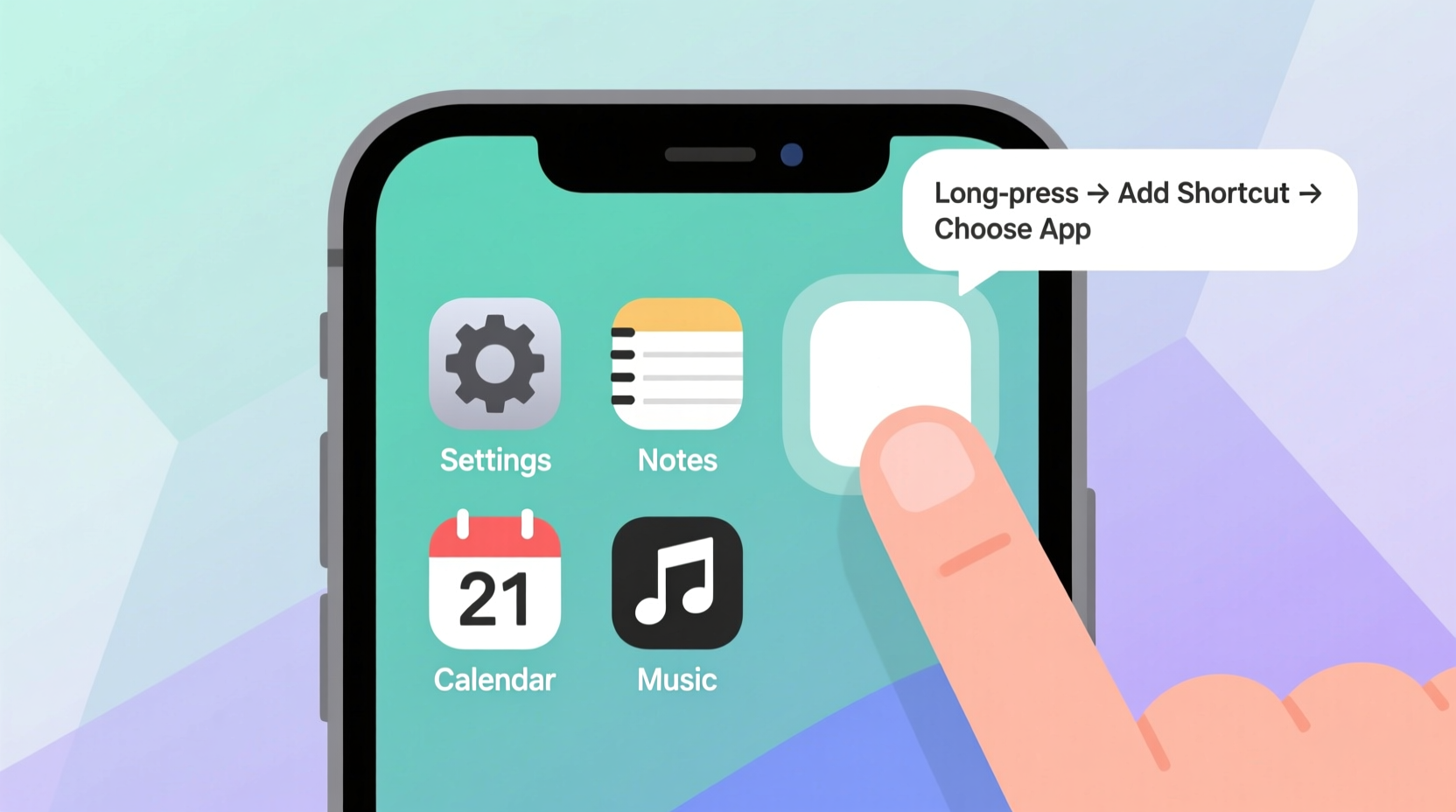
Your home screen is prime digital real estate. Every app icon represents a decision point—do you tap it or ignore it? When your most-used functions are buried in menus or nested within apps, friction builds. Custom icons eliminate that friction by placing exactly what you need, where you need it.
Consider this: instead of opening your browser and searching for your company’s internal portal, you could have a single-tap icon labeled “Work Dashboard.” Or skip navigating through three screens in your music app by launching your morning workout playlist directly. These micro-efficiencies compound over time, saving minutes each day and reducing mental fatigue.
“Personalization isn’t just about aesthetics—it’s about aligning your device with how you actually live and work.” — Dr. Lena Torres, Human-Device Interaction Researcher, MIT Media Lab
How to Create Custom Icons on Android
Android offers robust support for custom shortcuts, especially on devices using launchers like Samsung One UI, Google Pixel Launcher, or third-party options such as Nova Launcher. Here’s how to create a custom web shortcut—a common use case for frequently visited sites:
- Open your preferred browser (Chrome recommended).
- Navigate to the website you want to shortcut (e.g., your calendar, a news site, or a web-based tool).
- Tap the menu (three dots) and select “Add to Home screen.”
- Edit the name (e.g., “Daily Planner” instead of the full URL).
- Tap “Add” and place the icon on your home screen.
This creates a standalone icon that opens the page in a simplified browser window—almost like a mini-app. For even deeper customization, use automation apps like Tasker or Shortcut Maker to build icons that trigger complex actions: sending a text, turning on Wi-Fi, and launching Spotify—all with one tap.
Creating Shortcuts on iPhone Using Shortcuts App
iOS doesn’t allow direct web-to-home-screen shortcuts as freely as Android, but Apple’s built-in Shortcuts app unlocks far greater potential. With it, you can create fully customized icons that perform single or multi-step tasks across apps.
To create a basic shortcut:
- Open the Shortcuts app (download from the App Store if not installed).
- Tap the “+” icon to create a new shortcut.
- Add actions—like “Open URL,” “Send Message,” or “Start Workout.”
- Tap “Next,” then give your shortcut a clear name.
- Tap the three-dot menu, choose “Add to Home Screen,” and customize the icon and label.
- Choose a color and optional glyph (icon symbol), then tap “Add.”
The result is a native-looking app icon that, when tapped, runs your predefined sequence. For example, a “Morning Routine” shortcut could turn on Bluetooth, read your calendar aloud, and open your coffee shop’s ordering page—all in one tap.
Pro Tip: Use Website Icons for Cleaner Look
When adding web shortcuts via the Shortcuts app, use a favicon extractor or paste the site URL into a service like https://www.google.com/s2/favicons?domain=example.com to download a matching 60x60px icon. This keeps your home screen visually cohesive.
Do’s and Don’ts of Custom Icon Management
| Do’s | Don’ts |
|---|---|
| Label icons clearly based on function (e.g., “Quick Expense Log”) | Use vague names like “Link” or “Go” |
| Group similar shortcuts in a folder (e.g., “Utilities” or “Work Tools”) | Scatter related icons across multiple screens |
| Update shortcuts when URLs or workflows change | Set and forget—outdated shortcuts create confusion |
| Use high-contrast colors for frequently used actions | Choose hard-to-distinguish shades (e.g., light gray on white) |
| Test the shortcut after creation to ensure it works | Assume it works without verification |
Real-World Example: Streamlining a Freelancer’s Workflow
Meet Jordan, a freelance graphic designer who juggles client calls, time tracking, and file sharing daily. Before using custom icons, Jordan spent an average of 45 seconds each time logging into Zoom, starting a timer in Toggl, and opening the project folder in Dropbox.
By creating a single shortcut labeled “Client Call Ready,” Jordan automated all three actions. Now, one tap launches the Zoom meeting, starts the timer, and opens the correct Dropbox folder. Over a month with 20 client calls, that’s nearly 15 minutes saved—and less cognitive load during transitions.
The shortcut was built in the iOS Shortcuts app using three actions: “Open App (Zoom),” “Start Timer (Toggl Track),” and “Open Folder (Dropbox).” Jordan assigned a custom blue icon with a headset symbol for instant recognition.
Essential Checklist for Building Effective Shortcuts
- ✅ Identify repetitive tasks that take more than two steps
- ✅ Choose a clear, action-oriented name for your shortcut
- ✅ Select or design a simple, recognizable icon
- ✅ Test the shortcut in real conditions (low battery, poor signal)
- ✅ Place the icon in a logical location (e.g., main screen or quick-access folder)
- ✅ Review and update shortcuts every 6–8 weeks
- ✅ Share useful shortcuts with teammates or family for consistency
Frequently Asked Questions
Can I create a shortcut to a specific email inbox or filter?
Yes, on both platforms. On Android, use a web shortcut to your filtered Gmail search (e.g., “label:urgent”). On iPhone, use the Shortcuts app to open a URL like googlegmail://?search=label%3Aimportant. Note: Some apps require URL schemes to be enabled or may change them over updates.
Are custom icons safe? Can they compromise my privacy?
When created through official methods (browser “Add to Home Screen” or Apple Shortcuts), they are safe. Avoid third-party apps that request excessive permissions. Never grant accessibility access unless absolutely necessary and from trusted developers.
What if my shortcut stops working after an app update?
This happens when app developers change internal links or URL schemes. Rebuild the shortcut using updated actions or check community forums like Reddit’s r/shortcuts for updated templates. Regular maintenance ensures longevity.
Take Control of Your Digital Experience
Your smartphone should adapt to you—not the other way around. Custom desktop icons are more than convenience; they’re a form of digital self-expression and efficiency engineering. By investing just 10–15 minutes setting up key shortcuts, you reclaim hundreds of taps over time, reduce decision fatigue, and make your device truly yours.
Start small: pick one repetitive task today and build a shortcut for it. Then expand. Over time, your home screen will evolve into a personalized command center—one tap away from peak productivity.




 浙公网安备
33010002000092号
浙公网安备
33010002000092号 浙B2-20120091-4
Comments
No comments yet. Why don't you start the discussion?