
Mouse sensitivity is more than just how fast your cursor moves—it's the foundation of digital control. Whether you're navigating spreadsheets, editing high-resolution images, or competing in fast-paced games, an improperly tuned mouse can hinder performance, cause fatigue, and reduce accuracy. Most users accept default settings without realizing they’re sacrificing efficiency. With a few targeted adjustments, you can transform your mouse into a precision instrument tailored to your workflow, hand size, and usage patterns.
Understanding DPI and Sensitivity
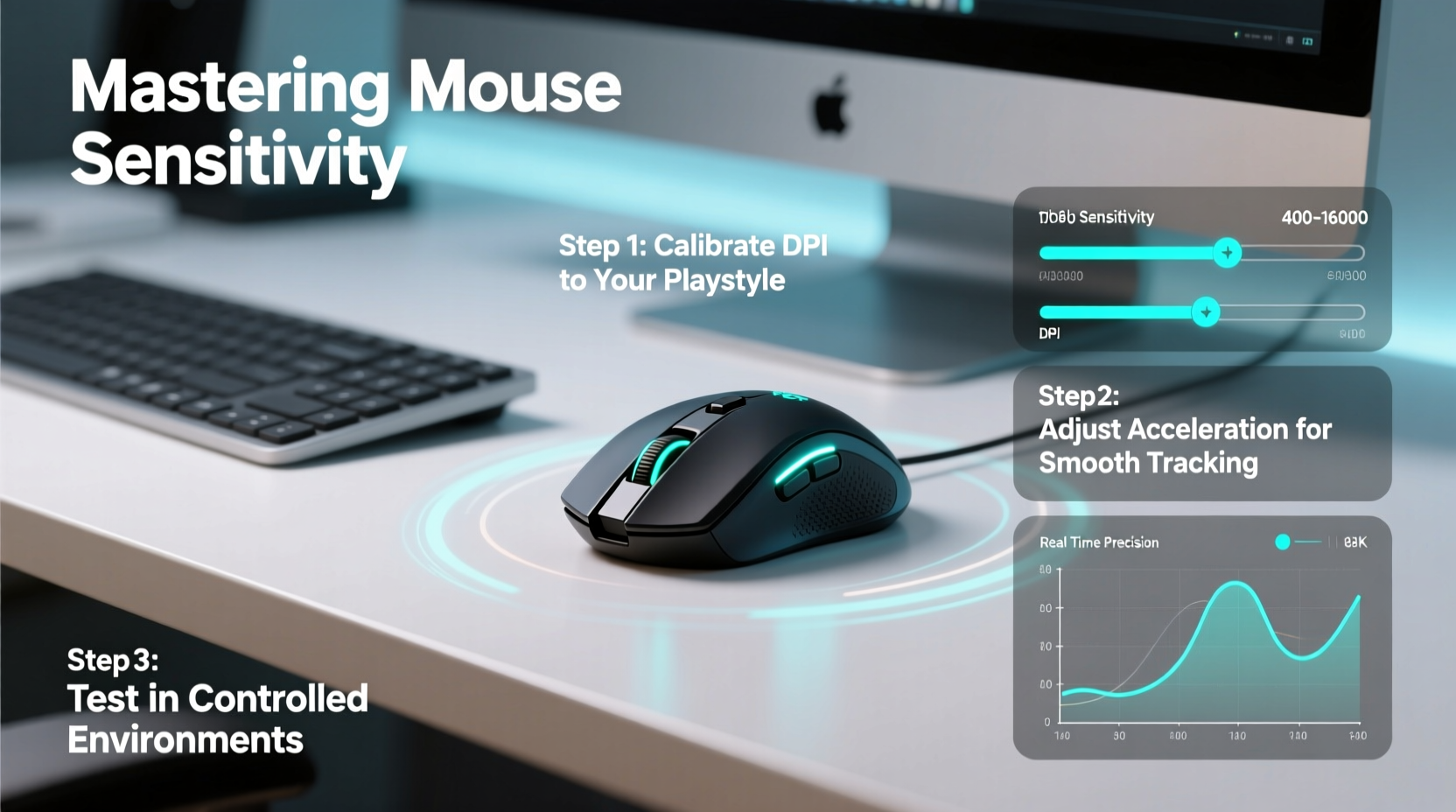
DPI (Dots Per Inch) measures how far your cursor travels on-screen per inch of physical mouse movement. A higher DPI means less hand motion for greater cursor travel; lower DPI requires more movement but offers finer control. In gaming, this is often referred to as \"sensitivity,\" which combines DPI with in-game or OS-level multiplier settings.
Many modern mice offer adjustable DPI settings—commonly ranging from 400 to 16,000 DPI. However, higher isn’t always better. For example, graphic designers may prefer 800–1200 DPI for pixel-level accuracy, while gamers might settle between 400 and 1600 depending on their genre and playstyle.
The Role of Polling Rate and Acceleration
Polling rate, measured in Hz, determines how often your mouse reports its position to the computer. A 1000Hz polling rate means updates every millisecond—ideal for responsiveness. While not directly tied to sensitivity, a higher polling rate reduces input lag, making movements feel smoother.
Pointer acceleration, however, alters cursor speed based on how fast you move the mouse. Windows enables this by default, but it introduces inconsistency—critical movements may vary depending on flick intensity. For precise control, disable pointer acceleration.
“Consistency in input response is paramount. Turning off pointer acceleration ensures every movement maps predictably.” — David Lin, Human-Computer Interaction Researcher, MIT Media Lab
Step-by-Step Guide to Calibrating Your Mouse
Follow this structured process to find your optimal sensitivity settings. The goal is repeatability, comfort, and accuracy.
- Reset to defaults: Begin with system and mouse driver defaults. Disable any custom profiles or macros.
- Set DPI to 800: Use your mouse software or hardware button to lock DPI at 800. This neutral starting point minimizes variables.
- Disable pointer precision: In Windows, go to Mouse Settings > Additional mouse options > Pointer Options. Uncheck “Enhance pointer precision” (this disables acceleration).
- Adjust in-game sensitivity (if applicable): In games like CS:GO or Valorant, set sensitivity to 1.0 initially. Fine-tune later.
- Test cursor control: Open a document or image editor. Draw small circles and straight lines. Can you consistently hit specific pixels?
- Increase or decrease DPI incrementally: If you need larger arm movements, increase DPI by 200 increments. If overshooting targets, reduce it.
- Evaluate muscle memory development: Spend 2–3 days using the new setting before adjusting again. True optimization takes time to internalize.
Finding Your Ideal Sensitivity Range
Your ideal sensitivity depends on several factors: desk space, grip style, monitor resolution, and use case. Here’s a reference table to help narrow your range:
| Use Case | Recommended DPI | Movement Style | Notes |
|---|---|---|---|
| General Computing | 800–1000 | Finger/wrist | Suitable for web browsing, office work |
| Graphic Design | 800–1200 | Finger-focused | Precision over speed; use large mousepad |
| First-Person Shooters (FPS) | 400–800 | Arm-controlled | Lower DPI improves aim stability |
| Real-Time Strategy (RTS) | 1000–1600 | Wrist/arm hybrid | Requires rapid screen traversal |
| Video Editing | 800–1200 | Wrist/finger | Balances timeline scrubbing and tool selection |
Real-World Example: From Frustration to Flow
Consider Alex, a competitive FPS player struggling with inconsistent headshots. Despite quick reflexes, his aim felt “off,” especially during long matches. He used a high-DPI setting (1600) with enhanced pointer precision enabled, relying on wrist flicks to track enemies.
After disabling pointer acceleration and lowering his DPI to 400, he adjusted in-game sensitivity to maintain similar cursor speed. At first, the change felt sluggish—he needed full arm movements to turn 180 degrees. But within a week, his micro-adjustments improved dramatically. His spray control in CS:GO became tighter, and his tracking kills increased by 35% over two weeks. The key was consistency: every input now had a predictable outcome.
Checklist: Optimize Your Mouse Setup in 7 Steps
- ✅ Determine your primary use case (gaming, design, general use)
- ✅ Choose a starting DPI (800 recommended)
- ✅ Disable pointer acceleration in OS settings
- ✅ Set polling rate to 500Hz or 1000Hz if supported
- ✅ Use a consistent, large-enough mousepad (at least 400mm x 300mm)
- ✅ Test sensitivity with real tasks (drawing lines, targeting, scrolling)
- ✅ Commit to one setting for 3–5 days before readjusting
Common Mistakes and How to Avoid Them
Even experienced users fall into traps that undermine mouse performance. Awareness is the first step to correction.
- Chasing trends: Just because a pro gamer uses 400 DPI doesn’t mean it’s right for you. Hand size, desk depth, and monitor distance all influence ideal settings.
- Ignoring surface quality: An uneven or reflective surface disrupts optical sensors. Use a non-reflective, consistent-texture mousepad.
- Over-relying on software calibration: Some third-party tools promise “perfect sensitivity,” but they often introduce input lag or conflict with drivers.
- Changing settings too frequently: Muscle memory develops over repetition. Constant tweaking prevents adaptation.
Frequently Asked Questions
Does higher DPI improve gaming performance?
Not necessarily. High DPI allows faster cursor movement, but it often sacrifices control. Competitive players typically use lower DPI (400–800) combined with moderate in-game sensitivity for maximum precision. Performance gains come from consistency, not speed alone.
How do I know if my sensitivity is too high?
If you frequently overshoot targets, struggle with fine adjustments, or rely heavily on small wrist twitches, your sensitivity is likely too high. Try reducing DPI by 200 units and recalibrate your in-game or system settings accordingly.
Can I adjust sensitivity without changing DPI?
Yes. Operating systems and applications allow sensitivity scaling independent of DPI. However, adjusting via DPI (hardware level) generally provides cleaner, more responsive results than software multipliers, which can introduce interpolation or lag.
Final Adjustments and Long-Term Maintenance
Once you’ve settled on a sensitivity profile, document it. Note your DPI, polling rate, OS settings, and in-app configurations. This becomes your reference if you switch devices or reinstall your system.
Re-evaluate every few months, especially if you change peripherals, desk setup, or monitor resolution. Physical health also plays a role—repetitive strain or changes in hand strength may require subtle recalibration.
Regular cleaning of your mouse sensor and pad surface ensures consistent tracking. Dust or debris under the sensor can mimic sensitivity issues, leading to unnecessary adjustments.
Take Control of Your Digital Precision
Mastering mouse sensitivity isn’t about chasing extremes—it’s about finding balance. The right setting turns your mouse from a passive tool into an extension of your intent. Whether you're selecting a single pixel or landing a headshot under pressure, precision begins with thoughtful calibration.
You don’t need the most expensive gear to achieve elite control. You need awareness, patience, and a methodical approach. Apply these steps today, stick with your settings, and let muscle memory do the rest.




 浙公网安备
33010002000092号
浙公网安备
33010002000092号 浙B2-20120091-4
Comments
No comments yet. Why don't you start the discussion?