
The Apple Watch has evolved from a fitness tracker into a fully capable personal audio companion. Whether you're jogging without your phone, commuting hands-free, or simply want quick access to your favorite playlist, mastering music playback on your Apple Watch can transform how you experience music daily. With native support for Apple Music, Spotify, podcasts, and offline storage, the device offers powerful tools—if you know how to use them effectively.
Understanding Your Music Playback Options
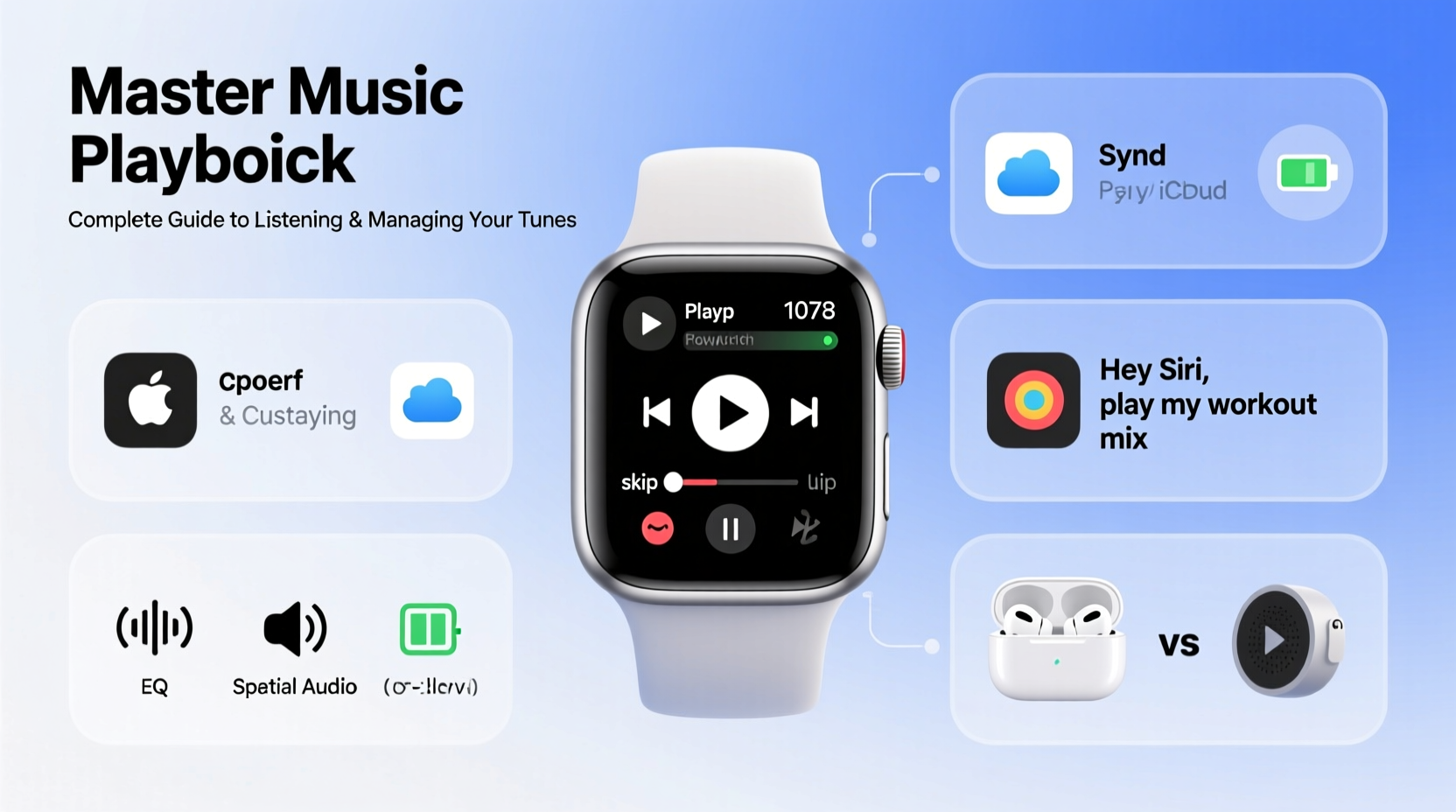
The Apple Watch supports multiple ways to listen to music, each suited to different scenarios. The key is understanding when and how to leverage each option.
- Streaming via Bluetooth: Connect wireless earbuds to your watch and stream directly from Apple Music or Spotify using a Wi-Fi or cellular connection (on GPS + Cellular models).
- Offline Playback: Download songs, albums, or playlists directly to your watch for listening without a network or phone nearby.
- Phone-Connected Mode: Use your iPhone as the source while controlling playback from your wrist—ideal when your phone is in your pocket or bag.
Apple Watch models with cellular connectivity offer the most freedom, allowing streaming even when your phone is at home. However, even GPS-only models can play stored music through Bluetooth headphones after syncing.
Setting Up and Syncing Music
To begin playing music independently, you must first sync or download tracks to your watch. This process varies slightly depending on whether you're using Apple Music, Spotify, or another service.
Syncing Music from Apple Music
- Open the Watch app on your iPhone.
- Navigate to My Watch > Music.
- Tap Add Music… and select albums, artists, or playlists.
- Wait for sync confirmation. You’ll see a checkmark next to added items.
Once synced, open the Music app on your watch to browse \"Library,\" where downloaded content appears under \"On This Device.\"
Downloading Spotify Playlists
Spotify users need to take an extra step:
- Open Spotify on your iPhone.
- Find the playlist you want to take offline.
- Toggle “Download to Apple Watch” (ensure the Spotify Watch app is installed).
Note: Spotify downloads require the app to be open periodically on the watch to maintain license validity.
| Service | Offline Support | Cellular Streaming | Watch App Required |
|---|---|---|---|
| Apple Music | Yes | Yes (with subscription) | No (native app) |
| Spotify | Yes (Premium only) | Yes (Premium + Cellular) | Yes |
| Podcasts | Yes | Limited (Wi-Fi only) | No |
Controlling Playback Like a Pro
Once your music is available, controlling playback becomes intuitive—but there are hidden features that enhance usability.
- Swipe left on the Now Playing screen to adjust volume with the Digital Crown.
- Double-press the side button to launch the last-used app—in this case, likely Music or Spotify.
- Use Siri: Say “Play my workout playlist” or “Skip this song” for full voice control.
You can also create custom watch faces with music complications. For example, add a “Current Playback” module to instantly see what’s playing without opening the app.
“Most users don’t realize they can trigger playback controls from any screen by swiping up and tapping the music icon in Control Center.” — Jordan Lee, Wearable Tech Analyst
Optimizing Storage and Performance
With limited onboard storage (typically 8GB usable), managing space is crucial. A single album in high quality can consume over 100MB. Here’s how to stay efficient.
Storage Management Checklist
- ✅ Check available storage: Settings > General > Usage > Music
- ✅ Delete unused playlists: Long-press in Music app > Remove Download
- ✅ Limit automatic downloads (Spotify): Disable auto-sync in Spotify settings
- ✅ Use lower-bitrate tracks when possible (Apple Music allows compression preferences)
If you frequently switch between playlists for workouts, runs, and relaxation, consider rotating downloads weekly instead of keeping everything stored.
Real-World Example: The Commuter’s Routine
Sophia, a busy urban professional, uses her Apple Watch Series 8 daily during her commute. She leaves her phone in her bag and connects AirPods directly to her watch. Every Sunday night, she downloads her “Morning Focus” playlist from Apple Music and syncs a podcast episode from her queue.
During her 30-minute train ride, she listens offline without draining her phone’s battery. When she arrives, she removes the downloads to make room for evening workout tunes. By rotating content strategically, she maximizes utility within storage limits—all without touching her iPhone until lunchtime.
This routine saves time, reduces device clutter, and keeps her focused during transitions in her day.
Frequently Asked Questions
Can I listen to music on my Apple Watch without headphones?
No, the Apple Watch does not have a built-in speaker for music playback. It only has a small speaker for calls, alerts, and voice memos. You must use Bluetooth headphones or an external speaker connected via Bluetooth.
Why won’t my Spotify playlist download to my Apple Watch?
This issue often occurs due to background refresh settings or outdated app versions. Ensure Spotify is updated on both devices, restart both watch and phone, and confirm that “Download to Apple Watch” is enabled in the playlist settings. Also, verify that enough storage space is available.
Does streaming music drain the Apple Watch battery quickly?
Yes. Continuous audio streaming—especially over cellular—can reduce battery life by 30–50% during active use. For longer sessions, use offline playback or connect to Wi-Fi before starting. Expect about 4–6 hours of continuous playback under typical conditions.
Maximize Your Audio Experience
Mastering music playback on the Apple Watch isn’t just about convenience—it’s about reclaiming moments. Whether you’re escaping into a novel via audiobook during a walk, powering through intervals with a pumped-up playlist, or simply enjoying ambient sounds in solitude, your watch can be your sole companion.
The combination of offline access, seamless Bluetooth integration, and intelligent controls makes it one of the most underrated music devices Apple offers. With thoughtful setup and regular maintenance, you can enjoy rich, uninterrupted audio experiences entirely independent of your phone.




 浙公网安备
33010002000092号
浙公网安备
33010002000092号 浙B2-20120091-4
Comments
No comments yet. Why don't you start the discussion?