
Google Home devices have transformed how we interact with music in our homes. With seamless voice control, smart integration, and support for multiple streaming services, these speakers offer an intuitive way to enjoy your favorite tunes. Yet many users only scratch the surface of what’s possible. From basic playback to advanced multi-room setups and personalized routines, mastering music on Google Home unlocks convenience, ambiance, and entertainment at your command.
This guide walks you through every aspect of music playback—starting from setup to expert-level features—so you can get the most out of your Google Home experience without confusion or frustration.
Setting Up Music Services on Google Home
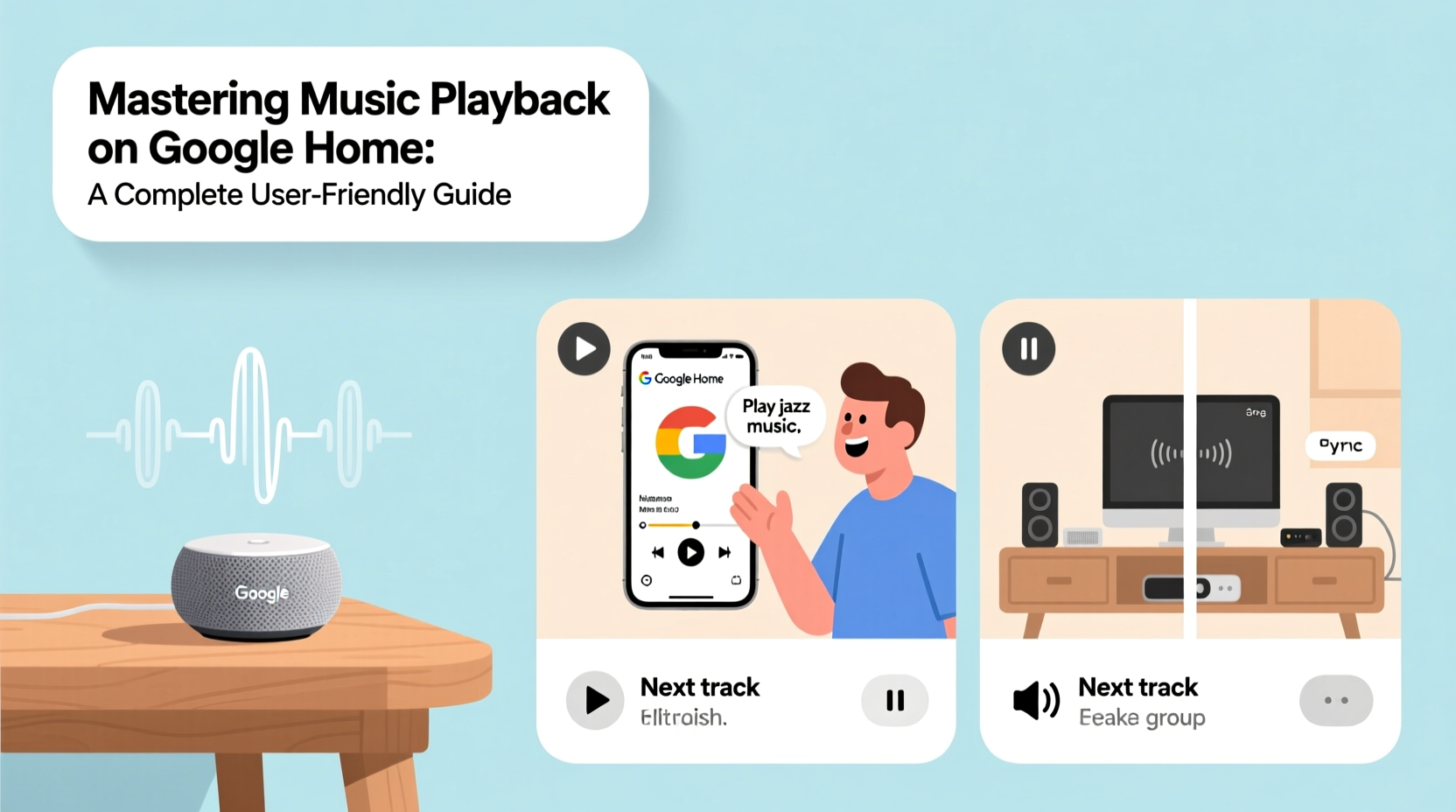
Before playing any music, you must link your preferred streaming service to the Google Home app. Supported platforms include Spotify, YouTube Music, Amazon Music, Apple Music (via AirPlay), Pandora, and more. The process is straightforward but essential for smooth operation.
- Open the Google Home app on your smartphone or tablet.
- Navigate to \"Settings\" > \"Music.\"
- Select your preferred service and follow the prompts to sign in.
- Set it as your default music provider if desired.
Once linked, you can use voice commands like “Hey Google, play jazz on Spotify” or “Play my workout playlist on YouTube Music.” Setting a default service reduces the need to specify apps each time, streamlining daily use.
Voice Commands for Effortless Playback Control
The real power of Google Home lies in its voice responsiveness. You don’t need to touch your phone to skip tracks, adjust volume, or create playlists. Here are essential voice commands categorized by function:
| Action | Voice Command Examples |
|---|---|
| Play/Pause | \"Hey Google, play music,\" \"Pause,\" \"Resume\" |
| Skip/Go Back | \"Next song,\" \"Skip,\" \"Previous track\" |
| Volume | \"Turn it up,\" \"Lower the volume,\" \"Set volume to 50%\" |
| Specific Requests | \"Play lo-fi beats on Spotify,\" \"Play top songs from 2010\" |
| Shuffle/Repeat | \"Shuffle my playlist,\" \"Turn on repeat\" |
Google Assistant learns over time. The more you use natural phrasing like “Play something relaxing” or “I want background music,” the better it adapts to your preferences.
Creating Multi-Room Audio Experiences
If you own more than one Google Home device, you can synchronize them into speaker groups for whole-home audio. Whether hosting a party or enjoying consistent sound while moving between rooms, grouped playback enhances immersion.
Step-by-Step Guide to Create a Speaker Group
- In the Google Home app, tap the \"+\" icon in the top-left corner.
- Select \"Create speaker group.\"
- Choose the devices you want to include (e.g., Kitchen, Living Room, Bedroom).
- Name the group (e.g., “Whole House” or “Downstairs Speakers”).
- Tap \"Save.\" Your new group will now appear in the device list.
After creation, say: “Hey Google, play classical music in the Whole House group.” All selected speakers will play in sync. You can also adjust individual speaker volumes within the group via the app for balanced acoustics.
“Multi-room audio isn't just about coverage—it's about continuity. A well-configured speaker group makes your home feel sonically cohesive.” — David Lin, Smart Home Audio Consultant
Customizing Playback with Routines and Automation
One of Google Home’s underrated strengths is automation through routines. Instead of issuing repeated commands, set triggers that initiate complex actions with a single phrase—or automatically.
Example Routine: Morning Wake-Up Playlist
- Trigger: Time-based (7:00 AM, weekdays)
- Action: Play upbeat playlist on bedroom speaker at 40% volume
- Optional: Gradually increase volume over two minutes for gentle wake-up
To build this:
- Open Google Home app → Settings → Routines.
- Create a new routine with a time trigger.
- Add action: \"Play media\" and select your playlist and speaker.
- Save and test the next morning.
You can also trigger music via voice: “Hey Google, start my evening wind-down” could dim lights and play ambient sounds on all downstairs speakers.
Troubleshooting Common Music Playback Issues
Even the best systems encounter hiccups. Here’s how to resolve frequent problems quickly:
No Sound or Distorted Audio
Check physical mute switches on the device. Ensure volume isn’t set to zero. Restart the speaker by unplugging for 10 seconds. If distortion persists, reduce bass-heavy content or move the device away from walls causing resonance.
“I Can’t Play That” Error
This usually means the requested song isn’t available on your default service. Try specifying the platform: “Play ‘Blinding Lights’ by The Weeknd on Apple Music.” Also confirm your subscription allows full access.
Devices Not Syncing in Groups
Update firmware via the Google Home app. Reboot your router. Remove and re-add problematic speakers to the group. Ensure all devices are on the same Wi-Fi frequency (2.4 GHz recommended for stability).
📋 **Quick Troubleshooting Checklist**- ✅ Is the speaker connected to Wi-Fi?
- ✅ Are music services properly linked?
- ✅ Is the correct speaker or group selected?
- ✅ Has the device been restarted recently?
- ✅ Are there known outages with the streaming service?
Frequently Asked Questions
Can I play different music in different rooms at the same time?
Yes. As long as devices aren’t part of the same group, you can send separate audio streams. For example, play a podcast in the kitchen while streaming jazz in the bedroom—just address each speaker individually: “Hey Google, play news on the Kitchen speaker.”
How do I change the default music app?
Go to the Google Home app → Settings → Music → Default music services. Tap your preferred provider and confirm. Future requests without a specified app will use this choice.
Does Google Home work with Bluetooth headphones?
Most newer models support Bluetooth pairing. In the Google Home app, go to your device settings and select “Audio” > “Paired Bluetooth devices.” Note: This feature may disable far-field microphones during use.
Conclusion: Elevate Your Everyday Listening Experience
Mastering music playback on Google Home goes beyond pressing play. It’s about creating an environment where sound flows naturally through your life—supporting focus, relaxation, celebration, and everything in between. By leveraging voice commands, building speaker groups, automating routines, and resolving issues proactively, you turn a simple smart speaker into a powerful audio ecosystem tailored to your lifestyle.




 浙公网安备
33010002000092号
浙公网安备
33010002000092号 浙B2-20120091-4
Comments
No comments yet. Why don't you start the discussion?