
Scheduling meetings in today’s fast-paced work environment requires precision, clarity, and professionalism. Microsoft Outlook remains one of the most widely used tools for managing calendars and coordinating team availability. Yet, even experienced users often overlook key features that can make or break an invitation—leading to confusion, missed appointments, or unnecessary back-and-forth emails.
Whether you're organizing a client call, planning a team brainstorm, or scheduling recurring check-ins, mastering Outlook invitations ensures your events run smoothly from start to finish. This guide walks you through every essential step—from creating polished invites to interpreting response statuses—with expert-backed strategies that build trust and efficiency.
Step 1: Open and Configure a New Calendar Invite
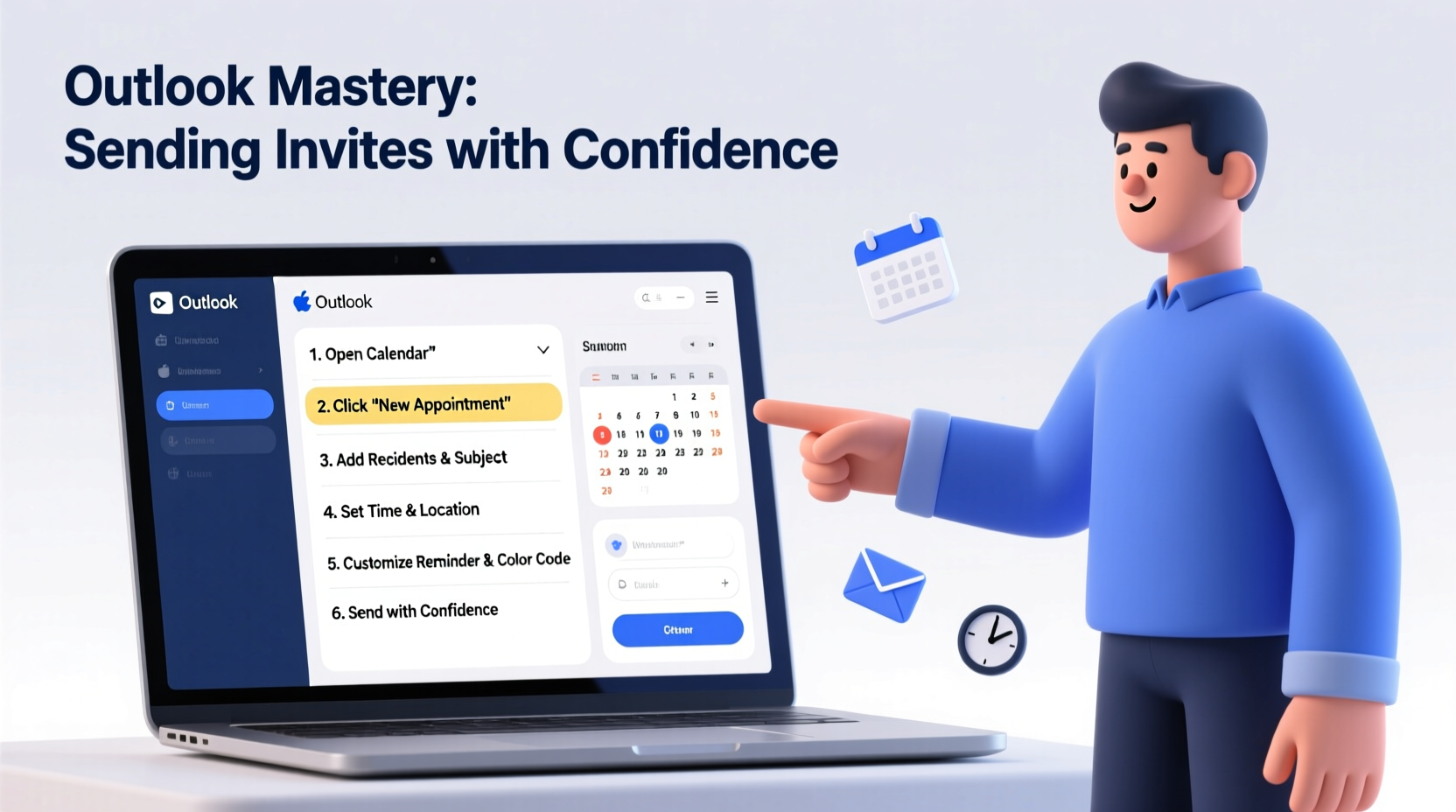
The foundation of any successful meeting begins with a properly structured invitation. In Outlook, this starts by launching a new event form with attention to detail.
- Open Outlook and navigate to the Calendar view.
- Click New Event (or press Ctrl+Shift+Q on Windows).
- Enter a clear, descriptive subject—e.g., “Q3 Marketing Strategy Review” instead of “Meeting.”
- Set the date, time, and duration. Be mindful of time zones if attendees are remote.
- Select the appropriate calendar if you manage multiple schedules (e.g., Work vs. Personal).
Step 2: Add Attendees and Optimize Delivery Settings
Adding people correctly prevents miscommunication and keeps your inbox under control.
- Type names or email addresses into the Attendees field. Outlook will auto-suggest contacts as you type.
- Distinguish between required and optional attendees using the dropdown next to each name.
- Use the Scheduling Assistant tab to view attendee availability before finalizing the time.
- Decide whether to request a response: enable Request Responses so you know who’s attending.
If privacy matters, mark the event as Private. This hides details from others who might have delegate access to your calendar.
| Attendee Type | Purpose | Best Practice |
|---|---|---|
| Required | Essential participants whose presence is mandatory | Limits over-inviting; improves focus |
| Optional | Supporting roles or observers | Keeps transparency without burdening non-critical staff |
| Resources | Rooms or equipment (e.g., Conference Room B, Projector) | Book early to avoid conflicts |
Step 3: Craft a Clear Agenda and Include Essential Details
A well-written body transforms a generic invite into a productive session. Assume recipients are scanning quickly—deliver value upfront.
- Start with the meeting objective: “Align on Q3 campaign goals and assign ownership.”
- List discussion topics with bullet points and estimated timing per item.
- Attach relevant documents directly in the invite or link to shared folders (OneDrive/SharePoint).
- Include dial-in or video conferencing information—especially for hybrid teams.
“Clarity in scheduling reduces no-shows by up to 40%. When people understand the purpose, they prioritize attendance.” — Laura Simmons, Organizational Efficiency Consultant
Step 4: Manage Recurring Events and Reminders
For standing meetings—such as weekly team syncs or monthly reviews—set recurrence rules once and save hours over time.
- In the event window, click Recurrence.
- Choose pattern: daily, weekly, monthly, or custom.
- Set the range: e.g., “End after 12 occurrences” or “End by [specific date].”
- Adjust exceptions carefully—if a holiday falls on a usual meeting day, edit that instance individually.
Enable automatic reminders based on audience needs:
- Standard meetings: 15-minute pop-up reminder.
- Critical sessions: Two reminders (24 hours + 15 minutes prior).
- Client-facing calls: Email alert sent to all parties 1 hour before start.
Step 5: Track Responses and Follow Up Strategically
Sending the invite is only half the battle. Monitoring RSVPs and acting on them maintains momentum.
After dispatching the invite, monitor the Tracking tab to see real-time status updates:
- Accepted: Confirmed attendance.
- Tentative: May attend; follow up if critical.
- Declined: Not attending—consider sharing notes post-meeting.
- No Response: Prompt with a polite nudge 24–48 hours before the event.
If key stakeholders haven’t responded, send a brief email: “Hi Alex, just checking if you’re available for tomorrow’s budget review at 10 AM. Your input would be valuable.”
Mini Case Study: Reducing Meeting Chaos at NexaTech
NexaTech, a mid-sized software firm, struggled with low attendance and disorganized agendas. Team leads routinely sent vague invites titled “Sync” with no preparation instructions. As a result, 30% of meetings were rescheduled due to lack of quorum.
They implemented standardized Outlook practices: descriptive titles, required agendas, and use of the Scheduling Assistant. Within six weeks, meeting adherence rose to 87%, and internal surveys showed a 52% increase in perceived meeting effectiveness.
The change wasn’t technical—it was cultural. By treating each invitation as a professional communication, not just a calendar entry, respect for time improved across departments.
Checklist: Sending a Professional Outlook Invitation
- ✅ Use a specific, informative subject line
- ✅ Confirm correct date, time, and time zone
- ✅ Add required and optional attendees appropriately
- ✅ Check room/resource availability via Scheduling Assistant
- ✅ Write a concise agenda in the body
- ✅ Attach or link pre-read materials
- ✅ Set recurrence for regular meetings
- ✅ Enable response tracking
- ✅ Schedule a reminder (15 min or 24 hr)
- ✅ Review before sending—preview how it appears to others
Frequently Asked Questions
Can I recall an Outlook invitation after sending it?
Yes—but only if the recipient hasn’t responded. Right-click the meeting in your calendar, choose Recall This Meeting, and confirm. Note: this feature may not work reliably across all email systems, especially external domains.
Why aren’t some attendees showing availability in the Scheduling Assistant?
This usually happens when free/busy permissions aren't configured. Internal colleagues should allow delegate or reviewer access to their calendars. External guests won’t appear in availability views unless manually checked via email coordination.
How do I cancel a meeting and notify everyone?
Open the event, click Cancel Meeting, then confirm. Outlook sends a notification to all original invitees, marking the event as canceled in their calendars. For clarity, consider adding a brief reason in the cancellation message: “Postponed due to executive offsite.”
Conclusion: Turn Invitations Into Instruments of Professionalism
Outlook invitations are more than digital placeholders—they reflect your organizational skills, respect for others’ time, and leadership clarity. A well-crafted invite sets the tone for productive collaboration, minimizes confusion, and builds credibility.
By following these steps consistently, you’ll reduce scheduling friction, improve attendance, and foster a culture where meetings matter. Don’t just fill calendars—design experiences worth attending.




 浙公网安备
33010002000092号
浙公网安备
33010002000092号 浙B2-20120091-4
Comments
No comments yet. Why don't you start the discussion?