
Navigating long documents, web pages, or code files on a Mac can feel tedious when you rely solely on the trackpad or mouse. But with the right keyboard shortcuts—especially those involving \"Page Up\"—you can dramatically speed up your workflow. Unlike Windows PCs, Macs don’t have a dedicated Page Up key, which often confuses new users. However, macOS offers multiple elegant alternatives that, once mastered, make scrolling through content seamless and intuitive.
Whether you're writing reports, coding, browsing research articles, or managing emails, knowing how to efficiently jump up and down a page saves time and reduces physical strain. This guide breaks down everything you need to know about simulating Page Up functionality on a Mac, including built-in shortcuts, system customizations, and real-world usage strategies.
Understanding Page Navigation on macOS
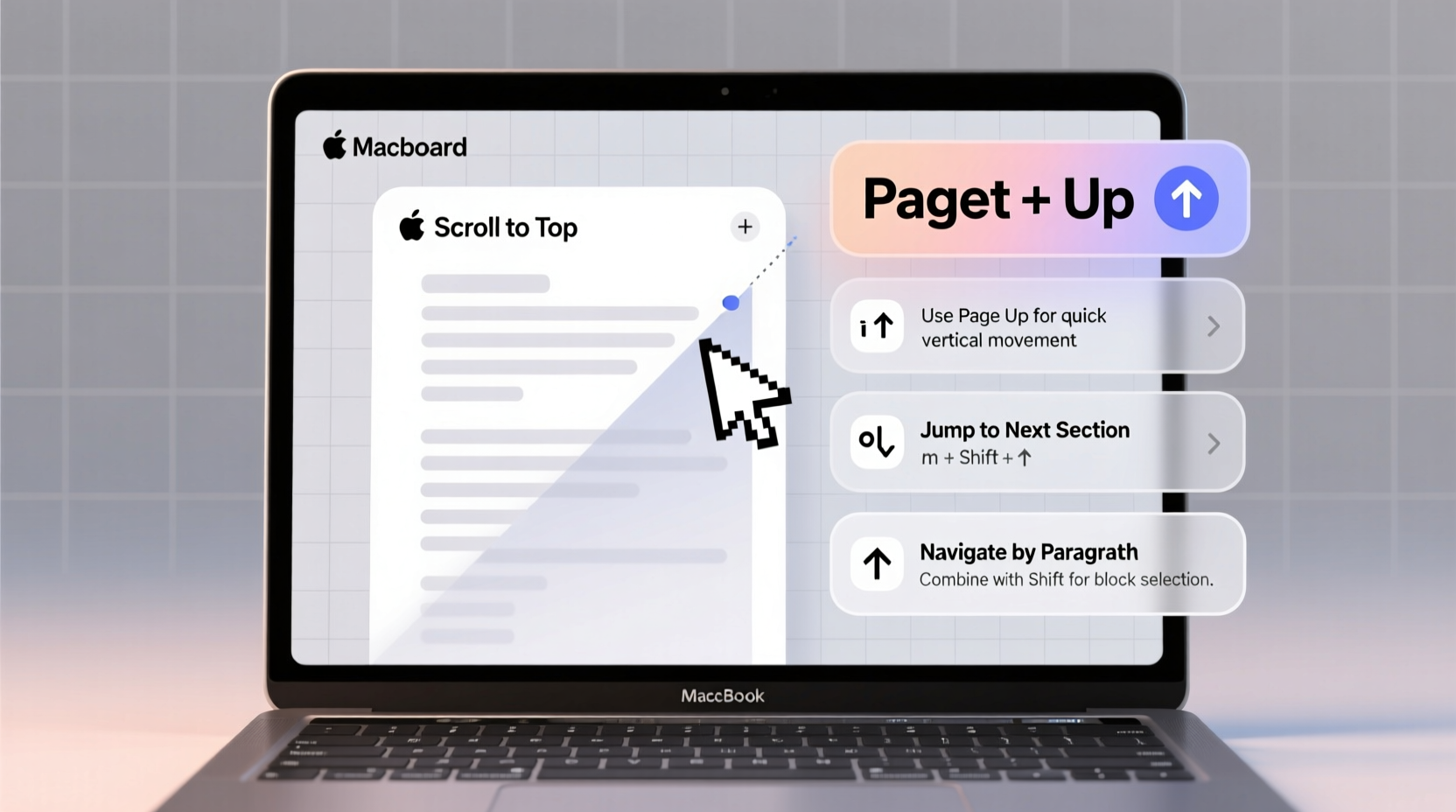
On traditional keyboards, the Page Up (PgUp) and Page Down (PgDn) keys allow users to scroll an entire screen at a time. Apple’s compact keyboards—especially on MacBooks—omit these keys to save space. Instead, macOS repurposes existing keys in combination with modifier keys like Fn, Option, Command, and Control.
The closest equivalent to Page Up on a Mac is achieved using the Fn + Up Arrow shortcut. This scrolls one full screen upward in most applications, including Safari, Chrome, TextEdit, and Mail. Similarly, Fn + Down Arrow acts as Page Down. These combinations work universally across native and third-party apps, making them foundational for efficient navigation.
It's important to note that behavior may vary slightly depending on the app. For example, in code editors like Visual Studio Code or Sublime Text, these shortcuts move the cursor line by line unless combined with other modifiers. Always test shortcuts in your primary applications to ensure consistent performance.
Essential Shortcuts for Page Navigation
While Fn + Up/Down Arrows are the standard, several alternative shortcuts offer greater flexibility depending on context. Here’s a breakdown of the most useful ones:
| Shortcut | Action | Best Used In |
|---|---|---|
| Fn + ↑ | Scroll up one screen (Page Up) | Web browsers, PDFs, word processors |
| Fn + ↓ | Scroll down one screen (Page Down) | All document types |
| Option + ↓ | Jump to bottom of document | Long emails, text files |
| Option + ↑ | Jump to top of document | Research papers, logs |
| Command + ↑ | Go to beginning of document | Word processors, notes |
| Command + ↓ | Go to end of document | Code files, scripts |
These shortcuts go beyond basic scrolling. For instance, Command + Up Arrow doesn't just scroll—it moves the insertion point to the very top of the file, which is critical when editing large documents. Meanwhile, Option + Up/Down navigates by paragraph or logical section, offering precision without losing context.
Customizing Navigation for Maximum Efficiency
For power users, default shortcuts may not be enough. macOS allows deep customization through System Settings and third-party tools. You can reassign keys or create application-specific behaviors to better suit your workflow.
To customize keyboard shortcuts:
- Open System Settings > Keyboard.
- Select Keyboard Shortcuts from the sidebar.
- Choose App Shortcuts on the left.
- Click the + button to add a new shortcut.
- Select the target app (e.g., Safari), enter the exact menu title (e.g., “Scroll Page Up”), and assign a custom key combination like Command + Option + Up.
This method is particularly useful if you use specialized software where Fn + Arrow doesn’t trigger page navigation. For example, some terminal emulators or remote desktop clients ignore standard shortcuts. Custom mappings ensure consistency across environments.
Advanced users may also consider tools like Karabiner-Elements, a free open-source utility that remaps keys at the system level. With it, you can turn a seldom-used key (like Caps Lock) into a dedicated Page Up/Page Down toggle, effectively creating the missing hardware function through software.
“Efficiency isn’t just about speed—it’s about reducing cognitive load. When navigation becomes instinctive, focus shifts back to the task.” — Dr. Lena Torres, Human-Computer Interaction Researcher, Stanford University
Real-World Application: A Day in the Life of a Researcher
Consider Maria, a graduate student analyzing lengthy academic papers and compiling literature reviews. She spends hours each day switching between PDFs, browser tabs, and her writing software. Initially, she relied on two-finger trackpad swipes, which caused wrist fatigue and slowed her progress.
After learning the Fn + Arrow shortcuts, Maria reduced her scrolling time by nearly 40%. She further optimized her setup by assigning Command + Shift + Up to “Previous Section” in her reference manager using Karabiner-Elements. Now, she navigates complex documents without lifting her hands from the keyboard, preserving energy for critical thinking and synthesis.
Her productivity didn’t spike from working longer hours—but from eliminating friction in routine actions. Simple navigation changes allowed her to process more sources per session while maintaining mental clarity.
Pro Tips for Smoother Navigation
- Use Fn + Left/Right Arrow to jump to the start or end of a line—especially helpful in narrow text fields.
- In full-screen mode, some shortcuts may behave differently. Test them in your most-used apps to confirm reliability.
- Combine navigation with selection: Hold Shift while using Fn + Up/Down to highlight text across pages.
- On external keyboards with Home/End keys, enable “Use F1, F2, etc. keys as standard function keys” in Keyboard settings for direct access.
- Enable Scroll Gesture with Modifier Key in Accessibility settings to use Control + two-finger swipe for smooth page-by-page scrolling.
FAQ: Common Questions About Page Up on Mac
Why doesn’t my Mac have a Page Up key?
Apple designs its keyboards for minimalism and portability. The function is preserved through key combinations like Fn + Up Arrow, reducing clutter while maintaining capability.
Does Page Up work the same in all apps?
Mostly, yes. However, some apps (like terminal emulators or games) may override standard shortcuts. In such cases, check the app’s preferences or use system-level remapping tools.
Can I use voice commands to scroll up a page?
Yes. Enable Voice Control in System Settings > Accessibility. Then say “Scroll up” or “Page up” to navigate hands-free—ideal for accessibility or multitasking scenarios.
Conclusion: Take Control of Your Workflow
Mastery of page navigation on Mac isn’t about memorizing shortcuts—it’s about building fluidity into your daily computing. The absence of a labeled Page Up key is not a limitation, but an invitation to explore macOS’s deeper design philosophy: efficiency through integration.
Start by incorporating Fn + Up/Down into your routine. Then experiment with custom shortcuts tailored to your most-used applications. Over time, these small improvements compound into significant gains in speed, comfort, and concentration.




 浙公网安备
33010002000092号
浙公网安备
33010002000092号 浙B2-20120091-4
Comments
No comments yet. Why don't you start the discussion?